Importing render vars and products into Arnold Render Settings


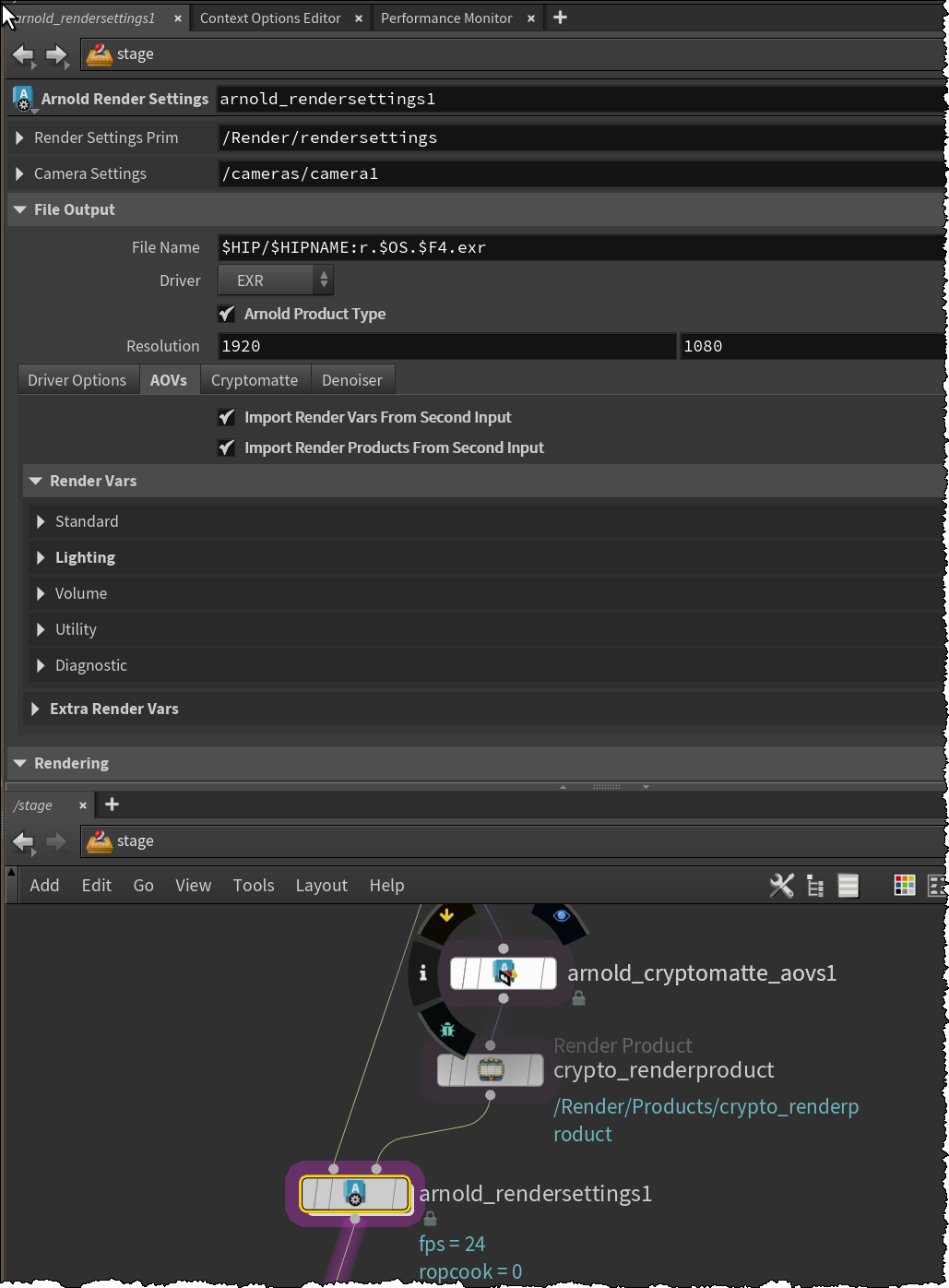
Here’s a setup that renders cryptomatte to one Render Product, and the lighting AOVs to another Render Product.

This uses the new input port on the Arnold Render Settings LOP.

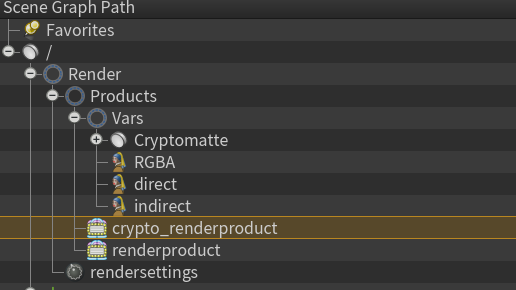
This results in the following scene graph:

which renders two EXRs

00:00:09  3152MB         | [driver_exr] writing file `C:/Users/blairs/Support/houdini/beauty.0001.exr'
00:00:09  3152MB         | [driver_exr] writing file `C:/Users/blairs/Support/houdini/crypto.exr'

[HtoA] Example package file


Here’s the package file I’m currently using.

{
    "load_package_once": true,
    "env":
    [
        {"HTOA_PACKAGE": "HTOA"},
        {
            "HTOA_INSTALL_PATH" :
            [

                {"houdini_version == '20.0.506'": "D:/programs/htoa/htoa-6.2.5.0_re21740b_houdini-20.0.506/htoa-6.2.5.0_re21740b_houdini-20.0.506"},
                {"houdini_version == '20.0.547'": "D:\programs\htoa\htoa-6.2.5.1_r539f2c5_houdini-20.0.547\htoa-6.2.5.1_r539f2c5_houdini-20.0.547"}
            ]
        },
        {"HTOA_STARTUP_LOG": 3},
        {"HTOA_MAKETX_WORKERS": 30},
        {"HOUDINI_PATH": [
                {
                    "value": "$HTOA_INSTALL_PATH",
                    "method": "prepend"
                }
            ]
        },
        {"HOUDINI_TEXT_CONSOLE": [
                {
                    "value": "1",
                    "method": "append"
                }
            ]
        },
        {"HDARNOLD_DEBUG_SCENE": [
		                {
		                    "value": "C:/temp/hdarnold_debug.ass",
		                    "method": "append"
		                }
		            ]
        },
        {"HOUDINI_SPLASH_MESSAGE": "Loading HtoA: $HTOA_PACKAGE"},
        {"PATH": [
                {
                    "value": "$HTOA_INSTALL_PATH/scripts/bin",
                    "method": "prepend"
                }
            ]
        }
    ]
}

[HTOA] How to…use append mode in Solaris


Append mode (aka check-pointing) allows you to restart an interrupted render, and render just the remaining tiles. Those tiles are “appended” to the tiles that were rendered before.

If you’re using the Arnold Render Settings LOP,  the Append check box is under File Output > Driver Options. You have to enable Arnold product type for any of the driver options to work.

If you’re using the regular Render Settings LOP, you can turn on Append mode in the Render Product LOP. Don’t forget to change the Product Type to arnold.

The case of the hrender that failed to start AdskLicensingAgent


Or, “things that happen when you use single-user licensing on a render node” 😉

In this case, a Houdini command-line render with Arnold (HtoA) failed because the AdskLicensingAgent failed to start.

---------------------------
AdskLicensingAgent
---------------------------
This application failed to start because no Qt platform plugin could be initialized. Reinstalling the application may fix this problem.

Available platform plugins are: minimal, offscreen, webgl, windows.

---------------------------
OK  
---------------------------

After AdskLicensingAgent crashed, the render would continue, but license authorization would fail:

00:00:00   148MB         | authorizing with license manager: user ...
00:00:31   153MB WARNING | rendering with watermarks because of failed authorization:
00:00:31   153MB         |  [clm.v2] timeout before callback was called

Using Process Monitor, I saw (as expected) that the problem was that the AdskLicensingAgent was loading Qt platform plugins from Houdini:

The solution? Set QT_QPA_PLATFORM_PLUGIN_PATH to point to the AdskLicensingAgent\platforms folder.

set QT_QPA_PLATFORM_PLUGIN_PATH=C:\Program Files (x86)\Common Files\Autodesk Shared\AdskLicensing\Current\AdskLicensingAgent\platforms

Troubleshooting HtoA installs


If you have a problem like this:

  • HtoA does not show up in Houdini
  • the HtoA material nodes are missing
  • or you get node type errors such as
    • Failed to match node type definition
    • Error: bad node type found
    • Unknown operator on load

that is almost always because the environment (PATH and HOUDINI_PATH) is not set up correctly for HtoA and Houdini.

First, how to do you start Houdini? Don’t double-click on a hip file, because the Houdini environment won’t be set up correctly.

Second, what’s your houdini.env look like?
You want something like this (PATH is for Windows only):

# htoa config start
PATH = "$PATH;C:/arnold/htoa/htoa-5.6.0.0_r370661f_houdini-18.0.597/htoa-5.6.0.0_r370661f_houdini-${HOUDINI_VERSION}/scripts/bin"
HOUDINI_PATH = "C:/arnold/htoa/htoa-5.6.0.0_r370661f_houdini-18.0.597/htoa-5.6.0.0_r370661f_houdini-${HOUDINI_VERSION};&"
# htoa config end

Third, check Help > About Houdini > Show Details
You want to see the HtoA location at the start of HOUDINI_PATH

If you have other renderers and plugins, I would remove all other plugins from HOUDINI_PATH, get HtoA working, and then put the other stuff back.

If you need more help, please send support your houdini.env file (or json package if that’s what you’re using) and the Houdini info from Show Details.

[HtoA] Denoising light group AVOs with noice


To use the Arnold Denoiser (noice) on light groups, you need to have variance AOVs for the light group AOVs.

There are two ways to associate a variance AOV with a light group AOV.

  • Use the same light path expression (LPE) for both the light group AOV and the variance AOV.

    For example, the “red” and “red_variance” AOVs use the same LPE: C.*<L.'red'>
  • Use the same name for both AOVs, but give the variance AOV a different layer name.

    For example, suppose you give both AOVs the name “RGBA_green”. Then give the variance AOV a different layer name, like “RGB_variance_green”

Use the same light path expression (LPE) for both the light group AOV and the variance AOV.

Give the light group and variance AOVs the same name, but different layer names

Then to denoise the AOVs:

noice -i "light_group_denoise.0001.exr" -o C:\temp\denoised.exr -pr 3 -sr 3 -l red -l RGBA_green
noice 7.1.1.0 [72784a51] - the Arnold denoiser
Using 8 threads.
Loading images...
Loading file "light_group_denoise.0001.exr".
Using feature AOV 'denoise_albedo' with filter 'gaussian_filter'
Using feature AOV 'N' with filter 'gaussian_filter'
Using feature AOV 'Z' with filter 'gaussian_filter'
Working with 1 frame at 1280x720
Will denoise AOV "RGBA", using associated variance
   Output file will be "C:\temp\denoised.exr"
Will denoise AOV "RGBA_green", using associated variance
   Output file will be "C:\temp\denoised.exr"
Will denoise AOV "red", using associated variance
   Output file will be "C:\temp\denoised.exr"
Start denoising (patch radius 3, search radius 3, variance 0.5)
Denoising RGBA
Denoising RGBA_green
Denoising red
Finished denoising
Saving image C:\temp\denoised.exr (1280 x 720 x 12)

Add -irgba to that if you want to skip denoising the beauty. Note that with -irgba. the beauty AOV won’t be copied to the output file. Only the denoised AOVs go the output file.

All the AOV, LPE, and layer information that you set up in HtoA goes into EXR metadata.
noice uses that metadata to find the variance AOVs for each AOV. The association may be through the AOVs having the same name, or the AOVs using the same explicit LPE.

HtoA silent installs


The HtoA installer supports silent installs and silent extractions (an install will update houdini.env, an extract does not).

htoa-6.0.0.0_r6c54f59_houdini-18.5.696_windows.exe -h

htoa-6.0.0.0_r6c54f59_houdini-18.5.696_windows.exe [options]

Options:
  -?, -h, --help      Displays help on commandline options.
  --help-all          Displays help including Qt specific options.
  -v, --verbose       Verbose mode. Prints out more information.
  --extract           Extract installation contents in the current directory.
  --extract-to <dir>  Extract installation contents in <dir>.
  --accept-license    Do not prompt for license acceptance in silent mode.
                      IMPORTANT: By using this option, you accept the end-user
                      license agreement
  --silent            Silent installation (no GUI).

For example, this command silently installs HtoA on Windows. The –verbose gives you a log in the command prompt window.

htoa-6.0.0.0_r6c54f59_houdini-18.5.696.py3_windows.exe --accept-license --silent --verbose

Running HtoA 5.6.3.x in Houdini 17.5


Error running pythonrc.py:
Traceback (most recent call last):
  File "C:/Users/example/htoa/htoa-5.6.3.0_ra766b1f_houdini-17.5.460/scripts/python/pythonrc.py", line 5, in <module>
    import htoa.searchpath
  File "C:/Users/example/htoa/htoa-5.6.3.0_ra766b1f_houdini-17.5.460/scripts/python\htoa\searchpath.py", line 7, in <module>
    import htoa.dialog
  File "C:/Users/example/htoa//htoa-5.6.3.0_ra766b1f_houdini-17.5.460/scripts/python\htoa\dialog.py", line 3, in <module>
    from builtins import str
ImportError: No module named builtins

If you see errors like this, it’s because as of HtoA 5.6.3, the builtins module is required. Houdini 17.5 doesn’t include this module (unlike Houdini 18 and later), so you’ll have to install it.

  • Open a command prompt with Run as Administrator.
  • In the command prompt, run these commands:
cd "C:\Program Files\Side Effects Software\Houdini 17.5.460\python27"
python -m ensurepip --upgrade
python -m pip install future

HtoA: Denoising AOVs with the Arnold Denoiser


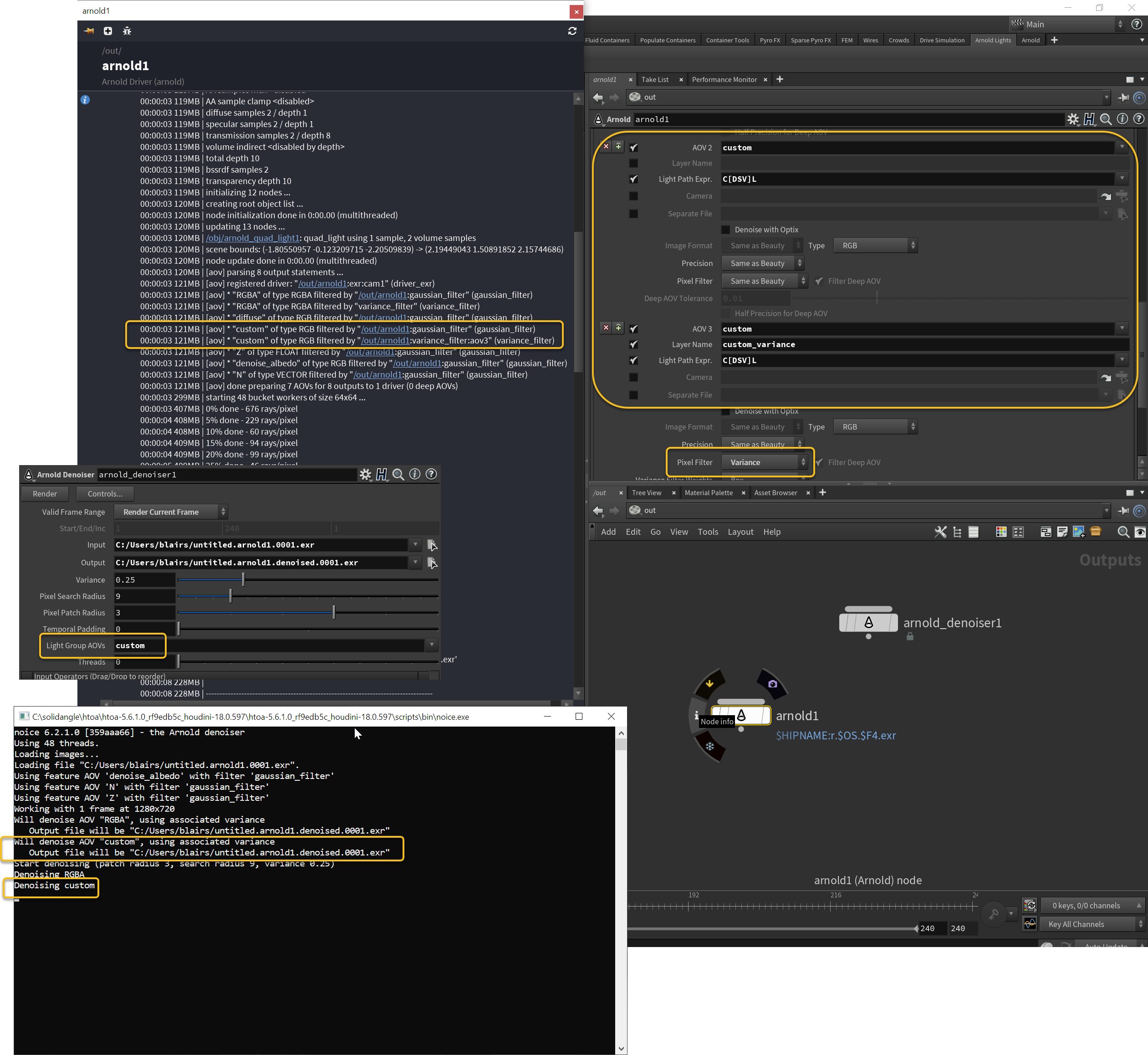
HtoA lets you edit the layer names, and that’s how to generate the variance AOVs for denoising.

  • Add two AOVs with the same name (I used “custom” here), but give the second one a “_variance” layer name (“custom_variance).
  • Change the Pixel Filter to variance.
  • Render some EXRs (in my screenshot below, I should the part of the Arnold log that tells you that the variance AOV was rendered too)
  • In the Arnold Denoiser, put the AOV names in the Light Group AOVs text box.