[MtoA] [Scripting] Setting the output image format


Settings like the image format and compression come from the defaultArnoldDriver node, so to set them through scripting, you need to set defaultArnoldDriver attributes.
ImageFormat_ai_translator

The image format corresponds to the ai_translator attribute.

# Python
import maya.cmds as cmds
cmds.setAttr( 'defaultArnoldDriver.ai_translator', 'exr', type='string' )
# PyMel
import pymel.core as pm
d = pm.PyNode( 'defaultArnoldDriver' )
d.ai_translator.set( 'exr )
// Mel
setAttr "defaultArnoldDriver.ai_translator" -type "string" "jpeg";

The rest of the attributes are named a little… better 😉 Here’s a Python snippet to list the driver attributes and their values:


from maya.cmds import *
sn = cmds.attributeInfo( inherited=False, short=True, type="aiAOVDriver" )
for s in sn:
    print "defaultArnoldDriver.%s = %s" %( s, cmds.getAttr( "defaultArnoldDriver.%s" % s ) )

[MtoA] Installing custom shaders


So, you’ve downloaded some custom shaders and you want to get them into Maya? Here’s how:

  • Set ARNOLD_PLUGIN_PATH to point to the location of the shader DLL/SO and MTD files.
  • Set MTOA_TEMPLATES_PATH to point to the location of the shader template .PY files.

That’s it. MtoA uses those environment variables to find the shaders (the .DLL or .SO files), the shader metadata files (.MTD), and the shader templates (.PY).

A metadata file tells Maya how to handle the shader (for example, where to show it in the Assign New Materials window).
A shader template defines the UI for the shader in the Attribute Editor.

[MtoA] Scripting Standin paths


standin_path

To set a standin path, use the aiStandin.dso attribute:

import maya.cmds as cmds
cmds.setAttr( 'ArnoldStandInShape.dso','C:/Users/SOLIDANGLE/Documents/BlueDog.ass',  type='string' )
print cmds.getAttr( 'ArnoldStandInShape.dso' )

Here’s one way to list some of the attributes on a standin shape node, and find out what attribute to set:

import maya.cmds as cmds
ntype = cmds.nodeType( "ArnoldStandInShape" )
print cmds.attributeInfo( inherited=False, t=ntype )

for x in cmds.attributeInfo( inherited=False, t=ntype ):
    print "%s = %s" % (x, cmds.getAttr( "ArnoldStandInShape.%s" % x ))

Object color mode


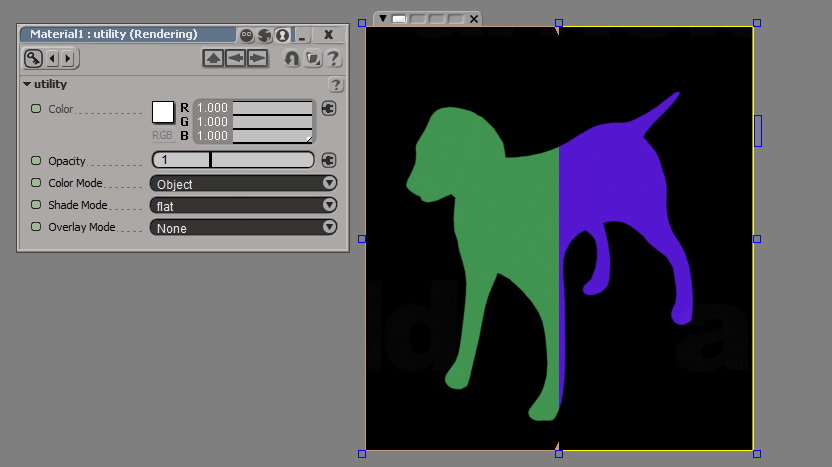
The Arnold Utility shader has an Object color mode, which assigns colors based on shape names. When we say “shapes”, we don’t mean Maya shape nodes; we mean the Arnold shapes.

C:\solidangle\mtoadeploy\2014\bin>kick -nodes | find "shape"
 box                              shape
 cone                             shape
 curves                           shape
 cylinder                         shape
 disk                             shape
 ginstance                        shape
 implicit                         shape
 nurbs                            shape
 plane                            shape
 points                           shape
 polymesh                         shape
 procedural                       shape
 sphere                           shape

All these nodes have a name parameter (for example, polymesh.name) that is a unique string identifier in the Arnold universe. So when you use the Object color mode, you get a unique color for each node.

If you’re using Softimage, note that SItoA puts the frame number into polymesh.name, so you’ll get a different color on each frame if you use the Object color mode. For example, on frame 5 a polymesh might be named “Dog_Mesh.SItoA.5000”, and on frame 6, “Dog_Mesh.SItoA.6000”.

In this render region comparison, you have frame 5 on the left, and frame 6 on the right:
dog_color_mode

In a case like this, you would use the Object ID color mode instead. SItoA automatically assigns unique IDs to the shape nodes (MtoA doesn’t).

[Maya] The case of Xgen and [Error 6] The handle is invalid


This post is about a Maya issue on Window. It’s not an MtoA or Arnold issue.

Whenever I tried to export the selection as an XGen archive, I’d get [Error 6] The handle is invalid.

[Error 6] The handle is invalid
xgmArchiveExportBatchUI.py except block
xgmArchiveExportBatchUI.py call subprocess.Popen
mayapy "C:/Program Files/Autodesk/Maya2014/plug-ins/xgen/scripts/xgenm/xmaya/xgmArchiveExportBatch.py" 0 0 0 1.0 1.0 -destName ["'DragonArchive'"] -destDir ["'C:/Users/SOLIDANGLE/Documents/maya/projects/Support/xgen/archives/'"] -sourceFiles ["'C:/Users/SOLIDANGLE/Documents/maya/projects/Support/scenes/Dragon1.mb'"] -scriptPaths ["'C:/Program Files/Autodesk/Maya2014\\plug-ins\\xgen\\scripts'"] -loadPlugins ["'AbcExport'", "'Mayatomr'", "'xgenMR.py'"]
xgmArchiveExportBatchUI logging to C:/Users/SOLIDANGLE/Documents/maya/projects/Support/xgen/archives/DragonArchive.log

Googling [Error 6] The handle is invalid subprocess.Popen led me to the problem: I was starting Maya from the command line. When I started Maya from the Start menu, then the XGen Export Selection worked.

The reason I start Maya from the command line is because that’s the only way I can get the MtoA diagnostics in the Output Window. So something seems a little weird about how Maya handles STDOUT and STDERR 😉

[MtoA] Installing MtoA 1.0.0 on Linux


A few notes:

  • You need root permissions to do the automatic installation.
  • Use sudo, not su. You want to install MtoA under your user account, not the root user account. sudo will let you install MtoA with root permissions, but under your own user account.
  • If you install as root, the MtoA installer copies mtoa.mod to /root/maya/2014-x64/modules. Unless you’re running Maya as root, that’s no good. You want the mtoa.mod file in your home directory (for example, /home/stephen/maya/2014-x64/modules). That way, when you run Maya it will load mtoa.mod and find the MtoA plugin.
  • The automatic installation also copies arnoldRenderer.xml to /usr/autodesk/maya2014-x64/bin/rendererDesc. That allows you to batch render with Arnold from Maya, without having to set MAYA_RENDER_DESC_PATH.

Entry point not found


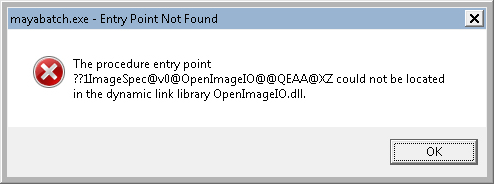
An Entry Point Not Found error message might look rather weird (because you’re looking at the decorated name of a function).
mayabatch_Entry_Point_Not_Found
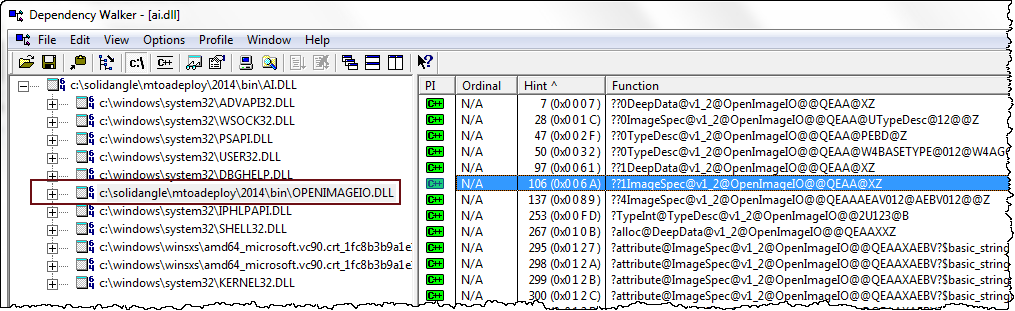
but usually such an error just means that the wrong version of a DLL (in this case, OpenImageIO.dll) is being loaded by the main program (mayabatch in this case). The problem could be as simple as your PATH pointing to another application that ships a different version of the DLL.

Using Dependency Walker, you can check a DLL to see the decorated names of the functions it exports. But usually you don’t have to dig down to that level a detail. Dependency Walker will show you what version of the DLL is being loaded, and that’s usually enough.
depends_openimageio.dll

[Maya] Socket error creating command port


NOTE: This is a Maya issue that can happen with any renderer, including mental ray.

Like many other Maya users, I started getting this error when I tried to batch render:

// Error: line 1: Socket error creating command port SOLIDANGLE-PC:7835 (10048).

I checked the port 7835 with netstat, and that gave me a PID (process ID) of 109736

C:\Program Files\Autodesk\Maya2014\bin>netstat -ano | find "7835"
  TCP    XXX.XXX.XXX.XXX:7835   0.0.0.0:0              LISTENING       109736

But unfortunately, there didn’t seem to be any process with that PID, so I couldn’t kill it to free up the port. tasklist | find “109736” came up empty; there was no such PID in the Task Manager or Process Explorer; and TCP View said that PID was non-existent.
tcpview_nonexistent
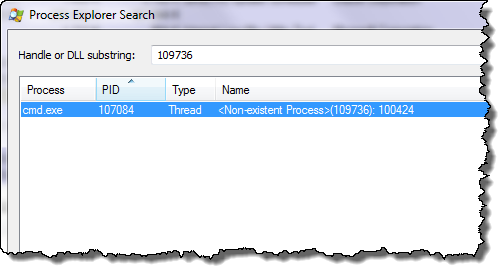
I was resigned to having to reboot my machine until I saw this. Then I used Process Explorer to find the process that was referencing the “non-existent” PID, and when I killed that process, I could batch render again from Maya.
process_explorer_search