[HtoA] Example package file


Here’s the package file I’m currently using.

{
    "load_package_once": true,
    "env":
    [
        {"HTOA_PACKAGE": "HTOA"},
        {
            "HTOA_INSTALL_PATH" :
            [

                {"houdini_version == '20.0.506'": "D:/programs/htoa/htoa-6.2.5.0_re21740b_houdini-20.0.506/htoa-6.2.5.0_re21740b_houdini-20.0.506"},
                {"houdini_version == '20.0.547'": "D:\programs\htoa\htoa-6.2.5.1_r539f2c5_houdini-20.0.547\htoa-6.2.5.1_r539f2c5_houdini-20.0.547"}
            ]
        },
        {"HTOA_STARTUP_LOG": 3},
        {"HTOA_MAKETX_WORKERS": 30},
        {"HOUDINI_PATH": [
                {
                    "value": "$HTOA_INSTALL_PATH",
                    "method": "prepend"
                }
            ]
        },
        {"HOUDINI_TEXT_CONSOLE": [
                {
                    "value": "1",
                    "method": "append"
                }
            ]
        },
        {"HDARNOLD_DEBUG_SCENE": [
		                {
		                    "value": "C:/temp/hdarnold_debug.ass",
		                    "method": "append"
		                }
		            ]
        },
        {"HOUDINI_SPLASH_MESSAGE": "Loading HtoA: $HTOA_PACKAGE"},
        {"PATH": [
                {
                    "value": "$HTOA_INSTALL_PATH/scripts/bin",
                    "method": "prepend"
                }
            ]
        }
    ]
}
Looking for the Arnold API Reference?


Here’s the table of contents for the API Reference

Writing an Arnold-based app:

Core data structures:

Writing plug-in extensions:

Writing shaders:

HtoA silent installs


The HtoA installer supports silent installs and silent extractions (an install will update houdini.env, an extract does not).

htoa-6.0.0.0_r6c54f59_houdini-18.5.696_windows.exe -h

htoa-6.0.0.0_r6c54f59_houdini-18.5.696_windows.exe [options]

Options:
  -?, -h, --help      Displays help on commandline options.
  --help-all          Displays help including Qt specific options.
  -v, --verbose       Verbose mode. Prints out more information.
  --extract           Extract installation contents in the current directory.
  --extract-to <dir>  Extract installation contents in <dir>.
  --accept-license    Do not prompt for license acceptance in silent mode.
                      IMPORTANT: By using this option, you accept the end-user
                      license agreement
  --silent            Silent installation (no GUI).

For example, this command silently installs HtoA on Windows. The –verbose gives you a log in the command prompt window.

htoa-6.0.0.0_r6c54f59_houdini-18.5.696.py3_windows.exe --accept-license --silent --verbose

Running HtoA 5.6.3.x in Houdini 17.5


Error running pythonrc.py:
Traceback (most recent call last):
  File "C:/Users/example/htoa/htoa-5.6.3.0_ra766b1f_houdini-17.5.460/scripts/python/pythonrc.py", line 5, in <module>
    import htoa.searchpath
  File "C:/Users/example/htoa/htoa-5.6.3.0_ra766b1f_houdini-17.5.460/scripts/python\htoa\searchpath.py", line 7, in <module>
    import htoa.dialog
  File "C:/Users/example/htoa//htoa-5.6.3.0_ra766b1f_houdini-17.5.460/scripts/python\htoa\dialog.py", line 3, in <module>
    from builtins import str
ImportError: No module named builtins

If you see errors like this, it’s because as of HtoA 5.6.3, the builtins module is required. Houdini 17.5 doesn’t include this module (unlike Houdini 18 and later), so you’ll have to install it.

  • Open a command prompt with Run as Administrator.
  • In the command prompt, run these commands:
cd "C:\Program Files\Side Effects Software\Houdini 17.5.460\python27"
python -m ensurepip --upgrade
python -m pip install future

HtoA and Python 3


If you see messages like this when you try to use HtoA

Syntax error: Missing parentheses in call to 'print'

or

AttributeError: '_Environ' object has no attribute 'has_key'

or

CreateProcess failed

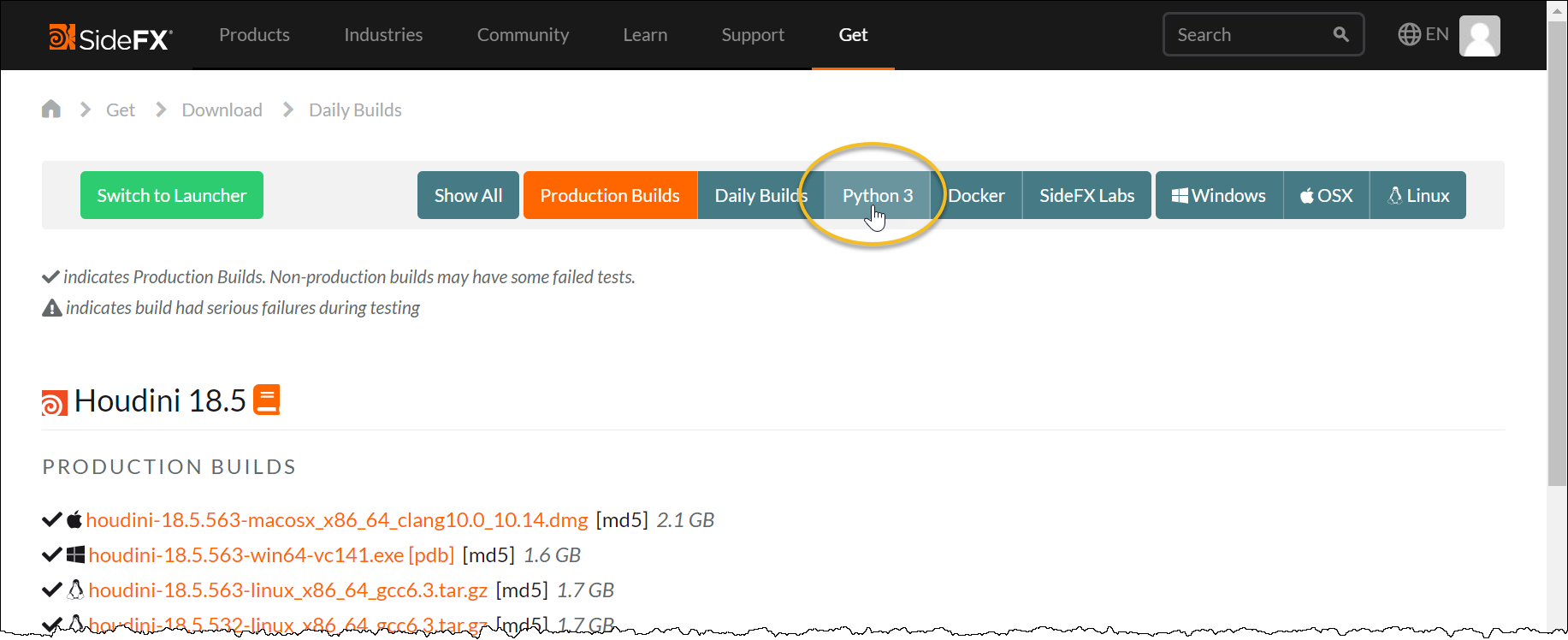
that means the you have the Python 3 version of Houdini installed.

HtoA 5.6.1 and older do not support Python 3 yet, so you need to download and install the Python 2.7 version of Houdini.

You can get the Python 2.7 version of Houdini here: https://www.sidefx.com/download/daily-builds/?production=true

Deselect Python 3 to get the Python 2.7 versions of Houdini

How to get a list of AOVs and LPEs


Here’s a simple kick trick to get a list of AOVs and LPEs.

The -laovs flag lists all the AOVs in the loaded scene, but if you give kick no input, you’ll get a list of all built-in AOVs defined by Arnold.

For example, on Windows, run kick -laovs -i Nul

On Linux or macOS, run kick -laovs -i /dev/null

kick -laovs -i Nul
Available aovs:
    Type:    Name:                        LPE:
    --------------------------------------------------------------
    VECTOR2  motionvector (~)
    RGBA     RGBA                         C.*
    VECTOR   N (~)
    FLOAT    Z (~)
    RGB      direct                       C[DSV]L
    RGB      indirect                     C[DSV][DSVOB].*
    VECTOR   Pref (~)
    RGB      albedo                       C[DSV]A
    RGB      emission                     C[LO]
    RGB      diffuse_direct               C<RD>L
    RGB      background                   CB
    RGB      denoise_albedo               ((C<TD>A)|(CVA)|(C<RD>A))
    RGB      sss_albedo                   C<TD>A
    RGB      specular_albedo              C<RS[^'coat''sheen']>A
    RGB      diffuse                      C<RD>.*
    FLOAT    cputime (~)
    RGB      diffuse_indirect             C<RD>[DSVOB].*
    RGB      sss_indirect                 C<TD>[DSVOB].*
    RGB      diffuse_albedo               C<RD>A
    RGBA     shadow_matte
    FLOAT    volume_Z (~)
    RGB      specular                     C<RS[^'coat''sheen']>.*
    RGB      coat_direct                  C<RS'coat'>L
    RGB      specular_direct              C<RS[^'coat''sheen']>L
    RGB      specular_indirect            C<RS[^'coat''sheen']>[DSVOB].*
    RGB      volume_direct                CVL
    RGB      coat                         C<RS'coat'>.*
    RGB      coat_indirect                C<RS'coat'>[DSVOB].*
    RGB      coat_albedo                  C<RS'coat'>A
    RGB      sheen                        C<RS'sheen'>.*
    RGB      transmission                 C<TS>.*
    RGB      transmission_direct          C<TS>L
    RGB      transmission_indirect        C<TS>[DSVOB].*
    VECTOR2  AA_offset (~)
    RGB      transmission_albedo          C<TS>A
    VECTOR   P (~)
    RGB      sheen_direct                 C<RS'sheen'>L
    RGB      volume                       CV.*
    RGB      sheen_indirect               C<RS'sheen'>[DSVOB].*
    NODE     shader (~)
    RGB      sheen_albedo                 C<RS'sheen'>A
    RGB      sss                          C<TD>.*
    RGB      sss_direct                   C<TD>L
    RGB      volume_indirect              CV[DSVOB].*
    RGB      volume_albedo                CVA
    FLOAT    A (~)
    FLOAT    ZBack (~)
    RGB      opacity (~)
    RGB      volume_opacity (~)
    FLOAT    raycount (~)
    UINT     ID (~)
    NODE     object (~)
    FLOAT    AA_inv_density (~)
    RGBA     RGBA_denoise (~)
    --------------------------------------------------------------
    (~) No opacity blending

Kicking Bifrost ASS


You can export a Bifrost scene to an Arnold ass file and then render it with kick.

Just use the -l flag (or the ARNOLD_PLUGIN_PATH environment variable) to point to the Arnold plugins that comes with the Bifrost install. For example, on Windows:

kick -v 5 -dp bifrost_aeroColors.ass 
-l "C:\Program Files\Autodesk\Bifrost\Maya2020\2.2.0.2\bifrost\arnold-6.2.0.0"
kick render of a Bifrost graph

In the Arnold log, we see that Arnold loads the procedural nodes for Bifrost:

00:00:00 88MB | loading plugins from C:\Program Files\Autodesk\Bifrost\Maya2020\2.2.0.2\bifrost\arnold-6.2.0.0 …
00:00:00 100MB | arnold_bifrost.dll: bifrost_graph uses Arnold 6.2.0.0
00:00:00 100MB | arnold_bifrost.dll: bifrost_object uses Arnold 6.2.0.0
00:00:00 100MB | arnold_bifrost.dll: bifrost_multires_volume uses Arnold 6.2.0.0
00:00:00 100MB | arnold_bifrost.dll: bifrost_multires_implicit uses Arnold 6.2.0.0
00:00:00 100MB | arnold_bifrost.dll: bifrost_volume uses Arnold 6.2.0.0
00:00:00 100MB | arnold_bifrost.dll: bifrost_points uses Arnold 6.2.0.0
00:00:00 100MB | arnold_bifrost.dll: bifrost_implicit uses Arnold 6.2.0.0
00:00:00 100MB | arnold_bifrost.dll: bifrost_polymesh uses Arnold 6.2.0.0
00:00:00 100MB | arnold_bifrost.dll: bifrost_blocks uses Arnold 6.2.0.0
00:00:00 100MB | loaded 9 plugins from 1 lib(s) in 0:00.06

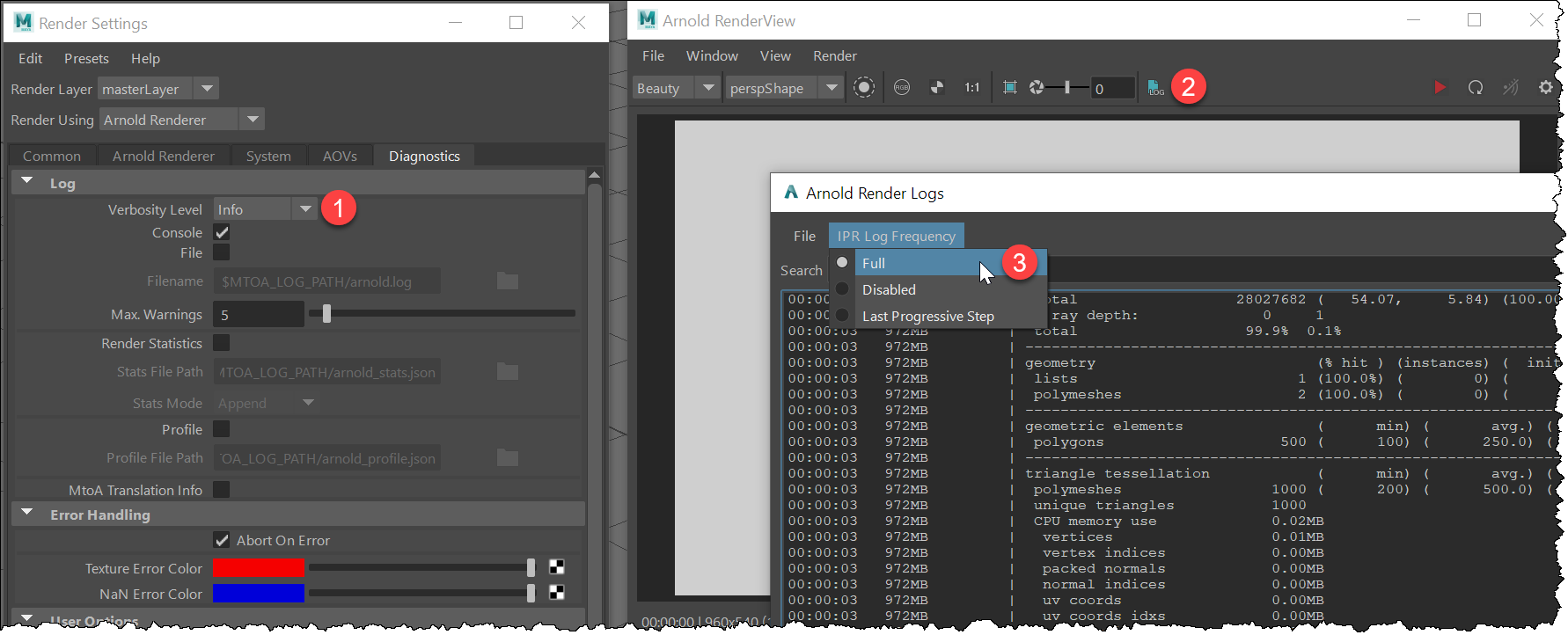
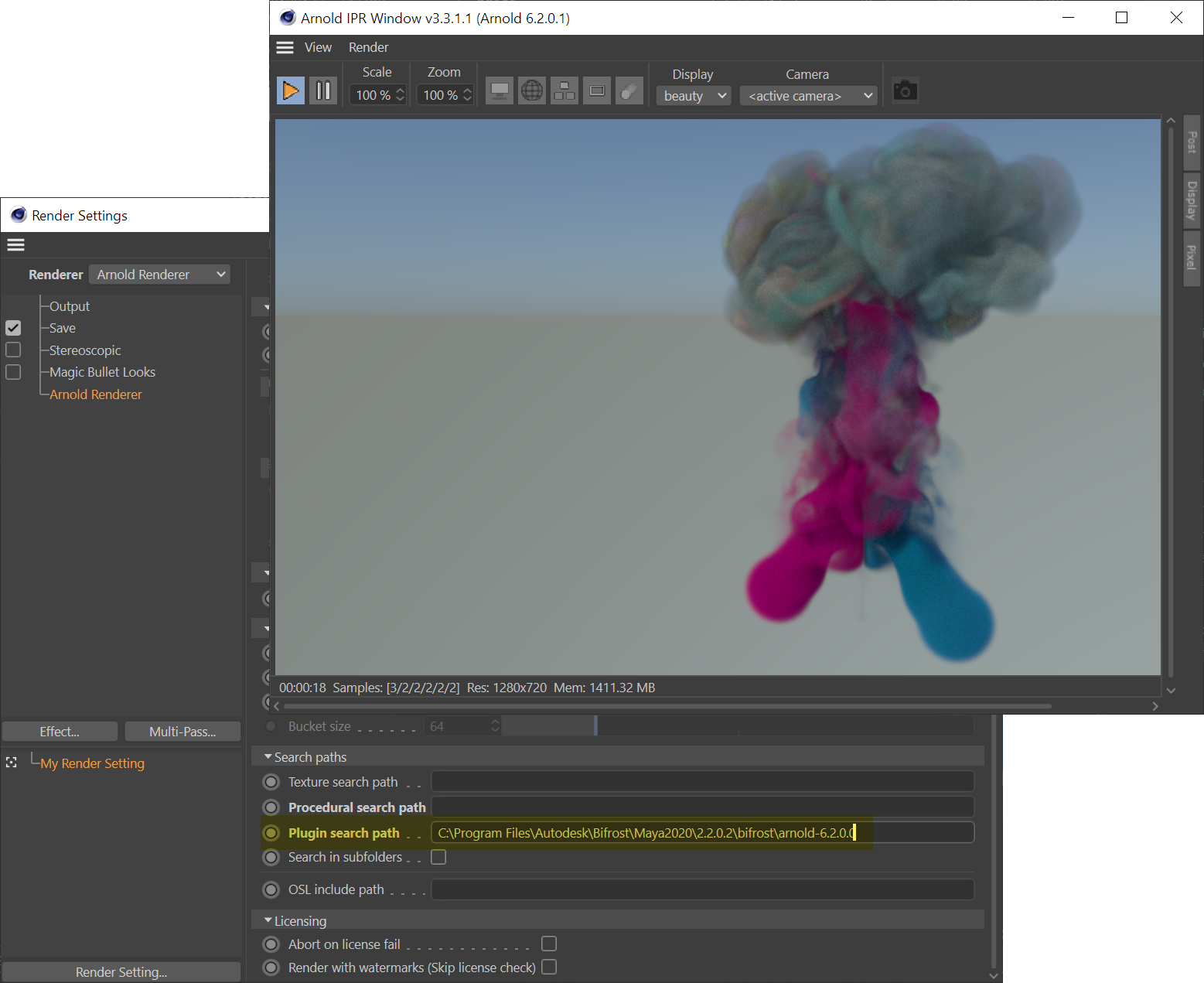
In other applications, like CINEMA 4D or Houdini or Katana, you can do the same thing by setting the Plugin Search Path.

Tangent space normal maps


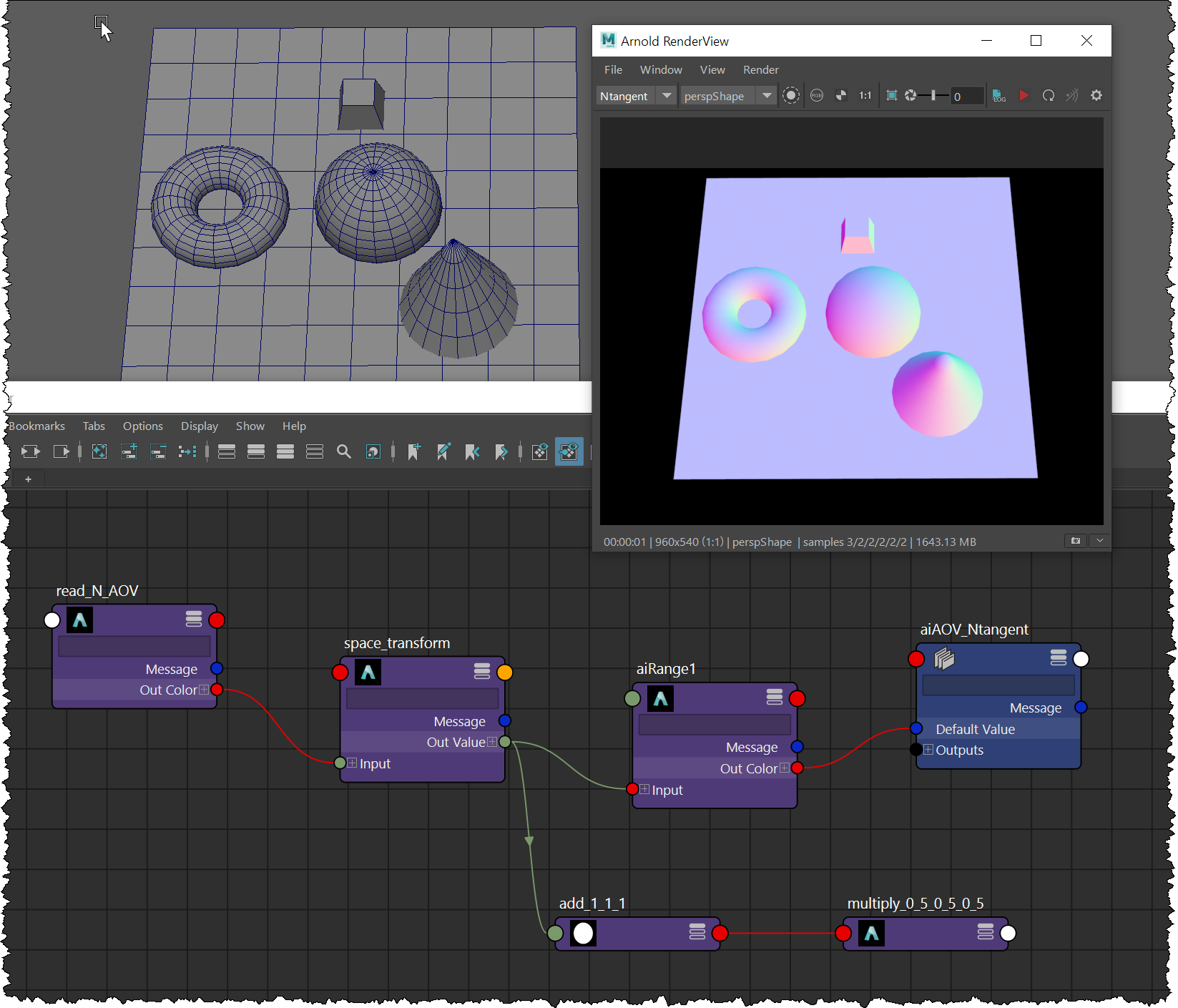
The built-in N AOV is in world space. So how to get a tangent-space N AOV?
Like this:

In brief, I read the N AOV, transform the normals from world to tangent space, and then map the normal values to the range 0.5, 1 (I used the range node here, but I could have used Add and Multiply to do the same thing).

Here’s the shader tree. You can save this in a .ass file and import it into Maya or whatever application you use. Then set up an AOV shader to write the custom Ntangent AOV

range
{
 name aiRange1
 input space_transform
 output_min 0.5
}

space_transform
{
 name space_transform
 input read_N_AOV
 type "normal"
 to "tangent"
 tangent 1 0 0
 normal 0 1 0
 normalize on
}

aov_read_rgb
{
 name read_N_AOV
 aov_name "N"
}

aov_write_rgb
{
 name defaultArnoldRenderOptions/aov_write_rgb_Ntangent
 aov_input aiRange1
 aov_name "Ntangent"
}