[RLM] [Arnold] Figuring out why a certain scene renders with a watermark


If suddenly some scenes render with a watermark, but others don’t, that probably means someone saved those scenes with Skip License Check enabled.

A quick way to check this is with the Arnold log.

If you set the verbosity level to at least Warnings + Info, you would see this:

00:00:00   787MB WARNING | [rlm] skip_license_check enabled

if Skip License Check is enabled.

If you’re using MtoA and rendering Maya scenes, one way to avoid this problem is to render with the -ai:slc off flag (slc = skip license check).

In the very unlikely case that Skip License Check isn’t the problem, the set the verbosity level to Debug and check the log again.

[MtoA] Using set overrides to assign Arnold IDs to groups of mesh shapes


Arnold shapes have an id parameter that you can use to set up custom ID AOVs.

kick -info polymesh.id
node: polymesh
param: id
type: INT
default: 0

For example, you can Object ID color mode of the Utility shader to generate an ID AOV.

MtoA doesn’t automatically generate IDs, so you need to use the User Options parameter on the shapes to assign IDs.

If you want to give a group of polygon meshes the same ID, so that they all get the same Object ID color, then you can use override sets.
override_sets

Example: Three sets, each set with an override of User Options that sets the polymesh.id parameter
override_sets_example

In Softimage, SItoA does generate IDs, and you can override them using groups and a branch-applied Arnold User Options property.
sitoa_override_sets

Understanding Windows and multiple processors (CPUs)


So, let’s say you’ve got a “32-core workstation with 4 Xeon processors.” What version of Windows should you get?

To answer that question, you need to understand how the different Windows editions support processors.

  • Windows 7 Professional, Enterprise, and Ultimate support up to two physical processors.
  • Windows Server 2012 is licensed per processor. A license supports up to two processors, so for a four-processor machine, you need two licenses (of Windows Server 2012 Standard).

From Microsoft, here’s some information about Windows licenses and multiple processors:

  • Windows 7
    PCs with multi-core processors:
    Windows 7 was designed to work with today’s multi-core processors. All 32-bit versions of Windows 7 can support up to 32 processor cores, while 64-bit versions can support up to 256 processor cores.

    PCs with multiple processors (CPUs):
    Commercial servers, workstations, and other high-end PCs may have more than one physical processor. Windows 7 Professional, Enterprise, and Ultimate allow for two physical processors, providing the best performance on these computers. Windows 7 Starter, Home Basic, and Home Premium will recognize only one physical processor.

  • Windows Server 2012
    How do I calculate the number of licenses I need for a server?

    The number of licenses you will need depends on the number of physical processors on the server and the number of server instances that you will be running. (This only applies for Standard edition because Datacenter edition allows for unlimited VMs.) The larger of these two numbers determines the number of total licenses required.

    Determining the number of physical processor licenses
    Each license covers up to two physical processors, so to determine the number of licenses needed to
    fully license a physical server, simply count the number of physical processors in the server, divide that number by two and that tells you the number of licenses that will be needed.

    Here are some examples:

    • You have a 2-processor server. 2 physical processors / 2 (number of processors covered by a license) equals 1. You will need one license to cover a 2-processor server.
    • You have a 4-processor server. 4 physical processors / 2 (number of processors covered by a license) equals 2. You will need two licenses to cover a 4-processor server.
    • You have an 8-processor server. 8 physical processors / 2 (number of processors covered by a
      license) equals 4. You will need four licenses to cover an 8-processor server.

Here’s some more reading about Windows Server, licensing, and multiple processors:

[Tip] Searching the docs


Here’s a few tips for searching the docs at support.solidangle.com

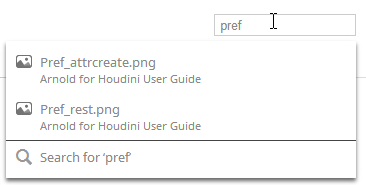
If you don’t see any useful suggestions when you type in a search, click the “Search for” link. That will take you to the Search page.
search-tips-1

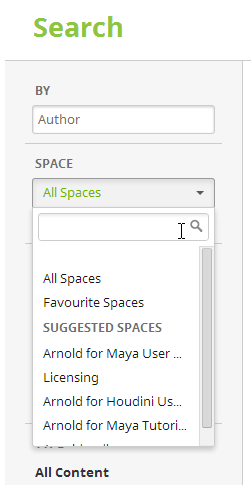
On the Search page, you can narrow down your search to a specific “space”, such as the Maya User Guide or the Softimage Tutorials.

search-tip-1a

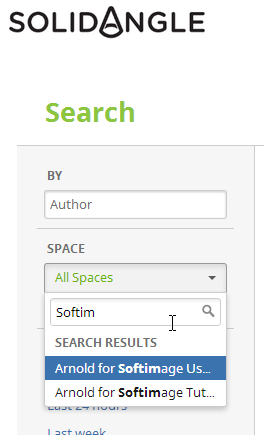
If you don’t see the space you want, just start typing “Softimage” or “Maya” or “Arnold” in the search box, and then you’ll see those spaces and you can search just that one specific space.

search-tip-1b
You can also search for specific types of content, such as Pages or Blog Posts. I often click Pages to get rid of all the images (attachments) that show up in the search results.