[SItoA] Stopping procedural textures from swimming


The Noise shader can access the Pref coordinates to prevent swimming. But for other procedural textures, you’ll have to take a different approach (unless you whip up [a relatively simple] shader to get the Pref coordinates). Here’s one way, using ICE to store UVWs in a CAV, and then a Vertex Color node in the render tree.

First, create a Spatial projection and a Color at Vertices (CAV) property on your mesh.

Then build an ICE tree that gets the projection UVWs and stores them in the CAV.
stop_swimming2

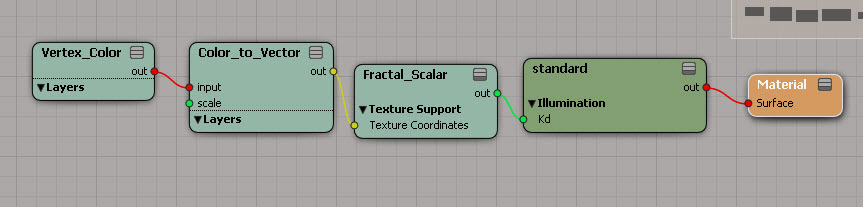
In the render tree, use a Vertex Color to get the UVW information from the CAV, and feed that into the texture coordinates of the procedural texture.
stop_swimming1

[SItoA] Applying materials to standins


In Softimage, a standin object is the polygon mesh, hair, or point cloud with the Arnold_Standin property.

If you apply a material to a standin, that material will override any materials specified in the ASS file referenced by the standin. If you don’t want that to happen, give your material a name that starts with “Scene_Material” or “Standin_Material” (it doesn’t matter if you use uppercase or lowercase for the names).

If you do that, the standin object will use that material, but the objects in the ASS file will use the materials saved in the ASS file.

Here’s what you get in an exported ASS file. If SItoA finds a standin with a material name that starts with “scene_material” or “standin_material”, it exports a procedural node with no material.

procedural
{
 name standin-cube.SItoA.41000
 dso "\\server\project\Arnold_Scenes\XSI_Man.ass"
 min -4 0 -4
 max 4 0 4
 matrix 
  1 0 0 0
  0 1 0 0
  0 0 1 0
  0 0 0 1 
}

Otherwise, if you name the standin material something else, the procedural node will include a shader node for that material:

procedural
{
 name standin-cube.SItoA.41000
 dso "\\server\project\Arnold_Scenes\XSI_Man.ass"
 min -4 0 -4
 max 4 0 4
 matrix 
  1 0 0 0
  0 1 0 0
  0 0 1 0
  0 0 0 1 
 shader "Sources.Materials.DefaultLib.Test.standard.SItoA.40000.1" 
 declare procedural_shader constant ARRAY NODE
 procedural_shader "Sources.Materials.DefaultLib.Test.standard.SItoA.40000.1" 
}

SITOA: Adding Arnold materials through scripting


If you want to apply Arnold materials through scripting, there are a couple of undocumented commands you can use:

  • SITOA_AddMaterial takes the shader family (for example, Material or Texture) and the name of a shader, and connects that shader to the surface port on the Material node.
    # Add a standard material to the selected object
    SITOA_AddMaterial( "Material", "standard" )
    
    # Add ambient_occlusion to the selected object
    SITOA_AddMaterial( "Texture", "ambient_occlusion" )
    
  • SITOA_AddShader is similar, but it also takes a connection point as an argument, so you can connect to a specific port, such as the Environment or Displacement port.
    # Add a vector displacement shader
    SITOA_AddShader("Texture", "sta_vector_displacement", "displacement" )
    

However, neither of these commands return anything. So if you wanted to name the material, it’s not so easy. SITOA_AddMaterial does apply to the selection, so you could go through the selection to get the new material:

# Python
Application.SITOA_AddMaterial("Material", "standard")
sel = Application.Selection
mat = sel(0).Material
mat.Name = "MyStandardMaterial77"

You could write your own function with X3DObject.AddMaterial.

Here’s the simplest possible version. I don’t specify the path to a preset, just the name of the shader. That’s not terribly efficient, because Softimage now has to search for the preset (and that took about 0.2 seconds on my machine).

si = Application

def add_material( o, shader_name ):
	return o.AddMaterial( shader_name )

mat = add_material( si.Selection(0), 'Material', 'Standard' )
mat.Name = 'My_Standard_Mat'

Here’s a version that builds the path to the preset (just like the SITOA commands do), but that doesn’t require the shader family, just the name of the shader.

# dictionary of shader families, keyed by shader name
shader_types = {
  'ray_switch' : 'Material' , 
  'sta_vector_displacement' : 'Texture' , 
  'wireframe' : 'Material' , 
  'sta_displacement' : 'Texture' , 
  'ambient_occlusion' : 'Texture' , 
  'skin_sss' : 'Material' , 
  'sta_camera_projection' : 'Texture' , 
  'utility' : 'Texture' , 
  'bump3d' : 'Texture' , 
  'standard' : 'Material' , 
  'complex_fresnel' : 'Texture' , 
  'bump2d' : 'Texture' , 
  'motion_vector' : 'Material' , 
  'hair' : 'Material' , 
  'noise' : 'Texture' , 
  }


si = Application

def add_material( o, shader_name ):
	arnoldPlugin = si.plugins("Arnold Shaders");
	dspresets = XSIUtils.BuildPath( arnoldPlugin.OriginPath, '..', '..', 'Data', 'DSPresets' )
	mat = None
	if shader_name in shader_types:
		preset = XSIUtils.BuildPath( dspresets, 'Shaders', shader_types[shader_name], '%s.Preset' % shader_name )
		mat = o.AddMaterial( preset )
	return mat


mat = add_material( si.Selection(0), 'noise' )

mat.Name = 'My_Noise'


Exporting ASS files from Softimage with xsibatch


You cannot use xsibatch -export to export ASS files (because of the way sitoa implements ASS exporting). But it’s not too hard to do the same thing with SITOA_ExportScene and xsibatch -script.

This is what the xsibatch command line would look like (on Windows). For readability, I used the EXPORT_SCRIPT and SCENE variables to reduce the length of the xsibatch command line.

set EXPORT_SCRIPT = batch_export_scene.pys
set SCENE = \\server\project\scenes\elephant_herd.scn
xsibatch -processing -script %EXPORT_SCRIPT% -args -start 5 -end 20 -step 1 -scene %SCENE%

And here’s the batch export script.

I expose the basic parameters only, and I use the ASS Archive output path from the Arnold Render options, the scene name, and the [Frame] token to compose the output file name.

def main( start, end, step, scene ):
	Application.OpenScene(scene, "", "")
	x = Application.Dictionary.GetObject( "Passes.Arnold_Render_Options" )
	dir = XSIUtils.ResolveTokenString( x.output_file_tagdir_ass.Value, 0, False, None, None )

	scn = Application.ActiveProject.ActiveScene.Parameters("Name").Value	
	output = XSIUtils.BuildPath( dir, '%s.[Frame].ass' % scn )

	Application.SITOA_ExportScene( start, end, step, False, False, output )

Noise, world coordinates, and offsets


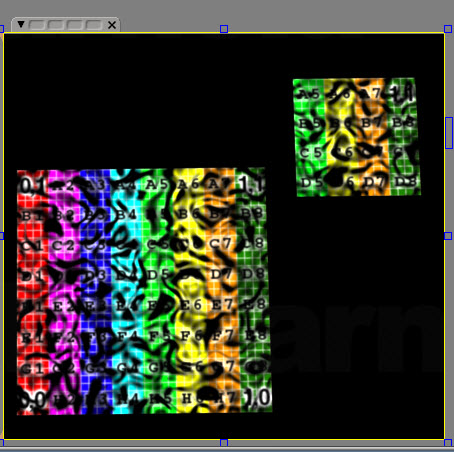
If you’re using world coordinates for your noise, then obviously as an object moves in global space, the noise will change. Here I’ve extracted a polygon and moved it: same shader tree that uses noise, but different noise because I’m using world coordinates.
noise_world

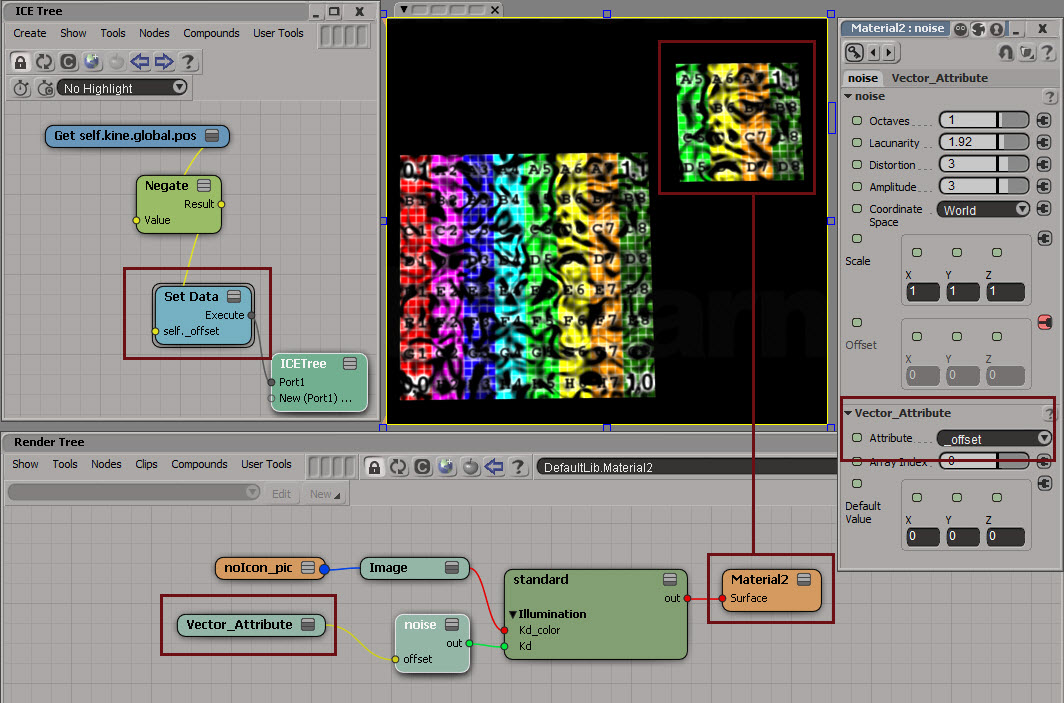
You could keep the same noise by applying an offset equal to the translation:
noise_world_offset_1
Note that I’ve assumed that there’s no scaling of the noise. If there was, I’d have to multiply my offset by the same scaling.