[Arnold] [kick] Enabling tiled EXRs


Suppose you have a load of ASS files that were exported with the Tiled option disabled. How could you re-enable the Tiled option without re-exporting the ASS files?

With the kick -set flag, that’s how:

kick -set display_exr.tiled on

That will set the tiled parameter for all EXR driver nodes in the ASS file.

If you want to set the flag for a specific driver node, you need to know the driver node name.

kick -set defaultArnoldDriver@driver_exr.RGBA.tiled on

That sets tiled for the driver_exr node named defaultArnoldDriver@driver_exr.RGBA.

[MtoA] mtoa missing from Plug-in Manager


If mtoa.mll is not listed in the Plug-in Manager, that means that Maya did not find the MtoA module file (mtoa.mod). And if you try to manually load mtoa.mll, you’ll get errors like this:

// Error: file: C:/Program Files/Autodesk/Maya2016/scripts/others/pluginWin.mel line 781: Unable to dynamically load : C:/solidangle/mtoadeploy/2016/plug-ins/mtoa.mll
The specified module could not be found. // 
// Error: file: C:/Program Files/Autodesk/Maya2016/scripts/others/pluginWin.mel line 781: The specified module could not be found. (mtoa) //

To load MtoA, you need to make sure that Maya finds the MtoA module file.

By default, the MtoA installer puts the mtoa.mod file in the user’s modules folder. For example:

C:\Users\StephenBlair\Documents\maya\2016\modules

If you installed MtoA using one user account, and try to run Maya with a different user account, Maya will not find the module file.

The module file has to be in the MAYA_MODULE_PATH. For example, for the user account “StephenBlair”, here are the default places where Maya looks for modules:

  • C:/Program Files/Autodesk/Maya2016/modules
  • C:/Users/StephenBlair/Documents/maya/2016/modules
  • C:/Users/StephenBlair/Documents/maya/modules
  • C:/Program Files/Common Files/Alias Shared/Modules/maya/2016
  • C:/Program Files/Common Files/Alias Shared/Modules/maya
  • C:/Program Files/Common Files/Autodesk Shared/Modules/maya/2016

If you want MtoA to available to all users, then you could copy mtoa.mod to one of the common locations.

[Arnold] ndoteye shade mode


The Utility shader has a super-fast ndoteye shading mode. This shading mode doesn’t trace any rays: it simply shades based on the angle between camera (eye vector) and  the surface normal (ndoteye = dot product of the Normal and Eye vectors).

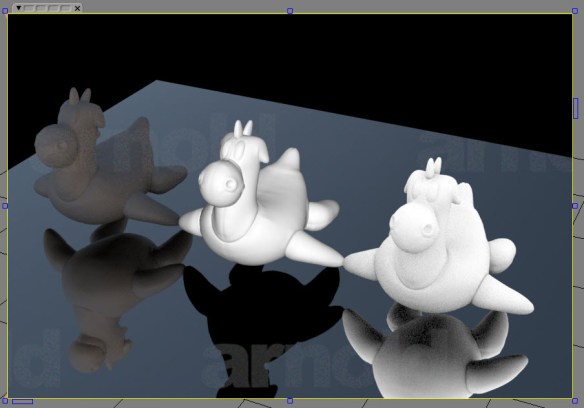
Here’s an example of the Utility shader. The middle mesh has the ndoteye shade mode (the left mesh has plastic, and right ambocc).

ndoteye

Note that with ndoteye you get just black in the glossy reflection. That’s because in ndoteye shade mode, the Utility shader handles camera rays only. No secondary rays like glossy or refraction.

[MtoA] Adding per-face and per-vertex user data


With Maya and MtoA, there’s no easy way to add per-face and per-vertex user data attributes to objects. You’ve got to do it with scripting: add an array attribute with addAttr and then provide the values. For example, here’s how to add per-face and per-vertex attributes, which MtoA will translate to UNIFORM (per-face) and VARYING (per-vertex) user data on the shape.

import maya.cmds as cmds
# Add UNIFORM (per-face) user data
cmds.addAttr("pPlaneShape1", dataType="vectorArray", longName="mtoa_uniform_myPerPolyColor")
cmds.setAttr("pPlaneShape1.mtoa_uniform_myPerPolyColor", 4,(0.48, 0.39, 0.35), (0.62, 0.63, 0.44), (0.47, 0.69, 0.33), (0.70, 0.38, 0.29), type="vectorArray")

# Add VARYING (per-face vertex) user data
cmds.addAttr("pPlaneShape2", dataType="vectorArray", longName="mtoa_varying_myPerPointColor")
cmds.setAttr("pPlaneShape2.mtoa_varying_myPerPointColor", 9, (0.46, 0.55, 0.66), (0.29, 0.40, 0.38), (0.69, 0.43, 0.68), (0.36, 0.58, 0.55), (0.59, 0.48, 0.27), (0.55, 0.52, 0.70), (0.48, 0.35, 0.26), (0.46, 0.46, 0.47), (0.34, 0.55, 0.31), type="vectorArray" )

After you run the script to add the attributes, you can use the aiUserData shaders to get the user data values and use them in your shader trees.

aiUserDataColor

For example, here’s the per-face and per-vertex user data colors on a simple grid:
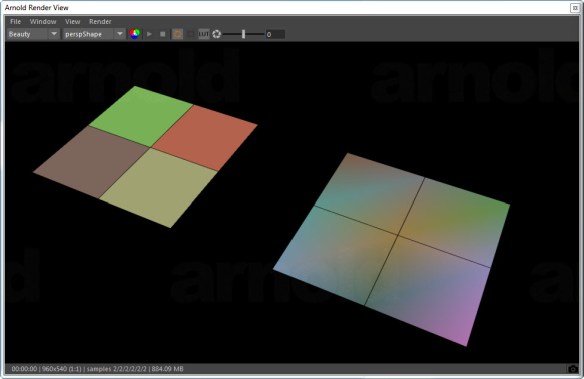
uniform_varying_user_data

[Arnold] Optimizing render utilization


WARNING| Rendering utilization was only 48%. Your render may be bound by a single threaded process or I/O.

In general, if you see this warning about low machine utilization, that means that a significant amount of time is being spent in just one thread, and if you want to render faster, you need to look into possible issues.

  • Reading textures (file I/O) isn’t multi-threaded, so that can reduce machine usage because threads will be waiting while textures are read from disk.Check the amount of texture data “Read from disk” and the “File I/O time”, and compare the amount of texture data with the texture cache size (for example, if you’re reading 5GB of texture data but the cache is just 1GB, you can increase the cache size).
  • Subdivision isn’t multi-threaded yet, so a few huge objects might slow things down. But in general, multiple objects will be subdivided at the same
    time (one thread per object) so it isn’t usually a big issue.
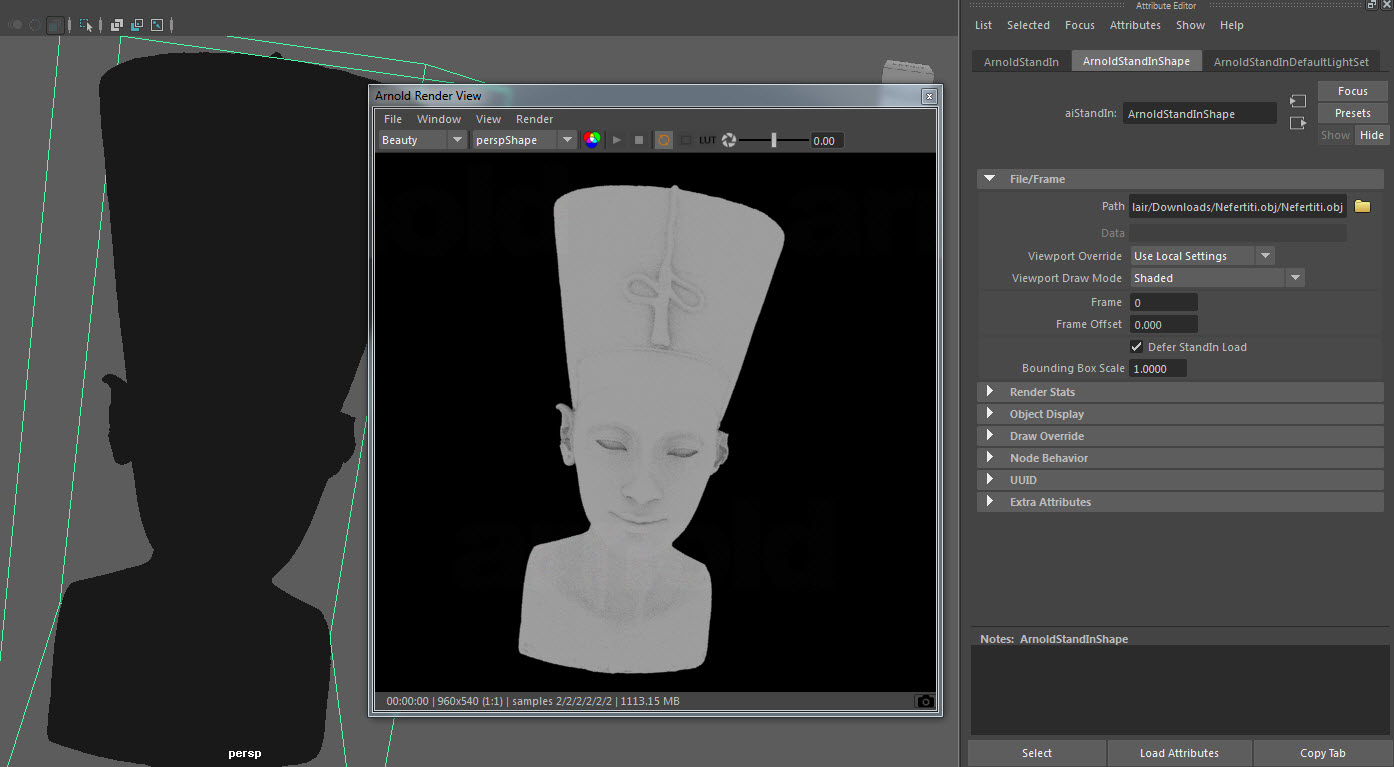
  • Loading standins is also file I/O so each file is loaded in a single thread. File I/O is dependent on the file system, not the CPU speeds, so adding
    more threads to IO won’t help. If this is what is causing your low CPU utilization, the only way to improve that is to get faster disks, file
    servers, networks, etc…
  • Displacement is multi-threaded. A single mesh can be displaced by multiple threads and multiple meshes can be displaced at the same time.
  • Another possible reason for this warning is because there are multiple copies of Arnold running, or Arnold and some other compute-heavy application, so that Arnold can’t get to 100% utilization because Arnold is competing with other processes. You can check your Activity Manager (OSX), Task Manager (Windows), or top (Linux) to see see what else is consuming CPU time.
  • You’ll also see the utilization warning with relatively simple scenes, because the single-threaded work of loading the scene and plugins and textures
    takes longer than the actual rendering.

hat tip: Thiago

[Tip] Save a few threads for yourself


As of Arnold 4.2.12.0, you can specify a negative number of threads, and Arnold will leave that many threads free. So, for example, if you want to leave two threads free for Maya while the IPR view is running, you would set the thread count to -2.

mtoa_threads

On a machine with 4 cores and 8 logical cores (aka threads):

| running on StephenBlair-PC, pid=16888
| 1 x Intel(R) Xeon(R) CPU E3-1240 V2 @ 3.40GHz (4 cores, 8 logical) with 16338MB
| Windows 7 Professional Service Pack 1 (version 6.1, build 7601)

You would then see that Arnold uses only 6 logical cores:

|  starting 6 bucket workers of size 64x64 ...

The advantage of the negative thread count is that you don’t have to know how many logical cores your machine has; you just need to know how many you want to keep free.

The case of the blue render view


Reason #35 why you should check the Arnold log

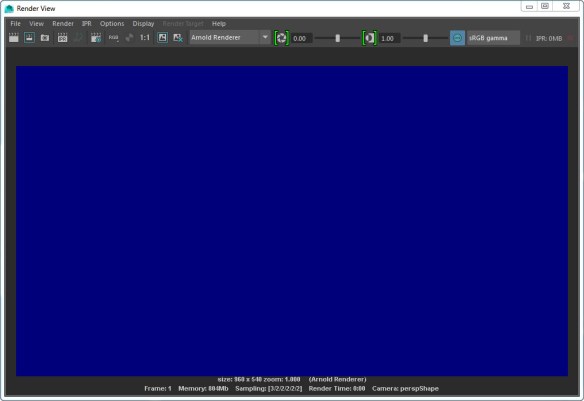
In this case, a scene that used to render yesterday, now just resulted in a blue render view, like this:

blue_render_view

Anytime the render view doesn’t update when your render, you can be fairly sure there’s some ERROR in the Arnold log.

In this case, the problem was a broken path to the IES file used by a photometric light. In the Arnold log, there was this ERROR:

00:00:04 870MB ERROR | [photometric] can't open C:/Assets/IES/example.ies

It’s easy to say “check the log”, but where do you find the log? It’s not like there’s a nice, color-coded button (red for error) on the render view UI that will pop up the log for you.

  • On Windows, you should see the Arnold log in the Output Windows. However, I find that this happens only when I start Maya from the command line. If I start Maya from the Windows Start menu, the Arnold log messages don’t show up in the Output Window. So I have to enable file logging, and check the log file.
  • On OSX and Linux, you’ll also have to enable file logging, unless you start Maya from a terminal.

Update: For Google:

  • Arnold renders a black screen
  • Arnold renders a blue screen


[HtoA] [Tip] Speeding up motion blur on VDB volumes


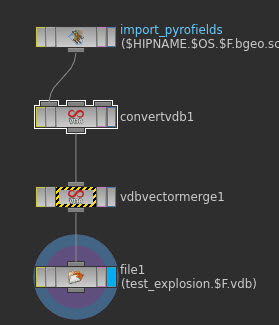
Merging your velocity vel.x, vel.y, and vel.z grids into a single vector grid using a Vdb Vector Merge node can speed up your renders.

vdb_vector_merge

You can safely ignore the “component grids have different transforms” warning on the VDB Vector Merge.  The x, y, and z components of the velocity have slightly different transforms because they located on the center of the cell faces in each direction; that’s coming from the marker-and-cell (MAC) grid used in the simulation.

If you really want to be precise with the velocities, you need to resample them on the same grid, say the density grid:
unnamed
Hat tips to Saber, Fred

WARNING : [ass] node name already in use


Shader nodes must have unique names.

So if you’re using standins, each standin ASS file has to have unique shader node names. Otherwise you’ll get unexpected results when you render, like all standins having the same shading, or some “flickering” in animation if the order of standin loading changes.

In the Arnold log, look for “node name already in use” warnings:

WARNING | [ass] standin_01.ass line 50: node name "aiStandard1SG" already in use
WARNING | [ass] standin_01.ass line 58: node name "aiStandard1" already in use
WARNING | [ass] standin_01.ass line 118: node name "file1" already in use
WARNING | [ass] standin_01.ass line 147: node name "aiNoise1" already in use


If each standin should look different, you need to have unique shader names in each ASS file. If you’re using MtoA, that includes the name of the SG node (for example, aiStandard1SG).