[Arnold] Standins and the ASS file cache


Did you ever notice the ASS file cache stats in the Arnold log? It’s a breakdown of how many unique ASS files were loaded, and how many were reused:

03:11:33 8868MB | -----------------------------------------------------------------------------------------
03:11:33 8868MB | .ass file cache:
03:11:33 8868MB | unique (loaded from disk)     10 ( 1.00%)
03:11:33 8868MB | reused (found in cache)      990 ( 99.00%)
03:11:33 8868MB | total referenced .ass files 1000 (100.00%)
03:11:33 8868MB | -----------------------------------------------------------------------------------------

Roughly speaking, this caching of standins means that if you have 100 standins that all load the same ASS file, you’ll get one set of geometry and 99 instances of that geometry. That saves memory and I/O time and is just more efficient.

More here…

[Linux] Missing .sog files?


Sometimes on Linux you may get “unable to load dynamic library” errors for .sog files. Like this:

00:00:00     0MB WARNING |  unable to load dynamic library: /home/stephen/solidangle/mtoa/2014/xgen_procedural.sog: cannot open shared object file: No such file or directory 

or this:

00:00:00     0MB WARNING |  unable to load dynamic library: /usr/apps/houdini/houdini-13.0.343/htoa/arnold_plugins/driver_houdini.sog: cannot open shared object file: No such file or directory 

Don’t worry about the “.sog” part. In most cases, Arnold isn’t actually looking for a .sog file. Arnold is trying to load a .so file, and either the .so itself or a dependency is missing. The “.sog” is printed by mistake in the log message (and this is fixed in the next Arnold version).

So (heh) focus your investigation on why Arnold couldn’t load the .so file (try running ldd on it).

In the two examples above:

  • xgen_procedural.so couldn’t be loaded because LD_LIBRARY_PATH didn’t include the Maya lib folder, so all the tbb-related libraries were missing.
  • driver_houdini.so was missing some Houdini dependencies, but in this case it was being loaded into MtoA, so driver_houdini wasn’t needed and the warning could be safely ignored.

What’s a .sog?
If a plugin has a .sog extension, AiLoadPlugins() will load the plugin with RTLD_GLOBAL, which means the symbols from the plugin will be globally exposed and available to other plugins.

.sog is a Maya naming convention for an .so to be dlopen’ed with RLD_GLOBAL

[Arnold] [MtoA] Disabling Skip License Check


watermark
If you render a scene that has Skip License Check enabled, you’ll get the Arnold watermark. One way to make sure this doesn’t happen is to turn off Skip License Check from the command line:

render -r arnold -ai:slc off some_scene.mb
kick -set options.skip_license_check off -dp -dw some.ass

You might also want to enable Abort on License Fail (-ai:alf for render, -set options.abort_on_license_fail for kick).

[Arnold] Loading plugins when you edit ASS files


If you’re using the Arnold API to update ASS files (for example, to change paths), you need to load all the plugins (aka shaders) that are referenced by the ASS file. Otherwise, the unknown nodes are skipped on load, and therefore won’t be in any ASS file you write.

For example, if you set ARNOLD_PLUGIN_PATH to point to the locations of the MtoA shaders and any custom shaders you use, then you could do something like this:

from arnold import *
import os

AiBegin()
AiMsgSetConsoleFlags(AI_LOG_ALL)
AiLoadPlugins( os.getenv( 'ARNOLD_PLUGIN_PATH' ) )
AiASSLoad("original.1001.ass", AI_NODE_ALL)

#
# Do your edits here
#

AiASSWrite("edited.1001.ass", AI_NODE_ALL, False)
AiEnd()

[MtoA] [Scripting] Setting the output image format


Settings like the image format and compression come from the defaultArnoldDriver node, so to set them through scripting, you need to set defaultArnoldDriver attributes.
ImageFormat_ai_translator

The image format corresponds to the ai_translator attribute.

# Python
import maya.cmds as cmds
cmds.setAttr( 'defaultArnoldDriver.ai_translator', 'exr', type='string' )
# PyMel
import pymel.core as pm
d = pm.PyNode( 'defaultArnoldDriver' )
d.ai_translator.set( 'exr )
// Mel
setAttr "defaultArnoldDriver.ai_translator" -type "string" "jpeg";

The rest of the attributes are named a little… better 😉 Here’s a Python snippet to list the driver attributes and their values:


from maya.cmds import *
sn = cmds.attributeInfo( inherited=False, short=True, type="aiAOVDriver" )
for s in sn:
    print "defaultArnoldDriver.%s = %s" %( s, cmds.getAttr( "defaultArnoldDriver.%s" % s ) )

[SItoA] Getting user parameters in the render tree


Arnold nodes can have user-defined parameters, like MyColor in this ASS snippet:

polymesh
{
 name grid3.SItoA.1000
#
# ...
#
 declare MyColor constant RGBA
 MyColor 0.703999996 0 0.526000023 1
}

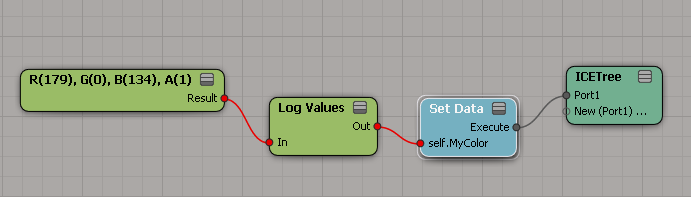
In Softimage, there are a number of ways you can assign data like MyColor to a polygon mesh. You could use ICE:
userparam_ice_attribute
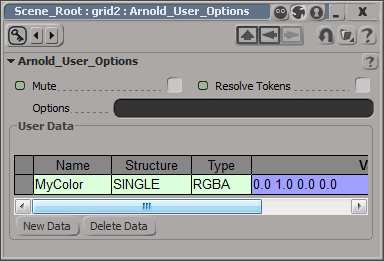
Or you could use the Arnold User Options property:
userparam_user_options
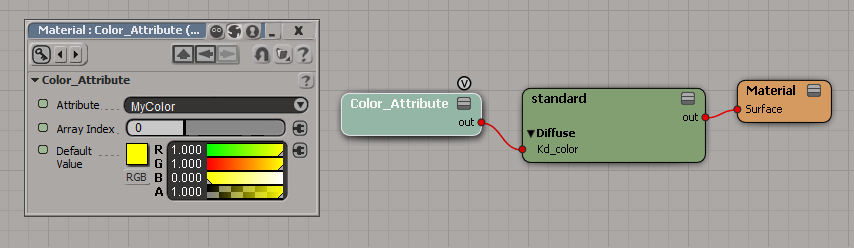
To access MyColor in the render tree, use the Color Attribute shader:
MyColor_render_tree
If you used ICE, MyColor will appear automatically in the Attribute list. But if you used the User Options property, you’ll have to use a script one-liner to set the Attribute value. That’s because Softimage doesn’t know about the user parameters on Arnold nodes: those come into existence only when SItoA translates the scene to Arnold.

Application.SetValue("Sources.Materials.DefaultLib.Material.Color_Attribute.attribute", "MyColor", "")

On a related note, the MtoA shader userDataColor does the same thing as the SItoA Color Attribute shader: it uses AiUDataGetRGBA() to get a color from a user parameter on the object being shaded. With SItoA 3.0, the Arnold > DLL Shaders menu makes it pretty easy to use an MtoA shader in Softimage.
mtoa_userDataColor

[SItoA] More about particle shapes


For the Point, and Sphere particles shapes, you get a single Arnold points node. For example, for the Sphere shape, you’d get a points node that looked something like this:

points
{
 name pointcloud.SItoA.Sphere.5000
 points 54 1 b85POINT
8LLwt8;`)381]^28S`W`8:l)EadWuf8[iB>89m7taW>aAaX=rn8...
 radius 54 1 b85FLOAT
!8Fcb9$$$$Z
 mode "sphere"
 visibility 255
 sidedness 255
 matrix
 1 0 0 0
 0 1 0 0
 0 0 1 0
 0 0 0 1
 shader "Sources.Materials.DefaultLib.Material.standard.SItoA.5000.2.sta_shading_group"
 id 832
}

This particular node is for 54 points in sphere mode. For each point, you get the center position (the points.points parameter) and a radius (the points.radius parameter). If there’s any scaling applied to the particle in ICE, the radius is multiplied by the X scaling of the particle.

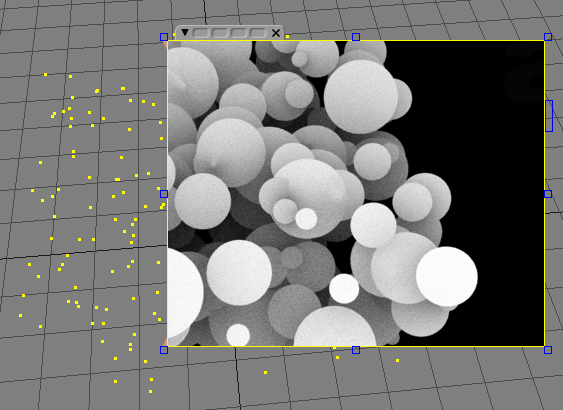
For the Point shape, you get an Arnold points node in “disk” mode, with radius = size * X scaling.
points_disc_mode

For the other supported shapes, you get the corresponding Arnold shape.

[kick] Combining ASS files on the command line


One way to avoid exporting the same static geometry for every frame is to export it just once, and then export the rest of the scene (the cameras, lights, and any animated objects) as a regular sequence. kick can combine multiple ASS files and then render the result. For example:

kick environment.ass lights.ass character.0001.ass camera.0001.ass -o scene.0001.exr
  • environment.ass is all the static geometry and the applied shaders.
  • camera.####.ass is the camera, driver, filter, and options.
  • character.####.ass is an animated character with its shaders.

Object color mode


The Arnold Utility shader has an Object color mode, which assigns colors based on shape names. When we say “shapes”, we don’t mean Maya shape nodes; we mean the Arnold shapes.

C:\solidangle\mtoadeploy\2014\bin>kick -nodes | find "shape"
 box                              shape
 cone                             shape
 curves                           shape
 cylinder                         shape
 disk                             shape
 ginstance                        shape
 implicit                         shape
 nurbs                            shape
 plane                            shape
 points                           shape
 polymesh                         shape
 procedural                       shape
 sphere                           shape

All these nodes have a name parameter (for example, polymesh.name) that is a unique string identifier in the Arnold universe. So when you use the Object color mode, you get a unique color for each node.

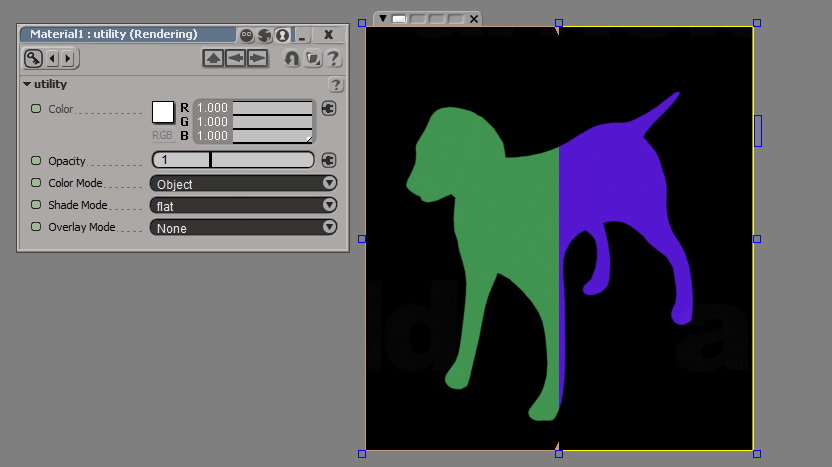
If you’re using Softimage, note that SItoA puts the frame number into polymesh.name, so you’ll get a different color on each frame if you use the Object color mode. For example, on frame 5 a polymesh might be named “Dog_Mesh.SItoA.5000”, and on frame 6, “Dog_Mesh.SItoA.6000”.

In this render region comparison, you have frame 5 on the left, and frame 6 on the right:
dog_color_mode

In a case like this, you would use the Object ID color mode instead. SItoA automatically assigns unique IDs to the shape nodes (MtoA doesn’t).