[C4DtoA] How can I make my background object visible in refractions?


You can’t. The background object isn’t visible in refractions. Or reflections, or anything but camera rays.

Here’s an example: a refractive sphere in front of a torus, in front of the background checkerboard object. The black areas are where the background object isn’t visible to refraction rays.
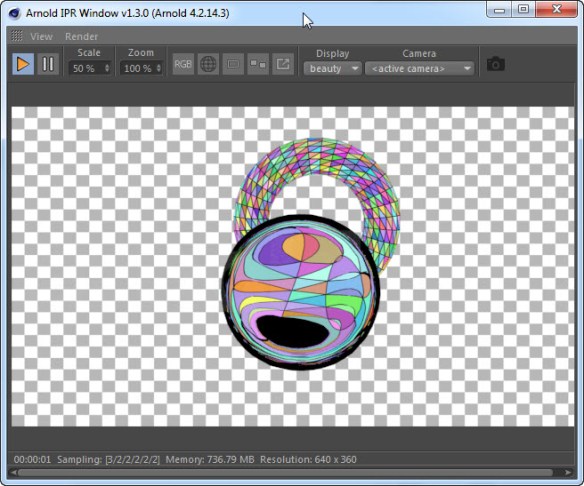
c4d_background_object_refraction

The “background object” is actually a shader plugged into the Arnold background slot.

You won’t see it in Cinema 4D, but when C4DtoA translates the scene to Arnold, the background object is translated as a shader plugged into the options.background parameter (in Cinema 4D, this is the Environment > Background parameter in the Render Settings).

In an ASS file, it looks like this:

options
{
background "c4d|Background"
}

image_plane
{
 name c4d|Background
 color c4d|Arnold_Shader_Network|checkerboard
 lenx 1
 leny 1
 ox 0
 oy 0
}

The image_plane node is a shader, and if you were to check its code, you’d see that it handles camera rays only; for any other ray type (like refraction), the image_plane shader returns black.

shader_evaluate 
{ 
    if (!(sg->Rt & AI_RAY_CAMERA)) 
    {
        sg->out.RGBA = AI_RGBA_BLACK;
        return; 
    }
 

[Arnold] [MtoA] How to check if your processor supports SSE4.1


As of Arnold 4.2.16.2, the requirement is now “just” SSE4.1.

This blog post is for Google search to find; I’ve already blogged about the SSE4.1 requirement elsewhere.

If your processor does not support SSE4.1, the Arnold won’t run on your computer. MtoA will either fail to load, or you’ll get a crash whenever you try to render.

To check whether an older machine supports SSE4.1, here’s a few suggestions:

  • Google your processor and “SSE”
    cpu-world is pretty reliable, but I have seen one or two cases where the info was wrong, and SSE4.1 wasn’t really supported by a processor.
  • Windows: Download and run coreinfo -f
  • OSX: Run sysctl -a | grep machdep.cpu.features
  • Linux: Check /proc/cpuinfo

A note about coreinfo:

  • If you see an asterisk (*), then SSE4.1 is supported.
    SSE4.1          *       Supports Streaming SIMD Extensions 4.1
  • If you see a dash (-), then SSE4.1 is not supported.
    SSE4.1          -       Supports Streaming SIMD Extensions 4.1

[MtoA] The curse of pymel.log


PyMEL is great. But…if pymel.log can’t be accessed, any plugin that uses PyMEL will fail to load.

And MtoA uses PyMEL, so every now and again I see a case where MtoA doesn’t load, and you get something like this in the script history:

import arnold
// Successfully imported python module 'arnold'
import mtoa
// Successfully imported python module 'mtoa'
import mtoa.cmds.registerArnoldRenderer;mtoa.cmds.registerArnoldRenderer.registerArnoldRenderer()
# Error: line 1: IOError: file C:\Program Files\Autodesk\Maya2016\bin\python27.zip\logging\__init__.py line 926: 13 #
// Error: Failed to register renderer 'arnold' //
// Error: line 1: initializePlugin function failed (mtoa) //

or this:

Error: line 1: IOError: file /Applications/Autodesk/maya2018/Maya.app/Contents/Frameworks/Python.framework/Versions/Current/lib/python2.7/logging/__init__.py line 935: 13

The important bit is this error:

# Error: line 1: IOError: file C:\Program Files\Autodesk\Maya2018\bin\python27.zip\logging\__init__.py

That error means that PyMELcannot create a log file in your user folder.

By default, the PyMEL log file is created in your Documents folder. For example, if your Windows user account name is Stephen, then this would be the log file:

C:\Users\Stephen\Documents\pymel.log

You need to check the permissions on that log file, or delete it so that PyMel can create a new log file.

Note that the pymel.log file may be a hidden file.

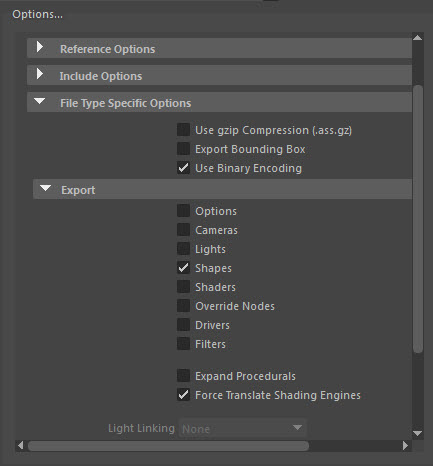
Force Translate Shading Engines?


You may have noticed the Force Translate Shading Engine option in the export dialog (or in the Feature Overrides section of the Render Settings).
force_translate_shading_engine

Force Translate Shading Engines forces MtoA to export shape nodes with a shader link, like this:

polymesh
{
 ...
 shader "aiStandard1SG"
 declare mtoa_shading_groups constant ARRAY NODE
 mtoa_shading_groups "aiStandard1SG"
}

where “aiStandard1SG” is the name of a MayaShadingEngine shader node.

This allows you to keep your shapes and shaders in separate ASS files. For example, you could have one standin that loads the shapes, and a second standin that loads the shaders. As long as the shape nodes include links to the shaders, Arnold will resolve the links and render the shapes with the right shaders.

Exporting ASS files to specific locations


For the render -rt 1 command, you can specify the output ASS name in
the defaultArnoldRenderOptions.output_ass_filename attribute. For example:

set PRE_RENDER_MEL="setAttr -type \"string\" 
defaultArnoldRenderOptions.output_ass_filename 
 \"c:/Users/StephenBlair/Documents/example\";"
 
 render -s 6 -e 8 -r arnold -rt 1 -preRender %PRE_RENDER_MEL% 
 C:\projects\Support\scenes\_2016\XSI_deformed_logo.mb 

This will export ASS files named “example.ass”.

The scene should have the Frame/Animation ext set to something like
“name.#.ext”. Otherwise, if it is “name.ext” you’ll get filenames like
“example.ass.0004.ass”

output_ass_filename can have environment variables, but you have to be
careful to use forward slashes. For example:

set PRE_RENDER_MEL="setAttr -type \"string\" defaultArnoldRenderOptions.output_ass_filename \"%OUTPUT_ASS_FILENAME%\";" 
set OUTPUT_ASS_FILENAME=C:/Users/StephenBlair/Documents/example 

render -s 6 -e 8 -r arnold -rt 1 -preRender %PRE_RENDER_MEL% C:\projects\Support\scenes\_2016\XSI_deformed_logo.mb

There’s also the arnoldExportASS command, if you want to script the export.

maya -batch -file scene.mb -command "arnoldExportAss 
-f "/home/blairs/Desktop/example.ass" -mask 255 -lightLinks 1 -compressed 
 -shadowLinks 2 -cam sideShape;"

[MtoA] Renderman performance warning


If you have both Renderman and MtoA installed, you may see a warning that says “Arnold for Maya degrades Renderman performance.” Unless you are running a version of MtoA from 20 months ago, this performance warning is false. MtoA does not degrade Renderman performance.

This was fixed in Arnold 4.2.3.1 (fix #4393 main thread was pinned to a single core) back in January 2015.

Updating MtoA 1.2.7.3 with Arnold 4.2.14.0


MtoA 1.2.7.3 ships with Arnold 4.2.13.

If you want to take advantage of the improvements in Arnold 4.2.14.0 (like the increase  in the maximum number of threads from 128 to 256), here’s what you need to do:

  • Download  Arnold 4.2.14.0 and extract the archive
  • Replace Arnold (libai.so, ai.dll, libai.dylib), kick, and maketx in the MtoA bin folder with the versions from the Arnold 4.2.14.0 download
  • Replace the Arnold Python bindings in  the MtoA scripts/arnold folder with the Python bindings from the Arnold python/arnold folder. For example, replace this folder:
       C:\solidangle\mtoadeploy\2016-1.2.7.3\scripts\arnold

    with the python\arnold folder from the Arnold 4.2.14.0 download. For example:

       C:\solidangle\arnold\Arnold-4.2.14.0-windows\python\arnold

You must update the Arnold Python bindings, otherwise MtoA won’t load. That’s because Arnold 4.2.14.0 included a number of API changes, including the removal of some API (like AiLicenseSetServer). The older Python bindings still refer to the removed API, so there will be Python errors that prevent MtoA from loading.

[Arnold] Understanding the texture cache


Arnold uses the OpenImageIO texture cache. From the OIIO Programmer Documentation:

In short, if you have an application that will need to read pixels from many large image files, you can rely on ImageCache to manage all the resources for you. It is reasonable to access thousands of image files totalling hundreds of GB of pixels, efficiently and using a memory footprint on the order of 50 MB.

So, if you’re using tx files (tiled and mipmapped textures), then Arnold can read tiles as required, and use the texture cache to keep memory usage under control.

The reason we don’t read all the textures at once is that many of our customers have (literally) 100+GB of textures, so we use a texture cache that constantly loads small bits of texture data as required, and unloads old data.

By default, the size of the texture cache is 2048KB (as of Arnold 4.2.13.0). The size of the texture cache is set in the Arnold Render Settings.

Max Cache Size
The maximum amount of memory to be used for texture caching. Arnold uses a tile-based cache with a LRU (Least Recently Used) type algorithm, where the least recently used tiles are discarded when the texture caches is full.

Note If we get an error reading a texture, we mark that texture as bad and we never try to read it again. This makes the renderer a lot faster when you have a missing texture, since we won’t ask the file server millions of times to read from a nonexistent file. But in a transient network error case, one bad experience and the rest of your render has the texture missing.

[MtoA] Switching between multiple versions of MtoA


start_menu_mtoa

If, like me, you need to switch between different versions of MtoA, here’s a recipe for setting that up.

First, you have to install multiple versions. As you probably already know, the MtoA installer always wants to uninstall first. I take care of that by zapping the Uninstall registry entry with this command:

reg delete "HKCU\Software\Microsoft\Windows\CurrentVersion\Uninstall\MtoA2016" /f

Then I run the MtoA installer and install in a folder with the version name, like this:
C:\solidangle\mtoadeploy\2016-1.2.7.3

I start Maya with a batch file that creates a symbolic link named “C:\solidangle\mtoadeploy\2016” that links to the version of MtoA I want to use:

rmdir C:\solidangle\mtoadeploy\2016
mklink /D C:\solidangle\mtoadeploy\2016 C:\solidangle\mtoadeploy\2016-1.2.7.3
rem mklink /D C:\solidangle\mtoadeploy\2016 C:\solidangle\mtoadeploy\2016-1.2.2.0

set RLM_DEBUG=arnold
start "" "C:\Program Files\Autodesk\Maya2016\bin\maya.exe" %* -log %TEMP%\maya.log

My batch file also adds the location of my custom mtoa.mod to MAYA_MODULE_PATH. My custom mtoa.mod points to “C:\solidangle\mtoadeploy\2016”, and handles all versions of Maya:

+ MAYAVERSION:2018 mtoa any C:\solidangle\mtoadeploy\2018
PATH +:= bin
MAYA_CUSTOM_TEMPLATE_PATH +:= scripts/mtoa/ui/templates
MAYA_SCRIPT_PATH +:= scripts/mtoa/mel
MAYA_RENDER_DESC_PATH +:= 
+ MAYAVERSION:2017 mtoa any C:\solidangle\mtoadeploy\2017
PATH +:= bin
MAYA_RENDER_DESC_PATH +:=
MAYA_CUSTOM_TEMPLATE_PATH +:= scripts/mtoa/ui/templates
MAYA_SCRIPT_PATH +:= scripts/mtoa/mel
+ MAYAVERSION:2016 mtoa any C:\solidangle\mtoadeploy\2016
PATH +:= bin
MAYA_CUSTOM_TEMPLATE_PATH +:= scripts/mtoa/ui/templates
+ MAYAVERSION:2015 mtoa any C:\solidangle\mtoadeploy\2015
PATH +:= bin
MAYA_CUSTOM_TEMPLATE_PATH +:= scripts/mtoa/ui/templates
+ MAYAVERSION:2014 mtoa any C:\solidangle\mtoadeploy\2014
PATH +:= bin
+ MAYAVERSION:2013 mtoa any C:\solidangle\mtoadeploy\2013
PATH +:= bin


[Arnold] Overriding parameters of nodes created by a standin


A common question is “how can I override the subdivision/displacement of the nodes in a standin?”

The standard answer is: “you can’t”. A standin is an Arnold procedural node, and you can override only the parameters supported by the procedural node, which do not include subdivision or displacement.

But…here’s how to do with the [deprecated] override back door. The override node allows you set a parameter value on a specific node. So if a standin loads an ASS file with a polymesh named “tRexShape”, then you can override tRexShape.subdiv_iterations like this:

override
{
 tRexShape subdiv_iterations 2
}

So, in Maya, do this:

  • Create a standin that loads an ASS file with the polymesh nodes (in this example, a tRexShape with subdiv_iterations=1).
    trex
  • Create a second standin that loads an ASS file with the override node. Clear the Defer Standin Load check box for this second standin, and your standin will render with the override value for subdiv_iterations.
    trex_override


NOTE
override
nodes aren’t supported by the Arnold API, and there’s no guarantee that support for override nodes won’t be removed at some point in the future.