The case of the blue render view


Reason #35 why you should check the Arnold log

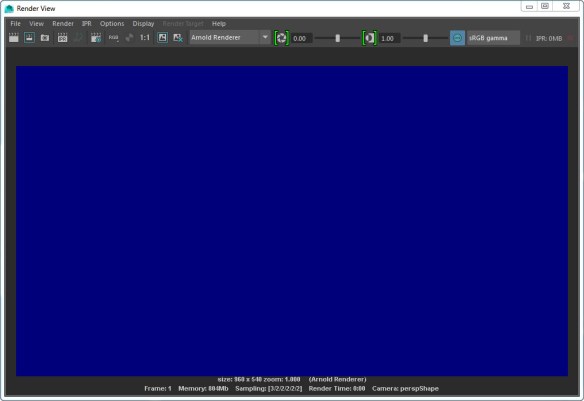
In this case, a scene that used to render yesterday, now just resulted in a blue render view, like this:
blue_render_view

Anytime the render view doesn’t update when your render, you can be fairly sure there’s some ERROR in the Arnold log.

In this case, the problem was a broken path to the IES file used by a photometric light. In the Arnold log, there was this ERROR:

00:00:04 870MB ERROR | [photometric] can't open C:/Assets/IES/example.ies

It’s easy to say “check the log”, but where do you find the log? It’s not like there’s a nice, color-coded button (red for error) on the render view UI that will pop up the log for you.

  • On Windows, you should see the Arnold log in the Output Windows. However, I find that this happens only when I start Maya from the command line. If I start Maya from the Windows Start menu, the Arnold log messages don’t show up in the Output Window. So I have to enable file logging, and check the log file.
  • On OSX and Linux, you’ll also have to enable file logging, unless you start Maya from a terminal.

Update: For Google:

  • Arnold renders a black screen
  • Arnold renders a blue screen


[HtoA] [Tip] Speeding up motion blur on VDB volumes


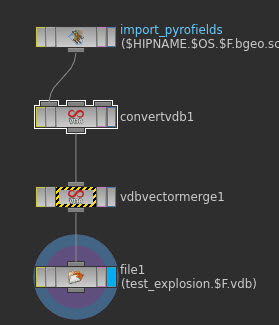
Merging your velocity vel.x, vel.y, and vel.z grids into a single vector grid using a Vdb Vector Merge node can speed up your renders.

vdb_vector_merge

You can safely ignore the “component grids have different transforms” warning on the VDB Vector Merge.  The x, y, and z components of the velocity have slightly different transforms because they located on the center of the cell faces in each direction; that’s coming from the marker-and-cell (MAC) grid used in the simulation.

If you really want to be precise with the velocities, you need to resample them on the same grid, say the density grid:
unnamed
Hat tips to Saber, Fred

WARNING : [ass] node name already in use


Shader nodes must have unique names.

So if you’re using standins, each standin ASS file has to have unique shader node names. Otherwise you’ll get unexpected results when you render, like all standins having the same shading, or some “flickering” in animation if the order of standin loading changes.

In the Arnold log, look for “node name already in use” warnings:

WARNING | [ass] standin_01.ass line 50: node name "aiStandard1SG" already in use
WARNING | [ass] standin_01.ass line 58: node name "aiStandard1" already in use
WARNING | [ass] standin_01.ass line 118: node name "file1" already in use
WARNING | [ass] standin_01.ass line 147: node name "aiNoise1" already in use


If each standin should look different, you need to have unique shader names in each ASS file. If you’re using MtoA, that includes the name of the SG node (for example, aiStandard1SG).

[C4DtoA] Installing C4DtoA in a custom location


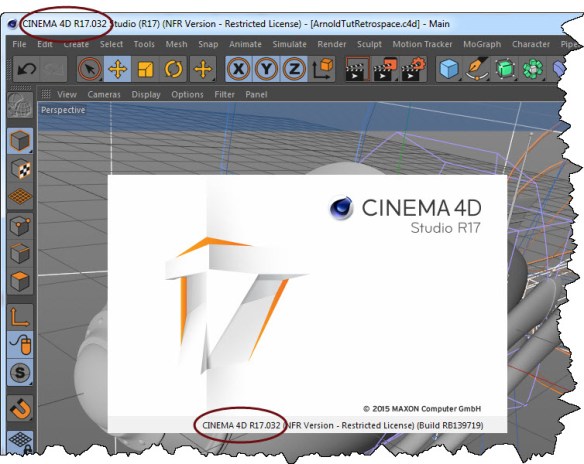
The C4DtoA installer puts the C4DtoA plugin in the default location: the plugins folder of the Cinema 4D install.

If you want to put C4DtoA somewhere else, like a shared network location, you can use the C4D_PLUGINS_DIR environment variable to point to your custom plugin location.

For example, on Windows I moved C4DtoA to a different drive and then set my environment like this:

set C4D_PLUGINS_DIR=F:\plugins
set PATH=F:/plugins/C4DtoA/arnold/bin;%PATH%

Note that I had to set PATH so C4D could find ai.dll, and that I had to use forward slashes (on Windows, C4D doesn’t like backslashes in the PATH and drops them).

On Windows, the C4DtoA installer puts a second copy of ai.dll in the C:\Program Files\MAXON\CINEMA 4D R17, so you’ll have to remove that ai.dll, and use PATH to point to the ai.dll in the C4DtoA arnold/bin folder.

Portable ASS files with relative paths and the Texture Search Path


You can make your ASS files portable across different platforms by using relative paths and the texture search path. For example, if all textures are specified by relative paths like “textures/noicon.tx”, then you just have to set options.texture_searchpath to specify the location of the textures folder.

For example

kick -set options.texture_searchpath //server/project/ -dp -dw example.ass

Or if the texture search path is set to an environment variable

export ARNOLD_TEXTURE_PATH=//server/project
./kick example.ass

To use relative paths for texture file names in nodes like MayaFile, aiImage, aiPhotometricLight, and aiSkydomeLight, you just need to do the following:

  • Put a relative path in the file name box (for example, in Photometry File box of an aiPhotometricLight node, or the Image Name box of an aiImage node)
  • Set the Texture Search Path (Render Settings > System > Search Paths)
  • Clear the Absolute Texture Paths check box

You can put multiple locations, using either : or ; to separate the paths (Arnold supports both separators on all platforms: OSX, Linux, and Windows)

You can use environment variables by putting the environment variable name in square brackets. For example:

"[ARNOLD_TEXTURE_PATH]:C:/Assets/IES/;C:/maya/projects/Support/sourceimages"

Forward slashes work on all platforms.

MtoA appends the current project’s sourceimages folder to the texture search path.

Why can’t I use kick -set options.shader_searchpath ?


You may wonder: why can’t I use kick -set options.shader_searchpath to tell Arnold where to find shaders?

Well, it’s because kick loads the ASS file first, then applies the kick -set parameter overrides. And also, Arnold when loads an ASS file, Arnold automatically loads shaders from the shader_searchpath as soon as Arnold loads the options node.

Here’s the sequence of events:

  1. kick loads all plugins specified by -l or by ARNOLD_PLUGIN_PATH before it loads the ASS file
  2. kick loads the ASS file. When Arnold loads the options node, Arnold automatically loads all plugins specified by options.shader_searchpath.That’s why the options node is at the top of an ASS file: so Arnold can load any required shaders before loading the shader nodes. It you move the options to bottom of the ASS file, the shader nodes in the ASS file won’t be loaded.
  3. Finally, after all the nodes are loaded, the -set parameter overrides are applied. At this point, it’s too late for any shaders from the -set options.shader_searchpath loacation. The corresponding nodes were already discarded during the loading of the ASS file.


WARNING mtoa_shading_groups: unresolved reference


Any time you see “node … is not installed” and “unresolved reference” warnings when you try to kick an ASS file exported from Maya, the problem is missing MtoA shaders.


00:00:00 18MB WARNING | [ass] line 259: node "MayaFile" is not installed
00:00:00 18MB WARNING | [ass] line 288: node "MayaShadingEngine" is not installed

00:00:03 23MB WARNING | [ass] line 238: pSphereShape1.mtoa_shading_groups: unresolved reference to 'aiStandard2SG'
00:00:03 23MB WARNING | [ass] line 137: aiSkyDomeLightShape1.color: unresolved reference to 'file1'
00:00:03 23MB WARNING | [ass] line 188: pPlaneShape1.shader: unresolved reference to 'aiStandard1SG'
00:00:03 23MB WARNING | [ass] line 197: pPlaneShape1.mtoa_shading_groups: unresolved reference to 'aiStandard1SG'
00:00:03 23MB WARNING | [ass] line 229: pSphereShape1.shader: unresolved reference to 'aiStandard2SG'

When you render with kick, you need to specify the location of the MtoA shaders. You can do this several ways:

  • Set the ARNOLD_PLUGIN_PATH environment variable. For example:
    export ARNOLD_PLUGIN_PATH=/home/render/solidangle/mtoa/2016/shaders
    set ARNOLD_PLUGIN_PATH=C:\solidangle\mtoadeploy\2016\shaders
  • Use the kick -l flag to specify the MtoA shader location.
  • In Maya, set the Shader Search Path in the Arnold Render Settings, then export the ASS file.

[MtoA] Per-light AOVs for volumes


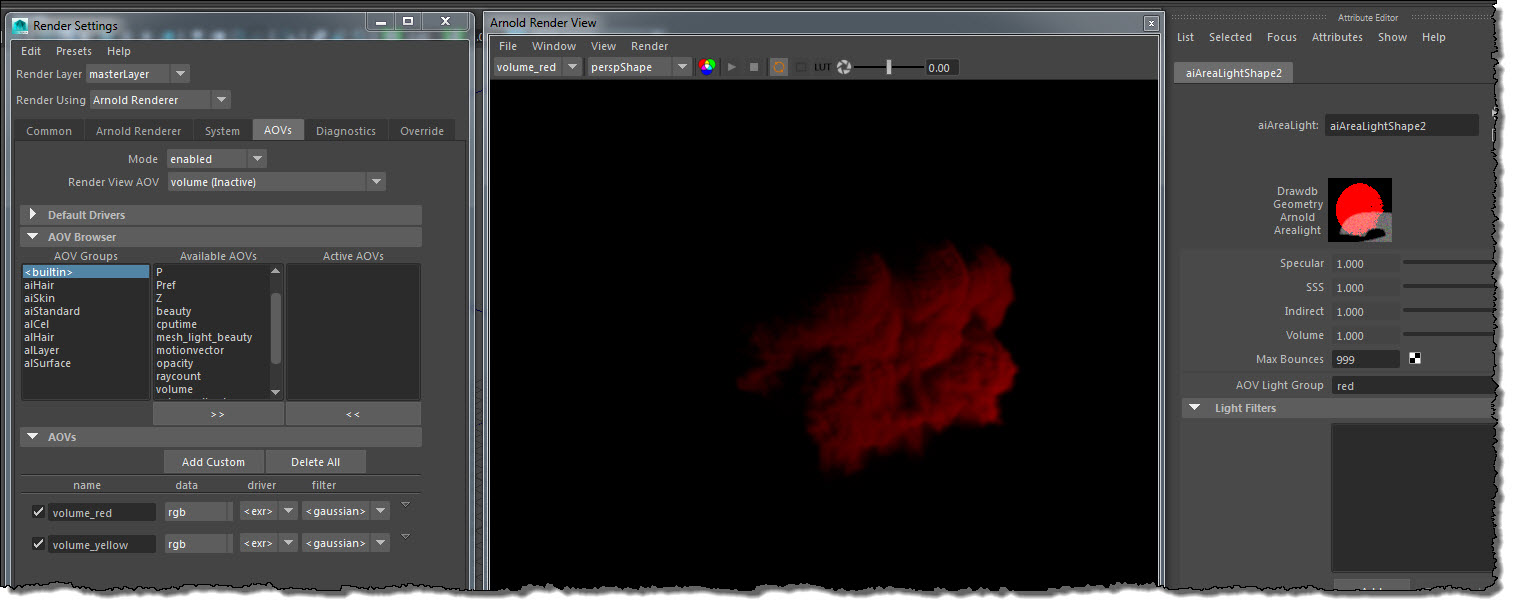
Arnold 4.2.12.2 added support for per-light AOVs for volumetrics.

Here’s how to set up per-light AOVs in MtoA 1.2.6.0:

  1. In the light Attribute Editor, enter a name for the light group.
  2. Create a custom AOV for the light group. Give the AOV a name that starts with “volume_”. For example, if the light group name is “red”, then the AOV name is “volume_red”.

aov_light_group

[MtoA] Creating the defaultArnold nodes in scripting


Loading MtoA isn’t enough to create the defaultArnoldRenderOptions node. The defaultArnoldRenderOptions node isn’t created until a user opens the Arnold Render Settings for the first time.

In code, you can do it like this:

from mtoa.core import createOptions
createOptions()

# Set default render options
setAttr( "defaultArnoldRenderOptions.motion_blur_enable", 1 )

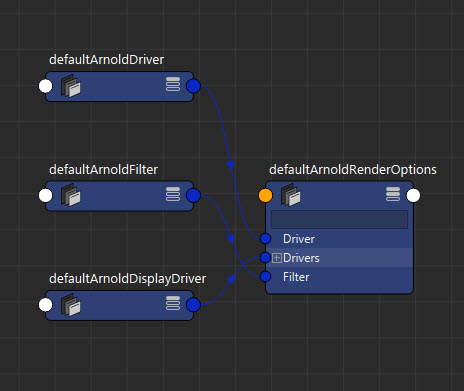
When createOptions() creates the defaultArnoldRenderOptions node, it also creates the defaultArnoldDisplayDriver, defaultArnoldDriver, defaultArnoldFilter nodes and hooks them up to the defaultArnoldRenderOptions node.

defaultArnoldRenderOptions

Note that for setting defaults like this, you can also user a userSetup.py file. createOptions() calls hook functions that you can implement in your userSetup.py.