[RLM] Communications error with license server (­17)


These warnings mean that Arnold can connect to the RLM license server, but Arnold cannot connect to the solidangle ISV server:

00:00:12 14MB WARNING | [rlm] * Communications error with license server (­17)
00:00:12 14MB WARNING | [rlm] * Connection refused at server (­111)

Usually the problem is that the solidangle ISV server is not running.

You can check the status of the solidangle ISV server with RLM Web Admin. I like the get the RLM diagnostics (Diagnostics > Run Diagnostics) from RLM Web Admin and review that.

In rare cases, the problem is something else, such as:

  • Some sort of network connection problem. For example, I recently had a case where we would get these warnings when we used the IP address of the license server in solidangle_LICENSE. But as soon as we switched to using the hostname, everything worked.
  • Another RLM instance is running and listening to port 5053, and that instance doesn’t have a solidangle ISV running. I heard about this second-hand, from a customer; I didn’t see it with my own eyes and I don’t know how it’s possible. You can have multiple RLM instances running, but each instance has to have a different port otherwise you get ” “Port 5053 in use, waiting…” messages and the second RLM won’t start.
[RLM] Reserving licenses


Reserving licenses is an RLM feature and is documented in the RLM User Guide (see “The ISV Options File” section).

You use the RESERVE keyword in the ISV options file (solidangle.opt) to reserve licenses for specific users, machine names, or IP addresses.

For example, this reserves 2 licenses for machines with the specified IP addresses:

INTERNET_GROUP renderfarm 192.168.221.1 192.168.223.1 
RESERVE 2 arnold group renderfarm 

This reserves five licenses for named users:

GROUP myusergroup steve stephen steven stevie stevo
RESERVE 5 arnold group myusergroup 

You can edit the ISV options in the RLM Web Admin page. You need to restart the ISV server after you change the options. Here’s a short video walkthrough (no audio).

ERROR | [mtoa] [xgenTranslator] Could not find xgen_procedural in search path $ARNOLD_PLUGIN_PATH


This error

ERROR   | [mtoa] [xgenTranslator] Could not find xgen_procedural in search path $ARNOLD_PLUGIN_PATH

happens only when MtoA is first loaded, and it can be safely ignored. It doesn’t cause any problems when you render, and MtoA loads the XGen procedural from the MtoA procedurals folder.

The error is a consequence of how MtoA searches folders when it loads extensions. If you really need to get rid of the error, you can try copying the xgen_procedural library to the MtoA shaders folder.

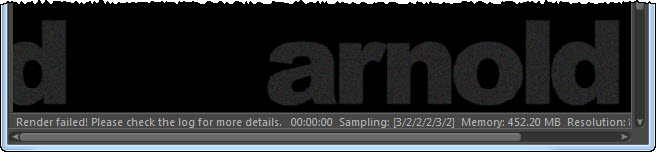
[C4DtoA] Render failed! Please check the log for more details.


c4dtoa_render_failed

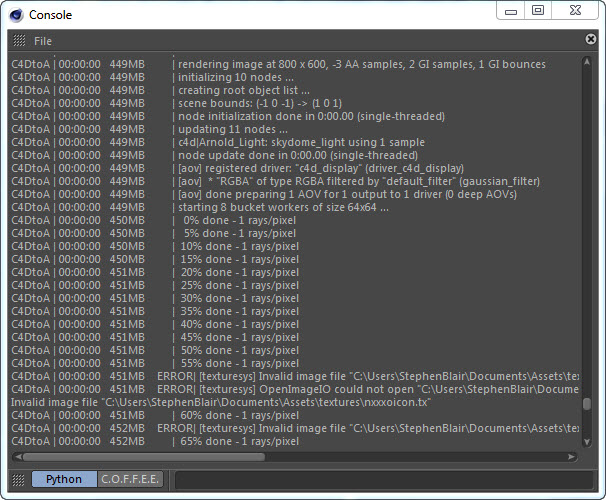
The Arnold log is important, not just for troubleshooting and getting help from us at Solid Angle, but also for understanding what’s going on when Arnold renders your scene.

But, first things first: where’s the log? The Arnold log is output to the Cinema 4D Console:
c4dtoa_console

To open the Console, click Script > Console.
c4dtoa_script_console

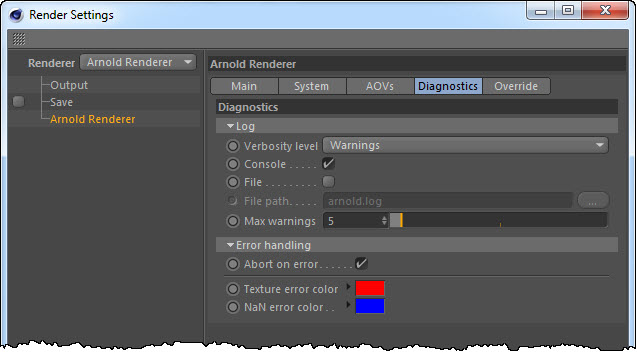
You can set the verbosity level in the Render Settings > Diagnostics. By default, the verbosity level is Warnings, but by increasing it to Info, you’ll get the % done log entries. You can also send the log to a file (good for logging support cases!).
c4dtoa_diagnostics

[RLM] The case of the false positive for virtual machine detection


When RLM detects that it’s running on a virtual machine, you’ll see “This server does not run on virtual machines, exiting” and “solidangle initialization error: 5, not restarting” in the RLM debug log:

06/22 11:45 (solidangle) RLM License Server Version 10.1BL2 for ISV "solidangle"
06/22 11:45 (solidangle) Settings from RLM Version 10.1BL2 for ISV "solidangle"
...
06/22 11:45 (solidangle) This server does not run on virtual machines, exiting
06/22 11:45 (rlm) Reread request (for everyone) by webuser@example-pc
06/22 11:45 (rlm) Restarting solidangle on port 55555
06/22 11:45 (rlm) New thread created to watch ISV solidangle
06/22 11:45 (rlm) Starting any new ISV servers...
06/22 11:45 (rlm) 
06/22 11:45 (rlm) solidangle initialization error: 5, not restarting
06/22 11:45 (rlm) 
06/22 11:45 (rlm) The ISV server is running on the wrong host.
06/22 11:45 (rlm) 
06/22 11:45 (rlm) This can happen if:
06/22 11:45 (rlm)  The hostid of this machine doesn't match any license file
06/22 11:45 (rlm)  - or -
06/22 11:45 (rlm)  You are attempting to run the server on a virtual machine

In this case, the machine wasn’t virtual. And both RLM and the solidangle ISV were the same version (10.1BL2), so it wasn’t a case of a newer solidangle.set with an older RLM, which gives you the same log output.

The problem was the older RLM version. The older RLM 10.1BL2 would sometimes issue a false positive for virtual machine detection. The solution is to upgrade to the newer RLM 11.2BL2, which you can get by downloading Arnold 4.2.4.0 or later.

[Arnold] System requirements


In general, Arnold is going to work on pretty much any 64-bit system where Houdini, Maya, Cinema 4D, or Softimage works. However, there are some minimum OS requirements:

  • OSX 8 or later (as of Arnold 4.2.7.0)
  • Windows 7 or later (as of Arnold 4.2.3)
  • Linux with at least glibc 2.12 and libstdc++ 3.4.13 (gcc 4.4.7). This is equivalent to RHEL/CentOS 6 (as of Arnold 4.2.6)
  • CPUs need to support the SSE4.1 instruction set (as of Arnold 4.2.16.2)

Other than that, Arnold works on Intel and AMD processors, and has no graphic card or GPU requirements, since Arnold is a CPU-based renderer.

Last updated: 19 June 2017

[MtoA] Is there an ARNOLD_PROCEDURAL_PATH environment variable?


No, there isn’t. HtoA recently added support for an ARNOLD_PROCEDURAL_PATH environment variable, but neither MtoA or Arnold itself support ARNOLD_PROCEDURAL_PATH.

Here’s a few things you can do:

  • If you’re kicking ASS files, you can set the procedural search path on the kick command line. For example, assuming ARNOLD_PROCEDURAL_PATH is set in your environment, you could do this on Windows:
       kick -set options.procedural_search_path %ARNOLD_PROCEDURAL_PATH%

    Or this on Linux or OSX:

       kick -set options.procedural_search_path $ARNOLD_PROCEDURAL_PATH
  • You could add the procedural search path to the system path (PATH on Windows, LD_LIBRARY_PATH on Linux, DYLD_LIBRARY_PATH on OSX). Arnold will then find the procedural by searching through the system path.
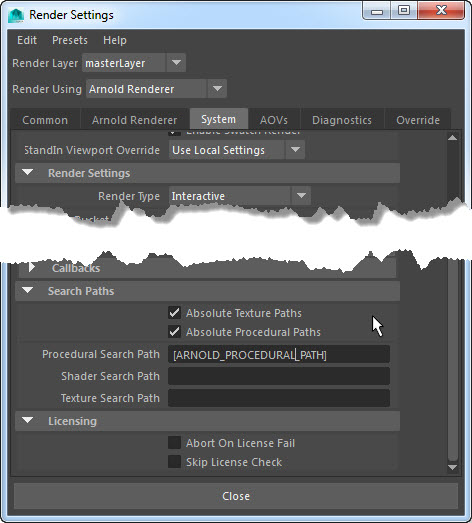
  • Maya, you can put an environment variable in the Procedural Search Path text box. Note that you have to use square brackets, like this: [ARNOLD_PROCEDURAL_PATH].
    procedural_search_path

[HtoA] About instancing


A few quick notes about instancing support in HtoA:

  • For instancing, use the Instance object with fast point instancing. HtoA doesn’t support full point instancing.
  • You can assign material to instances with the shop_materialpath string attribute on the instance points.
  • Fast point instancing supports per-instance user data and instance OBJ property overrides.
  • Light instancing is not supported [yet]. Actually, Arnold itself doesn’t support light instances, but what plugins like MtoA and SItoA do is translate the light instances into duplicates of the light for Arnold.
  • Procedurals (both DSO and ASS) can be instanced.