[MtoA] Finding your Arnold log file


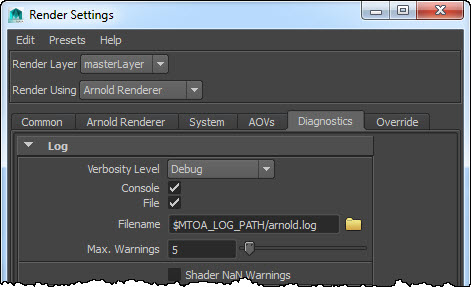
When you enable file logging, it can seem a bit of a mystery where the .log files end up. You may find log files in different folders of your project, like the scenes folder, or the sourceimages folder.
mtoa_file_logging
Here’s how it works.

  • If the MTOA_LOG_PATH environment variable is set, the log files are saved to the folder specified by MTOA_LOG_PATH.
  • If MTOA_LOG_PATH is not set, the log files are saved in the current workspace directory (in MEL, that’s workspace -q -directory). In other words, the log files are saved to last place you went with the Maya file browser. If you haven’t used the file browser yet, the log file is saved in the root folder of the project.
  • If you click the folder icon beside the Filename text box, you can choose where the log files are saved.

Note that the log files will always include the frame number, so you’ll get arnold.1.log, arnold.2.log, and so on.

[Arnold] System requirements: minimum Windows version


As of Arnold 4.2.3.1, the minimum Windows version is Windows 7. We no longer support Windows versions before Windows 7 and Windows Server 2008 R2.

This applies to all plug-ins (such a MtoA 1.2.02 and later, or SItoA 3.4 and later) that use Arnold 4.2.3.1 or later.

If you try to load an Arnold plugin on an unsupported Windows, you’ll get an error (something like “The specified procedure could not be found”).

On Vista with Arnold 4.2.3.1 or later, kick -nodes gives you a more specific error:

"kick.exe - Entry Point Not Found" 
"The procedure entry point SetThreadGroupAffinity could not be located in the dynamic link library KERNEL32.dll."

[MtoA] Setting defaults for options and drivers


If you want to set default rendering options, or change the defaults for AOVs, you can use the hook functions provided by mtoadeploy/2015/scripts/mtoa/hooks.py.

hooks.py provides a number of setup functions that MtoA calls during initialization. You can override the default hook functions to do your own custom setup. For example, you could put this Python in your userSetup.py:

import mtoa.hooks

#
# Set some defaults for the defaultArnoldRenderOptions node
#
def setupOptions(options):
    options.AASamples.set(2)
    options.display_gamma.set(1)
    options.light_gamma.set(2.2)
    options.shader_gamma.set(2.2)
    options.texture_gamma.set(2.2)
    options.GITotalDepth.set(6)    
mtoa.hooks.setupOptions = setupOptions    

#
# Enable Merge AOVs for the defaultArnoldDriver and
# any other drivers created later by the user 
#
def setupDriver(driver, aovName=None):
    driver.mergeAOVs.set(1)
mtoa.hooks.setupDriver = setupDriver    

The setupOptions() function gets a pymel.PyNode object that holds the defaultArnoldRenderOptions. setupDriver() gets an aiAOVDriver pynode and the name of the AOV as a string.

Here’s a snippet that shows how to work with the pynode for an aiAOVDriver node.

import pymel.core as pm
driver = pm.PyNode('defaultArnoldDriver')

print driver
print driver.aiTranslator.get()
print driver.mergeAOVs.get()

[Python] Linking nodes


There’s been a few questions recently about nodes that look like this in an ASS file:

MayaPlusMinusAverage3D
{
 name plusMinusAverage2
 operation "sum"
 input3D 2 1 POINT
0 0 0 0 0 0
 input3D[0] file1
 input3D[1] bulge1
}

That’s the ASS representation of this (in Maya):
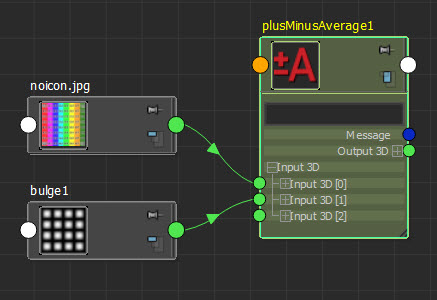
mayaplusminusaverage3D
On line 6, you have the default values (two POINTs) for input3D. If there was nothing plugged into the input3D, you’d get the points (0,0,0) and (0,0,0).

Here’s an example that shows how to set up the node links for a MayaPlusMinusAverage3D node.

from arnold import *

ass_file = "mayaplusminusaverage.ass"

AiBegin()
AiMsgSetConsoleFlags(AI_LOG_ALL)

# Load the mtoa shaders, which include MayaPlusMinusAverage3D
AiLoadPlugins('C:/solidangle/mtoadeploy/2015/shaders')

AiASSLoad(ass_file, AI_NODE_ALL)

# Create a MayaPlusMinusAverage3D node
n = AiNode( "MayaPlusMinusAverage3D" )

# Set the name parameter
AiNodeSetStr( n, "name", "plusMinusAverage2" )

# Set the operation parameter
AiNodeSetStr( n, "operation", "sum" )

# input3D is of type POINT[] (an array of POINTs)

# Allocate an array; by default the array is initialized to 0s
a = AiArrayAllocate( 2, 1, AI_TYPE_POINT )
AiNodeSetArray(n, "input3D", a )

# Link input3D to the file and bulge nodes, which are assumed to already exist
f = AiNodeLookUpByName( "file1" )
b = AiNodeLookUpByName( "bulge1" )
AiNodeLink(f, "input3D[0]", n);
AiNodeLink(b, "input3D[1]", n);

AiASSWrite(ass_file, AI_NODE_ALL, False)
AiEnd()

Here’s another example. This time, one input3D is set to (0.3, 0.2, 0.4), and the other input3D is linked to a Bulge node.

MayaPlusMinusAverage3D
{
 name plusMinusAverage3
 operation "sum"
 input3D 2 1 POINT
0.3 0.2 0.4 0 0 0
 input3D[0] file1
}
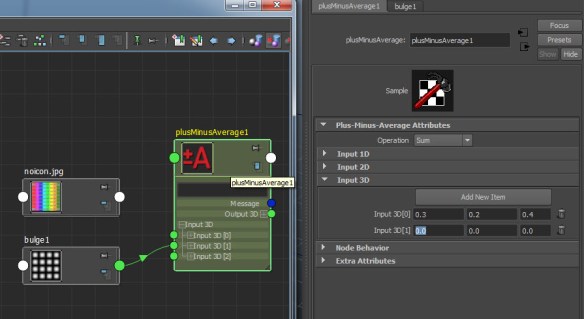
mayaplusminusaverage3D_1
And here’s the Python snippet that creates the node and sets up the link:

n = AiNode( "MayaPlusMinusAverage3D" )

b = AiNodeLookUpByName( "bulge1" )

AiNodeSetStr( n, "name", "plusMinusAverage3" )
AiNodeSetStr( n, "operation", "sum" )

a = AiArrayAllocate( 2, 1, AI_TYPE_POINT )
AiArraySetPnt(a, 0, AtPoint( 0.3, 0.2, 0.4 ) )

AiNodeSetArray(n, "input3D", a )

AiNodeLink(b, "input3D[1]", n);

A couple of notes:

  • You can get the type of parameters like input3D with kick:
    kick -l ..\shaders -info MayaPlusMinusAverage3
    D
    node:         MayaPlusMinusAverage3D
    type:         shader
    output:       RGB
    parameters:   3
    filename:     ..\shaders/mtoa_shaders.dll
    version:      4.2.3.1
    
    Type          Name                              Default
    ------------  --------------------------------  --------------------------------
    
    ENUM          operation                         sum
    POINT[]       input3D                           (empty)
    STRING        name
    
  • For the full list of parameter types such as AI_TYPE_POINT, see the “AtParamEntry API” in the Arnold API Reference (or python/arnold/ai_params.py in the Arnold install).

[Arnold] Getting started with the Arnold Python API


You can download Arnold here. The Arnold download (aka the Arnold SDK) includes the Arnold library, the Arnold C++ API, the API docs, and the Python bindings for the Arnold API.

To use the Arnold Python API, you need to add the Arnold python folder to the PYTHONPATH:

set PYTHONPATH=C:\solidangle\arnold\Arnold-4.2.4.0-windows\python

Here’s a “hello world” written with the Arnold Python API:

#
# hello_world.py
#
from arnold import *

AiBegin()

AiMsgSetConsoleFlags( AI_LOG_INFO )

AiMsgInfo( 'Hello World' )

AiEnd()

Here’s a quick breakdown of the script.

  • You need to import the arnold module.
  • An Arnold session always starts with AiBegin() and ends with AiEnd(). You have to call AiBegin() to initialize Arnold and enable the Arnold API. Try commenting it out and see what happens…
  • We need to call AiMsgSetConsoleFlags() to set the log verbosity level (otherwise we won’t see our “Hello World”, because the default level is AI_LOG_NONE).
  • AiMsgInfo() sends our “Hello World” to the log.

Assuming that Python in is your PATH, you can run the hello world script like this:

python hello_world.py

and that will give you this output:


C:\solidangle\arnold\scripts>python helloworld.py
        | log started Wed Mar 04 14:31:40 2015
        | Arnold 4.2.4.0 windows icc-14.0.2 oiio-1.4.14 rlm-11.2.2 2015/02/26 15:08:42
        | running on StephenBlair-PC with pid 33812
        |  1 x Intel(R) Xeon(R) CPU E3-1240 V2 @ 3.40GHz (4 cores, 8 logical) with 16338MB
        |  Windows 7 Professional Service Pack 1 (version 6.1, build 7601)
        |
        | Hello World
        |
        | releasing resources
        | Arnold shutdown

For documentation, you use the Arnold SDK documentation. It’s for the C++ API, but the Python API is basically a one-to-one wrapper around the C++ API.

You can find the docs in the doc/api/index.html folder of the Arnold installation.

AiBegin() and AiEnd() are part of the Rendering API.
AiMsgSetConsoleFlags() and AiMsgInfo() are part of the Message Logging API, so go there to check out the possible flags, and what other logging functions are available.
arnold_api_reference

[Arnold] [RLM] ARNOLD_LICENSE_HOST and ARNOLD_LICENSE_PORT no longer supported


If you’re still using ARNOLD_LICENSE_HOST and ARNOLD_LICENSE_PORT, now’s the time to stop. As of Arnold 4.2.4.0, these deprecated environment variables are no longer supported.

Instead, use solidangle_LICENSE.

For example, if you currently have these environment variable settings:

ARNOLD_LICENSE_HOST=lic_server
ARNOLD_LICENSE_PORT=5055

you can replace them with this:

solidangle_LICENSE 5055@lic_server

Note: solidangle_LICENSE was added in Arnold 4.0.4 (released back in 23-May-2012).

Also new with Arnold 4.2.4.0 is the ability to use a .lic file instead of an environment variable. Just create a .lic file that looks like this:

HOST lic_server 5055

and put the .lic file in the same folder as Arnold (ai.dll, libai.so, or libai.dylib).

If you want to put the .lic file somewhere else, then you need to set solidangle_LICENSE to point to the lic file.

The case of the disappearing particles


In this case, nParticles (render type = point) weren’t visible behind a refractive plane:
particles_not_visible

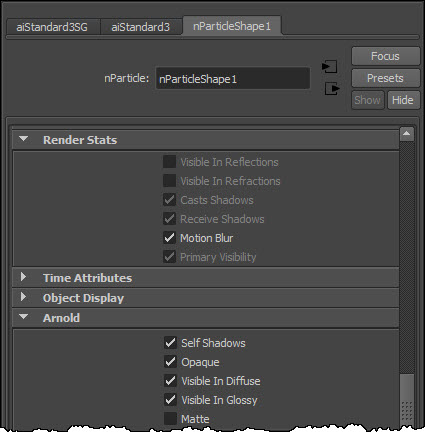
For the points render type, you get an Arnold points shape (with mode “disk”), so I exported an ASS file to see the parameter settings on the points node. I noticed the visibility 243 right away (the default visibility is 255, which is visible to all rays). And sure enough, in the Render Stats for the particle shape, some rays were turned off (and the check boxes were disabled too).
particles_render_stats

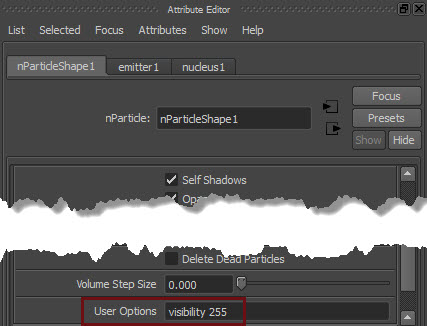
I used the User Options to force the visibility to 255
particles_useroptions
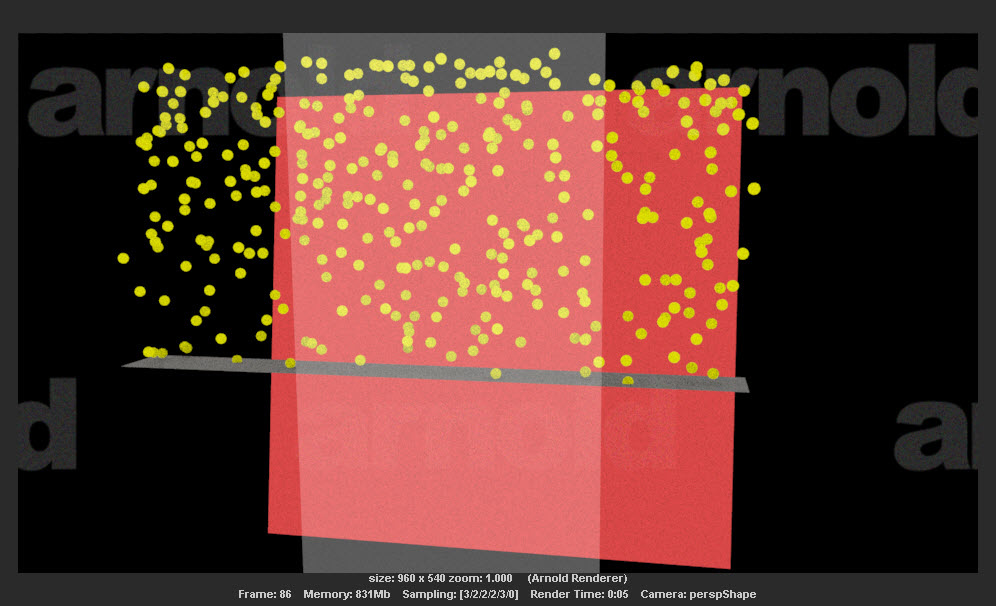
and the particles behind the refractive surface appeared:
particles_visible

This is a Maya thing. For most particle render types, the particles are not visible in reflections or refractions. It says so in the docs:

You can turn on reflections, refractions, and shadows when you software render Clouds, Tubes, and Blobby Surfaces

I’m not sure where the default values are set, but I did find the AEtemplate code that disables the render stats for all particle render types except the “s/w” type:

// C:\Program Files\Autodesk\Maya2015\scripts\AETemplates\AEparticleLayout.mel
		if( $value == 7 || $value == 8 || $value == 9 ) {
			// software particle type
			editorTemplate -dimControl $nodeName "visibleInReflections" false;
			editorTemplate -dimControl $nodeName "visibleInRefractions" false;
			editorTemplate -dimControl $nodeName "castsShadows"    		false;
			editorTemplate -dimControl $nodeName "receiveShadows" 		false;
			editorTemplate -dimControl $nodeName "primaryVisibility" 	false;
		} else {
			// hardware particle type
			editorTemplate -dimControl $nodeName "visibleInReflections" true;
			editorTemplate -dimControl $nodeName "visibleInRefractions" true;
			editorTemplate -dimControl $nodeName "castsShadows"			true;
			editorTemplate -dimControl $nodeName "receiveShadows" 		true;
			editorTemplate -dimControl $nodeName "primaryVisibility" 	true;
		}

So, since that AE template code just enables and disables UI controls, but doesn’t change the actual values, another way to enable Visible in Refractions (or Visible in Reflections) is to do this:

  1. Change the Particle Render Type to one of the “s/w” types, like Blobby Surface.
  2. Now the Visible in Refractions check box is enabled.
  3. Select the check box.
  4. Go back and change the Particle Render Type to points.

Now when you render, the points are visible to refraction rays, so they show up behind the glass.

[Arnold] [Python] Iterating over the shape nodes in a scene


Here’s a snippet that loops over the shape nodes in an ASS file.

from arnold import *
AiBegin()

AiMsgSetConsoleFlags(AI_LOG_ALL)

# Required if the ASS file uses any SItoA shaders
AiLoadPlugins('C:/softimage/workgroups/sitoa-3.4.0-2015/Addons/SItoA/Application/Plugins/bin/nt-x86-64')

AiASSLoad('C:/softimage/projects/Support/Arnold_Scenes/Default_Pass_Main.1.ass')

# Iterate over all shape nodes
iter = AiUniverseGetNodeIterator(AI_NODE_SHAPE);
while not AiNodeIteratorFinished(iter):
	node = AiNodeIteratorGetNext(iter)
	print "[script] AiNodeGetName: {0}".format( AiNodeGetName( node ) )
	
	ne = AiNodeGetNodeEntry( node )
	print "[script]  AiNodeEntryGetName: {0}".format( AiNodeEntryGetName( ne ) )
	print "[script]  AiNodeEntryGetType: {0}".format( AiNodeEntryGetType( ne ) )
	print "[script]  AiNodeEntryGetTypeName: {0}".format( AiNodeEntryGetTypeName( ne ) )
	
AiNodeIteratorDestroy(iter)
AiEnd()

This would print something like this:

C:\solidangle\scripts>python shapes.py
[script] AiNodeGetName: root
[script]  AiNodeEntryGetName: list_aggregate
[script]  AiNodeEntryGetType: 8
[script]  AiNodeEntryGetTypeName: shape
[script] AiNodeGetName: cube.SItoA.1000
[script]  AiNodeEntryGetName: polymesh
[script]  AiNodeEntryGetType: 8
[script]  AiNodeEntryGetTypeName: shape

Note the root node of type list_aggregate. It’s shape used internally by Arnold. Just be aware that that root node is there in the universe, because even if you load an ASS file that contains just polymesh nodes, there will be a root node that you’ll have to skip over.

[MacOSX] Troubleshooting with dtruss


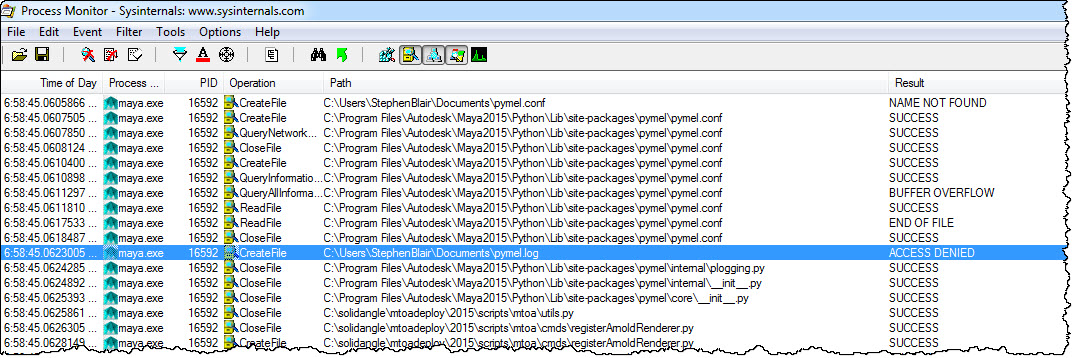
In a previous post, I looked at how things could go wrong in the file ~/pymel.log wasn’t accessible. On Windows, this was fairly easy to track down using Process Monitor:
pymel.log

On Mac OS X, I had to use dtruss. For example, I ran this command to trace the syscalls of the Maya Render command:

sudo dtruss -f -t open_nocancel -n Render 2> /var/tmp/mtoarender.log

When the render job failed, I checked the log file, and found this line:

11668/0x35deb: open_nocancel("/Users/stephenblair/pymel.log\0", 0x601, 0x1B6) = -1 Err#13

One important gotcha: if you repeat the render, you won’t find any mention of pymel error in the dtruss output. My guess is that at that point, the Render command ends up going through the file system cache, so dtruss doesn’t see the attempt to find pymel.log.

Here’s a quick summary of the dtruss command I showed above:

  • Use sudo to run dtruss, because it needs additional privileges.
  • -f tells dtruss to follow any child processes (like mayabatch) launched by Render
  • -t filters the trace for open_nocancel system calls
  • -n tells dtruss to trace the process named “Render”
  • 2> /var/tmp/mtoarender.log redirects the dtruss output to a file

The case of the “cannot remove alias” RuntimeError


In this case, mayabatch reported some runtime errors when loading a certain scene:

# Traceback (most recent call last):
#   File "C:\solidangle\mtoadeploy\2015\scripts\mtoa\callbacks.py", line 415, in deferredCallback
#     func(*args, **kwargs)
#   File "C:\solidangle\mtoadeploy\2015\scripts\mtoa\aovs.py", line 471, in createAliases
#     pm.aliasAttr(sg + '.ai_aov_' + name, remove=True)
#   File "C:\Program Files\Autodesk\maya2015\Python\lib\site-packages\pymel\internal\pmcmds.py", line 134, in wrappedCmd
#     res = new_cmd(*new_args, **new_kwargs)
# # RuntimeError: 'aiStandardSG.ai_aov_direct_specular' is not a unique name.  Cannot remove alias.

Now, even though I have the advantage of access to the MtoA source code, the problem remained: how do I fix the scene and stop these errors? To find a solution (and understand the problem) I had to resort to examining the Maya ASCII version of the scene.

The “fix” was to clear the AOV names on the shadingEngine node:

setAttr "aiStandardSG.aovs[0].aov_name" -type "string" ""; 
setAttr "aiStandardSG.aovs[1].aov_name" -type "string" ""; 
setAttr "aiStandardSG.aovs[2].aov_name" -type "string" ""; 

The problem is that the shadingEngine node has some named custom AOVs, but no corresponding “attribute alias” list. So the AOV name couldn’t be found in the alias list, which in the error message came out as “not a unique name”.

In the Maya ASCII version of the problem scene, I saw this:

createNode shadingEngine -n "aiStandardSG"; 
	addAttr -ci true -h true -sn "aal" -ln "attributeAliasList" -dt "attributeAlias"; 
	setAttr -s 4 ".aovs"; 
	setAttr ".aovs[0].aov_name" -type "string" "direct_diffuse";
	setAttr ".aovs[1].aov_name" -type "string" "direct_specular";
	setAttr ".aovs[2].aov_name" -type "string" "indirect_diffuse";
	setAttr ".aovs[3].aov_name" -type "string" "indirect_specular";

instead of this:

createNode shadingEngine -n "aiStandard1SG";
	addAttr -ci true -h true -sn "aal" -ln "attributeAliasList" -dt "attributeAlias";
	setAttr ".ihi" 0;
	setAttr ".ro" yes;
	setAttr -s 4 ".aovs";
	setAttr ".aovs[0].aov_name" -type "string" "direct_diffuse";
	setAttr ".aovs[1].aov_name" -type "string" "direct_specular";
	setAttr ".aovs[2].aov_name" -type "string" "indirect_diffuse";
	setAttr ".aovs[3].aov_name" -type "string" "indirect_specular";
	setAttr ".aal" -type "attributeAlias" {"ai_aov_direct_diffuse","aiCustomAOVs[0]",
			"ai_aov_direct_specular","aiCustomAOVs[1]",
			"ai_aov_indirect_diffuse","aiCustomAOVs[2]",
			"ai_aov_indirect_specular","aiCustomAOVs[3]"} ;

I don’t know how the user managed to get the scene into that state 😉