[MtoA] One mtoa.mod to rule them all


After a few tries, I got one mtoa.mod file that works for multiple Maya versions:

+ MAYAVERSION:2015 mtoa any C:\solidangle\mtoadeploy\2015
PATH +:= bin
+ MAYAVERSION:2014 mtoa any C:\solidangle\mtoadeploy\2014
PATH +:= bin
+ MAYAVERSION:2013 mtoa any C:\solidangle\mtoadeploy\2013
PATH +:= bin

I had to repeat the PATH line for each module, otherwise the bin folder wasn’t added to the PATH.

I just had to set MAYA_MODULE_PATH to point to this mtoa.mod file, and then I could load MtoA in Maya 2013, 2014, and 2015.

This could be useful if you have multiple users sharing a single machine, because with this mtoa.mod, you don’t have to worry about putting version-specific mtoa.mod files in every user’s Maya folder (by default, the MtoA installer puts mtoa.mod in the user’s $MAYA_APP_DIR\\modules\\<version> folders).

Another way to do it would to be put the mtoa.mod files in the default shared modules folders. For example, on Windows:

C:\Program Files\Common Files\Autodesk Shared\Modules\Maya\2013
C:\Program Files\Common Files\Autodesk Shared\Modules\Maya\2014
C:\Program Files\Common Files\Autodesk Shared\Modules\Maya\2015

On Linux:

/usr/autodesk/modules/maya/<version>

On Mac OS X:

/Users/Shared/Autodesk/maya/<version> for MacOS
Understanding Windows and multiple processors (CPUs)


So, let’s say you’ve got a “32-core workstation with 4 Xeon processors.” What version of Windows should you get?

To answer that question, you need to understand how the different Windows editions support processors.

  • Windows 7 Professional, Enterprise, and Ultimate support up to two physical processors.
  • Windows Server 2012 is licensed per processor. A license supports up to two processors, so for a four-processor machine, you need two licenses (of Windows Server 2012 Standard).

From Microsoft, here’s some information about Windows licenses and multiple processors:

  • Windows 7
    PCs with multi-core processors:
    Windows 7 was designed to work with today’s multi-core processors. All 32-bit versions of Windows 7 can support up to 32 processor cores, while 64-bit versions can support up to 256 processor cores.

    PCs with multiple processors (CPUs):
    Commercial servers, workstations, and other high-end PCs may have more than one physical processor. Windows 7 Professional, Enterprise, and Ultimate allow for two physical processors, providing the best performance on these computers. Windows 7 Starter, Home Basic, and Home Premium will recognize only one physical processor.

  • Windows Server 2012
    How do I calculate the number of licenses I need for a server?

    The number of licenses you will need depends on the number of physical processors on the server and the number of server instances that you will be running. (This only applies for Standard edition because Datacenter edition allows for unlimited VMs.) The larger of these two numbers determines the number of total licenses required.

    Determining the number of physical processor licenses
    Each license covers up to two physical processors, so to determine the number of licenses needed to
    fully license a physical server, simply count the number of physical processors in the server, divide that number by two and that tells you the number of licenses that will be needed.

    Here are some examples:

    • You have a 2-processor server. 2 physical processors / 2 (number of processors covered by a license) equals 1. You will need one license to cover a 2-processor server.
    • You have a 4-processor server. 4 physical processors / 2 (number of processors covered by a license) equals 2. You will need two licenses to cover a 4-processor server.
    • You have an 8-processor server. 8 physical processors / 2 (number of processors covered by a
      license) equals 4. You will need four licenses to cover an 8-processor server.

Here’s some more reading about Windows Server, licensing, and multiple processors:

[RLM] [Windows] Putting the SolidAngle debug log into append mode


I like the log to be in append mode so it isn’t overwritten every time the license server restarts. This is especially handy for troubleshooting license server problems (otherwise, you lose information that might explain the problem when you restart the server).

You’ll need to Run as administrator when you open a command prompt for this.

First, add a plus sign (+) to the log file name (you can use sc qc to query the config and get the current binPath, or you could just look it up in the Services console).

sc config "RLM SolidAngle" binPath= "C:\Program Files\RLM\rlm.exe -dlog \"+C:\Program Files\RLM\solidangle.log\" -service"
[SC] ChangeServiceConfig SUCCESS

Then restart the service. You could also do this in the Services console.

C:\Windows\system32>sc stop "RLM SolidAngle"

SERVICE_NAME: RLM SolidAngle
        TYPE               : 10  WIN32_OWN_PROCESS
        STATE              : 1  STOPPED
        WIN32_EXIT_CODE    : 0  (0x0)
        SERVICE_EXIT_CODE  : 0  (0x0)
        CHECKPOINT         : 0x0
        WAIT_HINT          : 0x0

C:\Windows\system32>sc start "RLM SolidAngle"

SERVICE_NAME: RLM SolidAngle
        TYPE               : 10  WIN32_OWN_PROCESS
        STATE              : 2  START_PENDING
                                (NOT_STOPPABLE, NOT_PAUSABLE, IGNORES_SHUTDOWN)
        WIN32_EXIT_CODE    : 0  (0x0)
        SERVICE_EXIT_CODE  : 0  (0x0)
        CHECKPOINT         : 0x0
        WAIT_HINT          : 0x1388
        PID                : 9008
        FLAGS              :

And finally, check that it really started:

C:\Windows\system32>sc query “RLM SolidAngle”

SERVICE_NAME: RLM SolidAngle
        TYPE               : 10  WIN32_OWN_PROCESS
        STATE              : 4  RUNNING
                                (STOPPABLE, NOT_PAUSABLE, ACCEPTS_SHUTDOWN)
        WIN32_EXIT_CODE    : 0  (0x0)
        SERVICE_EXIT_CODE  : 0  (0x0)
        CHECKPOINT         : 0x0
        WAIT_HINT          : 0x0

[MtoA] Installing the BA shaders in Maya


You can use the BA shaders in Maya with MtoA. The BA shaders are Arnold shaders, so you can use them anywhere that you use Arnold.

Here’s how:

  • Download the Maya mental ray package of the BA shaders. For example, for Maya 2014, the most recent version is
    >>>v25.01.09 Maya 2014 mentalRay
  • Extract the archive. For example, you could extract the archive to a C:\solidangle\BA folder.
  • Set MAYA_SCRIPT_PATH to point to the scripts\AEtemplates folder. For example:
    set MAYA_SCRIPT_PATH=C:\solidangle\BA\140219__baEssential_25.01.09___Maya_2014_MRay\scripts\AETemplates
  • Download the Arnold shaders. For example, for Maya 2014, the most recent version is >>>v25.01.09 Arnold 4.1 (mentalRay addon required for UI)
  • Extract the archive, and set ARNOLD_PLUGIN_PATH to point to the Arnold\win64 folder. For example:
    set ARNOLD_PLUGIN_PATH=C:\solidangle\BA\140219__baEssential_25.01.09___All_Arnold_4_1_3\Arnold\win64
  • Start Maya. The BA shaders should be available, and the AE should look “nice” for the BA shaders.

[MtoA] [SItoA] Distance between shading with Vector State


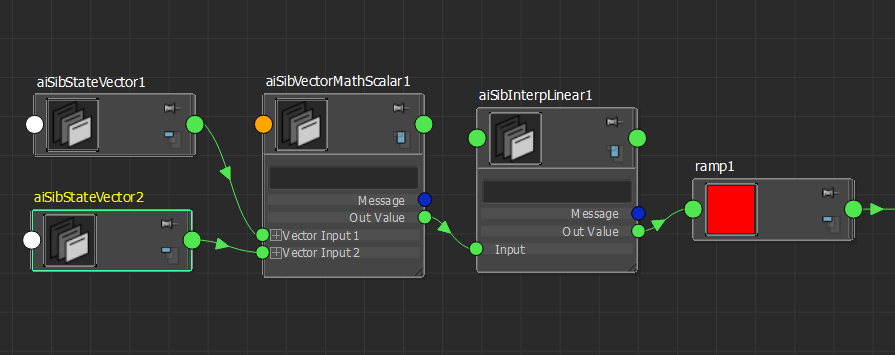
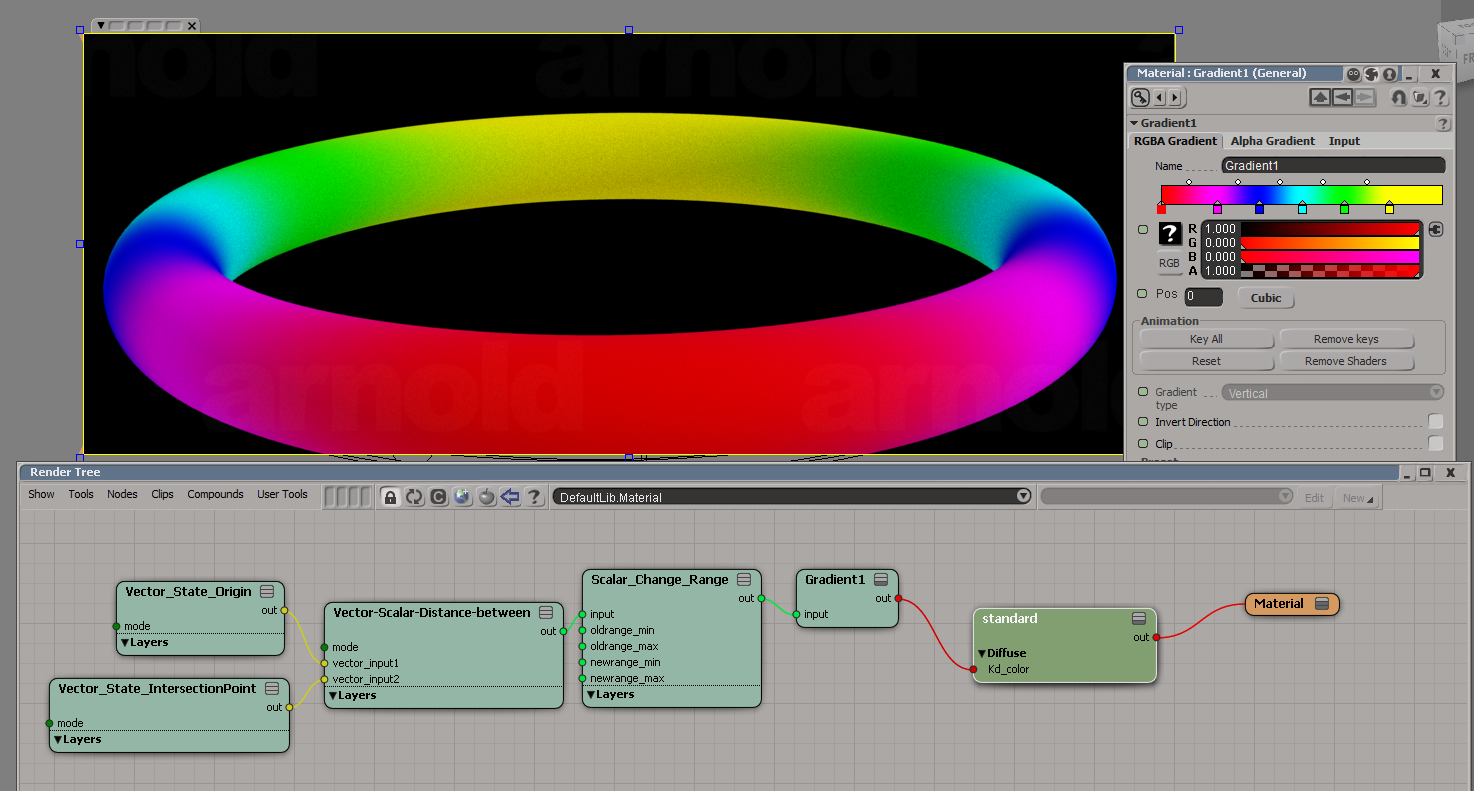
SItoA includes Arnold versions of the Softimage Vector State and Vector Scalar shaders, which you can use to do build a “distance between” shading network.

Vector State can get you the origin point of a ray and its intersection point, and Vector Scalar can get the distance between those two points.

vector_state_sitoa

You can even use these shaders in Maya (since they are just Arnold shaders). Just put sitoa_shaders somewhere in the ARNOLD_PLUGIN_PATH, and MtoA will load them. The shader UI in the Attribute Editor will be very basic (for example, integer input fields instead of drop-down lists), but you can use the shaders.

vector_state_mtoa

Adding Arnold licenses to an existing RLM license server


If you’ve already have an RLM license server up and running, it’s easy to add your Arnold license to that server. Just download the Solid Angle RLM package, extract the solidangle.set and solidangle.opt files from the download, and copy them to your RLM folder. Then do a reread/restart of the server to pick up the Arnold licenses.

Just make sure you’re not running an older version of RLM. The Solid Angle license server (solidangle.set) requires RLM v10.1BL2 or later.

RLM is backwards compatible, which means you can always use a newer version of RLM with an older solidangle.set.

But RLM is not forwards compatible. You cannot use an older RLM with a newer solidangle.set. For example, you cannot use the current solidangle.set ISV server with RLM v9.4BL2.

If you use a newer solidangle.set with an older RLM, you’ll see something like this in the RLM log:

08/22 14:23 (rlm) RLM License Server Version 9.4BL2

        Copyright (C) 2006-2012, Reprise Software, Inc. All rights reserved.

08/22 14:23 (rlm) License server started on SOLIDANGLE-PC
08/22 14:23 (rlm) Server architecture: x86_w1
08/22 14:23 (rlm) License files:
08/22 14:23 (rlm)     arnold.lic
08/22 14:23 (rlm)
08/22 14:23 (rlm) Web server starting on port 5054
08/22 14:23 (rlm) Using TCP/IP port 5053
08/22 14:23 (rlm) Starting ISV servers:
08/22 14:23 (rlm)     ... solidangle on port 60008
08/22 14:23 (rlm) New thread created to watch ISV solidangle
(solidangle) Server settings (version 10) incompatible with RLM v9 software
(solidangle) This settings file must be used with RLM v10 (or later) software
08/22 14:23 (rlm)
08/22 14:23 (rlm) solidangle initialization error: 1, not restarting
08/22 14:23 (rlm)
08/22 14:23 (rlm) Server initialization error.
08/22 14:23 (rlm)
08/22 14:23 (rlm) This indicates either:
08/22 14:23 (rlm)  A settings file incompatible with this RLM version
08/22 14:23 (rlm)  - or -
08/22 14:23 (rlm)  The ISV server is built with an incorrect RLM license
08/22 14:23 (rlm)  - or -
08/22 14:23 (rlm)  The ISV server encountered an error processing its options fi
le.
08/22 14:23 (rlm)

For google: “solidangle initialization error: 1, not restarting”

[SItoA] Understanding the Object color mode of the Utility shader


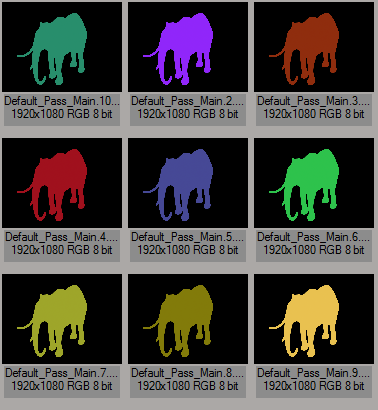
The Utility shader has an Object color mode that assigns colors to objects based on names. Each shape (for example, a polymesh shape or a curves shape or a box shape) gets a unique color, because each shape has a unique name.

If you’re working with SItoA, you may have noticed that the object color changes with each frame:
utility_color_mode

That’s because SItoA gives shapes names like Elephant.Elephant_Mesh.SItoA.4000, which change with every frame.

MtoA doesn’t use the current frame in shape node names, and neither does HtoA (by default). However, HtoA does provide an option for adding a suffix, like the frame number, to the shape node name.

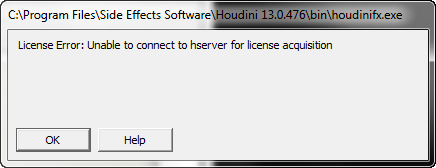
[Houdini] License Error: Unable to connect to hserver for license acquisition


houdini_license_error
Yeah, this isn’t about a Solid Angle product, but about one of the DCCs that host our plugins (HtoA in this case).

So, I installed Houdini 13.0.476 the other day, and I got this “License Error: Unable to connect to hserver for license acquisition” when I tried to start HoudiniFX. I thought that was strange, because I had been running 13.0.401 moments before.

According to the licensing FAQ, that error means that the hserver service isn’t running. And, in fact, neither hserver nor sesinetd were running: they were both Disabled and marked for deletion, so I couldn’t start them from the Services console. After closing down Process Explorer, Task Manager, and the Services console, I was able to delete the services from the command line with sc delete.

At this point, I could have tried creating the services with sc create, but I was curious to see if the Houdini installer would do it for me. So I uninstalled and reinstalled. The installer asked me if I wanted to replace the newer version of sesinetd that was already on my system (huh???), and I clicked Yes. After the install finished, I had a running sesinetd service but no hserver, so I had to create it myself:

sc create HoudiniServer binPath= C:\windows\system32\hserver.exe

After that, I was able to start HoudiniFX and acquire a license.

[RLM] Checking for license denials by the license server


If you’re seeing watermarks on some machines but not on others, there’s usually a simple explanation: those machines cannot connect to the license server. The first thing you should do is check the RLM diagnostics on the license server. In particular, look for the solidangle Statistics, which will show you whether or not licenses are being denied. For example:

solidangle Statistics --- Since Start --- Since Midnight --- Recent ---
    Start time          03/29 18:40:20    04/01 00:00:24   04/01 12:41:30
    Messages:        39398 (   0/sec)   7755 (   0/sec)    20 (   0/sec)
    Connections:      4874 (   0/sec)   1073 (   0/sec)     4 (   0/sec)
    Checkouts:        4844 (   0/sec)   1050 (   0/sec)     3 (   0/sec)
    Denials:             0 (   0/sec)      0 (   0/sec)     0 (   0/sec)
    License removals:    0 (   0/sec)      0 (   0/sec)     0 (   0/sec)

More here…