[SItoA] Disabling camera motion blur


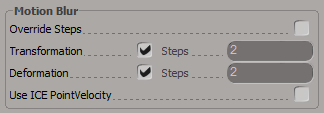
Starting with version 2.8, SItoA no longer supports the Softimage motion blur property. Instead, you use the Arnold Parameters property to control transformation and deformation motion blur.
arnold_parameters_motion_blur

However, you cannot add an Arnold Parameters property to a camera (at least not using the SItoA custom menus, which will tell you that a camera is “is not a valid Object to add Arnold Parameters to”). Here’s a couple of ways to work around that:

  • Create an Arnold Parameters property on a polygon mesh, and then in the Explorer, drag that property to your Camera.
  • Select your camera and run this Python snippet:
    cam = Application.Selection(0)
    cam.AddCustomProperty( "Arnold_Parameters" )
    

[MacOSX] Setting solidangle_LICENSE


There are several ways you can do it.

  • You can use Maya.env to set the solidangle_LICENSE environment variable.

    In your Maya.env file, add this line:

    solidangle_LICENSE=XXXX@SERVER
    

    where XXXX is the port number, and SERVER is the name or IP address of the computer.

    Maya.env is located in your user Library. For example: /Users/steve/Library/Preferences/Autodesk/maya/2014.

    By default, the Library folder is a hidden folder, so you may need to un-hide the Library folder.

  • You can set solidangle_LICENSE as a system environment variable.
    1. Log in with an Administrator account and run this command to open a text editor.
      sudo nano /etc/launchd.conf
      
    2. Add this line to /etc/launchd.conf:
      setenv solidangle_LICENSE XXXX@SERVER
      
    3. Save the file and exit.
    4. Restart the Mac.

If you don’t want to restart your Mac just yet, you can try setting the environment variable like this (it will last until you restart your machine):

launchctl setenv solidangle_LICENSE XXXX@SERVER

[MacOSX] Setting up RLM to always start automatically


If you want the RLM license server to automatically start everytime you restart or turn on your Mac, you need to create a launch daemon. Don’t worry, it’s not as scary as it sounds 🙂

First, you need create a launchd property list (.plist) for RLM. It will look something like this:

<?xml version="1.0" encoding="UTF-8"?>
 <!DOCTYPE plist PUBLIC "-//Apple//DTD PLIST 1.0//EN" "http://www.apple.com/DTDs/PropertyList-1.0.dtd">
 <plist version="1.0">
 <dict>
        <key>Label</key>
        <string>com.solidangle.rlm</string>
        <key>ProgramArguments</key>
        <array>
        <string>/PATH/TO/RLM/rlm</string>
        <string>-c</string> <string>/PATH/TO/RLM/arnold.lic</string>
        <string>-dlog</string> <string>/PATH/TO/RLM/solidangle.dlog</string>
        </array>
        <key>RunAtLoad</key>
        <true/>
 </dict>
 </plist>

This plist file basically tells the system to start rlm with the -c and -dlog flags, like this:

/Users/stblair/solidangle/RLM/rlm -c /Users/stblair/solidangle/RLM/rlm/arnold.lic -dlog /Users/stblair/solidangle/RLM/rlm/solidangle.dlog

The -c flag isn’t necessary if the license file is in the same folder as the RLM binary executable.

Here’s an example com.solidangle.rlm.plist. Download it, and use TextEdit to change the paths to match the RLM location on your computer, and then save the RLM plist file in /Library/LaunchDaemons/. Note that this download plist assumes that the license file is in the same folder, and therefore omits the -c flag.

For example:

sudo cp com.solidangle.rlm.plist /Library/LaunchDaemons

Note: The plist file needs to be owned by root, otherwise you won’t be able to load the plist. If necessary, you can change the owner like this:
sudo chown root /Library/LaunchDaemon/com.solidangle.rlm.plist

Finally, you need to load the plist:

sudo launchctl load -w /Library/LaunchDaemon/com.solidangle.rlm.plist

The license server will now automatically start, even after a restart or power down of the machine.

You can check the license server by opening a Web browser and going to localhost:5054.

Creating object mask AOVs that include opacity


  • Create a custom RGB AOV.
  • Use aiWriteColor to write the object mask to the custom AOV. The Input color of the aiWriteColor is the mask color, and you have to enable Blend to get the opacity blended into the Input.
    mask_opacity_aiWriteColor
  • Connect the Out Color of the aiWriteColor to the Color of a Standard shader. That sends the aiWriteColor beauty to the Standard.
    mask_opacity_Nodes
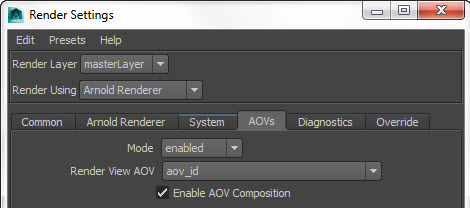
  • Make sure Enable AOV Composition is turned on in the Render Settings.
    EnableAOVComposition

I don’t think this set up works if you plug a Standard into the beauty of the aiWriteColor (eg Standard > aiWriteColor > Standard). With that set of connections, I could never get the opacity right in both the Beauty and the Mask AOVs.

[arnold] Getting RLM diagnostics from Arnold


If you want to double-check what license servers Arnold is trying to connect with, set the log verbosity level to the maximum, and you’ll get something like this:

' INFO : [arnold] 00:00:00  438mb   [rlm] checking connection to license servers ...
' INFO : [arnold] 00:00:05  438mb   [rlm]  5053@STEPHEN-PC ... DOWN
' INFO : [arnold] 00:00:05  438mb   [rlm]  5053@SOLIDANGLE-PC ... UP
' INFO : [arnold] 00:00:05  438mb   [rlm] found 1 license servers
' INFO : [arnold] 00:00:15  438mb   [rlm] checkout of arnold (version 400) from SOLIDANGLE-PC OK
' INFO : [arnold] 00:00:15  438mb   [rlm] expiration date: 31-dec-2013 (190 days left)
  • In Softimage, set the Verbosity to Debug.
  • In Maya, set the Verbosity Level to 6.
  • On the kick command line, specify -v 6.

Texture search paths


With Arnold there are two things in an ASS file that specify the location of a texture file:

  • The texture filename, which can be an absolute or relative path.
  • The texture_searchpath in the render options. The texture_searchpath is used only if the texture filename is a relative path (for example: “sourceimages/example.tiff”.
  • For example, if the texture filename was a relative path, you might have something like this in an ASS file:

    options
    {
     ...
     texture_searchpath "//server/projects/test"
     ...
    }
    
    MayaFile
    {
     ...
     filename "sourceimages/noicon.png"
     ...
    }
    

    Using gobos instead of IES lighting profiles


    Arnold 4.0.16 added photometric lights, which can use IES light profiles.

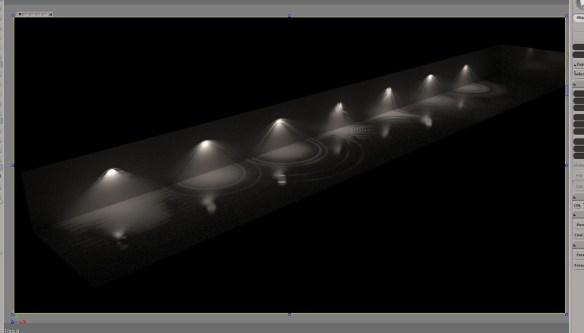
    Arnold does not support IES lighting profiles [generally, IES profiles are not used a lot in film/VFX work]. Most of the time, you can do what an IES light does by using an appropriate gobo (aka a slide projector). For example, SHED used gobo lighting in place of IES on their recent IGA Aide Gourmet spot.

    SHED created their own gobo filters to create a similar look to IES lights

    [SItoA] Stopping procedural textures from swimming


    The Noise shader can access the Pref coordinates to prevent swimming. But for other procedural textures, you’ll have to take a different approach (unless you whip up [a relatively simple] shader to get the Pref coordinates). Here’s one way, using ICE to store UVWs in a CAV, and then a Vertex Color node in the render tree.

    First, create a Spatial projection and a Color at Vertices (CAV) property on your mesh.

    Then build an ICE tree that gets the projection UVWs and stores them in the CAV.
    stop_swimming2

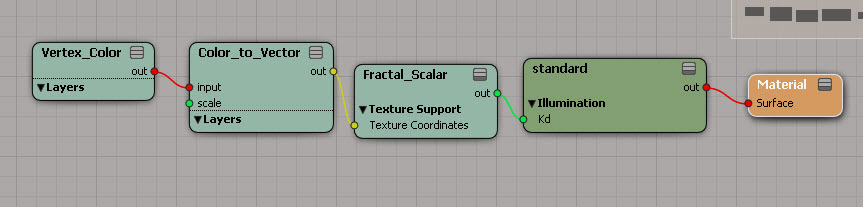
    In the render tree, use a Vertex Color to get the UVW information from the CAV, and feed that into the texture coordinates of the procedural texture.
    stop_swimming1