[mtoa] The case of the layeredTexture and Arnold 5 closures


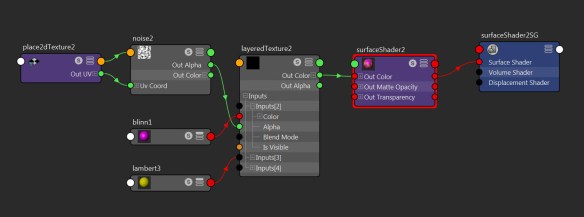
In this case, the question was “why doesn’t layeredTexture work in Arnold 5?”
layeredTexture

This is a common question/problem with Arnold 5: shaders plugged into color slots.

In Arnold 5, shaders like Standard Surface (and Lambert too) don’t return colors. So in general, you can’t plug them into color parameters. And Blinns are translated into Standard Shaders by MtoA, so you can’t plug a Blinn into a color either.

Instead of a layeredTexture, you can use a layeredShader. It knows how to handle shaders that don’t return colors. Or you could use the Arnold aiMix shader.
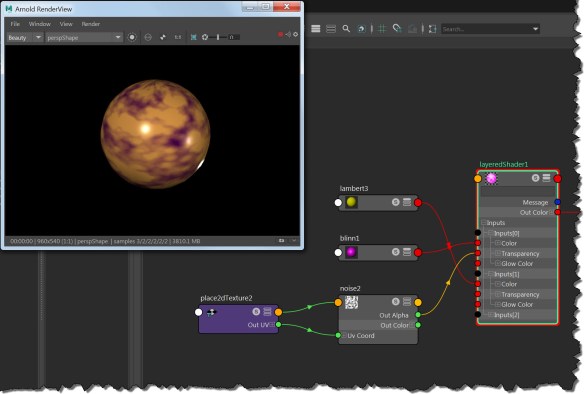
layeredShader

So, if these shaders don’t return colors, what do they return?

Closures. They return closures.

closure is not a color, it’s a bundle of data that tells Arnold how the surface (or volume) scatters light. Arnold takes care of all the ray tracing and light sampling, and then uses the closure to figure out the surface color.


From Master Zap:

“The addition of “closures” is a complete godsend. This relegates the work of rendering to the renderer, as it should be. No longer are material shaders little dumb raytracers that count lights and shoot reflection rays. A material shader returns mix of BxDF closures, and the renderer itself takes care of doing “the right thing” with them”.

From the Arnold 5 release notes:

Closures: a new closure parameter type has been added, which shaders can output instead of final colors. There are BSDF, BSSRDF, emission, matte, transparency and volume closures. See the API documentation and examples for more details on how to use these. Linking a color to a closure parameter will automatically create an emission closure with that color. A closure parameter however can’t be linked or converted to a color, as the integrator only computes lighting after shader evaluation.
 

[mtoa] Running a silent install


On Windows, run the MtoA installer with the flags /S /FORCE_UNINSTALL=1

MtoA-2.0.2.2-2018.exe /S /FORCE_UNINSTALL=1

You can use /D to specify a different install location.

On Linux, use the – – silent command line flags. Note the space between “- -” and “silent”.

sudo sh MtoA-2.0.1.1-linux-2017.run -- silent

The Linux installer will put MtoA in /opt/solidangle/mtoa/<maya version>. If you want to install in a different location, you can extract MtoA, and then set up your own script for installing MtoA.

On OSX, use the installer command:

sudo installer -pkg "MtoA-2.0.2.4-darwin-2017.pgk" -target /

Note that -target is a volume, not a folder.

WARNING | unable to load dynamic library .\ai_renderview.dll: The specified module could not be found.


kick checks the current working directory for plugins (shaders and procedurals). That means kick tries to load all .dll/.so/.dylib files in the current directory.

So if you do this:

cd C:\solidangle\mtoadeploy\2017\bin
kick -nodes

Then you’ll get a warning like this (plus a pop-up System Error dialog that says “Qt5Core.dll is missing from your computer”).

loading plugins from .
WARNING | unable to load dynamic library .\ai_renderview.dll: The specified module could not be found.

On OSX, the warning would  say ./libai_renderview.so, and on Linux, ./libai.so

Notice the “loading plugins from .” The single period, or dot, represents the current directory.

The solution? Don’t run kick in the MtoA bin folder. Don’t run kick in an any folder where there are non-plugin libraries.


[MtoA] Using standins with MASH dynamics


mash_dynamics_w_standin

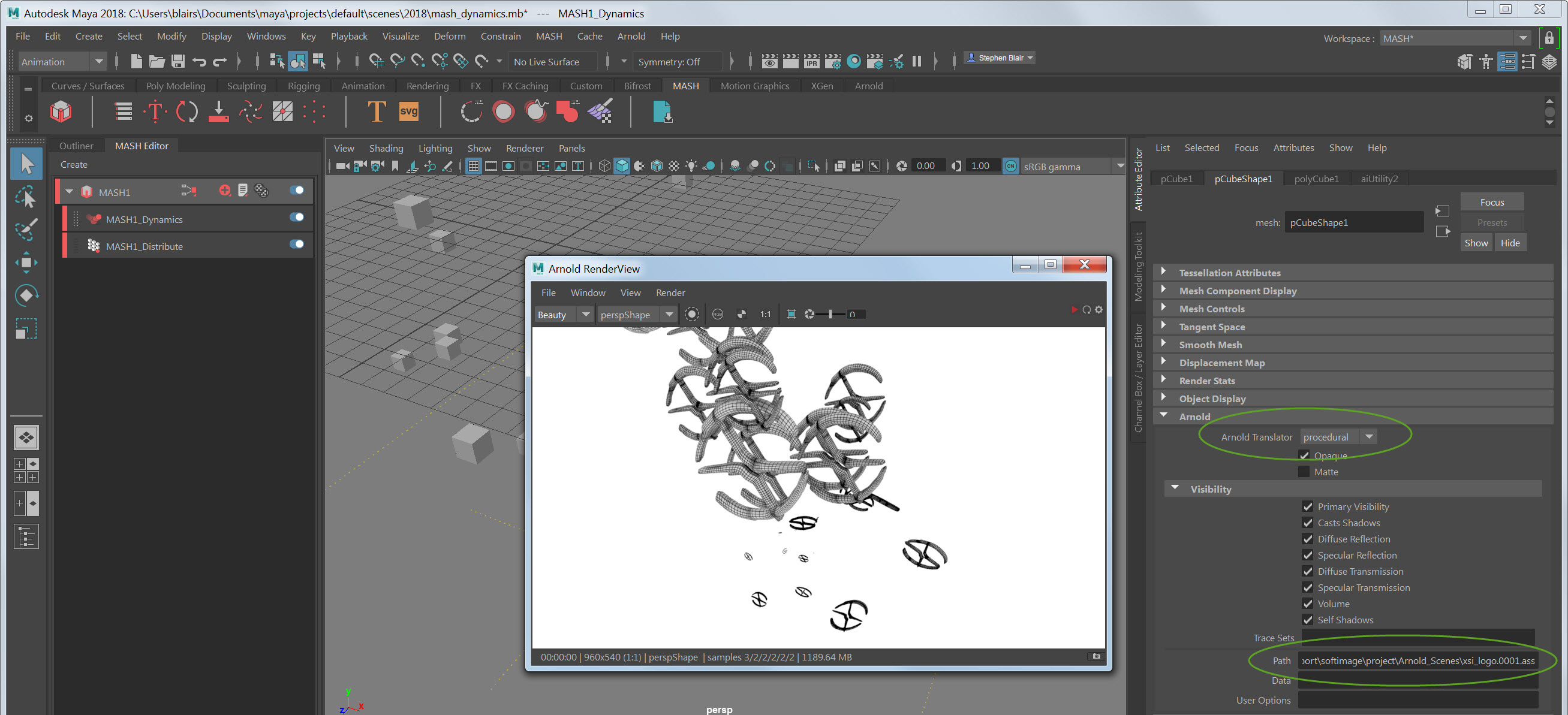
Here’s a way to use standins with MASH dynamics: instance a low-poly mesh that has its Arnold Translator set to procedural.

  • Use a low-poly primitive as a proxy for the standin
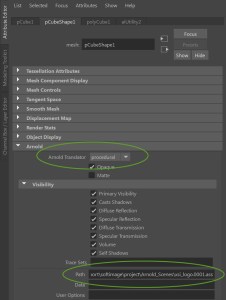
  • In the low-poly primitive Attribute Editor, set Arnold Translator to procedural, and enter the path to the ASS file in the Path box.

arnold_translator_procedural

  • Instance that proxy object with MASH, and apply MASH dynamics

Procedural namespaces


Here’s something new in Arnold 5.0

Each standin (aka procedural) now has its own namespace. So you don’t have to have unique shader names in every ASS file.

For example, here’s two standins. There’s no unique shader names. Both ASS files use the exact same shader names. And there’s no naming conflicts, and each standin renders with the correct shading.

namespaces.png

[MtoA] Getting the MtoA build ID


When you contact support or log bugs, it’s nice to provide the version number and build ID of the MtoA version that you’re using.

This information is displayed in the Arnold > About box.

mtoa_buildid

But the build id (circled in the screenshot) is kinda a pain to type out. Fortunately, you can get the build ID with the arnoldPlugins command:

arnoldPlugins -gbi;
// Result: 261bd4ca (master) //

You can get both the MtoA version and the MtoA build ID like this:

print( "MtoA " + `pluginInfo -v -q "mtoa.mll"` + " - " + `arnoldPlugins -gbi`);

In Python:

print( "MtoA {} - {}".format( cmds.pluginInfo( 'mtoa', query=True, version=True), cmds.arnoldPlugins(getBuildID=True) ) )
# MtoA 1.4.2.2 - 261bd4ca (master)

The case of the mesh that wouldn’t displace


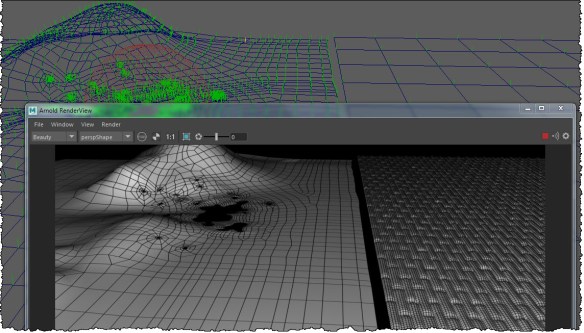
Riddle me this: two meshes with the same displacement shader. One has displacement, the other doesn’t. What’s up with that?

dispmaps

Your first guess might be that it’s a “padding is at least %x smaller than it should be” warning, like this:

// Warning: [disp] planeTestShape: padding is at least 10x smaller than it should be! given disp_padding: 0, recommended: 0.00835387595 //

But that’s not it.

In this case, the plane (the mesh on the right, with displacement) was scaled up. Displacement happens in object space, before any transformations are applied. So effectively, the mesh was displaced, and then everything was scaled up. The displacement scale was just too small for the other mesh, which hadn’t been scaled up).

If you freeze the scaling on the plane, then both objects will be displaced the same, as long as the displacement scale was set large enough.

[MtoA] UnicodeEncodeError when rendering


UnicodeDecodeError

If you get this UnicodeEncodeError when you render

# Error: line 1: UnicodeEncodeError: file C:\Program Files\Autodesk\Maya2016\bin\python27.zip\encodings\utf_8.py line 16: ascii #

it’s probably because because the project folder has a special character in the name (for example, an accent mark like é).

If that’s not it, then we’d need more context (hint: everything else that is logged in the script history).

For a project name with a special character, you’ll see something like this in the script history:

file -f -save -options "v=0;";
// C:/maya/projects/New_Projéct/scenes/blank.mb // 
# Error: line 1: UnicodeEncodeError: file D:\Program Files\Autodesk\Maya2017\bin\python27.zip\encodings\utf_8.py line 16: ascii # 
# Error: line 1: UnicodeEncodeError: file D:\Program Files\Autodesk\Maya2017\bin\python27.zip\encodings\utf_8.py line 16: ascii #