[Arnold] Setting core affinity aka pinning threads


Instead of setting the core affinity yourself, you should let Arnold do it. By default, Arnold pins threads (sets the affinity) if you use more than half the cores on the machine.

If you really must set affinity yourself, you can use the Override User Options to set options.pin_threads to off.

BUT you can also limit the number of threads Arnold uses: in the Render Settings, System tab, clear the Autodetect Threads check box and then set the number of threads. For example, you could limit Arnold to six threads, and limiting the threads is probably a better approach, since you won’t end up with multiple render threads running on the same core, which can be bad for performance. This way, you wouldn’t need to set the affinity at all.

See Also:

  • As of Arnold 4.2.3.0, options.pin_threads works on Windows too.
  • Thread affinity was added in Arnold 4.0.8.0.
    From the Arnold release notes:
    Threads can now be pinned to cores on Linux. This can improve scalability in modern machines with 16 or 24+ threads and, in the case of ray acceleration structure builds, it can occasionally result in as much as a 3x speedup when all the cores are being used (which is the default in Arnold, options.threads = 0 or -t 0 in kick). The default setting is auto where thread pinning is only enabled if more than half the logical cores are being used.
    This can also be manually set to always on or off by setting the new global option options.pin_threads to on, off, or auto. Note that, if client code, for instance a custom shader, spawns their own threads manually (with pthread_create or similar), these threads will inherit the same thread affinity, which totally breaks the point of spawning threads; in these situations they can either set options.pin_threads to off or they can create their threads with the Arnold API AiThreadCreate() which will un-pin the created thread. (#2733)
  • pin_threads
    Arnold can pin threads on linux and Windows so they don’t jump between multiple processors. This can improve scalability in modern machines multiple processors. It can be set to off, on or auto. By default is set to auto, meaning that if the number of threads is more than half the number of logical cores on the machine, arnold will pin the threads.
  • Adjustable thread priority in OS X: OS X now allows for options.thread_priority to adjust the priority of the render threads. It defaults to lowest, which is lower than the system default that was previously being used. Previously this option only existed in Windows.
[Arnold] Getting component links to node parameters with the Python API


Let’s say you have something like this:

alRemapFloat
{
 name alRemapFloat1
 input alCombineColor1.r
}

where the R component of the alCombineColor node is linked to the alRemapFloat.input parameter.

To get the component that is linked to input, you use the comp parameter of AiNodeGetLink(), like so:

node = AiNodeLookUpByName( "alRemapFloat1" )
comp = c_int()
linked_node = AiNodeGetLink( node, "input", comp);

Since R is connected, comp will be 0.

comp is -1 if the entire output is linked, or a number between 0 and 3 to indicate a specific component (0 for r, 1 for g, 2 for b, and 3 for a)

Note that you can pass a c_int to AiNodeGetLink(). ctypes takes care of converting it to a byref() for you.

[MtoA] Adding user data to standin instances


The standard way to add user data to an Arnold node is to add an mtoa_constant attribute to the shape node in Maya. MtoA translates the mtoa_constant attributes to user data, so you can use shaders like AiUserDataColor.

Instances in Maya, however, don’t have their own shape node: they all share the shape node of the original object. So you can’t use an mtoa_constant attribute on the shape to get different user data for each instance.

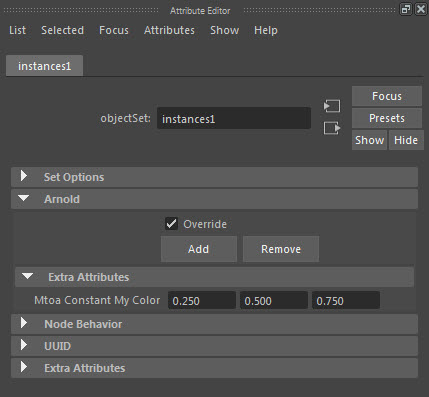
But you can use override sets to get user data on instances. Put the instances in a set, and then add the mtoa_constant as an override attribute.

set_overrides

Then each instance in the set will get that user data.

Another way to add user data to instances is with the particle instancer: you can add per-particle attributes, and then list them in the Arnold > Export Attributes text box. MtoA translates all those attributes to user data on the particle instances.

[Arnold] Do the right thing: use tx


Use tx textures. Don’t use png, jpg, tif, psd, or any other format. Convert them to tx.

Why not use those other formats?

  • Slow to load
  • Memory hungry if not tiled and mipmapped
  • Slow to render if textures exceed the texture cache size

Why use tx?

  • Fast to load
  • Efficient memory usage
  • Faster to render because they make better use of the texture cache
  • Optimizations such as the detection of constant colors and duplicate files


[Arnold] Minimum CPU requirements


Arnold 4.2.16.2 reduced the minimum requirement to SSE4.1

The latest Arnold 4.2.13.0 raises the minimum CPU requirements from SSE3 to SSE4.2:

  • CPUs need to support the SSE4.2 instruction set

If you want to check whether an older machine supports SSE, here’s a few suggestions:

  • Google your CPU and “SSE”
  • Windows: Download and run coreinfo -f
  • OSX: Run sysctl -a | grep machdep.cpu
  • Linux: Check /proc/cpuinfo

[MtoA] [Arnold] The case of the mesh light and the facing-ratio material


In this case, we have a torus as a mesh light.

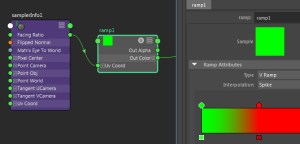
The mesh light color is facing-ratio ramp, so that in the Beauty AOV, the polygons facing the incoming camera ray are red, and polygons facing away are green.

facing-ratio-1

The plane below the light has a [slightly non-realistic] combination of diffuse, specular, and reflection (Kd=0.7, Ks=0.5, Kr=0.2).

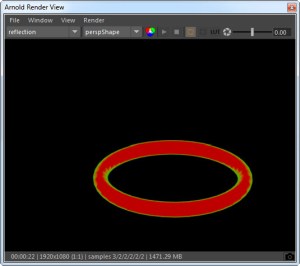
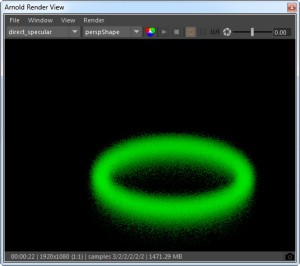
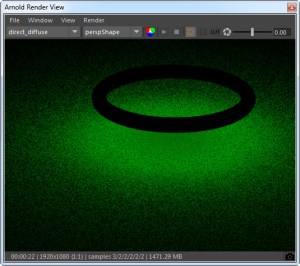
The question here is: why do we see red in the reflection AOV, but green only in the diffuse and specular AOVs? Why does the facing-ratio ramp return red for reflection rays, but green for diffuse and glossy rays?

The answer is that there are no diffuse or glossy rays in this situation. A mesh light gets a meshLightMaterial shader, which MtoA assigns to the mesh light color (and to the torus shape) when MtoA translates the scene to Arnold.

The meshLightMaterial shader doesn’t handle diffuse, glossy, or shadow rays. The first few lines of the meshLightMaterial shader look like this:

if (sg->Rt & (AI_RAY_DIFFUSE | AI_RAY_GLOSSY | AI_RAY_SHADOW))
 {
 sg->out.RGBA = AI_RGBA_BLACK; 
 return;
}

Let’s take a look at what’s happening in the different AOVs.

Reflection

The reflection rays hit the bottom of the torus, go through the facing-ratio ramp, and return red because most of the polygons are facing down towards the plane. In this case, we get the facing ratio of the polygon normals and the reflection ray.

facing_ration_reflection

Specular

We get the green from the light sampling, where there’s no rays.

facing-ratio-glossy

Since there’s no rays, we get the dot product of the surface normal and  0 0 0, which is 0. And that returns green from the ramp:

facing-ratio-ramp

Diffuse

The diffuse rays don’t make a contribution (because the meshLightMaterial doesn’t handle them) so we get green from the light sampling (just like for specular).

facing-ratio-diffuse

Indirect Specular

This would be black, since the meshLightMaterial doesn’t handle glossy rays, so the mesh light makes no contribution to the glossy reflections.

[Arnold] [kick] Enabling tiled EXRs


Suppose you have a load of ASS files that were exported with the Tiled option disabled. How could you re-enable the Tiled option without re-exporting the ASS files?

With the kick -set flag, that’s how:

kick -set display_exr.tiled on

That will set the tiled parameter for all EXR driver nodes in the ASS file.

If you want to set the flag for a specific driver node, you need to know the driver node name.

kick -set defaultArnoldDriver@driver_exr.RGBA.tiled on

That sets tiled for the driver_exr node named defaultArnoldDriver@driver_exr.RGBA.

[Arnold] ndoteye shade mode


The Utility shader has a super-fast ndoteye shading mode. This shading mode doesn’t trace any rays: it simply shades based on the angle between camera (eye vector) and  the surface normal (ndoteye = dot product of the Normal and Eye vectors).

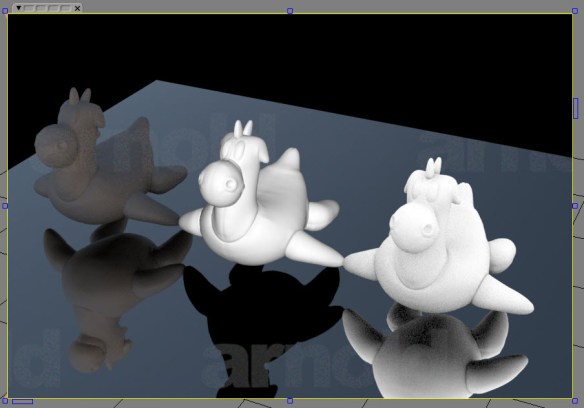
Here’s an example of the Utility shader. The middle mesh has the ndoteye shade mode (the left mesh has plastic, and right ambocc).

ndoteye

Note that with ndoteye you get just black in the glossy reflection. That’s because in ndoteye shade mode, the Utility shader handles camera rays only. No secondary rays like glossy or refraction.

[Arnold] Optimizing render utilization


WARNING| Rendering utilization was only 48%. Your render may be bound by a single threaded process or I/O.

In general, if you see this warning about low machine utilization, that means that a significant amount of time is being spent in just one thread, and if you want to render faster, you need to look into possible issues.

  • Reading textures (file I/O) isn’t multi-threaded, so that can reduce machine usage because threads will be waiting while textures are read from disk.Check the amount of texture data “Read from disk” and the “File I/O time”, and compare the amount of texture data with the texture cache size (for example, if you’re reading 5GB of texture data but the cache is just 1GB, you can increase the cache size).
  • Subdivision isn’t multi-threaded yet, so a few huge objects might slow things down. But in general, multiple objects will be subdivided at the same
    time (one thread per object) so it isn’t usually a big issue.
  • Loading standins is also file I/O so each file is loaded in a single thread. File I/O is dependent on the file system, not the CPU speeds, so adding
    more threads to IO won’t help. If this is what is causing your low CPU utilization, the only way to improve that is to get faster disks, file
    servers, networks, etc…
  • Displacement is multi-threaded. A single mesh can be displaced by multiple threads and multiple meshes can be displaced at the same time.
  • Another possible reason for this warning is because there are multiple copies of Arnold running, or Arnold and some other compute-heavy application, so that Arnold can’t get to 100% utilization because Arnold is competing with other processes. You can check your Activity Manager (OSX), Task Manager (Windows), or top (Linux) to see see what else is consuming CPU time.
  • You’ll also see the utilization warning with relatively simple scenes, because the single-threaded work of loading the scene and plugins and textures
    takes longer than the actual rendering.

hat tip: Thiago