Getting an Arnold log from Royal Render


I’ve had a few cases where people weren’t sure how to get the Arnold log from Royal Render. The Arnold log is pretty important, at least for me, so here’s how to get it.

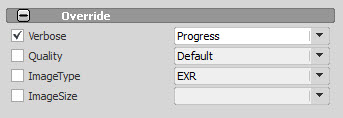
First, when you submit the job, set the log verbosity in rrSubmitter. You can do that in the Override section, but note that the verbosity levels in the Verbose list don’t match up with the newer MtoA verbosity levels. To get a Debug log, you’ll have to set the Verbose to Progress.
rrSubmitter_w_spotlight

rrSubmitter_Override

You can view the log in rrControl:
rrControl_Log_Files

[Arnold] [Python] Changing Arnold options in Python


The global render settings are stored in the options node, which you can get with AiUniverseGetOptions(). If the universe isn’t active (you are not inside an AiBegin() / AiEnd() block so the scene doesn’t exist yet), AiUniverseGetOptions() returns None.

Once you have the options node, you can load options from an ASS file, or you can update it with the node parameter setters such as AiNodeSetInt(). The way kick, and pykick, work is that they load the ASS file first, with its options, and then update the options node with the values from the command line.

from arnold import *
import os

AiBegin()

AiMsgSetConsoleFlags(AI_LOG_ALL)

# Get the default options
options = AiUniverseGetOptions()

AiLoadPlugins( os.getenv( 'ARNOLD_PLUGIN_PATH' ) )

AiASSLoad("C:/Users/Support/project/scenes/test_640x480.ass", AI_NODE_ALL)

# Render using options loaded from the ASS file
AiRender()

# Change options and render with the changes
AiNodeSetInt(options, 'xres', 320)
AiRender()

# Load options and use them to render
AiASSLoad("C:/Users/Support/project/scenes/test_960x540.ass.gz", AI_NODE_OPTIONS)
AiRender()

AiEnd()

[RLM] [Arnold] Figuring out why a certain scene renders with a watermark


If suddenly some scenes render with a watermark, but others don’t, that probably means someone saved those scenes with Skip License Check enabled.

A quick way to check this is with the Arnold log.

If you set the verbosity level to at least Warnings + Info, you would see this:

00:00:00   787MB WARNING | [rlm] skip_license_check enabled

if Skip License Check is enabled.

If you’re using MtoA and rendering Maya scenes, one way to avoid this problem is to render with the -ai:slc off flag (slc = skip license check).

In the very unlikely case that Skip License Check isn’t the problem, the set the verbosity level to Debug and check the log again.

[MtoA] Pimping your Yeti module file


Here’s a variation of the Yeti module file that adds the bin folder to the PATH, and plug-ins to MTOA_EXTENSIONS_PATH:

+ pgYetiMaya any C:\solidangle\yeti\Yeti-v1.3.14_Maya2014-windows64
PATH +:= bin
MTOA_EXTENSIONS_PATH +:= plug-ins

MtoA uses MTOA_EXTENSIONS_PATH to find the Yeti extension for MtoA, and Arnold uses PATH to find the Yeti procedural.

Understanding Windows and multiple processors (CPUs)


So, let’s say you’ve got a “32-core workstation with 4 Xeon processors.” What version of Windows should you get?

To answer that question, you need to understand how the different Windows editions support processors.

  • Windows 7 Professional, Enterprise, and Ultimate support up to two physical processors.
  • Windows Server 2012 is licensed per processor. A license supports up to two processors, so for a four-processor machine, you need two licenses (of Windows Server 2012 Standard).

From Microsoft, here’s some information about Windows licenses and multiple processors:

  • Windows 7
    PCs with multi-core processors:
    Windows 7 was designed to work with today’s multi-core processors. All 32-bit versions of Windows 7 can support up to 32 processor cores, while 64-bit versions can support up to 256 processor cores.

    PCs with multiple processors (CPUs):
    Commercial servers, workstations, and other high-end PCs may have more than one physical processor. Windows 7 Professional, Enterprise, and Ultimate allow for two physical processors, providing the best performance on these computers. Windows 7 Starter, Home Basic, and Home Premium will recognize only one physical processor.

  • Windows Server 2012
    How do I calculate the number of licenses I need for a server?

    The number of licenses you will need depends on the number of physical processors on the server and the number of server instances that you will be running. (This only applies for Standard edition because Datacenter edition allows for unlimited VMs.) The larger of these two numbers determines the number of total licenses required.

    Determining the number of physical processor licenses
    Each license covers up to two physical processors, so to determine the number of licenses needed to
    fully license a physical server, simply count the number of physical processors in the server, divide that number by two and that tells you the number of licenses that will be needed.

    Here are some examples:

    • You have a 2-processor server. 2 physical processors / 2 (number of processors covered by a license) equals 1. You will need one license to cover a 2-processor server.
    • You have a 4-processor server. 4 physical processors / 2 (number of processors covered by a license) equals 2. You will need two licenses to cover a 4-processor server.
    • You have an 8-processor server. 8 physical processors / 2 (number of processors covered by a
      license) equals 4. You will need four licenses to cover an 8-processor server.

Here’s some more reading about Windows Server, licensing, and multiple processors:

[RLM] [Windows] Putting the SolidAngle debug log into append mode


I like the log to be in append mode so it isn’t overwritten every time the license server restarts. This is especially handy for troubleshooting license server problems (otherwise, you lose information that might explain the problem when you restart the server).

You’ll need to Run as administrator when you open a command prompt for this.

First, add a plus sign (+) to the log file name (you can use sc qc to query the config and get the current binPath, or you could just look it up in the Services console).

sc config "RLM SolidAngle" binPath= "C:\Program Files\RLM\rlm.exe -dlog \"+C:\Program Files\RLM\solidangle.log\" -service"
[SC] ChangeServiceConfig SUCCESS

Then restart the service. You could also do this in the Services console.

C:\Windows\system32>sc stop "RLM SolidAngle"

SERVICE_NAME: RLM SolidAngle
        TYPE               : 10  WIN32_OWN_PROCESS
        STATE              : 1  STOPPED
        WIN32_EXIT_CODE    : 0  (0x0)
        SERVICE_EXIT_CODE  : 0  (0x0)
        CHECKPOINT         : 0x0
        WAIT_HINT          : 0x0

C:\Windows\system32>sc start "RLM SolidAngle"

SERVICE_NAME: RLM SolidAngle
        TYPE               : 10  WIN32_OWN_PROCESS
        STATE              : 2  START_PENDING
                                (NOT_STOPPABLE, NOT_PAUSABLE, IGNORES_SHUTDOWN)
        WIN32_EXIT_CODE    : 0  (0x0)
        SERVICE_EXIT_CODE  : 0  (0x0)
        CHECKPOINT         : 0x0
        WAIT_HINT          : 0x1388
        PID                : 9008
        FLAGS              :

And finally, check that it really started:

C:\Windows\system32>sc query “RLM SolidAngle”

SERVICE_NAME: RLM SolidAngle
        TYPE               : 10  WIN32_OWN_PROCESS
        STATE              : 4  RUNNING
                                (STOPPABLE, NOT_PAUSABLE, ACCEPTS_SHUTDOWN)
        WIN32_EXIT_CODE    : 0  (0x0)
        SERVICE_EXIT_CODE  : 0  (0x0)
        CHECKPOINT         : 0x0
        WAIT_HINT          : 0x0
[MtoA] [SItoA] Distance between shading with Vector State


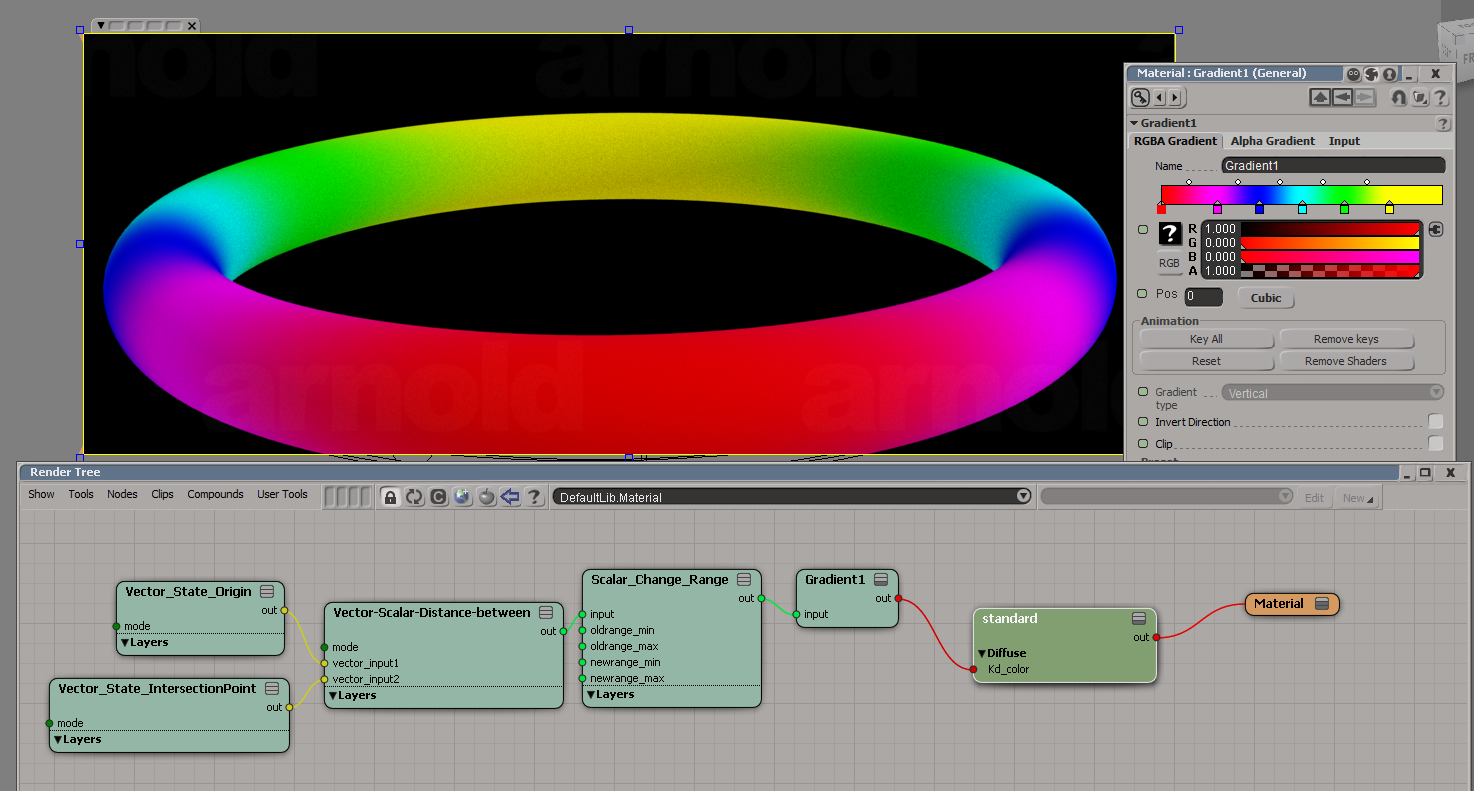
SItoA includes Arnold versions of the Softimage Vector State and Vector Scalar shaders, which you can use to do build a “distance between” shading network.

Vector State can get you the origin point of a ray and its intersection point, and Vector Scalar can get the distance between those two points.

vector_state_sitoa

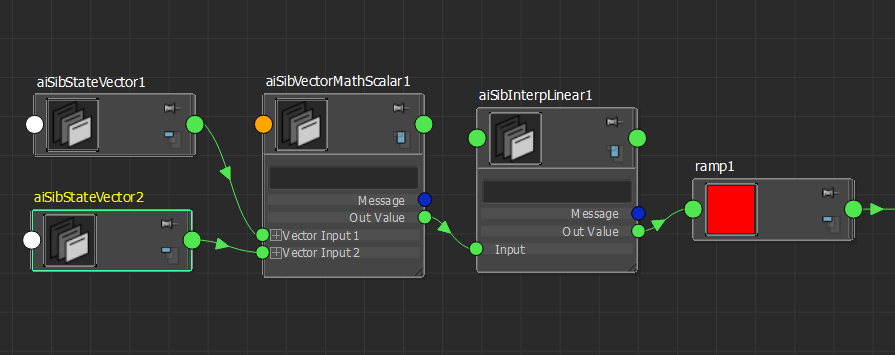
You can even use these shaders in Maya (since they are just Arnold shaders). Just put sitoa_shaders somewhere in the ARNOLD_PLUGIN_PATH, and MtoA will load them. The shader UI in the Attribute Editor will be very basic (for example, integer input fields instead of drop-down lists), but you can use the shaders.

vector_state_mtoa

Adding Arnold licenses to an existing RLM license server


If you’ve already have an RLM license server up and running, it’s easy to add your Arnold license to that server. Just download the Solid Angle RLM package, extract the solidangle.set and solidangle.opt files from the download, and copy them to your RLM folder. Then do a reread/restart of the server to pick up the Arnold licenses.

Just make sure you’re not running an older version of RLM. The Solid Angle license server (solidangle.set) requires RLM v10.1BL2 or later.

RLM is backwards compatible, which means you can always use a newer version of RLM with an older solidangle.set.

But RLM is not forwards compatible. You cannot use an older RLM with a newer solidangle.set. For example, you cannot use the current solidangle.set ISV server with RLM v9.4BL2.

If you use a newer solidangle.set with an older RLM, you’ll see something like this in the RLM log:

08/22 14:23 (rlm) RLM License Server Version 9.4BL2

        Copyright (C) 2006-2012, Reprise Software, Inc. All rights reserved.

08/22 14:23 (rlm) License server started on SOLIDANGLE-PC
08/22 14:23 (rlm) Server architecture: x86_w1
08/22 14:23 (rlm) License files:
08/22 14:23 (rlm)     arnold.lic
08/22 14:23 (rlm)
08/22 14:23 (rlm) Web server starting on port 5054
08/22 14:23 (rlm) Using TCP/IP port 5053
08/22 14:23 (rlm) Starting ISV servers:
08/22 14:23 (rlm)     ... solidangle on port 60008
08/22 14:23 (rlm) New thread created to watch ISV solidangle
(solidangle) Server settings (version 10) incompatible with RLM v9 software
(solidangle) This settings file must be used with RLM v10 (or later) software
08/22 14:23 (rlm)
08/22 14:23 (rlm) solidangle initialization error: 1, not restarting
08/22 14:23 (rlm)
08/22 14:23 (rlm) Server initialization error.
08/22 14:23 (rlm)
08/22 14:23 (rlm) This indicates either:
08/22 14:23 (rlm)  A settings file incompatible with this RLM version
08/22 14:23 (rlm)  - or -
08/22 14:23 (rlm)  The ISV server is built with an incorrect RLM license
08/22 14:23 (rlm)  - or -
08/22 14:23 (rlm)  The ISV server encountered an error processing its options fi
le.
08/22 14:23 (rlm)

For google: “solidangle initialization error: 1, not restarting”

[SItoA] Understanding the Object color mode of the Utility shader


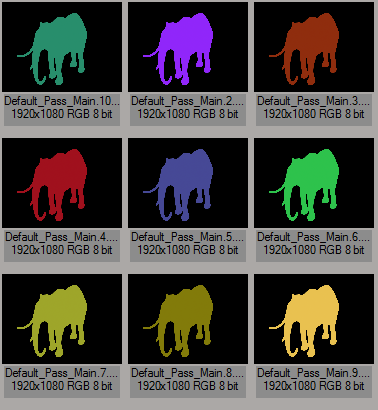
The Utility shader has an Object color mode that assigns colors to objects based on names. Each shape (for example, a polymesh shape or a curves shape or a box shape) gets a unique color, because each shape has a unique name.

If you’re working with SItoA, you may have noticed that the object color changes with each frame:
utility_color_mode

That’s because SItoA gives shapes names like Elephant.Elephant_Mesh.SItoA.4000, which change with every frame.

MtoA doesn’t use the current frame in shape node names, and neither does HtoA (by default). However, HtoA does provide an option for adding a suffix, like the frame number, to the shape node name.