If you have both Renderman and MtoA installed, you may see a warning that says “Arnold for Maya degrades Renderman performance.” Unless you are running a version of MtoA from 20 months ago, this performance warning is false. MtoA does not degrade Renderman performance.
This was fixed in Arnold 4.2.3.1 (fix #4393 main thread was pinned to a single core) back in January 2015.
If you want to take advantage of the improvements in Arnold 4.2.14.0 (like the increase in the maximum number of threads from 128 to 256), here’s what you need to do:
Replace Arnold (libai.so, ai.dll, libai.dylib), kick, and maketx in the MtoA bin folder with the versions from the Arnold 4.2.14.0 download
Replace the Arnold Python bindings in the MtoA scripts/arnold folder with the Python bindings from the Arnold python/arnold folder. For example, replace this folder:
You must update the Arnold Python bindings, otherwise MtoA won’t load. That’s because Arnold 4.2.14.0 included a number of API changes, including the removal of some API (like AiLicenseSetServer). The older Python bindings still refer to the removed API, so there will be Python errors that prevent MtoA from loading.
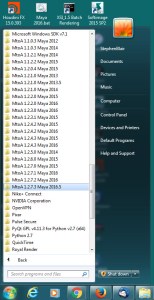
If, like me, you need to switch between different versions of MtoA, here’s a recipe for setting that up.
First, you have to install multiple versions. As you probably already know, the MtoA installer always wants to uninstall first. I take care of that by zapping the Uninstall registry entry with this command:
Then I run the MtoA installer and install in a folder with the version name, like this: C:\solidangle\mtoadeploy\2016-1.2.7.3
I start Maya with a batch file that creates a symbolic link named “C:\solidangle\mtoadeploy\2016” that links to the version of MtoA I want to use:
rmdir C:\solidangle\mtoadeploy\2016
mklink /D C:\solidangle\mtoadeploy\2016 C:\solidangle\mtoadeploy\2016-1.2.7.3
rem mklink /D C:\solidangle\mtoadeploy\2016 C:\solidangle\mtoadeploy\2016-1.2.2.0

set RLM_DEBUG=arnold
start "" "C:\Program Files\Autodesk\Maya2016\bin\maya.exe" %* -log %TEMP%\maya.log
My batch file also adds the location of my custom mtoa.mod to MAYA_MODULE_PATH. My custom mtoa.mod points to “C:\solidangle\mtoadeploy\2016”, and handles all versions of Maya:
+ MAYAVERSION:2018 mtoa any C:\solidangle\mtoadeploy\2018
PATH +:= bin
MAYA_CUSTOM_TEMPLATE_PATH +:= scripts/mtoa/ui/templates
MAYA_SCRIPT_PATH +:= scripts/mtoa/mel
MAYA_RENDER_DESC_PATH +:=
+ MAYAVERSION:2017 mtoa any C:\solidangle\mtoadeploy\2017
PATH +:= bin
MAYA_RENDER_DESC_PATH +:=
MAYA_CUSTOM_TEMPLATE_PATH +:= scripts/mtoa/ui/templates
MAYA_SCRIPT_PATH +:= scripts/mtoa/mel
+ MAYAVERSION:2016 mtoa any C:\solidangle\mtoadeploy\2016
PATH +:= bin
MAYA_CUSTOM_TEMPLATE_PATH +:= scripts/mtoa/ui/templates
+ MAYAVERSION:2015 mtoa any C:\solidangle\mtoadeploy\2015
PATH +:= bin
MAYA_CUSTOM_TEMPLATE_PATH +:= scripts/mtoa/ui/templates
+ MAYAVERSION:2014 mtoa any C:\solidangle\mtoadeploy\2014
PATH +:= bin
+ MAYAVERSION:2013 mtoa any C:\solidangle\mtoadeploy\2013
PATH +:= bin
If the MtoA plug-in does not load and you get a “The specified procedure could not be found” error like this:
// Error: line 1: Unable to dynamically load : C:/solidangle/mtoadeploy/2016/plug-ins/mtoa.mll
The specified procedure could not be found.
 //
// Error: line 1: The specified procedure could not be found.
 (mtoa) //
then there’s a few basic things you need to check first.
Does your processor support SSE4.1?
Support for SSE4.1 is a minimum requirement. You won’t be able to load MtoA or use Arnold if your processor doesn’t support SSE4.1.
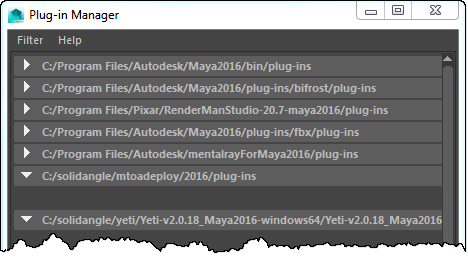
Check the environment in Maya
For example, does the PATH include any older versions of MtoA? If you’re on Windows, run the MEL command system(“set”) to get the environment. On OSX or Linux, run system(“printenv”).
Look for any environment variable that has an Arnold or MtoA folder in it. For example, on Windows, you should not have any MtoA bin folders in PATH.
Get a Process Monitor log
If a clean install of MtoA doesn’t work (and the computer does support SSE4.1), then “The specified module could not be found.” usually means there’s a missing dependency. Dependency Walker is a decent, if aging, tool for checking out dependencies, but for leaving no stone unturned, I prefer Process Monitor.
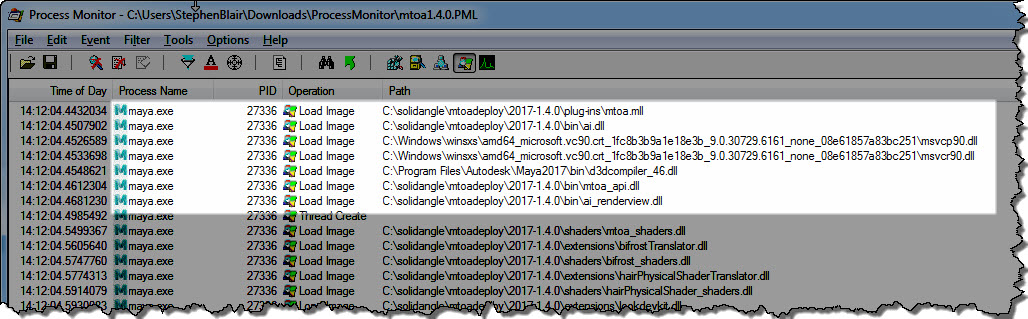
The MtoA plugin (mtoa.mll) depends on a handful of files only. Here’s the log of loaded DLLs for a working MtoA:
Here’s a quick walkthrough (no audio) of how to get a Process Monitor log:
There’s an Arnold error that recommends setting the load_at_init parameter, but people don’t always know where to find that in their favorite Arnold plugin.
ERROR| [proc] c4d|Arnold_Procedural: bounds supplied to procedural node are not large enough to contain the actual underlying geometry.
Replace given bounds: (-1, -1, -1) X (1, 1, 1), with: (-9.4028616, -9.43616867, -9.21633244) X (9.3304739, 9.43616867, 9.21633244).
Setting the procedural's load_at_init parameter to true would also fix this.
The load_at_init parameter controls whether the procedural (standin) is loaded during scene intialization (before rendering starts), or during rendering (when a ray hits the procedural bounding box).
By default, load_at_init is false, which means that procedural loading is deferred until render time.
And so, in MtoA, C4DtoA, and SItoA, the load_at_init parameter is exposed as Defer Standin Load, which is enabled by default. In HtoA, you have a Load At Init parameter on for the Arnold Procedural node.
In MtoA, Defer Standin Load is a parameter of the aiStandin node.
In C4DtoA, Defer Standin Load is a parameter of the Arnold Procedural object.
In HtoA, Load At Init is a parameter of the Arnold Procedural object node.
It turned out that mtoa.mll, ai.dll, and all the other DLLs were gone from the MtoA installation directory. How’d that happen? Probably when my computer had a critical Kernel Power error at 4:30am and crashed.
After you delete that registry key, an MtoA install won’t detect an existing installation, so you get to keep the old install, and install a new version.
MtoA 1.2.7.0 includes an enhancement (“standin as attribute group”) that allows you to use any mesh as a standin. So instead of the aiStandin node, you can have a proxy geometry to represent your standin.
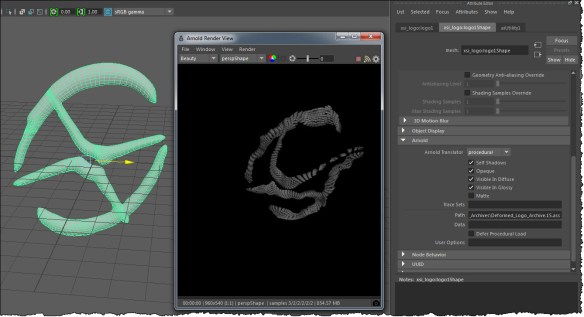
For example, here’s a mesh shape that loads an animated ASS sequence exported from Softimage:
Note that in the shape Attribute Editor, the Arnold Translator is set to procedural.
This feature uses the mesh bounding from Maya, so it’s possible your standin maybe clipped. You can work around this either by disabling Defer Procedural Load, or by using the User Options to set the procedural min and max (for example: min -1 -1 -1 max 1 1 1).
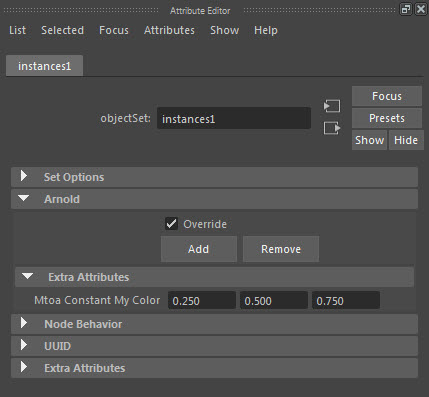
The standard way to add user data to an Arnold node is to add an mtoa_constant attribute to the shape node in Maya. MtoA translates the mtoa_constant attributes to user data, so you can use shaders like AiUserDataColor.
Instances in Maya, however, don’t have their own shape node: they all share the shape node of the original object. So you can’t use an mtoa_constant attribute on the shape to get different user data for each instance.
But you can use override sets to get user data on instances. Put the instances in a set, and then add the mtoa_constant as an override attribute.
Then each instance in the set will get that user data.
Another way to add user data to instances is with the particle instancer: you can add per-particle attributes, and then list them in the Arnold > Export Attributes text box. MtoA translates all those attributes to user data on the particle instances.
Finally, I have XGen > Generate > Export Selection as Archive working with Maya 2016 Extension 1 + SP5 on Windows 7.
I recently updated to SP5 from SP4, but I don’t know if that’s part of why the export works now. But I do know that I had to install mental ray for Maya 2016. I didn’t need to load Mayatomr, I just needed it installed. And then Export Selection as Archive worked!
PS I did see that thread on cgtalk about modifying xgenMR.py and xgenMRExport.py, but that didn’t work on my Windows 7 machine.
UPDATE: In summary, to export XGen archives, you need to:



 Arnold Support Corner