[MtoA] The case of the instant crash when I load MtoA


In this case, Maya 2015 (Windows) disappeared a few seconds after I clicked the MtoA Loaded check box in the Plug-in Manager. Eventually I tracked it down to this line in my pluginPrefs.mel:

evalDeferred("autoLoadPlugin(\"\", \"PolyTools\", \"PolyTools\")");

Darn you PolyTools, I forgot about you 😉 There’s some kind of conflict between PolyTools (from the Maya BonusTools) and MtoA.

I tracked this down the hard way, by renaming my 2015 MAYA_APP_DIR to 2015-x64.bak and starting over with the default preferences, and then comparing the two.

An easier way (on Windows) would have been to use MTOA_STARTUP_LOG_VERBOSITY along with the -log command-line flag (for example, maya -log %TEMP%\mayastartup.log), which would have given me this:

****
* Arnold 4.2.4.0.wip windows icc-13.1.3 oiio-1.4.14 rlm-11.1.2 2015/01/23 16:50:01
* CRASHED in Tstring::formatToWidth at 00:00:00, pixel (0, 0)
* signal caught: error C0000005 -- access violation
*
* backtrace:
*  0 0x0000000045476700 [ai            ] AiArray                                                                                                                                                                               
*  1 0x0000000045477eff [ai            ] AiArray                                                                                                                                                                               
*  2 0x00000000773cb940 [kernel32      ] UnhandledExceptionFilter                                                                                                                                                              
*  3 0x00000000774e3398 [ntdll         ] MD5Final                                                                                                                                                                              
*  4 0x00000000774685c8 [ntdll         ] _C_specific_handler                                                                                                                                                                   
*  5 0x0000000077479d2d [ntdll         ] RtlDecodePointer                                                                                                                                                                      
*  6 0x00000000774691cf [ntdll         ] RtlUnwindEx                                                                                                                                                                           
*  7 0x00000000774a1248 [ntdll         ] KiUserExceptionDispatcher                                                                                                                                                             
>> 8 0x000007fee46eeb05 [FOUNDATION    ] Tstring::formatToWidth                                                                                                                                                                
*  9 0x000007fee46efff5 [FOUNDATION    ] Tstring::set                                                                                                                                                                          
* 10 0x000007febe593e9c [PolyTools     ] uninitializePlugin                                                                                                                                                                    
* 11 0x000007febe593feb [PolyTools     ] uninitializePlugin                   
...
[MtoA] Mapping textures to Yeti hair


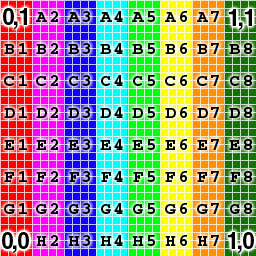
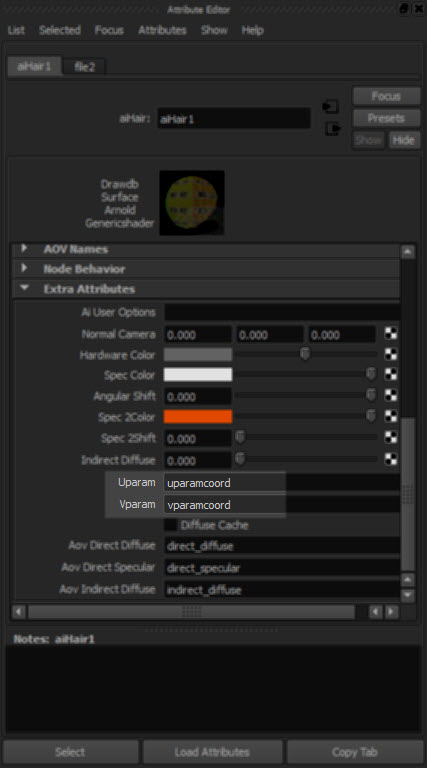
Like MtoA, Yeti exports UV coordinates in the uparamcoord and vparamcoord parameters, and you use these to map textures in the aiHair shader with the Uparam and Vparam extra attributes.
yet_uv_3

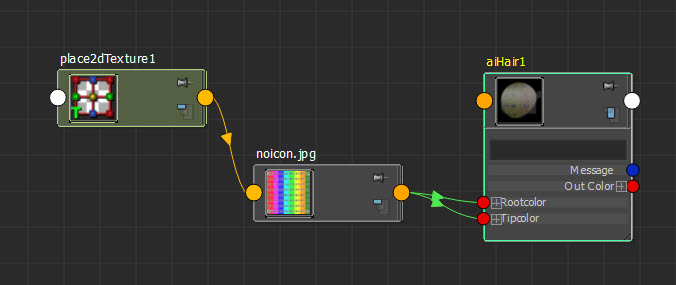
For example, if you plug a texture into the Rootcolor and tipcolor
yet_uv_2
then you can use uparamcoord and vparamcoord to map that texture onto the hair:
yet_uv_1

Tip If you enable Expand Procedurals and export an ASS file, you can see what parametes Yeti exports:

### created by pgYetiMayaShape
curves
{
 name pgYetiMayaShape_|pgYetiMaya|pgYetiMayaShape|scatter01_pSphereShape1_grow01
 num_points 621 1 b85UINT
# ...
 points 4347 1 b85POINT
# ...
 basis "catmull-rom"
 mode "ribbon"
 min_pixel_width 0
 visibility 255
 self_shadows on
 matrix
 1 0 0 0
 0 1 0 0
 0 0 1 0
 0 0 0 1
 shader "initialShadingGroup"
 opaque on
 id -1230660816
 declare curve_id uniform UINT
 curve_id 621 1 b85UINT
# ...
 declare uparamcoord uniform FLOAT
 uparamcoord 621 1 b85FLOAT
# ...
 declare vparamcoord uniform FLOAT
 vparamcoord 621 1 b85FLOAT
# ...
 declare surf_s uniform FLOAT
 surf_s 621 1 b85FLOAT
# ...
 declare surf_t uniform FLOAT
 surf_t 621 1 b85FLOAT
# ...
 declare length uniform FLOAT
 length 621 1 b85FLOAT
# ...
 declare fur_id uniform FLOAT
 fur_id 621 1 b85FLOAT
# ...
 declare surf_n uniform VECTOR
 surf_n 621 1 b85VECTOR
# ...
 declare filename constant STRING
 filename "C:/Users/StephenBlair/Documents/maya/projects/Support//yeti/tmp/yeti_combExample_pgYetiMayaShape_1886244453_1.fur"
 declare mtoa_shading_groups constant ARRAY NODE
 mtoa_shading_groups "initialShadingGroup"
 declare frame constant INT
 frame 1
 declare verbosity constant INT
 verbosity 1
 declare density constant FLOAT
 density 10
 declare width constant FLOAT
 width 1
 declare threads constant INT
 threads 0
 declare min_pixel_width constant FLOAT
 min_pixel_width 0
 declare mode constant INT
 mode 0
 declare imageSearchPath constant STRING
 imageSearchPath ""
 declare samples constant ARRAY FLOAT
 samples 1
}

[MtoA] [SItoA] Setting multiple Arnold parameters with a User Options string


mtoa_user_options
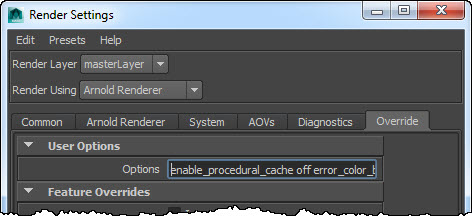
If you want to set multiple Arnold parameters in a User Options string, you can use any whitespace (spaces, tabs, newlines eg \n) that you would use in an actual ASS file.

For example, this:

enable_procedural_cache off error_color_bad_pixel 1 .25 1 declare test constant FLOAT test 2

would add these lines to your options node:

options
{
 error_color_bad_pixel 1 0.25 1

 enable_procedural_cache off

 declare test constant FLOAT
 test 2

Note: Plugins like MtoA and SItoA use AiNodeSetAttributes to set the user options.

The User Options string is a way to set parameters that are not exposed by the plugins. MtoA provides a User Options string for the render options and for shapes. SItoA also has User Options strings for render options and shapes.

[MtoA] Command-line compiling with Visual Studio 2010 Express


  1. Open a Visual Studio Command Prompt (Start > All Programs > Microsoft Visual Studio 2010 Express > Visual Studio Command Prompt)
  2. Set up the environment for 64-bit compilation:

    CALL "C:\Program Files\Microsoft SDKs\Windows\v7.1\Bin\SetEnv.cmd" /x64 /Release
    

And now you’re ready to go. For example, if you were following the basic extensions tutorial, you set some environment variables:

set ARNOLD_PATH=C:\solidangle\arnold\Arnold-4.2.2.0-windows
set MTOA_PATH=C:\solidangle\mtoadeploy\2014
set MAYA_PATH="C:\Program Files\Autodesk\Maya2014"

Note that we included the quotation marks in MAYA_PATH, since the path includes an embedded space. An alternative would be to use the quotation marks in the cl and link commands.

cl /c translator1.cpp /EHsc /MD /DNT_PLUGIN /DREQUIRE_IOSTREAM /I%MAYA_PATH%\include /I%MTOA_PATH%\include /I%ARNOLD_PATH%\include
cl /c extension1.cpp /EHsc /MD /DNT_PLUGIN /DREQUIRE_IOSTREAM /I%MAYA_PATH%\include /I%MTOA_PATH%\include /I%ARNOLD_PATH%\include
link /dll extension1.obj translator1.obj /LIBPATH:%ARNOLD_PATH%\lib /LIBPATH:%MAYA_PATH%\lib /LIBPATH:%MTOA_PATH%\lib ai.lib OpenGl32.lib glu32.lib Foundation.lib OpenMaya.lib OpenMayaRender.lib OpenMayaUI.lib OpenMayaAnim.lib OpenMayaFX.lib mtoa_api.lib

[RLM] [Arnold] Figuring out why a certain scene renders with a watermark


If suddenly some scenes render with a watermark, but others don’t, that probably means someone saved those scenes with Skip License Check enabled.

A quick way to check this is with the Arnold log.

If you set the verbosity level to at least Warnings + Info, you would see this:

00:00:00   787MB WARNING | [rlm] skip_license_check enabled

if Skip License Check is enabled.

If you’re using MtoA and rendering Maya scenes, one way to avoid this problem is to render with the -ai:slc off flag (slc = skip license check).

In the very unlikely case that Skip License Check isn’t the problem, the set the verbosity level to Debug and check the log again.

[MtoA] Using set overrides to assign Arnold IDs to groups of mesh shapes


Arnold shapes have an id parameter that you can use to set up custom ID AOVs.

kick -info polymesh.id
node: polymesh
param: id
type: INT
default: 0

For example, you can Object ID color mode of the Utility shader to generate an ID AOV.

MtoA doesn’t automatically generate IDs, so you need to use the User Options parameter on the shapes to assign IDs.

If you want to give a group of polygon meshes the same ID, so that they all get the same Object ID color, then you can use override sets.
override_sets

Example: Three sets, each set with an override of User Options that sets the polymesh.id parameter
override_sets_example

In Softimage, SItoA does generate IDs, and you can override them using groups and a branch-applied Arnold User Options property.
sitoa_override_sets

[RLM] [MacOSX] Setting solidangle_LICENSE on Yosemite


In Yosemite, Apple removed support for environment variables in launchd.conf, so you need to find another way to set global, system-wide environment variables. For example, if you want solidangle_LICENSE to be automatically set, you could use a launchd plist.

Here’s an example plist that uses launchctl to set the solidangle_LICENSE environment variable.

<?xml version="1.0" encoding="UTF-8"?>
<!DOCTYPE plist PUBLIC "-//Apple//DTD PLIST 1.0//EN" "http://www.apple.com/DTDs/PropertyList-1.0.dtd">
 <plist version="1.0">
 <dict>
        <key>Label</key>
        <string>com.solidangle.setenv</string>
        <key>ProgramArguments</key>
        <array>
        <string>/bin/launchctl</string>
        <string>setenv</string>
        <string>solidangle_LICENSE</string>
        <string>5053@replace-me</string>
        </array>
        <key>RunAtLoad</key>
        <true/>
        <key>ServiceIPC</key>
        <false/>
 </dict>
 </plist>

You’ll need to edit this plist and save it in /Library/LaunchDaemons. The file permissions and ownership should look like this:

-rw-r--r--@ 1 root wheel 661 Oct 22 13:52 com.solidangle.setenv.plist

Use sudo chmod to set the permissions, and sudo chown root:wheel to set the ownerships.
Then load the plist:
sudo launchctl load -w /Library/LaunchDaemons/com.solidangle.setenv.plist

And then restart your machine.

References:

[MtoA] The case of the scene that crashed Maya


In this case, Maya crashed as soon as you loaded a certain scene.

What was the problem? Yeti couldn’t get a license, and then when MtoA loaded the Yeti procedural, that was it: crash.

We found the problem by checking the Maya log that we got with the -log command-line flag:

maya.exe -log %TEMP%\maya.log

The solution was to set RLM_LICENSE so Yeti could get its license (or unset MTOA_EXTENSIONS_PATH so that the Yeti extension wasn’t loaded, or move the Yeti module file so Maya wouldn’t find it).

This is what we saw in the log:

[Wed Nov 05 18:08:13 2014] Yeti 1.3.14: Yeti v1.3.14, built on Oct 10 2014 at 20:52:13
[Wed Nov 05 18:08:13 2014] Yeti 1.3.14: (c) 2010-Present Peregrine Labs a division of Peregrine Visual Storytelling Ltd. All rights reserved.
[Wed Nov 05 18:08:13 2014] Yeti 1.3.14: ERROR pgLicenseCheck - License system could not get a valid server handle, error: Can't read license data (-102)
No such process (errno: 3)
00:00:00 WARNING | [mtoa] Extension pgYetiArnoldMtoa(C:/solidangle/yeti/Yeti-v1.3.14_Maya2014-windows64/plug-ins/pgYetiArnoldMtoa.dll) requires Maya plugin pgYetiMaya, registering will be deferred until plugin is loaded.
the data object was unable to read its value : (0) no error

****
* Arnold 4.2.2.0 windows icc-14.0.2 oiio-1.4.14 rlm-11.1.2 2014/11/03 15:27:54
* CRASHED in QResource::locale 
* signal caught: error C0000005 -- access violation
*
* backtrace:
*  0 0x000000002c8b7a20 [ai            ] AiArray                                           
*  1 0x000000002c8b9f80 [ai            ] AiArray                                           
*  2 0x000000007722b940 [kernel32      ] UnhandledExceptionFilter                          
*  3 0x0000000077343398 [ntdll         ] MD5Final                                          
*  4 0x00000000772c85c8 [ntdll         ] _C_specific_handler                               
*  5 0x00000000772d9d2d [ntdll         ] RtlDecodePointer                                  
*  6 0x00000000772c91cf [ntdll         ] RtlUnwindEx                                       
*  7 0x0000000077301248 [ntdll         ] KiUserExceptionDispatcher                         
>> 8 0x0000000067840147 [QtCore4       ] QResource::locale    
...
...and so on and so on...

[MtoA] [MacOSX] Rendering a sequence


Here’s a question submitted through solidangle.com: how do I render a sequence of frames with Maya on Mac OS X?

The answer is: the same way you would a sequence of frames with mental ray in Maya.

In Maya:

From the command line:

  • Open a Maya Terminal, either through Spotlight or in Finder (/Applications/Autodesk/maya2015/Maya Terminal.term)

    Using a Maya Terminal means that the PATH already includes the location of the Maya command-line renderer.

  • In the terminal, use the Render command to render the sequence. For example:
    Render -r arnold -s 1 -e 10 -proj /Users/stephen/MyProject /Users/stephen/MyProject/scenes/arnold.mb
    

If Arnold is the renderer specified in the saved scene file, you can omit -r arnold from the Render command.

Run the command Render -help -r arnold to print the help for the Arnold-specific render flags.

[MtoA] Pimping your Yeti module file


Here’s a variation of the Yeti module file that adds the bin folder to the PATH, and plug-ins to MTOA_EXTENSIONS_PATH:

+ pgYetiMaya any C:\solidangle\yeti\Yeti-v1.3.14_Maya2014-windows64
PATH +:= bin
MTOA_EXTENSIONS_PATH +:= plug-ins

MtoA uses MTOA_EXTENSIONS_PATH to find the Yeti extension for MtoA, and Arnold uses PATH to find the Yeti procedural.