[MtoA] Is there an ARNOLD_PROCEDURAL_PATH environment variable?


No, there isn’t. HtoA recently added support for an ARNOLD_PROCEDURAL_PATH environment variable, but neither MtoA or Arnold itself support ARNOLD_PROCEDURAL_PATH.

Here’s a few things you can do:

  • If you’re kicking ASS files, you can set the procedural search path on the kick command line. For example, assuming ARNOLD_PROCEDURAL_PATH is set in your environment, you could do this on Windows:
       kick -set options.procedural_search_path %ARNOLD_PROCEDURAL_PATH%

    Or this on Linux or OSX:

       kick -set options.procedural_search_path $ARNOLD_PROCEDURAL_PATH
  • You could add the procedural search path to the system path (PATH on Windows, LD_LIBRARY_PATH on Linux, DYLD_LIBRARY_PATH on OSX). Arnold will then find the procedural by searching through the system path.
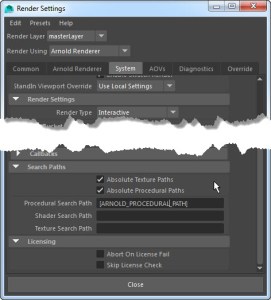
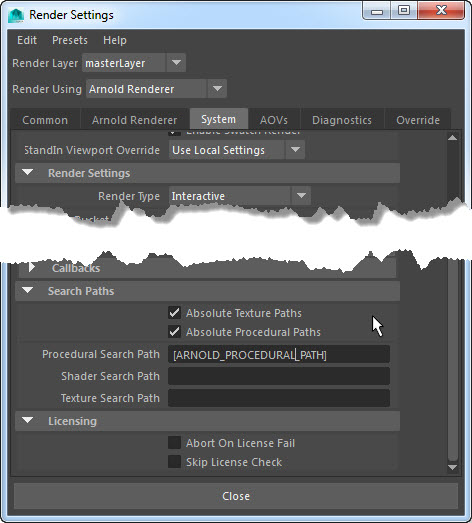
  • Maya, you can put an environment variable in the Procedural Search Path text box. Note that you have to use square brackets, like this: [ARNOLD_PROCEDURAL_PATH].
    procedural_search_path

[Arnold] Getting started with the Arnold Python API


You can download Arnold here. The Arnold download (aka the Arnold SDK) includes the Arnold library, the Arnold C++ API, the API docs, and the Python bindings for the Arnold API.

To use the Arnold Python API, you need to add the Arnold python folder to the PYTHONPATH:

set PYTHONPATH=C:\solidangle\arnold\Arnold-4.2.4.0-windows\python

Here’s a “hello world” written with the Arnold Python API:

#
# hello_world.py
#
from arnold import *

AiBegin()

AiMsgSetConsoleFlags( AI_LOG_INFO )

AiMsgInfo( 'Hello World' )

AiEnd()

Here’s a quick breakdown of the script.

  • You need to import the arnold module.
  • An Arnold session always starts with AiBegin() and ends with AiEnd(). You have to call AiBegin() to initialize Arnold and enable the Arnold API. Try commenting it out and see what happens…
  • We need to call AiMsgSetConsoleFlags() to set the log verbosity level (otherwise we won’t see our “Hello World”, because the default level is AI_LOG_NONE).
  • AiMsgInfo() sends our “Hello World” to the log.

Assuming that Python in is your PATH, you can run the hello world script like this:

python hello_world.py

and that will give you this output:


C:\solidangle\arnold\scripts>python helloworld.py
        | log started Wed Mar 04 14:31:40 2015
        | Arnold 4.2.4.0 windows icc-14.0.2 oiio-1.4.14 rlm-11.2.2 2015/02/26 15:08:42
        | running on StephenBlair-PC with pid 33812
        |  1 x Intel(R) Xeon(R) CPU E3-1240 V2 @ 3.40GHz (4 cores, 8 logical) with 16338MB
        |  Windows 7 Professional Service Pack 1 (version 6.1, build 7601)
        |
        | Hello World
        |
        | releasing resources
        | Arnold shutdown

For documentation, you use the Arnold SDK documentation. It’s for the C++ API, but the Python API is basically a one-to-one wrapper around the C++ API.

You can find the docs in the doc/api/index.html folder of the Arnold installation.

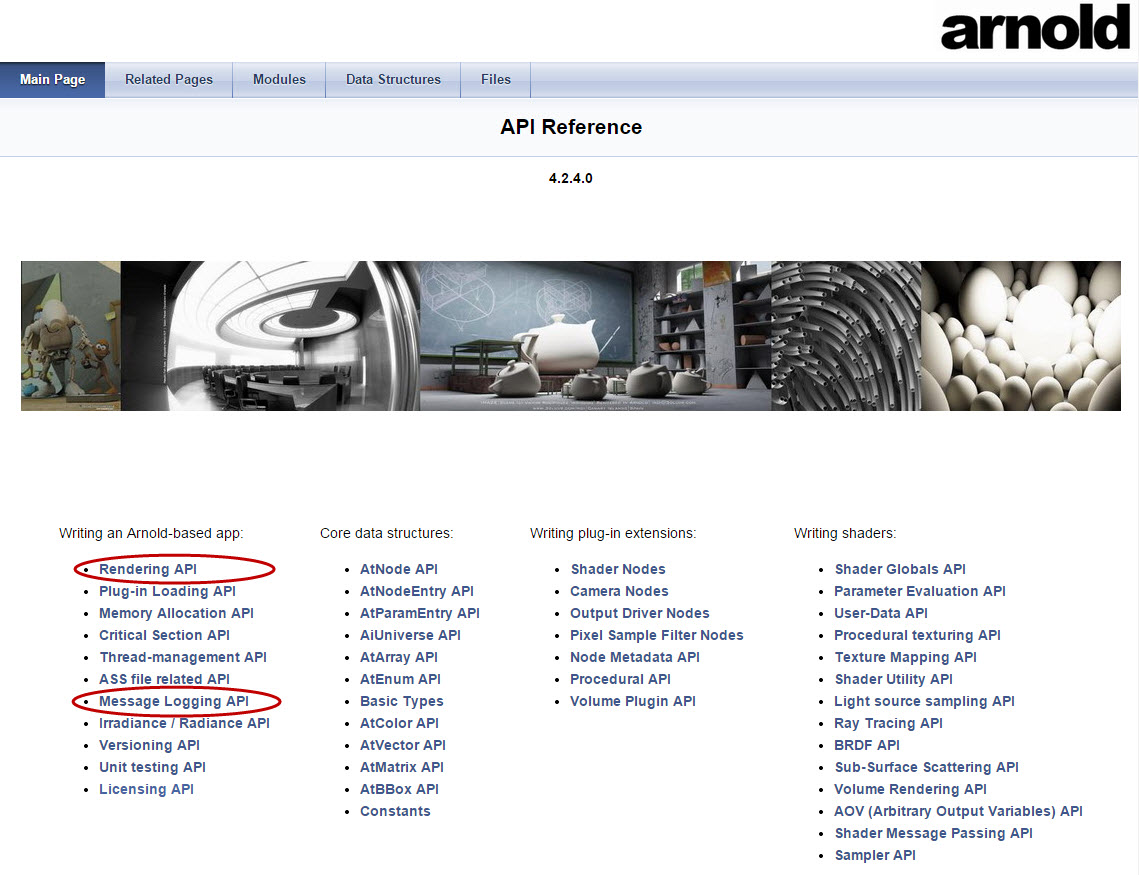
AiBegin() and AiEnd() are part of the Rendering API.
AiMsgSetConsoleFlags() and AiMsgInfo() are part of the Message Logging API, so go there to check out the possible flags, and what other logging functions are available.
arnold_api_reference

[Arnold] [RLM] ARNOLD_LICENSE_HOST and ARNOLD_LICENSE_PORT no longer supported


If you’re still using ARNOLD_LICENSE_HOST and ARNOLD_LICENSE_PORT, now’s the time to stop. As of Arnold 4.2.4.0, these deprecated environment variables are no longer supported.

Instead, use solidangle_LICENSE.

For example, if you currently have these environment variable settings:

ARNOLD_LICENSE_HOST=lic_server
ARNOLD_LICENSE_PORT=5055

you can replace them with this:

solidangle_LICENSE 5055@lic_server

Note: solidangle_LICENSE was added in Arnold 4.0.4 (released back in 23-May-2012).

Also new with Arnold 4.2.4.0 is the ability to use a .lic file instead of an environment variable. Just create a .lic file that looks like this:

HOST lic_server 5055

and put the .lic file in the same folder as Arnold (ai.dll, libai.so, or libai.dylib).

If you want to put the .lic file somewhere else, then you need to set solidangle_LICENSE to point to the lic file.

The case of the disappearing particles


In this case, nParticles (render type = point) weren’t visible behind a refractive plane:
particles_not_visible

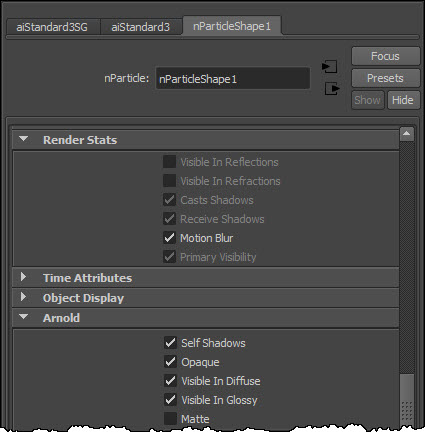
For the points render type, you get an Arnold points shape (with mode “disk”), so I exported an ASS file to see the parameter settings on the points node. I noticed the visibility 243 right away (the default visibility is 255, which is visible to all rays). And sure enough, in the Render Stats for the particle shape, some rays were turned off (and the check boxes were disabled too).
particles_render_stats

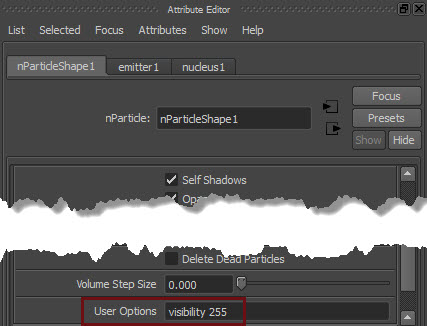
I used the User Options to force the visibility to 255
particles_useroptions
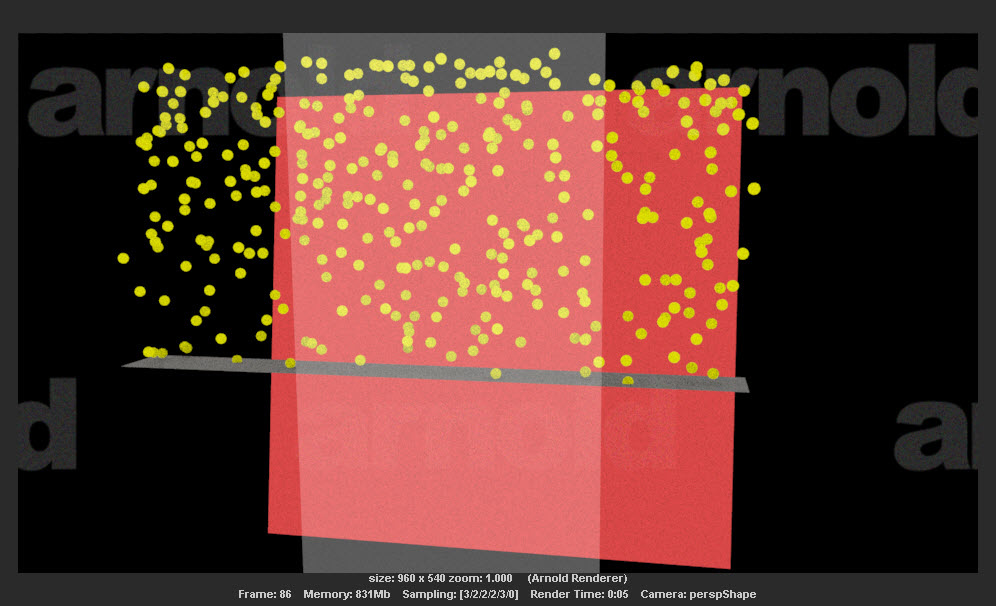
and the particles behind the refractive surface appeared:
particles_visible

This is a Maya thing. For most particle render types, the particles are not visible in reflections or refractions. It says so in the docs:

You can turn on reflections, refractions, and shadows when you software render Clouds, Tubes, and Blobby Surfaces

I’m not sure where the default values are set, but I did find the AEtemplate code that disables the render stats for all particle render types except the “s/w” type:

// C:\Program Files\Autodesk\Maya2015\scripts\AETemplates\AEparticleLayout.mel
		if( $value == 7 || $value == 8 || $value == 9 ) {
			// software particle type
			editorTemplate -dimControl $nodeName "visibleInReflections" false;
			editorTemplate -dimControl $nodeName "visibleInRefractions" false;
			editorTemplate -dimControl $nodeName "castsShadows"    		false;
			editorTemplate -dimControl $nodeName "receiveShadows" 		false;
			editorTemplate -dimControl $nodeName "primaryVisibility" 	false;
		} else {
			// hardware particle type
			editorTemplate -dimControl $nodeName "visibleInReflections" true;
			editorTemplate -dimControl $nodeName "visibleInRefractions" true;
			editorTemplate -dimControl $nodeName "castsShadows"			true;
			editorTemplate -dimControl $nodeName "receiveShadows" 		true;
			editorTemplate -dimControl $nodeName "primaryVisibility" 	true;
		}

So, since that AE template code just enables and disables UI controls, but doesn’t change the actual values, another way to enable Visible in Refractions (or Visible in Reflections) is to do this:

  1. Change the Particle Render Type to one of the “s/w” types, like Blobby Surface.
  2. Now the Visible in Refractions check box is enabled.
  3. Select the check box.
  4. Go back and change the Particle Render Type to points.

Now when you render, the points are visible to refraction rays, so they show up behind the glass.

Running multiple Arnold instances on the same computer


Arnold licenses are shared by host. That means all Arnold instances running on the same computer share the same license.

For example, you can have multiple copies of Houdini running on your computer, all doing render regions with HtoA, and you’ll be taking just a single Arnold license. Same thing with Softimage and Maya.

License sharing is defined by your license. The share=h in your license means that all processes (aka instances) running on the same host (aka computer) can share a single license.
license_file_share

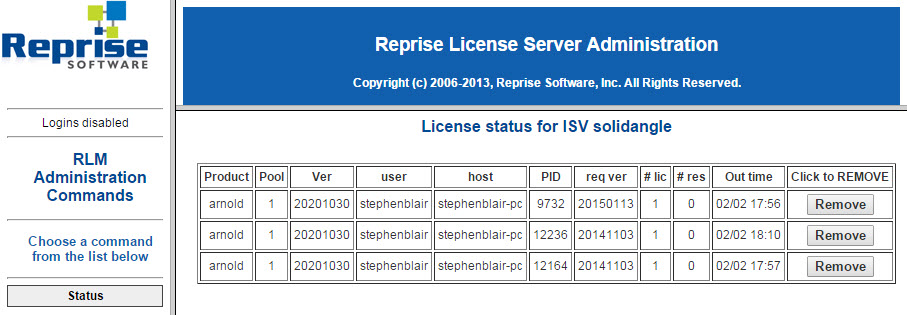
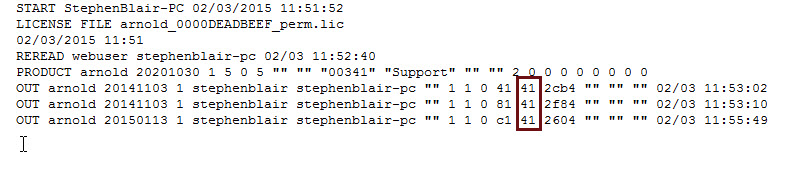
Even when licenses are shared, you will still see multiple checkouts in your license usage. For example, here’s my license usage when I have an IPR going in Maya, and render regions in Softimage and Houdini:
share_license_usage
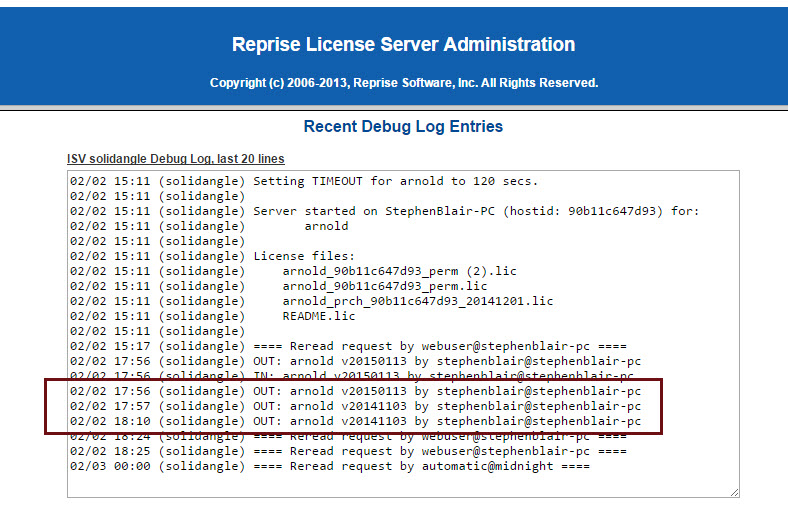
The debug log would show something similar:
share_debug_log
It might look like there are three licenses checked out, but it’s not. It’s just one license, checked out three times (aka shared three times).

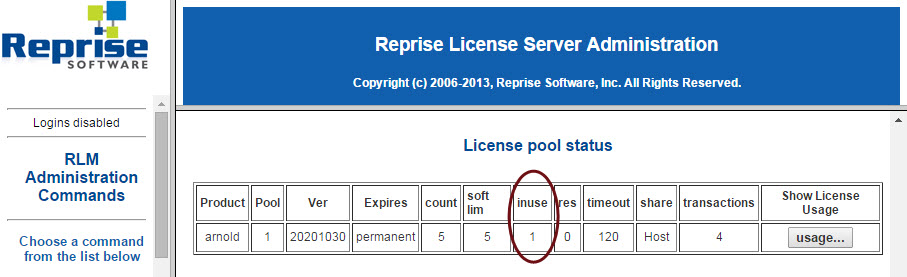
If I check my license pool status, I can see that one license is in use:
share_license_pool_status

And if you have reporting enabled, you can check the report and see that all three licenses have the same share handle (which means that the license is being shared):
share_report_log

[MtoA] Getting Deadline to pick up environment variable changes


Here’s why new environment variable settings (like, say, a new solidangle_LICENSE setting) are not always picked up by Deadline:

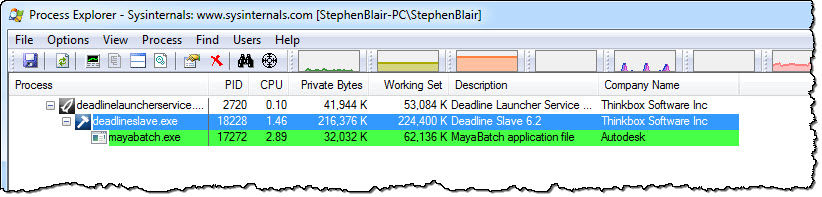
procmon_deadline_child_processes

Deadline Slave and MayaBatch are child processes of Deadline Launcher, and so they inherit their environment from their parent process (deadlinelauncherservice). If you don’t restart the Launcher, it won’t have the new environment, and neither will child processes like the Monitor or MayaBatch. Restarting the service will restart the child processes too.

deadlinelauncherservice_restart

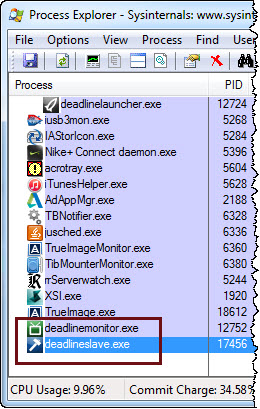
However, if you didn’t install the Launcher as a service, it is slightly more complicated. When you exit and restart the Launcher, the child processes may end up as “orphans” with the same old environment, and you’ll have to restart them too. In the screenshot below, Deadline Monitor and Deadline Slave were child processes of Launcher, but when I exited Launcher they kept running.

procmon_orphans

[MtoA] Mapping textures to Yeti hair


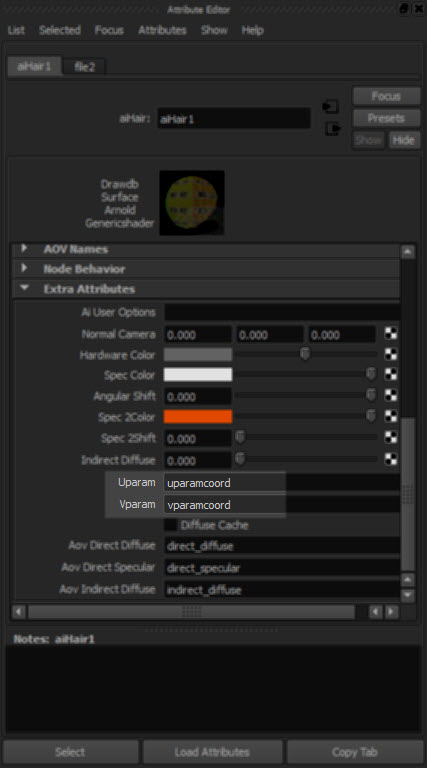
Like MtoA, Yeti exports UV coordinates in the uparamcoord and vparamcoord parameters, and you use these to map textures in the aiHair shader with the Uparam and Vparam extra attributes.
yet_uv_3

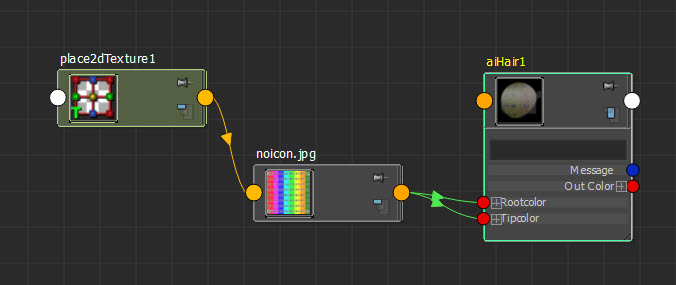
For example, if you plug a texture into the Rootcolor and tipcolor
yet_uv_2
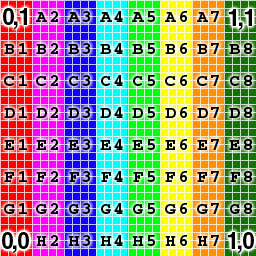
then you can use uparamcoord and vparamcoord to map that texture onto the hair:
yet_uv_1

Tip If you enable Expand Procedurals and export an ASS file, you can see what parametes Yeti exports:

### created by pgYetiMayaShape
curves
{
 name pgYetiMayaShape_|pgYetiMaya|pgYetiMayaShape|scatter01_pSphereShape1_grow01
 num_points 621 1 b85UINT
# ...
 points 4347 1 b85POINT
# ...
 basis "catmull-rom"
 mode "ribbon"
 min_pixel_width 0
 visibility 255
 self_shadows on
 matrix
 1 0 0 0
 0 1 0 0
 0 0 1 0
 0 0 0 1
 shader "initialShadingGroup"
 opaque on
 id -1230660816
 declare curve_id uniform UINT
 curve_id 621 1 b85UINT
# ...
 declare uparamcoord uniform FLOAT
 uparamcoord 621 1 b85FLOAT
# ...
 declare vparamcoord uniform FLOAT
 vparamcoord 621 1 b85FLOAT
# ...
 declare surf_s uniform FLOAT
 surf_s 621 1 b85FLOAT
# ...
 declare surf_t uniform FLOAT
 surf_t 621 1 b85FLOAT
# ...
 declare length uniform FLOAT
 length 621 1 b85FLOAT
# ...
 declare fur_id uniform FLOAT
 fur_id 621 1 b85FLOAT
# ...
 declare surf_n uniform VECTOR
 surf_n 621 1 b85VECTOR
# ...
 declare filename constant STRING
 filename "C:/Users/StephenBlair/Documents/maya/projects/Support//yeti/tmp/yeti_combExample_pgYetiMayaShape_1886244453_1.fur"
 declare mtoa_shading_groups constant ARRAY NODE
 mtoa_shading_groups "initialShadingGroup"
 declare frame constant INT
 frame 1
 declare verbosity constant INT
 verbosity 1
 declare density constant FLOAT
 density 10
 declare width constant FLOAT
 width 1
 declare threads constant INT
 threads 0
 declare min_pixel_width constant FLOAT
 min_pixel_width 0
 declare mode constant INT
 mode 0
 declare imageSearchPath constant STRING
 imageSearchPath ""
 declare samples constant ARRAY FLOAT
 samples 1
}

[MtoA] [SItoA] Setting multiple Arnold parameters with a User Options string


mtoa_user_options
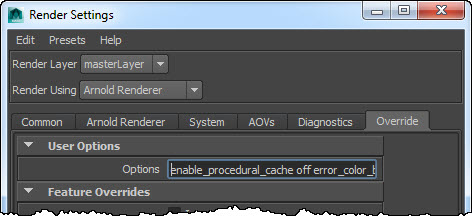
If you want to set multiple Arnold parameters in a User Options string, you can use any whitespace (spaces, tabs, newlines eg \n) that you would use in an actual ASS file.

For example, this:

enable_procedural_cache off error_color_bad_pixel 1 .25 1 declare test constant FLOAT test 2

would add these lines to your options node:

options
{
 error_color_bad_pixel 1 0.25 1

 enable_procedural_cache off

 declare test constant FLOAT
 test 2

Note: Plugins like MtoA and SItoA use AiNodeSetAttributes to set the user options.

The User Options string is a way to set parameters that are not exposed by the plugins. MtoA provides a User Options string for the render options and for shapes. SItoA also has User Options strings for render options and shapes.

[MtoA] Command-line compiling with Visual Studio 2010 Express


  1. Open a Visual Studio Command Prompt (Start > All Programs > Microsoft Visual Studio 2010 Express > Visual Studio Command Prompt)
  2. Set up the environment for 64-bit compilation:

    CALL "C:\Program Files\Microsoft SDKs\Windows\v7.1\Bin\SetEnv.cmd" /x64 /Release
    

And now you’re ready to go. For example, if you were following the basic extensions tutorial, you set some environment variables:

set ARNOLD_PATH=C:\solidangle\arnold\Arnold-4.2.2.0-windows
set MTOA_PATH=C:\solidangle\mtoadeploy\2014
set MAYA_PATH="C:\Program Files\Autodesk\Maya2014"

Note that we included the quotation marks in MAYA_PATH, since the path includes an embedded space. An alternative would be to use the quotation marks in the cl and link commands.

cl /c translator1.cpp /EHsc /MD /DNT_PLUGIN /DREQUIRE_IOSTREAM /I%MAYA_PATH%\include /I%MTOA_PATH%\include /I%ARNOLD_PATH%\include
cl /c extension1.cpp /EHsc /MD /DNT_PLUGIN /DREQUIRE_IOSTREAM /I%MAYA_PATH%\include /I%MTOA_PATH%\include /I%ARNOLD_PATH%\include
link /dll extension1.obj translator1.obj /LIBPATH:%ARNOLD_PATH%\lib /LIBPATH:%MAYA_PATH%\lib /LIBPATH:%MTOA_PATH%\lib ai.lib OpenGl32.lib glu32.lib Foundation.lib OpenMaya.lib OpenMayaRender.lib OpenMayaUI.lib OpenMayaAnim.lib OpenMayaFX.lib mtoa_api.lib

[RLM] [Arnold] Troubleshooting watermarks and license problems


If a workstation or render node can’t get a license, you can use the Arnold log to find out what’s happening. If you set the log verbosity to debug, you can see where Arnold is trying to find a license server, whether or not Arnold can connect, and whether Arnold is being refused a license.

First, let’s look at what success looks like:

00:00:00   703MB         | [rlm] checking connection to license servers ...
00:00:00   703MB         | [rlm]  5053@StephenBlair-PC ... UP
00:00:00   703MB         | [rlm] checkout of "arnold 20140917" from StephenBlair-PC in 0:00.01
00:00:00   703MB         | [rlm] expiration date: 31-dec-2016 (768 days left)

These log entries tell me that solidangle_LICENSE (or RLM_LICENSE) is set to “5053@StephenBlair-PC” and that Arnold was able to get a license. I know that solidangle_LICENSE is set because the log entry says “license servers” (plural). If solidangle_LICENSE isn’t set, there’s just one license server to check: the default 5053@localhost.

For example, if you’re running on the same machine as the license server, you might see something like this:

00:00:00    11MB         | [rlm] checking connection to license server on 5053@localhost ...
00:00:00    13MB         | [rlm] checkout of "arnold 20141103" from localhost in 0:00.02
00:00:00    13MB         | [rlm] expiration date: 31-dec-2016 (761 days left)

So, if solidangle_LICENSE isn’t set, then on a workstation or render node you’d see this in the log:

00:00:00   784MB         | [rlm] checking connection to license server on 5053@localhost ...
00:00:05   784MB WARNING | [rlm] could not connect to license server on 5053@localhost

Note the Arnold checks just one license server: 5053@localhost. If solidangle_LICENSE is set, Arnold will check at least two license servers.

If solidangle_LICENSE is set, but Arnold cannot reach the specified server, you’d see this:

00:00:00   751MB         | [rlm] checking connection to license servers ...
00:00:05   751MB         | [rlm]  5053@null ... DOWN
00:00:10   751MB         | [rlm]  5053@localhost ... DOWN
00:00:10   751MB WARNING | [rlm] could not connect to any license server

If the RLM server is up and reachable, but the solidangle ISV server is down, then you’d see this:

00:00:00   745MB         | [rlm] checking connection to license servers ...
00:00:00   745MB         | [rlm]  5053@StephenBlair-PC ... UP
00:00:03   745MB WARNING | [rlm] error checking out license for arnold (version 20140917):
00:00:03   745MB WARNING | [rlm]  * Communications error with license server (-17)
00:00:03   745MB WARNING | [rlm]  * Connection refused at server (-111

The RLM server is the main RLM service that manages all the ISV servers. The ISV servers serve licenses for specific software packages, like solidangle, foundry, or exocortex.

If there are no licenses available:

00:00:00   745MB         | [rlm] checking connection to license servers ...
00:00:00   745MB         | [rlm]  5053@StephenBlair-PC ... UP
00:00:00   745MB WARNING | [rlm] error checking out license for arnold (version 20141103):
00:00:00   745MB WARNING | [rlm]  * All licenses in use (-22)

If the licenses don’t support the newer version of Arnold you’re trying to use:

00:00:00    11MB         | [rlm] checking connection to license server on 5053@localhost ...
00:00:00    13MB WARNING | [rlm] wrong license version for "arnold 20141103", found 1 license for "arnold 20140701"
00:00:00    13MB WARNING | [rlm] your maintenance expired on 2014/07/01, please contact licensing@solidangle.com

If the licenses are expired:

00:00:00   745MB         | [rlm] checking connection to license servers ...
00:00:00   745MB         | [rlm]  5053@StephenBlair-PC ... UP
00:00:00   745MB WARNING | [rlm] could not find any license for "arnold 20141103", the license may be expired