[RLM] Checking the license pool status


It’s always a good idea to confirm basic facts before moving on to more complicated testing, especially when it comes to licensing problems. For example, I’ve had several cases of “watermarks on the render farm” where it turned out the actual number of licenses was rather less than the expected number.

Fortunately, it’s easy to check the number of available licenses (aka the “license pool status”) with the RLM Web Admin page.

  1. In a web browser, open localhost:5054 (tip: you can open this page remotely too: just go to LICSERVER:5054, where LICSERVER is the name or IP address of the license server computer).
  2. Click Status.
  3. Click solidangle in the Server Status column of the ISV Servers table
  4. Check the count in the License Pool Status table

Click to enlarge
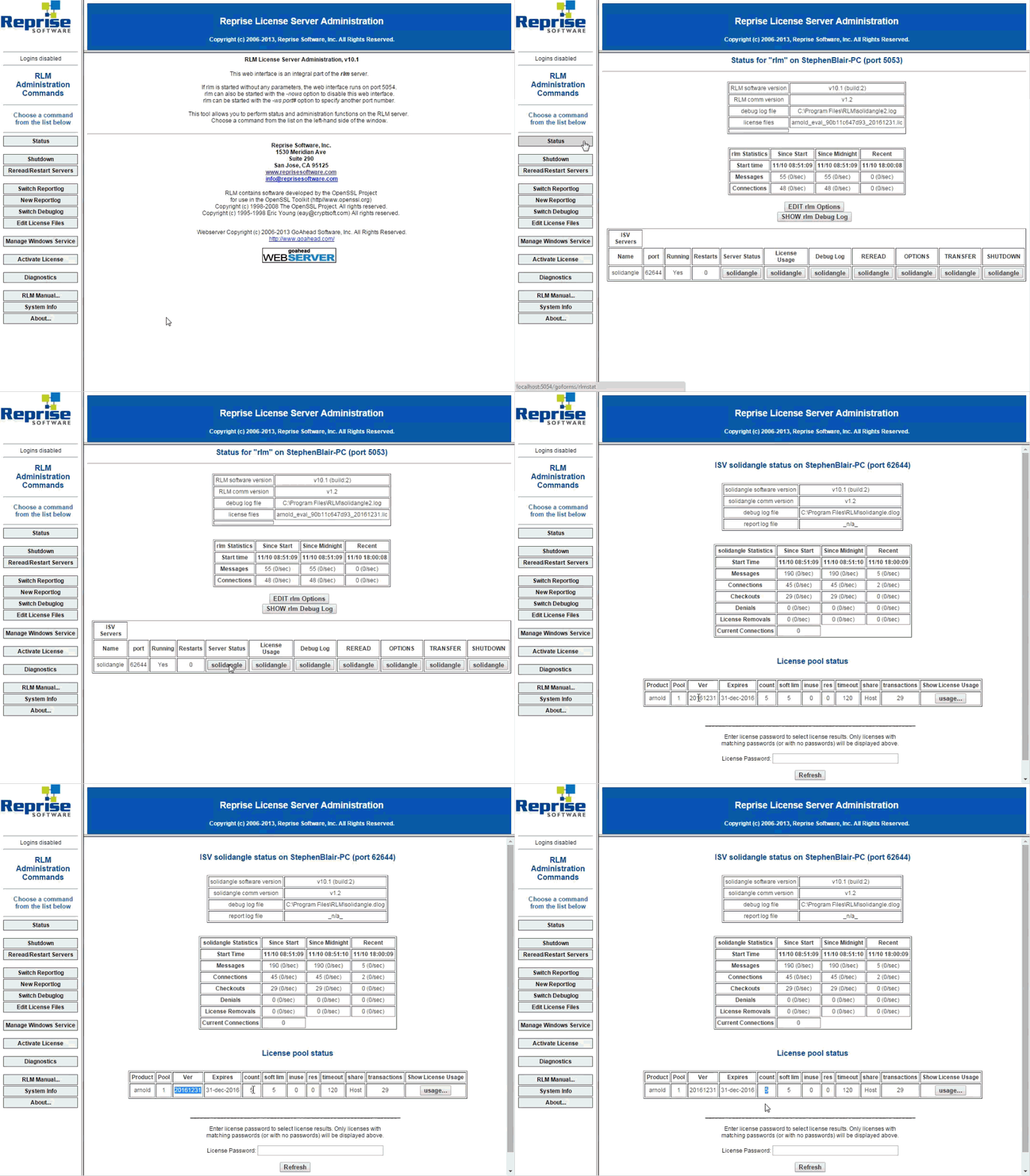
check_license_pool_status

[MtoA] The case of the scene that crashed Maya


In this case, Maya crashed as soon as you loaded a certain scene.

What was the problem? Yeti couldn’t get a license, and then when MtoA loaded the Yeti procedural, that was it: crash.

We found the problem by checking the Maya log that we got with the -log command-line flag:

maya.exe -log %TEMP%\maya.log

The solution was to set RLM_LICENSE so Yeti could get its license (or unset MTOA_EXTENSIONS_PATH so that the Yeti extension wasn’t loaded, or move the Yeti module file so Maya wouldn’t find it).

This is what we saw in the log:

[Wed Nov 05 18:08:13 2014] Yeti 1.3.14: Yeti v1.3.14, built on Oct 10 2014 at 20:52:13
[Wed Nov 05 18:08:13 2014] Yeti 1.3.14: (c) 2010-Present Peregrine Labs a division of Peregrine Visual Storytelling Ltd. All rights reserved.
[Wed Nov 05 18:08:13 2014] Yeti 1.3.14: ERROR pgLicenseCheck - License system could not get a valid server handle, error: Can't read license data (-102)
No such process (errno: 3)
00:00:00 WARNING | [mtoa] Extension pgYetiArnoldMtoa(C:/solidangle/yeti/Yeti-v1.3.14_Maya2014-windows64/plug-ins/pgYetiArnoldMtoa.dll) requires Maya plugin pgYetiMaya, registering will be deferred until plugin is loaded.
the data object was unable to read its value : (0) no error

****
* Arnold 4.2.2.0 windows icc-14.0.2 oiio-1.4.14 rlm-11.1.2 2014/11/03 15:27:54
* CRASHED in QResource::locale 
* signal caught: error C0000005 -- access violation
*
* backtrace:
*  0 0x000000002c8b7a20 [ai            ] AiArray                                           
*  1 0x000000002c8b9f80 [ai            ] AiArray                                           
*  2 0x000000007722b940 [kernel32      ] UnhandledExceptionFilter                          
*  3 0x0000000077343398 [ntdll         ] MD5Final                                          
*  4 0x00000000772c85c8 [ntdll         ] _C_specific_handler                               
*  5 0x00000000772d9d2d [ntdll         ] RtlDecodePointer                                  
*  6 0x00000000772c91cf [ntdll         ] RtlUnwindEx                                       
*  7 0x0000000077301248 [ntdll         ] KiUserExceptionDispatcher                         
>> 8 0x0000000067840147 [QtCore4       ] QResource::locale    
...
...and so on and so on...

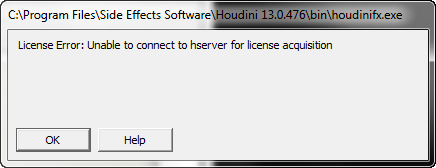
[Houdini] License Error: Unable to connect to hserver for license acquisition


houdini_license_error
Yeah, this isn’t about a Solid Angle product, but about one of the DCCs that host our plugins (HtoA in this case).

So, I installed Houdini 13.0.476 the other day, and I got this “License Error: Unable to connect to hserver for license acquisition” when I tried to start HoudiniFX. I thought that was strange, because I had been running 13.0.401 moments before.

According to the licensing FAQ, that error means that the hserver service isn’t running. And, in fact, neither hserver nor sesinetd were running: they were both Disabled and marked for deletion, so I couldn’t start them from the Services console. After closing down Process Explorer, Task Manager, and the Services console, I was able to delete the services from the command line with sc delete.

At this point, I could have tried creating the services with sc create, but I was curious to see if the Houdini installer would do it for me. So I uninstalled and reinstalled. The installer asked me if I wanted to replace the newer version of sesinetd that was already on my system (huh???), and I clicked Yes. After the install finished, I had a running sesinetd service but no hserver, so I had to create it myself:

sc create HoudiniServer binPath= C:\windows\system32\hserver.exe

After that, I was able to start HoudiniFX and acquire a license.

[Maya] The case of Xgen and [Error 6] The handle is invalid


This post is about a Maya issue on Window. It’s not an MtoA or Arnold issue.

Whenever I tried to export the selection as an XGen archive, I’d get [Error 6] The handle is invalid.

[Error 6] The handle is invalid
xgmArchiveExportBatchUI.py except block
xgmArchiveExportBatchUI.py call subprocess.Popen
mayapy "C:/Program Files/Autodesk/Maya2014/plug-ins/xgen/scripts/xgenm/xmaya/xgmArchiveExportBatch.py" 0 0 0 1.0 1.0 -destName ["'DragonArchive'"] -destDir ["'C:/Users/SOLIDANGLE/Documents/maya/projects/Support/xgen/archives/'"] -sourceFiles ["'C:/Users/SOLIDANGLE/Documents/maya/projects/Support/scenes/Dragon1.mb'"] -scriptPaths ["'C:/Program Files/Autodesk/Maya2014\\plug-ins\\xgen\\scripts'"] -loadPlugins ["'AbcExport'", "'Mayatomr'", "'xgenMR.py'"]
xgmArchiveExportBatchUI logging to C:/Users/SOLIDANGLE/Documents/maya/projects/Support/xgen/archives/DragonArchive.log

Googling [Error 6] The handle is invalid subprocess.Popen led me to the problem: I was starting Maya from the command line. When I started Maya from the Start menu, then the XGen Export Selection worked.

The reason I start Maya from the command line is because that’s the only way I can get the MtoA diagnostics in the Output Window. So something seems a little weird about how Maya handles STDOUT and STDERR 😉

[MtoA] Deadline and MtoA 1.0.x


Update: Deadline 6.1 and later support MtoA 1.0.x

Recently I discovered that Deadline 6.0 doesn’t work with MtoA 1.0.x, and it’s because of a change to the MtoA verbosity levels controls in the Render Settings UI. I think an update for Deadline will soon take care of this problem.

This is the error that stops everything:

0: WARNING: Strict error checking on, ignoring the following unrecognized error or warning. If it is fatal, please email support@thinkboxsoftware.com with the error message.
0: STDOUT: Error: No object matches name: defaultArnoldRenderOptions.log_console_verbosity

At first, I “ignored” that error in the log, but after I eliminated all other possible causes, I came back to it.

I worked around it by editing the default MayaBatch.py file in the DeadlineRepository (on my machine, that’s here: C:\DeadlineRepository6\plugins\MayaBatch\MayaBatch.py).

Go to lines 910, 911, and 912, and change lines 911 and 912 to look like this:

elif self.Renderer == "arnold" or self.Renderer == "arnoldexport":
self.Verbosity = self.GetPluginInfoEntryWithDefault( "ArnoldVerbose", "2" )
return 'removeRenderLayerAdjustmentAndUnlock defaultArnoldRenderOptions.log_verbosity; catch(`setAttr defaultArnoldRenderOptions.log_verbosity ' + self.Verbosity + '`);'

When you submit a job, make sure you set the Arnold verbosity level to 0, 1, or 2. Nothing higher.

[SItoA] Uninstalling SItoA


When you install an addon like SItoA, you may see an error like this the next time you start Softimage:

// ERROR : 2356 - This plug-in is not installed: ArnoldRenderPreferences

That’s because addons like SItoA install custom preferences, which are left behind when you uninstall the addon. At startup, Softimage finds the custom preference but can’t find the plugin that owns the preference (because it’s been uninstalled).

To get rid of this error, go to your Softimage user folder, and delete the Data\Preferences\Arnold Render.preset file.

ArnoldRender.preset

Entry point not found


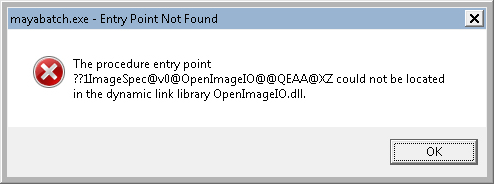
An Entry Point Not Found error message might look rather weird (because you’re looking at the decorated name of a function).
mayabatch_Entry_Point_Not_Found
but usually such an error just means that the wrong version of a DLL (in this case, OpenImageIO.dll) is being loaded by the main program (mayabatch in this case). The problem could be as simple as your PATH pointing to another application that ships a different version of the DLL.

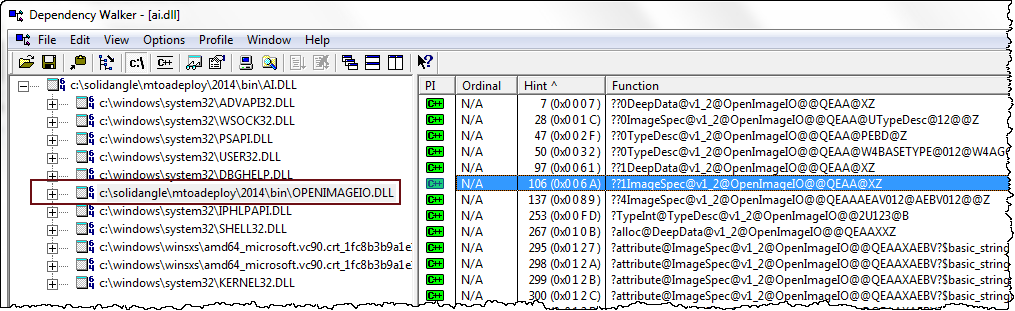
Using Dependency Walker, you can check a DLL to see the decorated names of the functions it exports. But usually you don’t have to dig down to that level a detail. Dependency Walker will show you what version of the DLL is being loaded, and that’s usually enough.
depends_openimageio.dll

[arnold] Getting RLM diagnostics from Arnold


If you want to double-check what license servers Arnold is trying to connect with, set the log verbosity level to the maximum, and you’ll get something like this:

' INFO : [arnold] 00:00:00  438mb   [rlm] checking connection to license servers ...
' INFO : [arnold] 00:00:05  438mb   [rlm]  5053@STEPHEN-PC ... DOWN
' INFO : [arnold] 00:00:05  438mb   [rlm]  5053@SOLIDANGLE-PC ... UP
' INFO : [arnold] 00:00:05  438mb   [rlm] found 1 license servers
' INFO : [arnold] 00:00:15  438mb   [rlm] checkout of arnold (version 400) from SOLIDANGLE-PC OK
' INFO : [arnold] 00:00:15  438mb   [rlm] expiration date: 31-dec-2013 (190 days left)
  • In Softimage, set the Verbosity to Debug.
  • In Maya, set the Verbosity Level to 6.
  • On the kick command line, specify -v 6.