The Arnold API reference is now available online at docs.arnoldrenderer.com/api/latest

This is actually pretty cool…you can use an operator to update file paths before an ASS file or ABC file is loaded, then use another operator to touch the geometry loaded by that procedural.
For example, suppose at render time you want to replace trex_proxy.abc with trex.abc. You can easily do that with a string replace operator:

And that all happens before the abc file is loaded.
We can see this in the Arnold log (Debug verbosity). First the string replace operator is applied; then after the abc file is loaded, a set parameter operator is applied to the nodes loaded from the abc file.
| initializing 16 nodes …
| [operators] init op: 'aiStringReplace1'
| [operators] cook op: 'aiStringReplace1' | node: '/aiStandIn/aiStandInShape'
| [proc] /aiStandIn/aiStandInShape: loaded 1 nodes (1 objects, 0 shaders)
| [operators] init op: 'TRex:tRexShape_aiSetParameter1'
| [operators] cook op: 'TRex:tRexShape_aiSetParameter1' | node: '/TRex:tRex/TRex:tRexShape'
Controllable auto-instancing on ASS procedurals: You can now disable the default automatic instantiation of procedurals pointing at the same ASS file with the
Arnold 6.0.2 release notes https://docs.arnoldrenderer.com/x/1gGvBgauto_instancingparameter on each procedural or by theprocedural_auto_instancingoption. This workaround is sometimes useful when overriding procedural parameters with operators.
So, what’s all that mean?
It means that if you load the same ass file many times, Arnold will load the ass file just one time, and then automatically create instances of that. For example, if I load an ass file three times, I will get two instances.
In previous versions, this was known as the procedural cache, and it was a global option. Now it’s called auto_instancing and you can set it on each procedural node (aka aiStandin in Maya).
In general, you want auto instancing, because instancing is more efficient than loading the same ass file over and over. But if you’re using operators to apply different looks to the same procedural, you need to turn off auto instancing. Otherwise all the procedurals will have the same look (because they all be instances of the same one procedural).
For example, with auto instancing on, I get this, even though I’ve assigned different looks to each procedural (standin):
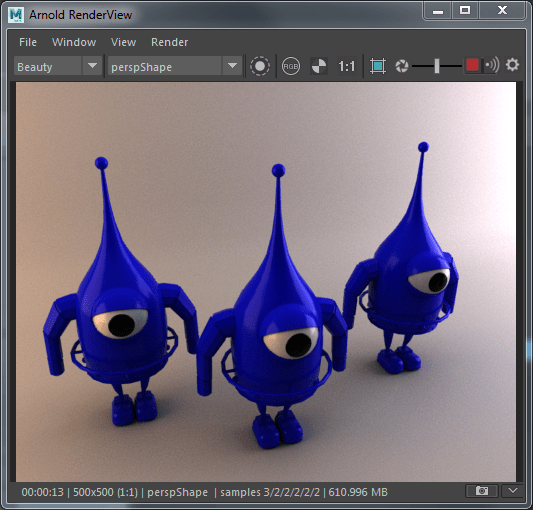
I can also tell from the Arnold log that I’m getting instances. Note that 2 are reused
| ---------------------------------------------------------
| ass file cache
|   unique (loaded from disk)              1 (33.33%)
|   reused (found in cache)                2 (66.67%)
|   total referenced .ass files            3 (100.00%)
| ---------------------------------------------------------
If I turn off auto instancing (in the procedural parameters)
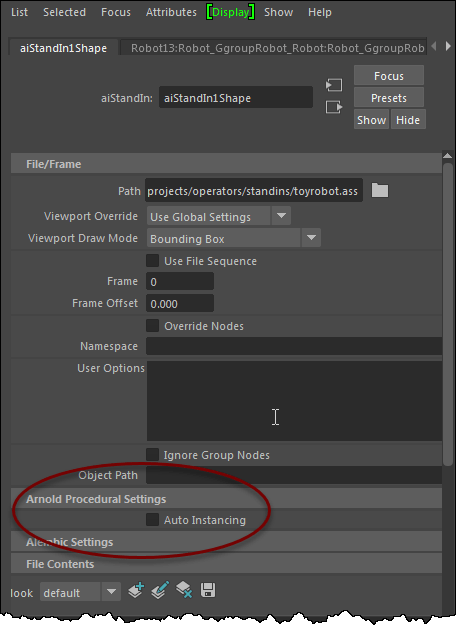
then I get three different looks
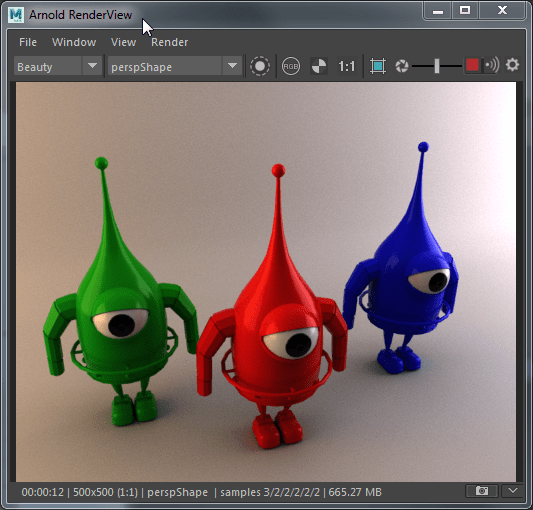
In the Arnold log, that looks like this (0 reused means 0 instances)
| ---------------------------------------------------------
| ass file cache
| unique (loaded from disk) 1 (100.00%)
| reused (found in cache) 0 (0.00%)
| total referenced .ass files 1 (100.00%)
| ---------------------------------------------------------
Arnold 6.0.2 includes a new string_replace that lets you do find and replace on string parameters.
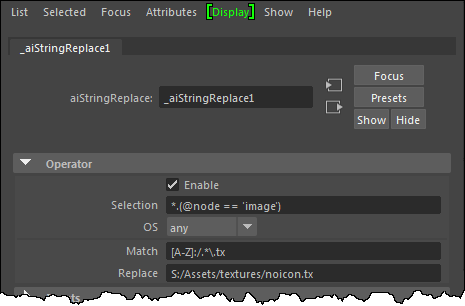
For example, I got an ass procedural file from a user, but I didn’t get the textures. Normally I would just enable ignore textures, but this time I used string_replace to replace all textures with my trusty-old-Softimage noicon pic.
You can use the wireframe shader to drive the opacity of a standard_surface.
The wireframe shader itself doesn’t support opacity, and neither do the flat, utility, and ambient_occlusion shaders. They are all color shaders (RGB). In Arnold, only shaders that return closures can support opacity.
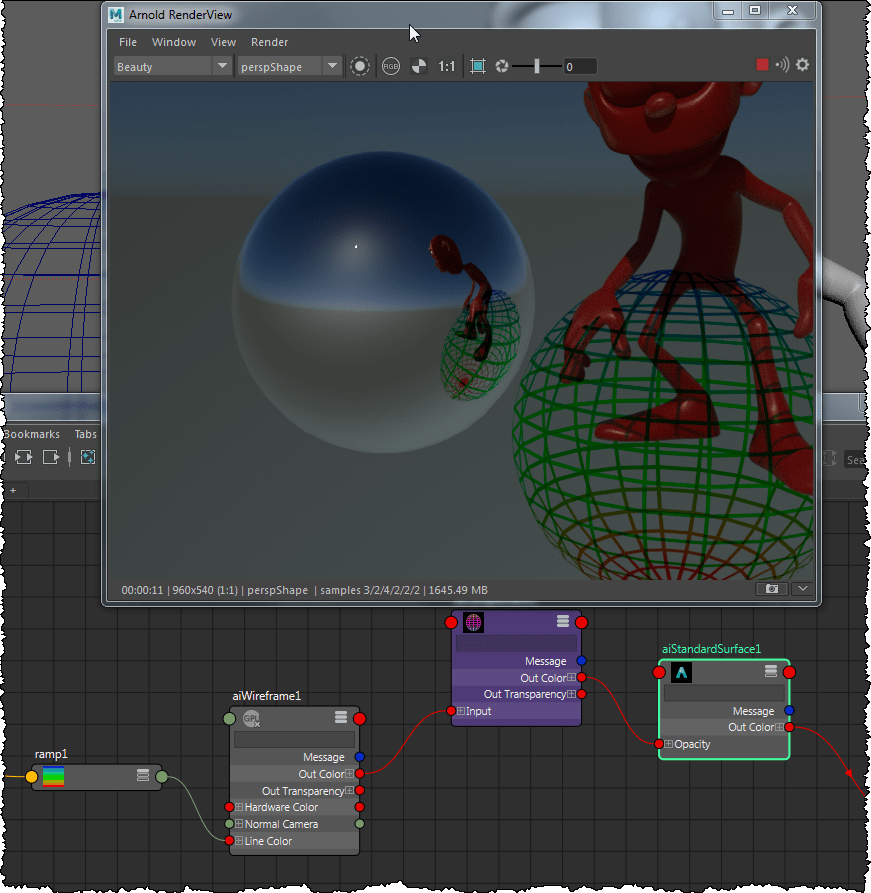
In the more general case, where the opacity isn’t coming from the same shader, you can use the emission for the color:

Monthly, annual, and 3-year single-user subscriptions of Arnold 6 are now available on the Autodesk e-store
No more license servers! With a new single-user subscription, you just sign in with your Autodesk ID.
For Arnold itself, you can ignore that message. Unless you have an Arnold license.
Couldn't register Arnold renderer in Maya PIT file (error while parsing
.pit file). Please contact support@solidangle.com.
For Maya, that message is a symptom of a problem with your Maya install: the Maya installation is not creating all the required files on your system.
If you finish the install (you can install without MtoA if you want), and then try to start Maya and nothing happens, then the ProductInformation.pit file is missing or corrupt.
The Maya install should create this file:
C:\ProgramData\Autodesk\Adlm\ProductInformation.pit
If there is any problem with that file, Maya (and any other Autodesk software) will not start.
Arnold will still render, but it won’t be able to use any Arnold license.
If that file does exist on your system, delete it.
Then remove all Autodesk software, and install Maya again (without MtoA)
You can install MtoA later (go to arnoldrenderer.com/arnold/download to get the latest MtoA).
If you still have problems with the Maya installation, log on to your Autodesk account to contact the Autodesk support team, or go to the Install and Licensing Autodesk forum at https://forums.autodesk.com/t5/installation-licensing/bd-p/24
One of the strange thing about supporting Arnold at Autodesk is that you have to be a guru-level licensing expert on Autodesk licensing (not RLM, but Autodesk licensing).
In this case, Maya 2019 would silently fail at startup. Sometimes you’d see the splash screen, but then that would just disappear.
ERROR: checkoutLicense: Failed to authorize license
JsProductLicenseFact.loadSelectedProductInfoKey - Unable to get selected product key due to unknown problem.
TIP All these log files are in the Temp folder.
Process Monitor confirmed that the ProductInformation.pit file was missing:

ProductInformation.pit is an all-important file used by the licensing infrastructure. Every Autodesk product must be registered in that pit file.
If ProductInformation.pit is missing, or corrupted, then everything stops working.
Or: how to fix the node “xgen_procedural” is not installed problem.
For example, suppose you want to render XGen hair in CINEMA 4D on macOS.
export DYLD_LIBRARY_PATH=/Applications/Autodesk/maya2018/plug-ins/xgen/lib:/Applications/Autodesk/maya2018/Maya.app/Contents/MacOS
 Arnold Support Corner