[MtoA] Deadline and MtoA 1.0.x


Update: Deadline 6.1 and later support MtoA 1.0.x

Recently I discovered that Deadline 6.0 doesn’t work with MtoA 1.0.x, and it’s because of a change to the MtoA verbosity levels controls in the Render Settings UI. I think an update for Deadline will soon take care of this problem.

This is the error that stops everything:

0: WARNING: Strict error checking on, ignoring the following unrecognized error or warning. If it is fatal, please email support@thinkboxsoftware.com with the error message.
0: STDOUT: Error: No object matches name: defaultArnoldRenderOptions.log_console_verbosity

At first, I “ignored” that error in the log, but after I eliminated all other possible causes, I came back to it.

I worked around it by editing the default MayaBatch.py file in the DeadlineRepository (on my machine, that’s here: C:\DeadlineRepository6\plugins\MayaBatch\MayaBatch.py).

Go to lines 910, 911, and 912, and change lines 911 and 912 to look like this:

elif self.Renderer == "arnold" or self.Renderer == "arnoldexport":
self.Verbosity = self.GetPluginInfoEntryWithDefault( "ArnoldVerbose", "2" )
return 'removeRenderLayerAdjustmentAndUnlock defaultArnoldRenderOptions.log_verbosity; catch(`setAttr defaultArnoldRenderOptions.log_verbosity ' + self.Verbosity + '`);'

When you submit a job, make sure you set the Arnold verbosity level to 0, 1, or 2. Nothing higher.
[MtoA] Installing MtoA 1.0.0 on Linux


A few notes:

  • You need root permissions to do the automatic installation.
  • Use sudo, not su. You want to install MtoA under your user account, not the root user account. sudo will let you install MtoA with root permissions, but under your own user account.
  • If you install as root, the MtoA installer copies mtoa.mod to /root/maya/2014-x64/modules. Unless you’re running Maya as root, that’s no good. You want the mtoa.mod file in your home directory (for example, /home/stephen/maya/2014-x64/modules). That way, when you run Maya it will load mtoa.mod and find the MtoA plugin.
  • The automatic installation also copies arnoldRenderer.xml to /usr/autodesk/maya2014-x64/bin/rendererDesc. That allows you to batch render with Arnold from Maya, without having to set MAYA_RENDER_DESC_PATH.

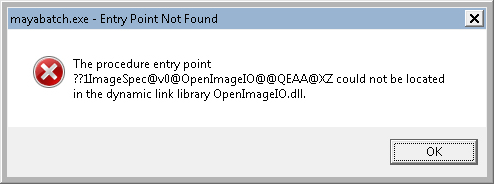
Entry point not found


An Entry Point Not Found error message might look rather weird (because you’re looking at the decorated name of a function).
mayabatch_Entry_Point_Not_Found
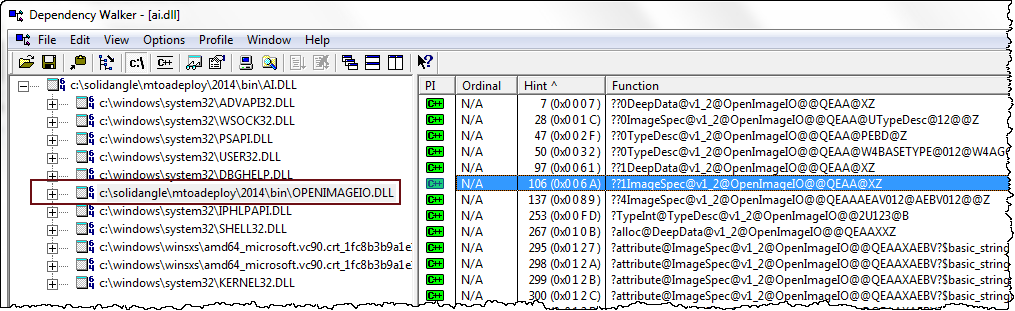
but usually such an error just means that the wrong version of a DLL (in this case, OpenImageIO.dll) is being loaded by the main program (mayabatch in this case). The problem could be as simple as your PATH pointing to another application that ships a different version of the DLL.

Using Dependency Walker, you can check a DLL to see the decorated names of the functions it exports. But usually you don’t have to dig down to that level a detail. Dependency Walker will show you what version of the DLL is being loaded, and that’s usually enough.
depends_openimageio.dll

[MtoA] Using standins to load animation sequences


To load an animated sequence into a standin:

  • In the Attribute editor for the StandInShape, under File/Frame, your Path should be something like example.####.ass (you must use four # symbols for the frame number pattern)
  • Enable Use Frame Extension
  • In the Frame box, type “= frame” without the quotation marks, and press ENTER. That creates an expression that uses the current frame number to specify which ASS file to load.

[MtoA] The case of the renderer that failed to register


In this case, a customer running Maya 2013 on Ubuntu reported this error when he tried to load the mtoa plugin:

API error detected in plugins/mtoa/Main.cpp at line 710: (kFailure): Unexpected Internal Failure 
ERROR | Failed to register renderer 'arnold' 

That specific line in plugins/mtoa/Main.cpp runs these two lines of Python:

import mtoa.cmds.registerArnoldRenderer
mtoa.cmds.registerArnoldRenderer.registerArnoldRenderer()

So I asked the customer to run that Python in the Maya script editor, and that gave us this error:

# Error: ImportError: file 
/usr/autodesk/maya2013-x64/lib/python26.zip/hashlib.py line 63: No module 
named _md5 # 

Now we’re cooking with EVIL gas! I’ve seen these kinds of errors before…

This appears to be general problem with Maya 2013 and pymel (I found a few different posts about this via Google search). For example, this thread from the pymel project, or the Troubleshooting section on this page.

In brief: you need to create some symlinks to the right versions of the libssl.

Another case of a missing entry point


entry_point_not_found
In this case, a user installed the latest MtoA, but when he went to load mtoa.mll in the Plug-in Manager, he got this error:

---------------------------
Settings/Preferences: maya.exe - Entry Point Not Found
---------------------------
The procedure entry point ?IsRenderablePath@CArnoldSession@@SA_NVMDagPath@@@Z could not be located in the dynamic link library mtoa_api.dll. 

From past experience, I knew that the problem was probably the Maya.env file. And sure enough, it looked something like this:

MAYA_RENDER_DESC_PATH = C:\solidangle\mtoadeploy\2013.0.22.0
PATH = %PATH%;C:\solidangle\mtoadeploy\2013.0.22.0\bin;
solidangle_LICENSE=5053@SOLIDANGLE-PC

MAYA_RENDER_DESC_PATH = C:\solidangle\mtoadeploy\2013.0.22.1
PATH = %PATH%;C:\solidangle\mtoadeploy\2013.0.22.1\bin;

Notice that there are two MAYA_RENDER_DESC_PATH and PATH settings. Maya reads just the top two, which are for an older version of mtoa, so when Maya loads mtoa.mll we end up with a “missing entry point” error.

How did this happen? Well, in this case, in-between installs and uninstalls of different versions MtoA, the user had updated Maya.env with his own MAYA_RENDER_DESC_PATH and PATH settings for MtoA. And then the next install of MtoA appended its own settings to the Maya.env file.

The MtoA Installer works like this:

  • Installs make a backup of the existing Maya.env, and then append the environment settings to the existing Maya.env.
  • Uninstalls restore the backup version of Maya.env.

So if your Maya.env already has MtoA settings for MAYA_RENDER_DESC_PATH and PATH settings, then when you install another MtoA, you end up with a problem (because the new settings will be at the bottom, where they are ignored).

Ok, so that’s problem solved. Just remove those extra entries from Maya.env.

Switching between different versions of MtoA


If you have several versions of MtoA, you can switch between them by editing your Maya.env and mtoa.mtd files before you start Maya. These two files are located under your MAYA_APP_DIR folder.

For example, C:\Users\SOLIDANGLE\Documents\maya\2013-x64\Maya.env.

MAYA_RENDER_DESC_PATH = C:\solidangle\mtoadeploy\2013.0.22.0
PATH = %PATH%;C:\solidangle\mtoadeploy\2013.0.22.0\bin

And C:\Users\SOLIDANGLE\Documents\maya\2013-x64\modules\mtoa.mod:

+ mtoa any C:\solidangle\mtoadeploy\2013.0.22.0

The mtoa.mod file is put there by the MtoA installer.

The MtoA installer always wants to remove any other installed version, so if you want to keep multiple versions around, you can do one of the following:

  • Extract the files yourself (for example, using 7zip)
  • Make copies of each MtoA version before you uninstall them.

For example, if you have MtoA 0.21 installed in

C:\solidangle\mtoadeploy\2013

copy that folder to

C:\solidangle\mtoadeploy\2013-0.21.0

Then install MtoA 0.22 (during the install, you may want to change the default install folder to something like C:\solidangle\mtoadeploy\2013-0.22.0).

After that, you’ll have both MtoA 0.22 and 0.21, and you can switch between them.

[MtoA] Editing Arnold attributes on multiple objects


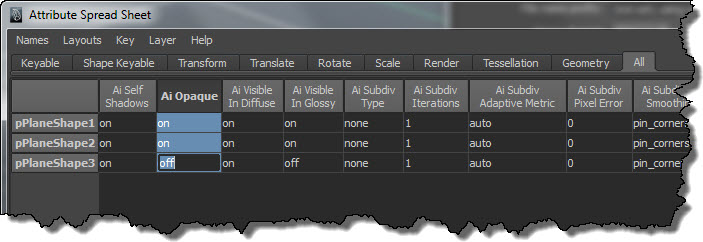
If you need to change the same Arnold attributes on many nodes, use the Attribute Spreadsheet. For example, suppose you wanted to turn off the Opaque attribute on a number of objects in your scene. Here’s how to do it:

  1. Select the objects.
  2. Press the Down arrow (aka Pick Walk) to select the shape nodes.
  3. Open the Attribute Spreadsheet.
  4. Click the All tab, and find the Ai (Arnold) attributes you want to change. Drag across all rows, and then type “off” in the last row.
    AiAttributeEditor

Using the attr token in the texture file name attribute of a File node


In this blog post, I’ll quickly step through an example of how to use the <attr> token in the Maya File node.

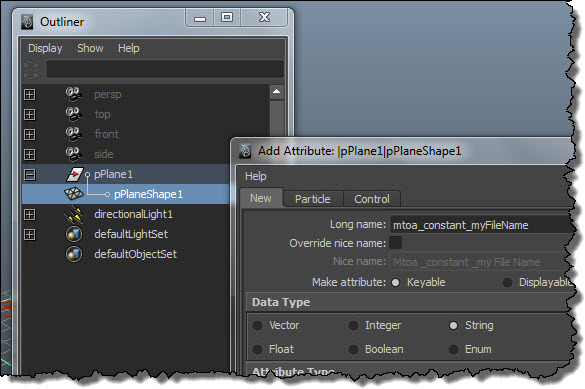
Add a "mtoa_constant_" attribute to the shape node.
attr_AddAttribute

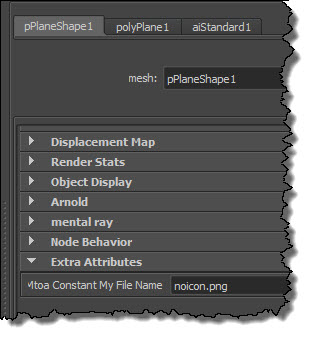
Put the name of the texture file in the extra attribute:
attr_ExtraAttributes

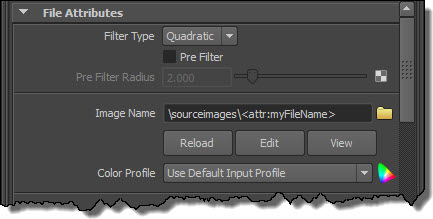
Use the token in the Image Name. Note that I have a relative path, so I have to make sure that I’ve set a project.
attr_ImageName

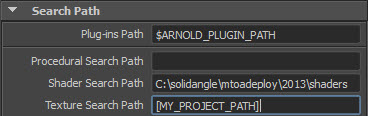
Now I’ve got something that will render in Maya. If I want to export this to an ASS file and render it with kick, I need to add a Texture Search Path (and optionally, a shader search path if I don’t want to use kick -l).
attr_SearchPaths

Here’s the texture-related parts of the exported ASS file:

options
{
 ...
 texture_searchpath "[MY_PROJECT_PATH]"
 ...
}

polymesh
{
 name pPlaneShape1
 ...
 declare myFileName constant STRING
 myFileName "noicon.png"
}

standard
{
 name aiStandard1
 Kd_color file1
}

MayaFile
{
 name file1
 filename "/sourceimages/<attr:myFileName>"
}

Notice how MtoA exported a relative path instead of an absolute. This happens only if you have a token in the filename; otherwise, you always get an absolute path.

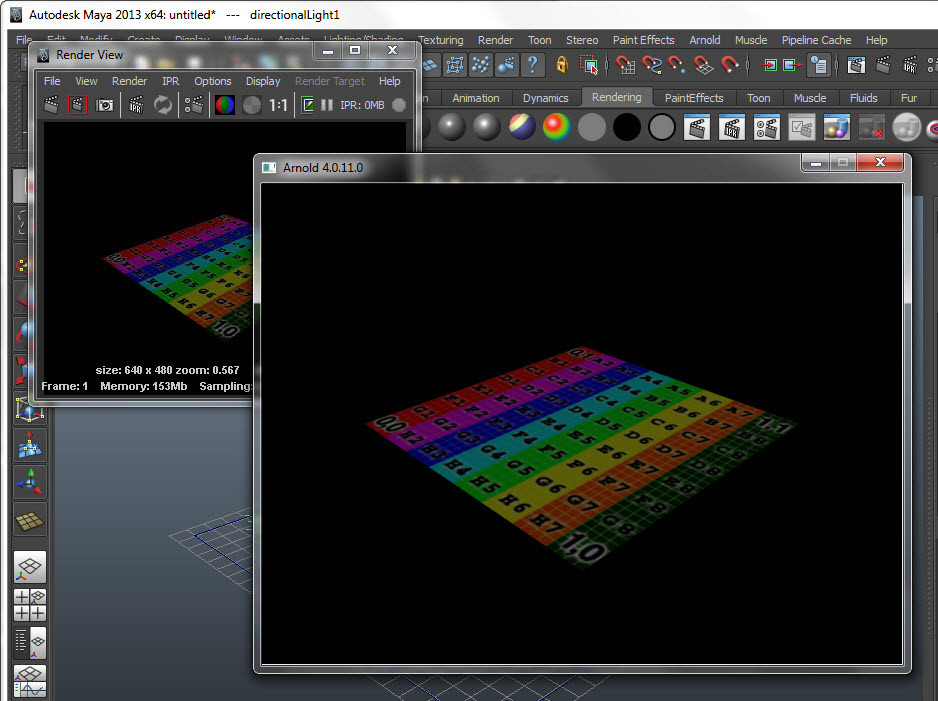
And here’s a screenshot to show all this working, both in Maya and in Arnold:
attr_Render