[MtoA] Unable to dynamically load : mtoa.mll The specified module could not be found.


I have another, more general, version of this post here. This one is for new Arnold users with Maya 2017.

Here’s what to do if you get errors like this:

// Error: file: C:/Program Files/Autodesk/Maya2017/scripts/startup/autoLoadPlugin.mel line 32: Unable to dynamically load : C:/solidangle/mtoadeploy/2017/plug-ins/mtoa.mll
The specified module could not be found.
//
// Error: file: C:/Program Files/Autodesk/Maya2017/scripts/startup/autoLoadPlugin.mel line 32: The specified module could not be found.

Check if your processor supports SSE4.1

As of Arnold 4.2.16.2, the SSE requirement is now SSE4.1

If this is the first time you’ve tried to use the Maya to Arnold (MtoA) plugin, then check whether your processor supports SSE4.1.

Reinstall MtoA

If MtoA used to load, but now it doesn’t, then something happened to the MtoA installation. I’ve seen several cases where DLLs were missing from the MtoA bin folder; most importantly, Arnold itself was missing (Arnold is ai.dll on Windows, or libai.so on Linux, or libai.dylib on OSX).

If you make a backup copy of the MtoA install folder, we can investigate after you fix things by installing MtoA.

Get a Process Monitor log

If a clean install of MtoA doesn’t work (and the computer does support SSE4.1), then “The specified module could not be found.” usually means there’s a missing dependency. Dependency Walker is a decent, if aging, tool for checking out dependencies, but for leaving no stone unturned, I prefer Process Monitor.

The MtoA plugin (mtoa.mll) depends on a handful of files only. Here’s the log of loaded DLLs for a working MtoA:
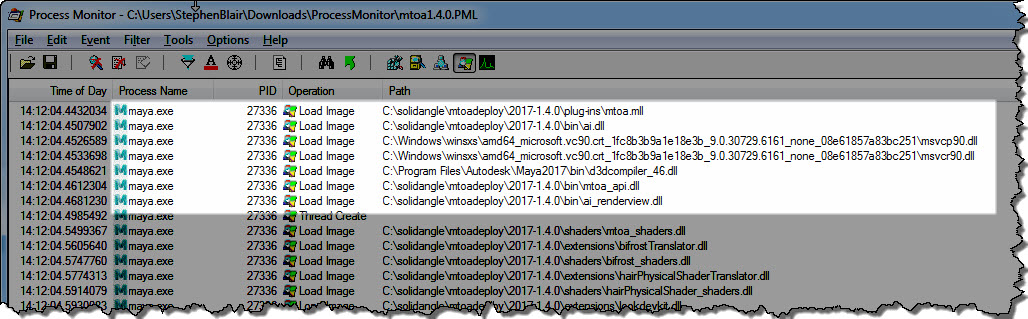
process_monitor_mtoa

Here’s a quick walkthrough (no audio) of how to get a Process Monitor log:

[MtoA] The renderer ‘arnold’ used by this scene, is not currently available


warning_renderer_not_currently_available

// Warning: file: C:/Program Files/Autodesk/Maya2017/scripts/others/supportRenderers.mel line 64: The renderer "arnold" used by this scene, is not currently available. The "mayaSoftware" renderer will be used instead. //

By itself, this warning doesn’t mean there’s a problem with MtoA or Arnold. The warning means that the MtoA plugin isn’t loaded, so all you have to do is load MtoA:

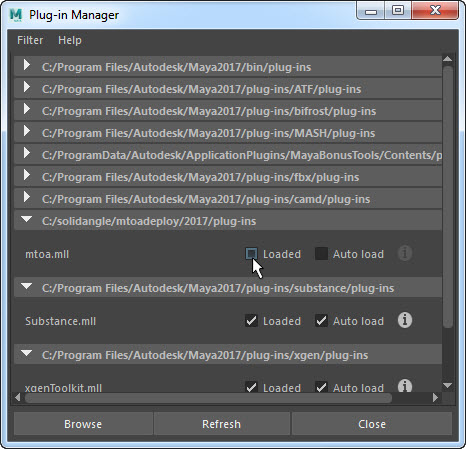
  1. Click Windows > Settings/Preferences > Plug-in Manager
  2. Scroll down until you see mtoa.mll
    plug-in_manager_mtoa
  3. Click the Loaded and Auto load check boxes.

However, if you get a “Unable to dynamically load : ../mtoa.mll The specified module could not be found.” error, then that’s a different problem.

[FAQ] Can I transfer Arnold shaders to another app?


For example, can I transfer Arnold shaders from 3ds Max to Maya? Or from Houdini to Maya?

The answer is no. The Arnold plugins don’t include code for reading shader nodes from an ASS file and creating shader trees inside the host application (eg Maya, Houdini, or Cinema 4D).

You can use ASS files to take shapes and shaders from one app and render them in another app, but those shapes and shaders are never created inside the other app.

An MtoA Standin (aka an Arnold Procedural in HtoA and C4DtoA) references an ASS file, and passes that on to Arnold at render time.

standins

The ASS file contains Arnold nodes (shapes and shaders). Those Arnold nodes are not created inside the 3D application.

Instead, the standin node is translated to an Arnold procedural node, and at render time, that procedural node is expanded, and all the Arnold shapes and shaders are created inside the Arnold scene.

Overriding shader parameters in procedurals


Procedurals (aka standins) don’t expose the parameters of objects and shaders inside the procedural.

For example, you cannot override shader parameters like standard.Kd (diffuse color) or standard.emission (emission scale) by setting those parameters on a procedural node.

But what you can do is use “user data parameters”. Inside the procedural, use user data shaders to set shader parameters, but don’t define the user data parameters on the shape.

For example, if I wanted to be able to override the emission scale, then I would set up a shader like this:

user_data_procedurals

A userDataFloat shader sets the Emission. The important thing is that the custom attribute emission_scale is not defined on the shape, so the default value is used instead.

By doing that, I can put an emission_scale attribute on the procedural node, and the aiUserDataFloat shader picks up that value.

user_data_procedurals2

In the above example, I’ve added a mtoa_constant_emission_scale attribute to the standinShape, and that allows me to set the Emission for that specific standin.

In Arnold scene source (ASS) format, I have this in my main scene file:

procedural
{
 name ArnoldStandIn1Shape
 dso "standin_torus_w_emission.ass"
 ...
 declare emission_scale constant FLOAT
 emission_scale 0.649999976
}

And in the ASS file loaded by the procedural, I have this:

polymesh
{
 name pTorusShape1
 ...
 shader "someshader"
 ...
 #
 # NO user data declared here 
 #
}

standard
{
 name someshader
 ...
 emission aiUserDataFloat1
 
}

userDataFloat
{
 name aiUserDataFloat1
 floatAttrName "emission_scale"
 defaultValue 0.100000001
}


[C4DtoA] How can I make my background object visible in refractions?


You can’t. The background object isn’t visible in refractions. Or reflections, or anything but camera rays.

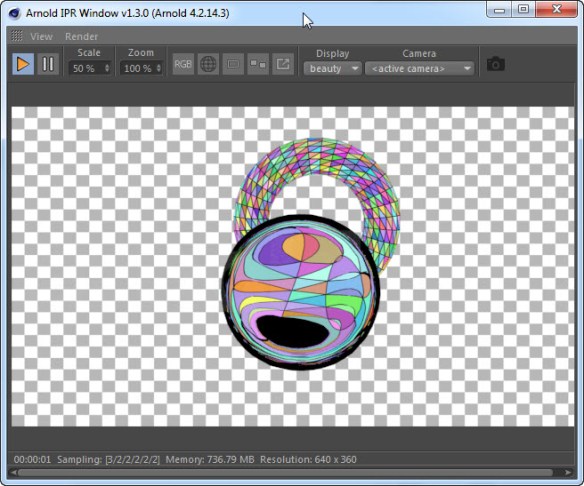
Here’s an example: a refractive sphere in front of a torus, in front of the background checkerboard object. The black areas are where the background object isn’t visible to refraction rays.

c4d_background_object_refraction

The “background object” is actually a shader plugged into the Arnold background slot.

You won’t see it in Cinema 4D, but when C4DtoA translates the scene to Arnold, the background object is translated as a shader plugged into the options.background parameter (in Cinema 4D, this is the Environment > Background parameter in the Render Settings).

In an ASS file, it looks like this:

options
{
background "c4d|Background"
}

image_plane
{
 name c4d|Background
 color c4d|Arnold_Shader_Network|checkerboard
 lenx 1
 leny 1
 ox 0
 oy 0
}

The image_plane node is a shader, and if you were to check its code, you’d see that it handles camera rays only; for any other ray type (like refraction), the image_plane shader returns black.

shader_evaluate 
{ 
    if (!(sg->Rt & AI_RAY_CAMERA)) 
    {
        sg->out.RGBA = AI_RGBA_BLACK;
        return; 
    }


[Arnold] [MtoA] How to check if your processor supports SSE4.1


As of Arnold 4.2.16.2, the requirement is now “just” SSE4.1.

This blog post is for Google search to find; I’ve already blogged about the SSE4.1 requirement elsewhere.

If your processor does not support SSE4.1, the Arnold won’t run on your computer. MtoA will either fail to load, or you’ll get a crash whenever you try to render.

To check whether an older machine supports SSE4.1, here’s a few suggestions:

  • Google your processor and “SSE”
    cpu-world is pretty reliable, but I have seen one or two cases where the info was wrong, and SSE4.1 wasn’t really supported by a processor.
  • Windows: Download and run coreinfo -f
  • OSX: Run sysctl -a | grep machdep.cpu.features
  • Linux: Check /proc/cpuinfo

A note about coreinfo:

  • If you see an asterisk (*), then SSE4.1 is supported.
    SSE4.1          *       Supports Streaming SIMD Extensions 4.1
  • If you see a dash (-), then SSE4.1 is not supported.
    SSE4.1          -       Supports Streaming SIMD Extensions 4.1

[MtoA] The curse of pymel.log


PyMEL is great. But…if pymel.log can’t be accessed, any plugin that uses PyMEL will fail to load.

And MtoA uses PyMEL, so every now and again I see a case where MtoA doesn’t load, and you get something like this in the script history:

import arnold
// Successfully imported python module 'arnold'
import mtoa
// Successfully imported python module 'mtoa'
import mtoa.cmds.registerArnoldRenderer;mtoa.cmds.registerArnoldRenderer.registerArnoldRenderer()
# Error: line 1: IOError: file C:\Program Files\Autodesk\Maya2016\bin\python27.zip\logging\__init__.py line 926: 13 #
// Error: Failed to register renderer 'arnold' //
// Error: line 1: initializePlugin function failed (mtoa) //

or this:

Error: line 1: IOError: file /Applications/Autodesk/maya2018/Maya.app/Contents/Frameworks/Python.framework/Versions/Current/lib/python2.7/logging/__init__.py line 935: 13

The important bit is this error:

# Error: line 1: IOError: file C:\Program Files\Autodesk\Maya2018\bin\python27.zip\logging\__init__.py

That error means that PyMELcannot create a log file in your user folder.

By default, the PyMEL log file is created in your Documents folder. For example, if your Windows user account name is Stephen, then this would be the log file:

C:\Users\Stephen\Documents\pymel.log

You need to check the permissions on that log file, or delete it so that PyMel can create a new log file.

Note that the pymel.log file may be a hidden file.

[MtoA] Hiding the image file statistics in the Arnold log


Here’s a good example of why you might use the User Options, and how it lets you set Arnold parameters that aren’t exposed by MtoA in Maya.

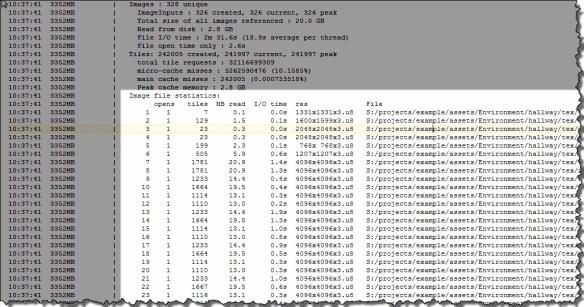
If you set the verbosity level to Warnings + Info, you’ll get some detailed image statistics in the Arnold log:

image_file_statistics

But what if you’ve got thousands of image files (eg udims)? You might not want all that in your log. There used to be a check box in the Arnold Render Settings that allowed you to turn off the detailed image file statistics, but we removed that a few years ago.

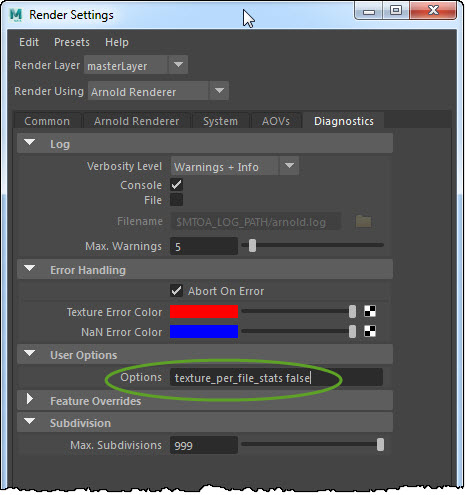
But the Arnold options.texture_per_file_stats parameter is still there, so you can use the User Options field to set that parameter to false. Just enter the parameter name “texture_per_file_stats” and the parameter value, like this:

render_settings_user_options

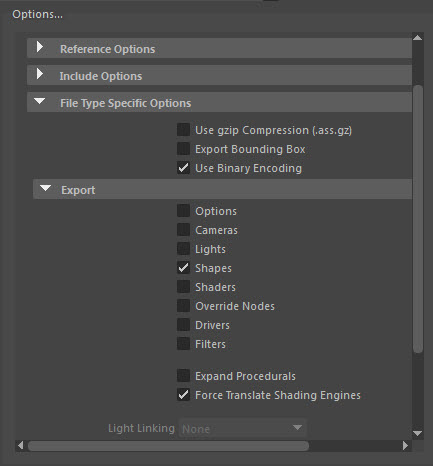
Force Translate Shading Engines?


You may have noticed the Force Translate Shading Engine option in the export dialog (or in the Feature Overrides section of the Render Settings).
force_translate_shading_engine

Force Translate Shading Engines forces MtoA to export shape nodes with a shader link, like this:

polymesh
{
 ...
 shader "aiStandard1SG"
 declare mtoa_shading_groups constant ARRAY NODE
 mtoa_shading_groups "aiStandard1SG"
}

where “aiStandard1SG” is the name of a MayaShadingEngine shader node.

This allows you to keep your shapes and shaders in separate ASS files. For example, you could have one standin that loads the shapes, and a second standin that loads the shaders. As long as the shape nodes include links to the shaders, Arnold will resolve the links and render the shapes with the right shaders.

Exporting ASS files to specific locations


For the render -rt 1 command, you can specify the output ASS name in
the defaultArnoldRenderOptions.output_ass_filename attribute. For example:

set PRE_RENDER_MEL="setAttr -type \"string\" 
defaultArnoldRenderOptions.output_ass_filename 
 \"c:/Users/StephenBlair/Documents/example\";"
 
 render -s 6 -e 8 -r arnold -rt 1 -preRender %PRE_RENDER_MEL% 
 C:\projects\Support\scenes\_2016\XSI_deformed_logo.mb 

This will export ASS files named “example.ass”.

The scene should have the Frame/Animation ext set to something like
“name.#.ext”. Otherwise, if it is “name.ext” you’ll get filenames like
“example.ass.0004.ass”

output_ass_filename can have environment variables, but you have to be
careful to use forward slashes. For example:

set PRE_RENDER_MEL="setAttr -type \"string\" defaultArnoldRenderOptions.output_ass_filename \"%OUTPUT_ASS_FILENAME%\";" 
set OUTPUT_ASS_FILENAME=C:/Users/StephenBlair/Documents/example 

render -s 6 -e 8 -r arnold -rt 1 -preRender %PRE_RENDER_MEL% C:\projects\Support\scenes\_2016\XSI_deformed_logo.mb

There’s also the arnoldExportASS command, if you want to script the export.

maya -batch -file scene.mb -command "arnoldExportAss 
-f "/home/blairs/Desktop/example.ass" -mask 255 -lightLinks 1 -compressed 
 -shadowLinks 2 -cam sideShape;"