Day 2 at FMX: The allure of Arnold


fxguide quick takes

It was only in a small-ish room but the hustle and bustle outside the Solid Angle Arnold workshop showed just how much buzz this renderer has. In the session, Solid Angle founder Marcos Fajardo detailed the growth of his company (now more than 20 people) and promised a new website (traditionally a rendering formula) and that they would be โ€˜more openโ€™.

More at fxguide

[MtoA] Creating color masks with a custom AOV and the Utility shader


In this video, I show how to a color mask AOV using a custom AOV and the Utility shader. Topics covered include:
– Creating a custom AOV
– Setting the default shader for a custom AOV
– Setting up the Utility shader to output a color for each shape
– Understanding the difference between the Color and Color ID color modes

https://vimeo.com/63433605

Changing ASS files with the Arnold Python API


If you want to change something in existing ASS files, don’t write an ad-hoc script or your own parser for the ASS file. Use the Arnold API. The Arnold API includes a set of Python bindings, so you can fairly quickly whip up a script to do whatever it is you need to do ๐Ÿ™‚

For example, we recently discovered (and fixed) an issue where exported ASS files were missing procedural nodes. SItoA exports hair data in chunks (one chunk for every 200K hairs), but the exported ASS had just one procedural for the first chunk (chunk 0), but there should be one procedural for each chunk.

Here’s what the procedural for chunk 0 on frame 5 looks like. The missing procedurals would be for bin files like Hair.chunk.1.5.bin, Hair.chunk.2.5.bin, and so on.

procedural
{
 name Hair.SItoA.5000
 dso "sitoa_curves_proc.dll"
 data "//Projects/Support/Arnold_Scenes/Hair.chunk.0.5.bin"
 load_at_init on
}

So, for my first dive into the Arnold API, I put together a basic little script to add the missing procedurals. To do this, I had to learn how to:

  • Read and write ASS files
  • Iterate over nodes and find a specific type of node
  • Get parameter values from a node
  • Create new nodes
from arnold import *
import glob


ass_file = "Hair_Archive.ass"

AiBegin()
AiMsgSetConsoleFlags(AI_LOG_ALL)
AiASSLoad(ass_file, AI_NODE_ALL)

# Iterate over all shape nodes, which includes procedural nodes
iter = AiUniverseGetNodeIterator(AI_NODE_SHAPE);
while not AiNodeIteratorFinished(iter):
	node = AiNodeIteratorGetNext(iter)
	#print AiNodeGetName( node )

	# Is the node a procedural?	
	if AiNodeIs( node, "procedural" ):
	
		data = AiNodeGetStr( node, "data" )
		name = AiNodeGetStr( node, "name" )
	
		# Find all other chunk.<chunk-number>.<frame>.bin files
		chunks = glob.glob( data.replace( 'chunk.0', 'chunk.*' ) )

		# Add procedural nodes for chunks 1,2,3...
		for i in range(1,len(chunks)):
			n = AiNode("procedural");
			AiNodeSetStr(n, "name", "%s.%s" % (name, i) )
			AiNodeSetStr(n, "dso", "sitoa_curves_proc.dll")
			AiNodeSetStr(n, "data", data.replace( 'chunk.0', 'chunk.%s' % i ) )
			AiNodeSetBool(n, "load_at_init", True)

AiNodeIteratorDestroy(iter)


AiASSWrite(ass_file, AI_NODE_ALL, False)
AiEnd()

Just for kicks: Printing out shading trees


kick -tree prints the shading network for a shader node. For example, given this:

polymesh
{
 ...
 shader "Sources.Materials.DefaultLib.Material.standard.SItoA.41000.1" 
 ...
}

standard
{
 name Sources.Materials.DefaultLib.Material.standard.SItoA.41000.1
 
}

You can print out the shader tree for the standard shader like this:

set ASS_FILE=//Projects/Support/Arnold_Scenes/example.ass
set NODE=Sources.Materials.DefaultLib.Material.standard.SItoA.41000.1
set SHADER_PATH=%SITOA_BIN%
%KICK_PATH%\kick.exe -tree %NODE%  -i %ASS_FILE% -l %SHADER_PATH%

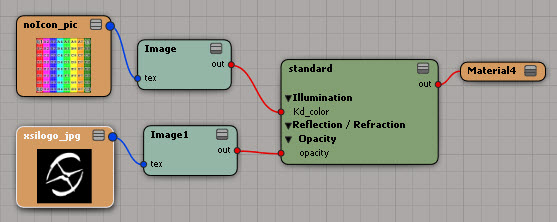
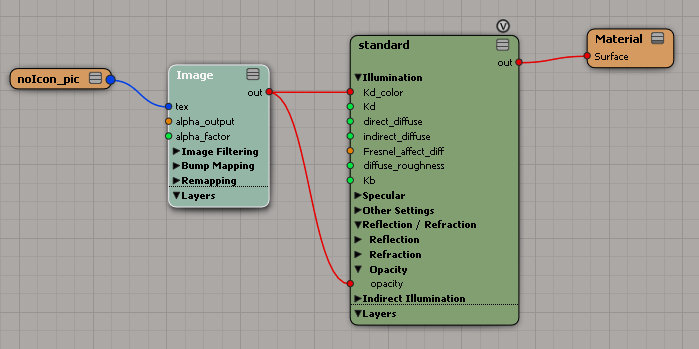
For a [simple] shading tree that looks like this:
SimpleTree
You would get this:

standard:Sources.Materials.DefaultLib.Material.standard.SItoA.41000.1
  |
  +-Kd_color = txt2d_image_explicit:Sources.Materials.DefaultLib.Material.Image.SItoA.41000.2
  |   |
  |   +-tex = sib_image_clip:Sources.Materials.DefaultLib.Material.noIcon_pic.SItoA.41000.3
  |
  +-opacity = txt2d_image_explicit:Sources.Materials.DefaultLib.Material.Image.SItoA.41000.2
      |
      +-tex = sib_image_clip:Sources.Materials.DefaultLib.Material.noIcon_pic.SItoA.41000.3

max depth:       2
total shaders:   5
cycles detected: 0

shader counts:
  2 txt2d_image_explicit
  2 sib_image_clip
  1 standard

one-to-many connections:
  2 txt2d_image_explicit:Sources.Materials.DefaultLib.Material.Image.SItoA.41000.2
  2 sib_image_clip:Sources.Materials.DefaultLib.Material.noIcon_pic.SItoA.41000.3

Notice that txt2d_image_explicit and sib_image_clip are counted twice, because those branches are plugged into two different ports on the standard shader.

[MtoA] Editing Arnold attributes on multiple objects


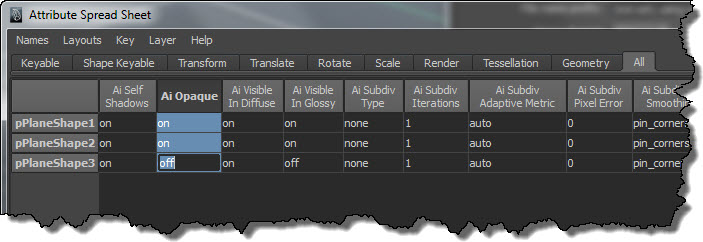
If you need to change the same Arnold attributes on many nodes, use the Attribute Spreadsheet. For example, suppose you wanted to turn off the Opaque attribute on a number of objects in your scene. Here’s how to do it:

  1. Select the objects.
  2. Press the Down arrow (aka Pick Walk) to select the shape nodes.
  3. Open the Attribute Spreadsheet.
  4. Click the All tab, and find the Ai (Arnold) attributes you want to change. Drag across all rows, and then type “off” in the last row.
    AiAttributeEditor

[MtoA] Doing a license check in Maya


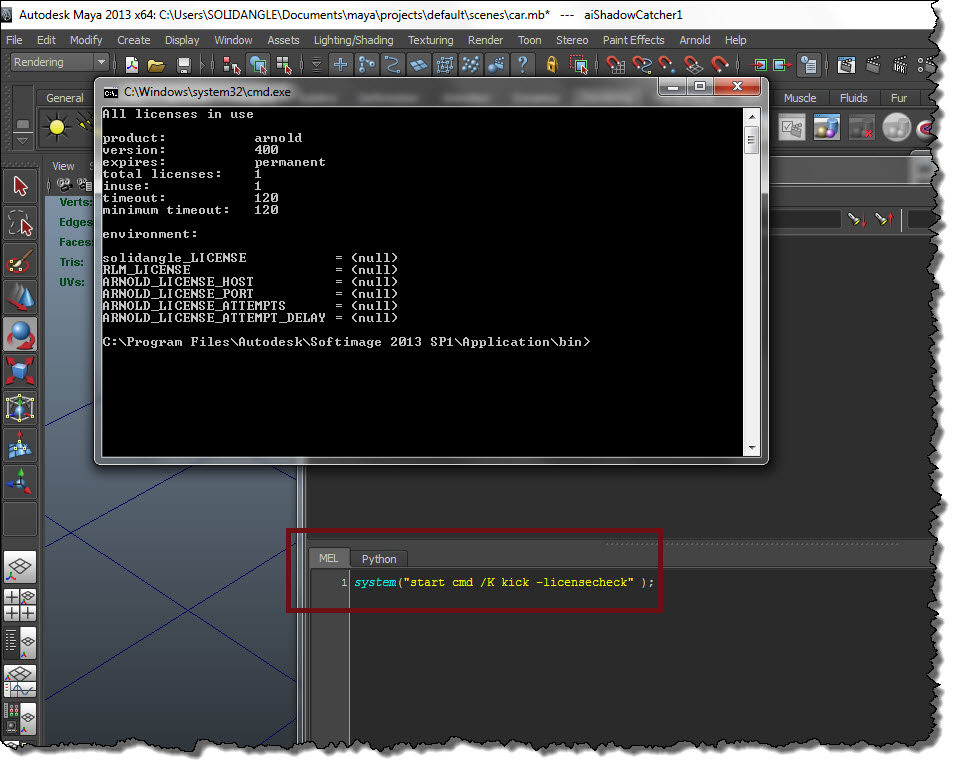
If you’re doing technical support like me, you gotta love things like kick -licensecheck. I wish we’d had something like this at Softimage. This license check will tell you:

  • Whether you can connect to a license server
  • What licenses are available
  • What are the licensing environment variable settings

licensecheck

In this example, I’m running Maya and the license server on the same computer. That’s why none of the environment variables are set, but the licensecheck still shows that there’s a license available. By default, Arnold will connect to 5053@localhost to get a license.

AOV Composition and opacity


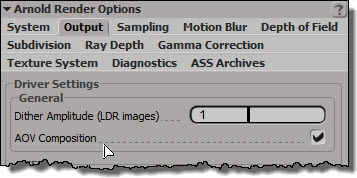
AOV Composition allows opacity and transparency to carry forward into AOVs. It works only for RGB AOVs, so you won’t see it in the render region (because the xsi display driver always outputs RGBA AOVs).
aov_composition

For example, suppose you have a textured grid with an opacity map:
noicon_grid_w_opacity_map
In the render region, the Main AOV is fine, but the Arnold Direct Diffuse doesn’t have the opacity, even if you enable AOV Composition:
main_vs_direct_diffuse1
However, if you render out the image (with AOV Composition enabled and the Direct Diffuse format set to RGB), you’ll get what you expected:
arnold_direct_diffuse_aov_composition

Pref coordinates and bind poses


The Noise shader can use different coordinate systems when it evaluates the noise.

  • Object space, where points are expressed relative to the local origin (center) of the object.
  • World space, where points are relative to the global origin of the scene.
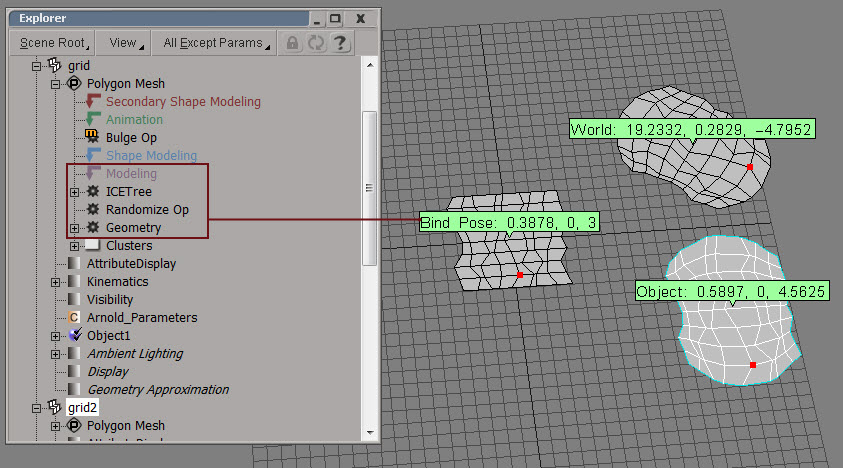
  • Pref, which isn’t really a space, but rather a reference to a bind pose, which in Softimage is the top of the Modeling region. Pref is really a point in object space, but it’s a reference to the geometry at the top of the Modeling region. In constrast, if you use Object space, you’re getting point position coordinates from the very top of the whole operator stack.

Noise_Coords

The name “Pref” is easier to understand if you think of it like a variable name. So, when it comes to noise, P is a point in world space, Po is in object space, and Pref is in “reference space” aka the “bind pose”.

For the Noise shader, the advantage of using Pref is that it prevents the noise from swimming over the surface of the object as the object deforms (as long as the deforms are above the Modeling stack). As the object deforms, Po is a point on that deformed geometry, so Po is constantly changing. In contrast, Pref is a point on the geometry that came out of the Modeling stack. So the noise sticks to the “bind pose”.

Note the difference between Pref and the two other coordinate systems (World and Object).
BindPose

Noise, world coordinates, and offsets


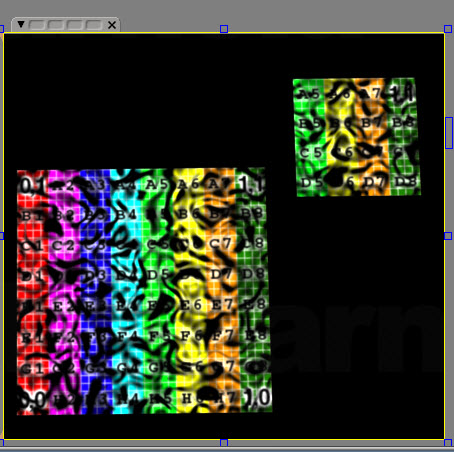
If you’re using world coordinates for your noise, then obviously as an object moves in global space, the noise will change. Here I’ve extracted a polygon and moved it: same shader tree that uses noise, but different noise because I’m using world coordinates.
noise_world

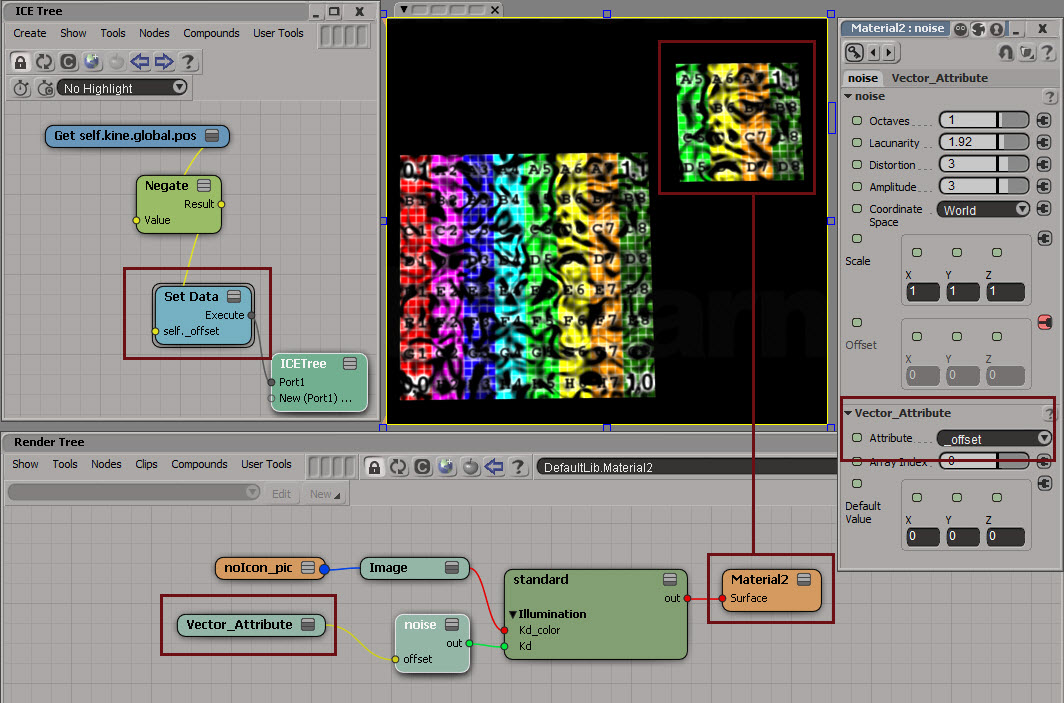
You could keep the same noise by applying an offset equal to the translation:
noise_world_offset_1
Note that I’ve assumed that there’s no scaling of the noise. If there was, I’d have to multiply my offset by the same scaling.