Exporting ASS files to specific locations


For the render -rt 1 command, you can specify the output ASS name in
the defaultArnoldRenderOptions.output_ass_filename attribute. For example:

set PRE_RENDER_MEL="setAttr -type \"string\" 
defaultArnoldRenderOptions.output_ass_filename 
 \"c:/Users/StephenBlair/Documents/example\";"
 
 render -s 6 -e 8 -r arnold -rt 1 -preRender %PRE_RENDER_MEL% 
 C:\projects\Support\scenes\_2016\XSI_deformed_logo.mb 

This will export ASS files named “example.ass”.

The scene should have the Frame/Animation ext set to something like
“name.#.ext”. Otherwise, if it is “name.ext” you’ll get filenames like
“example.ass.0004.ass”

output_ass_filename can have environment variables, but you have to be
careful to use forward slashes. For example:

set PRE_RENDER_MEL="setAttr -type \"string\" defaultArnoldRenderOptions.output_ass_filename \"%OUTPUT_ASS_FILENAME%\";" 
set OUTPUT_ASS_FILENAME=C:/Users/StephenBlair/Documents/example 

render -s 6 -e 8 -r arnold -rt 1 -preRender %PRE_RENDER_MEL% C:\projects\Support\scenes\_2016\XSI_deformed_logo.mb

There’s also the arnoldExportASS command, if you want to script the export.

maya -batch -file scene.mb -command "arnoldExportAss 
-f "/home/blairs/Desktop/example.ass" -mask 255 -lightLinks 1 -compressed 
 -shadowLinks 2 -cam sideShape;"
[MtoA] Getting an Arnold log


The Arnold log is important, not just for troubleshooting and getting help from us at Solid Angle, but also for understanding what’s going on when Arnold renders your scene.

To get an Arnold log:

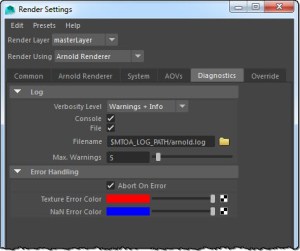
  1. In Maya, click Render > Render Settings
  2. In the Render Using list, click Arnold Renderer
  3. Click the Diagnostics tab.
    mtoa_render_settings_diagnostics
  4. Set the Verbosity level to at least Warnings + Info
  5. Click the File check box to enable file logging (by default, the log file will be saved in the last folder you browsed to with  Maya; see Finding your log file).
  6. If you want to be absolutely sure of where to find the log file, click the folder icon beside the Filename box, and select a location for the Arnold log file.
  7. Depending on what OS you use, and how you started Maya, the log is also output to the Output Window (Windows) or to the terminal (on OSX and Linux if you started Maya from a terminal)

For batch rendering, Arnold log messages go into mayaRenderLog.

  • [Windows] %USERPROFILE%\Documents\maya\mayaRenderLog.txt
  • [OSX] ~/Library/Logs/Maya/mayaRender.log
  • [Linux] ~/maya/mayaRenderLog.txt

[MtoA] Renderman performance warning


If you have both Renderman and MtoA installed, you may see a warning that says “Arnold for Maya degrades Renderman performance.” Unless you are running a version of MtoA from 20 months ago, this performance warning is false. MtoA does not degrade Renderman performance.

This was fixed in Arnold 4.2.3.1 (fix #4393 main thread was pinned to a single core) back in January 2015.

Updating MtoA 1.2.7.3 with Arnold 4.2.14.0


MtoA 1.2.7.3 ships with Arnold 4.2.13.

If you want to take advantage of the improvements in Arnold 4.2.14.0 (like the increase  in the maximum number of threads from 128 to 256), here’s what you need to do:

  • Download  Arnold 4.2.14.0 and extract the archive
  • Replace Arnold (libai.so, ai.dll, libai.dylib), kick, and maketx in the MtoA bin folder with the versions from the Arnold 4.2.14.0 download
  • Replace the Arnold Python bindings in  the MtoA scripts/arnold folder with the Python bindings from the Arnold python/arnold folder. For example, replace this folder:
       C:\solidangle\mtoadeploy\2016-1.2.7.3\scripts\arnold

    with the python\arnold folder from the Arnold 4.2.14.0 download. For example:

       C:\solidangle\arnold\Arnold-4.2.14.0-windows\python\arnold

You must update the Arnold Python bindings, otherwise MtoA won’t load. That’s because Arnold 4.2.14.0 included a number of API changes, including the removal of some API (like AiLicenseSetServer). The older Python bindings still refer to the removed API, so there will be Python errors that prevent MtoA from loading.

[Arnold] Understanding the texture cache


Arnold uses the OpenImageIO texture cache. From the OIIO Programmer Documentation:

In short, if you have an application that will need to read pixels from many large image files, you can rely on ImageCache to manage all the resources for you. It is reasonable to access thousands of image files totalling hundreds of GB of pixels, efficiently and using a memory footprint on the order of 50 MB.

So, if you’re using tx files (tiled and mipmapped textures), then Arnold can read tiles as required, and use the texture cache to keep memory usage under control.

The reason we don’t read all the textures at once is that many of our customers have (literally) 100+GB of textures, so we use a texture cache that constantly loads small bits of texture data as required, and unloads old data.

By default, the size of the texture cache is 2048KB (as of Arnold 4.2.13.0). The size of the texture cache is set in the Arnold Render Settings.

Max Cache Size
The maximum amount of memory to be used for texture caching. Arnold uses a tile-based cache with a LRU (Least Recently Used) type algorithm, where the least recently used tiles are discarded when the texture caches is full.

Note If we get an error reading a texture, we mark that texture as bad and we never try to read it again. This makes the renderer a lot faster when you have a missing texture, since we won’t ask the file server millions of times to read from a nonexistent file. But in a transient network error case, one bad experience and the rest of your render has the texture missing.

[Arnold] Overriding parameters of nodes created by a standin


A common question is “how can I override the subdivision/displacement of the nodes in a standin?”

The standard answer is: “you can’t”. A standin is an Arnold procedural node, and you can override only the parameters supported by the procedural node, which do not include subdivision or displacement.

But…here’s how to do with the [deprecated] override back door. The override node allows you set a parameter value on a specific node. So if a standin loads an ASS file with a polymesh named “tRexShape”, then you can override tRexShape.subdiv_iterations like this:

override
{
 tRexShape subdiv_iterations 2
}

So, in Maya, do this:

  • Create a standin that loads an ASS file with the polymesh nodes (in this example, a tRexShape with subdiv_iterations=1).
    trex
  • Create a second standin that loads an ASS file with the override node. Clear the Defer Standin Load check box for this second standin, and your standin will render with the override value for subdiv_iterations.
    trex_override


NOTE
override
nodes aren’t supported by the Arnold API, and there’s no guarantee that support for override nodes won’t be removed at some point in the future.

[MtoA] Unable to dynamically load mtoa.mll …The specified procedure could not be found.


If the MtoA plug-in  does not load and you get a “The specified procedure could not be found” error like this:

// Error: line 1: Unable to dynamically load : C:/solidangle/mtoadeploy/2016/plug-ins/mtoa.mll
The specified procedure could not be found.
 // 
// Error: line 1: The specified procedure could not be found.
 (mtoa) //

then there’s a few basic things you need to check first.

Does your processor support SSE4.1?

Support for SSE4.1 is a minimum requirement. You won’t be able to load MtoA or use Arnold if your processor doesn’t support SSE4.1.

Check the environment in Maya

For example, does the PATH include any older versions of MtoA? If you’re on Windows, run the MEL command system(“set”) to get the environment. On OSX or Linux, run system(“printenv”).

Look for any environment variable that has an Arnold or MtoA folder in it. For example, on Windows, you should not have any MtoA bin folders in PATH.

Get a Process Monitor log

If a clean install of MtoA doesn’t work (and the computer does support SSE4.1), then “The specified module could not be found.” usually means there’s a missing dependency. Dependency Walker is a decent, if aging, tool for checking out dependencies, but for leaving no stone unturned, I prefer Process Monitor.

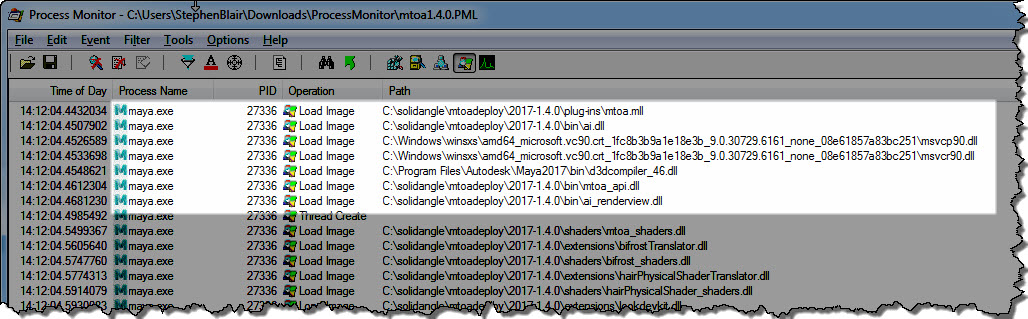
The MtoA plugin (mtoa.mll) depends on a handful of files only. Here’s the log of loaded DLLs for a working MtoA:

process_monitor_mtoa

Here’s a quick walkthrough (no audio) of how to get a Process Monitor log:

[Arnold] Setting up the Standard shader to be energy conserving


For energy conservation with Diffuse and SSS, you must have Diffuse + SSS <= 1

With Specular, it depends on whether or not Fresnel is enabled:

  • If Fresnel is off, then you must have SSS + specular + diffuse <= 1
  • If Fresnel is on, then you must only have diffuse + SSS <= 1. The shader will mix specular with diffuse and SSS in a way that’s energy conserving.

Ok, that’s the simple case (without diffuse backlighting and refraction). Now let’s add diffuse backlighting and refraction:

For energy conservation with Diffuse and SSS, you must have Diffuse + SSS + backlighting <= 1

With Specular, it depends on whether or not Fresnel is enabled:

  • If Fresnel is off, then you must have specular + (SSS + diffuse + backlighting) <= 1
  • If Fresnel is on, then you must only have diffuse + SSS + backlighting<= 1. The specular and refraction weights can be anywhere between 0 and 1, and the shader will mix everything in a way that’s energy conserving.

Setting the procedural’s load_at_init parameter to true would also fix this.


There’s an Arnold error that recommends setting the load_at_init parameter, but people don’t always know where to find that in their favorite Arnold plugin.

ERROR| [proc] c4d|Arnold_Procedural: bounds supplied to procedural node are not large enough to contain the actual underlying geometry.
Replace given bounds: (-1, -1, -1) X (1, 1, 1), with: (-9.4028616, -9.43616867, -9.21633244) X (9.3304739, 9.43616867, 9.21633244).
Setting the procedural's load_at_init parameter to true would also fix this.

The load_at_init parameter controls whether the procedural (standin) is loaded during scene intialization (before rendering starts), or during rendering (when a ray hits the procedural bounding box).

By default, load_at_init is false, which means that procedural loading is deferred until render time.

And so, in MtoA, C4DtoA, and SItoA, the load_at_init parameter is exposed as Defer Standin Load, which is enabled by default. In HtoA, you have a Load At Init parameter on for the Arnold Procedural node.

[C4DtoA] Understanding shaders and AOVs


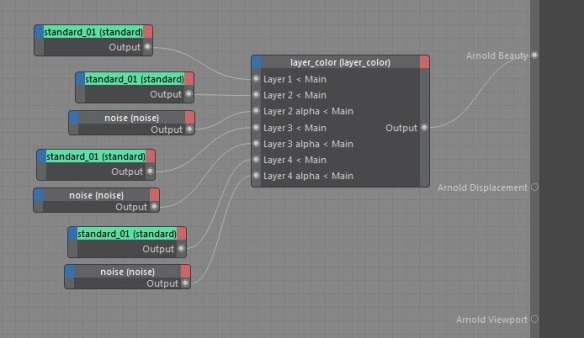
Arnold takes care of writing the built-in AOVs like N, P, Pref, A, and the all-important beauty. But it’s shaders that write to AOVs like direct_diffuse. That’s why something like this is not going to give you what you might expect in the AOVs:

layer_colors

layer_color doesn’t write to AOVs, so you won’t see the layered result in an AOV like direct_diffuse. standard does write to the direct_diffuse AOV (and others), but in this setup, you have multiple standards and they end up overwriting each other, so you get just the last standard output in the AOVs.

It’s better practice to avoid having multiple standard nodes in a single material; instead, layer the maps that go into the standard parameters like the diffuse and specular colors.

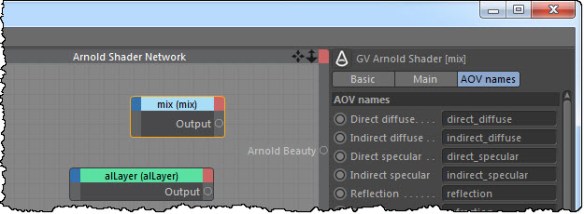
Or you could use a node like mix, or the third-party alLayer, which support AOVs. You can tell if a node writes AOVs by looking at its Attribute Editor: there’s usually a tab or list where you can change the names of the AOV outputs.

mix_aovs