[MtoA] Installing MtoA on Mac OS X
Reply

There are several ways you can do it.
In your Maya.env file, add this line:
solidangle_LICENSE=XXXX@SERVER
where XXXX is the port number, and SERVER is the name or IP address of the computer.
Maya.env is located in your user Library. For example: /Users/steve/Library/Preferences/Autodesk/maya/2014.
By default, the Library folder is a hidden folder, so you may need to un-hide the Library folder.
sudo nano /etc/launchd.conf
setenv solidangle_LICENSE XXXX@SERVER
If you don’t want to restart your Mac just yet, you can try setting the environment variable like this (it will last until you restart your machine):
launchctl setenv solidangle_LICENSE XXXX@SERVER


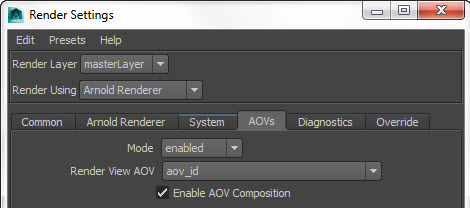
I don’t think this set up works if you plug a Standard into the beauty of the aiWriteColor (eg Standard > aiWriteColor > Standard). With that set of connections, I could never get the opacity right in both the Beauty and the Mask AOVs.
If you want to double-check what license servers Arnold is trying to connect with, set the log verbosity level to the maximum, and you’ll get something like this:
' INFO : [arnold] 00:00:00  438mb   [rlm] checking connection to license servers ...
' INFO : [arnold] 00:00:05  438mb   [rlm]  5053@STEPHEN-PC ... DOWN
' INFO : [arnold] 00:00:05  438mb   [rlm]  5053@SOLIDANGLE-PC ... UP
' INFO : [arnold] 00:00:05  438mb   [rlm] found 1 license servers
' INFO : [arnold] 00:00:15  438mb   [rlm] checkout of arnold (version 400) from SOLIDANGLE-PC OK
' INFO : [arnold] 00:00:15  438mb   [rlm] expiration date: 31-dec-2013 (190 days left)
You can use relative paths in Maya (like “/Dog.ass” in the Path box of the StandinShape attributes). It can be relative to the project, or relative to the Procedural Search Path.
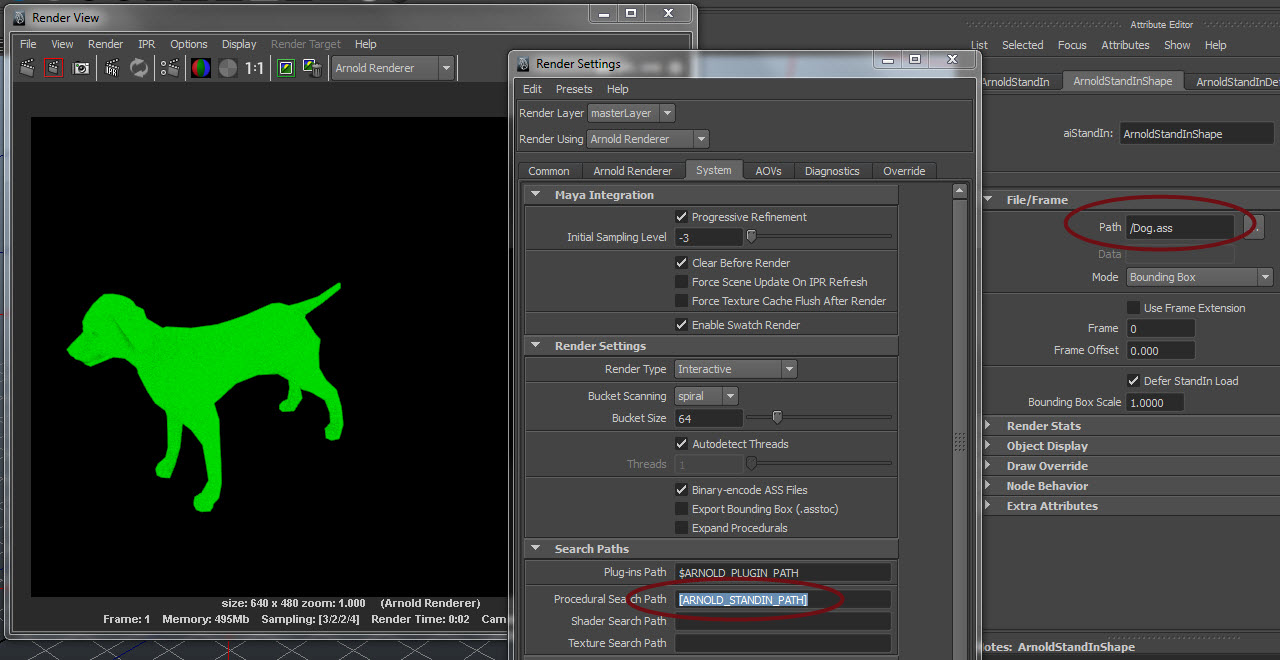
An exported ASS file, on the other hand, always has the full absolute path.
To load an animated sequence into a standin:
In this case, a customer running Maya 2013 on Ubuntu reported this error when he tried to load the mtoa plugin:
API error detected in plugins/mtoa/Main.cpp at line 710: (kFailure): Unexpected Internal Failure
ERROR | Failed to register renderer 'arnold'
That specific line in plugins/mtoa/Main.cpp runs these two lines of Python:
import mtoa.cmds.registerArnoldRenderer
mtoa.cmds.registerArnoldRenderer.registerArnoldRenderer()
So I asked the customer to run that Python in the Maya script editor, and that gave us this error:
# Error: ImportError: file
/usr/autodesk/maya2013-x64/lib/python26.zip/hashlib.py line 63: No module
named _md5 #
Now we’re cooking with EVIL gas! I’ve seen these kinds of errors before…
This appears to be general problem with Maya 2013 and pymel (I found a few different posts about this via Google search). For example, this thread from the pymel project, or the Troubleshooting section on this page.
In brief: you need to create some symlinks to the right versions of the libssl.
In this video, I show how to a color mask AOV using a custom AOV and the Utility shader. Topics covered include:
– Creating a custom AOV
– Setting the default shader for a custom AOV
– Setting up the Utility shader to output a color for each shape
– Understanding the difference between the Color and Color ID color modes
If you have several versions of MtoA, you can switch between them by editing your Maya.env and mtoa.mtd files before you start Maya. These two files are located under your MAYA_APP_DIR folder.
For example, C:\Users\SOLIDANGLE\Documents\maya\2013-x64\Maya.env.
MAYA_RENDER_DESC_PATH = C:\solidangle\mtoadeploy\2013.0.22.0
PATH = %PATH%;C:\solidangle\mtoadeploy\2013.0.22.0\bin
And C:\Users\SOLIDANGLE\Documents\maya\2013-x64\modules\mtoa.mod:
+ mtoa any C:\solidangle\mtoadeploy\2013.0.22.0
The mtoa.mod file is put there by the MtoA installer.
The MtoA installer always wants to remove any other installed version, so if you want to keep multiple versions around, you can do one of the following:
For example, if you have MtoA 0.21 installed in
C:\solidangle\mtoadeploy\2013
copy that folder to
C:\solidangle\mtoadeploy\2013-0.21.0
Then install MtoA 0.22 (during the install, you may want to change the default install folder to something like C:\solidangle\mtoadeploy\2013-0.22.0).
After that, you’ll have both MtoA 0.22 and 0.21, and you can switch between them.
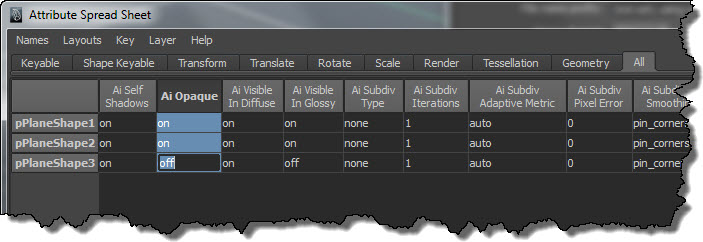
If you need to change the same Arnold attributes on many nodes, use the Attribute Spreadsheet. For example, suppose you wanted to turn off the Opaque attribute on a number of objects in your scene. Here’s how to do it:
 Arnold Support Corner