Pref coordinates and bind poses


The Noise shader can use different coordinate systems when it evaluates the noise.

  • Object space, where points are expressed relative to the local origin (center) of the object.
  • World space, where points are relative to the global origin of the scene.
  • Pref, which isn’t really a space, but rather a reference to a bind pose, which in Softimage is the top of the Modeling region. Pref is really a point in object space, but it’s a reference to the geometry at the top of the Modeling region. In constrast, if you use Object space, you’re getting point position coordinates from the very top of the whole operator stack.
Noise_Coords

The name “Pref” is easier to understand if you think of it like a variable name. So, when it comes to noise, P is a point in world space, Po is in object space, and Pref is in “reference space” aka the “bind pose”.

For the Noise shader, the advantage of using Pref is that it prevents the noise from swimming over the surface of the object as the object deforms (as long as the deforms are above the Modeling stack). As the object deforms, Po is a point on that deformed geometry, so Po is constantly changing. In contrast, Pref is a point on the geometry that came out of the Modeling stack. So the noise sticks to the “bind pose”.

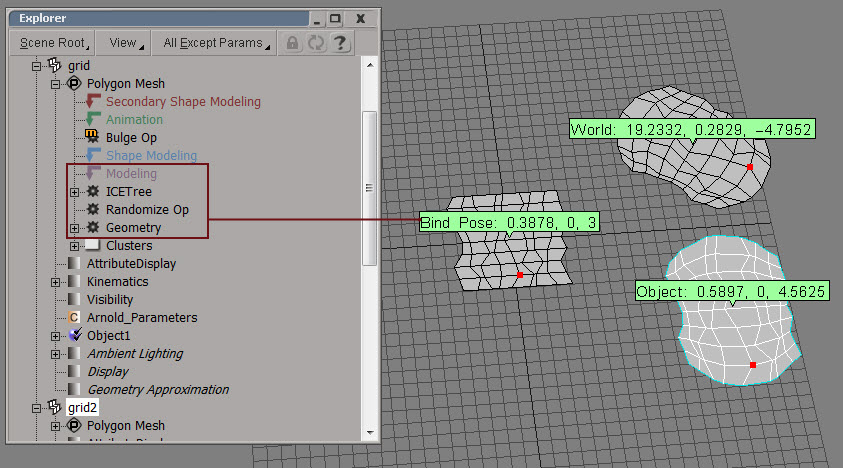
Note the difference between Pref and the two other coordinate systems (World and Object).
BindPose

Noise, world coordinates, and offsets


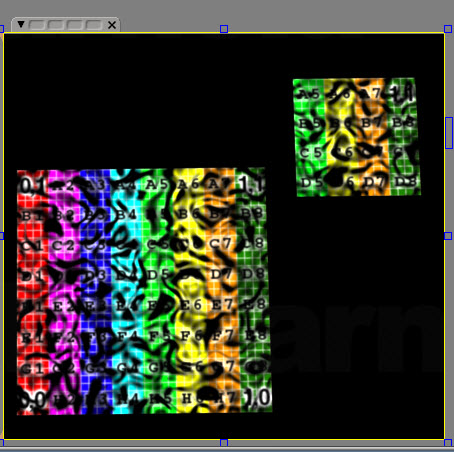
If you’re using world coordinates for your noise, then obviously as an object moves in global space, the noise will change. Here I’ve extracted a polygon and moved it: same shader tree that uses noise, but different noise because I’m using world coordinates.
noise_world

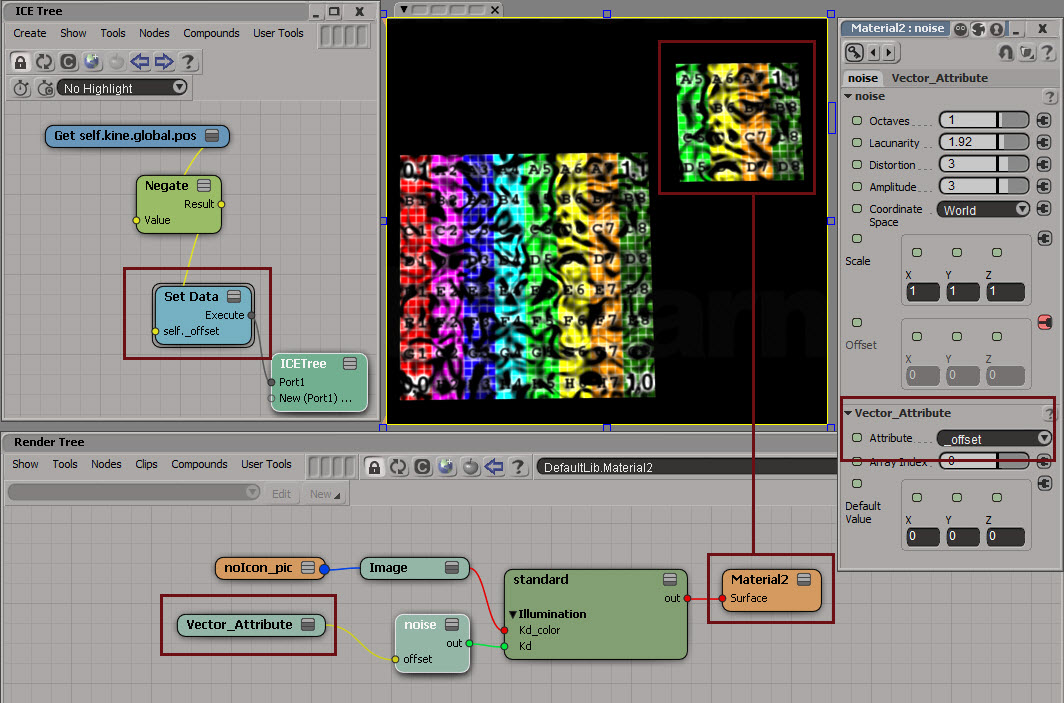
You could keep the same noise by applying an offset equal to the translation:
noise_world_offset_1
Note that I’ve assumed that there’s no scaling of the noise. If there was, I’d have to multiply my offset by the same scaling.

Just for kicks: listing the available shaders


Want to know what shaders come with SItoA?

Use kick -nodes with the -l flag to get a list of all nodes. For example:

kick -nodes -l %SITOA_BINDIR%\sitoa_shaders.dll | find "shader"

where SITOA_BINDIR is just shorthand for the Application\bin\nt-x86-64 folder of your SItoA addon install. On my machine, that’s here:

C:\Users\SOLIDANGLE\Documents\Workgroups\sitoa-2.6.0-2013\Addons\SItoA\Application\bin\nt-x86-64

The output will list the builtin Arnold shaders first (such as ambient_occlusion, standard, and wireframe), and then the SItoA shaders (which start with the two BA_ shaders).

In general, you wouldn’t include a filename in the -l path. I included sitoa_shaders.dll so kick wouldn’t try to load sitoa_curves_proc.dll and then pop up a “sicppsdk.dll is missing” error because I’m not running kick in a Softimage command prompt (where all the Softimage environment variables are set for me).

So, a more general example would look like this:

kick -nodes t -l %SITOA_BINDIR%

-nodes t will sort the list of nodes by type.

Using environment variables in Arnold search paths


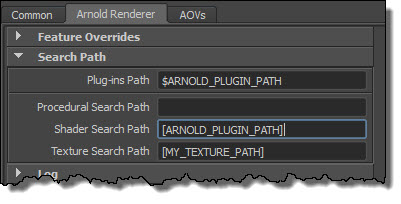
To use an environment variable in one of the Arnold search paths, you just have to put the environment variable in square brackets [ ].

For example, [ARNOLD_PLUGINS_PATH] or [MY_TEXTURE_PATH].
Maya-Arnold-SearchPaths

A search path can include many paths; just use a semi-colon (;) to separate each path. For example, here’s a search path that includes three different locations:

[ARNOLD_PLUGINS_PATH];[USERPROFILE]\Dev\shaders\bin\Release\x64;[MY_PLUGINS_PATH]

Preserve Layer Name for single-layer EXRs


So, what’s this Preserve Layer Name setting do?
exr-preserveLayerNames
Preserve Layer Name is for single-layer EXRs, and it determines whether or not the AOV is written into the pre-defined R,G,B,A channels.

By that, I mean that if Preserve Layer Name = False, then a single-layer EXR will have these channels:

  • A
  • B
  • G
  • R

And if Preserve Layer Name = True, then the single-layer EXR will have channels like this (that include the “layer name”):

  • Arnold_Direct_Diffuse.A
  • Arnold_Direct_Diffuse.B
  • Arnold_Direct_Diffuse.G
  • Arnold_Direct_Diffuse.R

Channel names like “Arnold_Direct_Diffuse.R” can cause problems with some software, so by default Preserve Layer Names is set to False.

Note that Preseve Layer Names applies to single-layer EXRs only. If you’re writing out multi-layer EXRs, you’ll always get names like “Arnold_Direct_Diffuse.R”.