[Arnold] Do the right thing: use tx


Use tx textures. Don’t use png, jpg, tif, psd, or any other format. Convert them to tx.

Why not use those other formats?

  • Slow to load
  • Memory hungry if not tiled and mipmapped
  • Slow to render if textures exceed the texture cache size

Why use tx?

  • Fast to load
  • Efficient memory usage
  • Faster to render because they make better use of the texture cache
  • Optimizations such as the detection of constant colors and duplicate files


[Arnold] Minimum CPU requirements


Arnold 4.2.16.2 reduced the minimum requirement to SSE4.1

The latest Arnold 4.2.13.0 raises the minimum CPU requirements from SSE3 to SSE4.2:

  • CPUs need to support the SSE4.2 instruction set

If you want to check whether an older machine supports SSE, here’s a few suggestions:

  • Google your CPU and “SSE”
  • Windows: Download and run coreinfo -f
  • OSX: Run sysctl -a | grep machdep.cpu
  • Linux: Check /proc/cpuinfo

[Arnold] [kick] Enabling tiled EXRs


Suppose you have a load of ASS files that were exported with the Tiled option disabled. How could you re-enable the Tiled option without re-exporting the ASS files?

With the kick -set flag, that’s how:

kick -set display_exr.tiled on

That will set the tiled parameter for all EXR driver nodes in the ASS file.

If you want to set the flag for a specific driver node, you need to know the driver node name.

kick -set defaultArnoldDriver@driver_exr.RGBA.tiled on

That sets tiled for the driver_exr node named defaultArnoldDriver@driver_exr.RGBA.

[Arnold] Optimizing render utilization


WARNING| Rendering utilization was only 48%. Your render may be bound by a single threaded process or I/O.

In general, if you see this warning about low machine utilization, that means that a significant amount of time is being spent in just one thread, and if you want to render faster, you need to look into possible issues.

  • Reading textures (file I/O) isn’t multi-threaded, so that can reduce machine usage because threads will be waiting while textures are read from disk.Check the amount of texture data “Read from disk” and the “File I/O time”, and compare the amount of texture data with the texture cache size (for example, if you’re reading 5GB of texture data but the cache is just 1GB, you can increase the cache size).
  • Subdivision isn’t multi-threaded yet, so a few huge objects might slow things down. But in general, multiple objects will be subdivided at the same
    time (one thread per object) so it isn’t usually a big issue.
  • Loading standins is also file I/O so each file is loaded in a single thread. File I/O is dependent on the file system, not the CPU speeds, so adding
    more threads to IO won’t help. If this is what is causing your low CPU utilization, the only way to improve that is to get faster disks, file
    servers, networks, etc…
  • Displacement is multi-threaded. A single mesh can be displaced by multiple threads and multiple meshes can be displaced at the same time.
  • Another possible reason for this warning is because there are multiple copies of Arnold running, or Arnold and some other compute-heavy application, so that Arnold can’t get to 100% utilization because Arnold is competing with other processes. You can check your Activity Manager (OSX), Task Manager (Windows), or top (Linux) to see see what else is consuming CPU time.
  • You’ll also see the utilization warning with relatively simple scenes, because the single-threaded work of loading the scene and plugins and textures
    takes longer than the actual rendering.

hat tip: Thiago

[Tip] Save a few threads for yourself


As of Arnold 4.2.12.0, you can specify a negative number of threads, and Arnold will leave that many threads free. So, for example, if you want to leave two threads free for Maya while the IPR view is running, you would set the thread count to -2.

mtoa_threads

On a machine with 4 cores and 8 logical cores (aka threads):

| running on StephenBlair-PC, pid=16888
| 1 x Intel(R) Xeon(R) CPU E3-1240 V2 @ 3.40GHz (4 cores, 8 logical) with 16338MB
| Windows 7 Professional Service Pack 1 (version 6.1, build 7601)

You would then see that Arnold uses only 6 logical cores:

|  starting 6 bucket workers of size 64x64 ...

The advantage of the negative thread count is that you don’t have to know how many logical cores your machine has; you just need to know how many you want to keep free.

Portable ASS files with relative paths and the Texture Search Path


You can make your ASS files portable across different platforms by using relative paths and the texture search path. For example, if all textures are specified by relative paths like “textures/noicon.tx”, then you just have to set options.texture_searchpath to specify the location of the textures folder.

For example

kick -set options.texture_searchpath //server/project/ -dp -dw example.ass

Or if the texture search path is set to an environment variable

export ARNOLD_TEXTURE_PATH=//server/project
./kick example.ass

To use relative paths for texture file names in nodes like MayaFile, aiImage, aiPhotometricLight, and aiSkydomeLight, you just need to do the following:

  • Put a relative path in the file name box (for example, in Photometry File box of an aiPhotometricLight node, or the Image Name box of an aiImage node)
  • Set the Texture Search Path (Render Settings > System > Search Paths)
  • Clear the Absolute Texture Paths check box

You can put multiple locations, using either : or ; to separate the paths (Arnold supports both separators on all platforms: OSX, Linux, and Windows)

You can use environment variables by putting the environment variable name in square brackets. For example:

"[ARNOLD_TEXTURE_PATH]:C:/Assets/IES/;C:/maya/projects/Support/sourceimages"

Forward slashes work on all platforms.

MtoA appends the current project’s sourceimages folder to the texture search path.

[MtoA] MayaFile node uses a default color for missing textures


Here’s something important to remember when you’re debugging a scene…

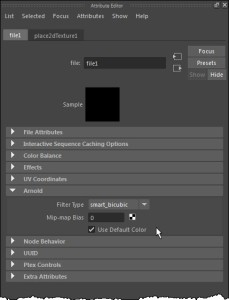
By default, the MayaFile node uses a default color if a texture is missing.

MayaFile_Use_Default_Color

This means the render won’t abort because of missing textures, and you won’t see ERRORs like these in the Arnold log for missing texture files:

ERROR   |   [texturesys] OpenImageIO could not open "sourceimages/noicon.tx" as tx: Could not open file "sourceimages/noicon.tx"
ERROR   |   [texturesys] Invalid image file "sourceimages/noicon.tx"

So missing textures can easily go unnoticed.

If you need to disable Use Default Color for testing, an easy way is to export an ASS file and then render it with kick -set MayaFile.useDefaultColor false.

I suppose you could also modify the Maya scene file directly:

import maya.cmds as cmds
import os

def set_useDefaultColor(b):
    filenodes=cmds.ls(type="file")
    for item in filenodes:
        cmds.setAttr( "%s.aiUseDefaultColor" % item, b )

set_useDefaultColor( False )

And finally, you can change the default value of the Use Default Color parameter by adding this to shaders/mtoa_shaders.mtd:

[node MayaFile]
	[attr useDefaultColor]
		default		BOOL	false

[Arnold] Tips for reducing noise when rendering interior scenes with indirect lighting


Indirect lighting of interior scenes can be a challenge, but there are some things you can do. In this post, we’ll give you some quick tips, but you can find more detailed information on support.solidangle.com, both for interior lighting and for troubleshooting noise.

Avoid the Skydome and use a Sky background and Quad lights

Instead of using a Skydome light, use a Sky for the background and quad lights for the light coming in through the windows. The quad lights should just barely cover the entire window.

If there’s anything visible outside the window, you may want to put a spot light on them. Just be careful not to let the spot light go into the room.

Use a distant light to simulate beams of light coming into the room

A distant_light is an easy-to-use option that perfectly matches sun light.

Spot lights don’t produce realistic sun beams since the beams look like they’re expanding, which sun beams don’t do. Moving the spot light further back, and also making sure it’s no larger than it needs to be to illuminate the window, will reduce noise and make it look more realistic.

Don’t put lights too close to the windows

If a light is too close to the window, that means the light hitting the window area is significantly more concentrated and so much brighter than the light hitting the far side of the room and so this produces more noticeable noise.

Make sure your materials are physically based

For example, don’t shade the room Standard shaders with a Diffuse weight of 1, and Diffuse color full white (1 1 1). I don’t think there’s any material known to man that is this reflective. Lowering the Diffuse weight to 0.7 will roughly match white paint and it will also get rid of noise. If it’s too dark, then try increasing the intensity of the lights, increase the number of diffuse bounces, or increase the camera’s exposure.

For a richer look, avoid fake lights inside the room

Consider getting rid of any fake lights you may have inside the room, and instead increase the number of diffuse and glossy bounces in order to get an even more realistic look, not to mention make the lighting easier. Doing that does increase render times, unfortunately, but does give a richer look.

hat tip: Thiago