[MtoA] Unable to dynamically load mtoa.mll …The specified procedure could not be found.


If the MtoA plug-in  does not load and you get a “The specified procedure could not be found” error like this:

// Error: line 1: Unable to dynamically load : C:/solidangle/mtoadeploy/2016/plug-ins/mtoa.mll
The specified procedure could not be found.
 // 
// Error: line 1: The specified procedure could not be found.
 (mtoa) //

then there’s a few basic things you need to check first.

Does your processor support SSE4.1?

Support for SSE4.1 is a minimum requirement. You won’t be able to load MtoA or use Arnold if your processor doesn’t support SSE4.1.

Check the environment in Maya

For example, does the PATH include any older versions of MtoA? If you’re on Windows, run the MEL command system(“set”) to get the environment. On OSX or Linux, run system(“printenv”).

Look for any environment variable that has an Arnold or MtoA folder in it. For example, on Windows, you should not have any MtoA bin folders in PATH.

Get a Process Monitor log

If a clean install of MtoA doesn’t work (and the computer does support SSE4.1), then “The specified module could not be found.” usually means there’s a missing dependency. Dependency Walker is a decent, if aging, tool for checking out dependencies, but for leaving no stone unturned, I prefer Process Monitor.

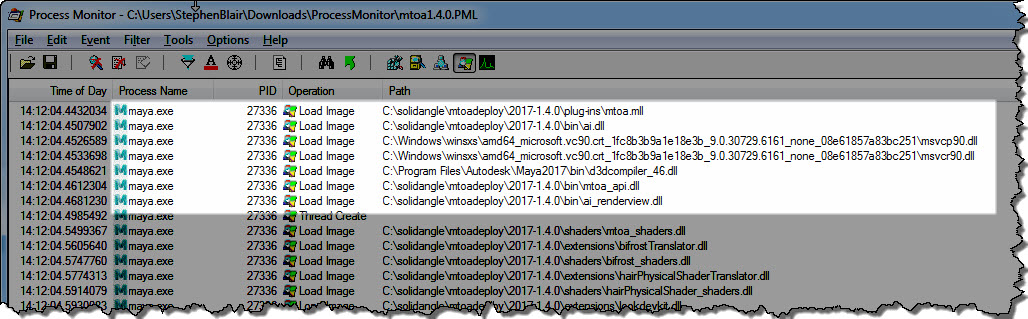
The MtoA plugin (mtoa.mll) depends on a handful of files only. Here’s the log of loaded DLLs for a working MtoA:
process_monitor_mtoa

Here’s a quick walkthrough (no audio) of how to get a Process Monitor log:
[MtoA] mtoa missing from Plug-in Manager


If mtoa.mll is not listed in the Plug-in Manager, that means that Maya did not find the MtoA module file (mtoa.mod). And if you try to manually load mtoa.mll, you’ll get errors like this:

// Error: file: C:/Program Files/Autodesk/Maya2016/scripts/others/pluginWin.mel line 781: Unable to dynamically load : C:/solidangle/mtoadeploy/2016/plug-ins/mtoa.mll
The specified module could not be found. // 
// Error: file: C:/Program Files/Autodesk/Maya2016/scripts/others/pluginWin.mel line 781: The specified module could not be found. (mtoa) //

To load MtoA, you need to make sure that Maya finds the MtoA module file.

By default, the MtoA installer puts the mtoa.mod file in the user’s modules folder. For example:

C:\Users\StephenBlair\Documents\maya\2016\modules

If you installed MtoA using one user account, and try to run Maya with a different user account, Maya will not find the module file.

The module file has to be in the MAYA_MODULE_PATH. For example, for the user account “StephenBlair”, here are the default places where Maya looks for modules:

  • C:/Program Files/Autodesk/Maya2016/modules
  • C:/Users/StephenBlair/Documents/maya/2016/modules
  • C:/Users/StephenBlair/Documents/maya/modules
  • C:/Program Files/Common Files/Alias Shared/Modules/maya/2016
  • C:/Program Files/Common Files/Alias Shared/Modules/maya
  • C:/Program Files/Common Files/Autodesk Shared/Modules/maya/2016

If you want MtoA to available to all users, then you could copy mtoa.mod to one of the common locations.

The case of the blue render view


Reason #35 why you should check the Arnold log

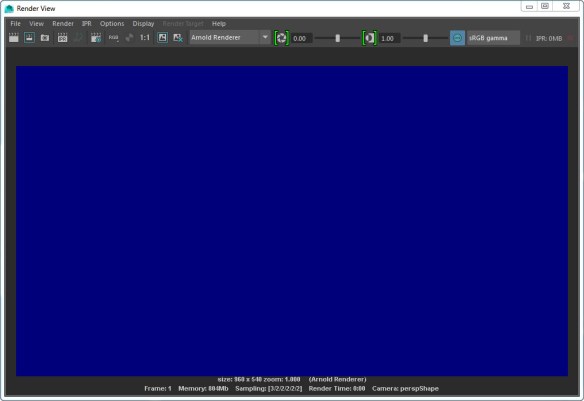
In this case, a scene that used to render yesterday, now just resulted in a blue render view, like this:

blue_render_view

Anytime the render view doesn’t update when your render, you can be fairly sure there’s some ERROR in the Arnold log.

In this case, the problem was a broken path to the IES file used by a photometric light. In the Arnold log, there was this ERROR:

00:00:04 870MB ERROR | [photometric] can't open C:/Assets/IES/example.ies

It’s easy to say “check the log”, but where do you find the log? It’s not like there’s a nice, color-coded button (red for error) on the render view UI that will pop up the log for you.

  • On Windows, you should see the Arnold log in the Output Windows. However, I find that this happens only when I start Maya from the command line. If I start Maya from the Windows Start menu, the Arnold log messages don’t show up in the Output Window. So I have to enable file logging, and check the log file.
  • On OSX and Linux, you’ll also have to enable file logging, unless you start Maya from a terminal.

Update: For Google:

  • Arnold renders a black screen
  • Arnold renders a blue screen


WARNING : [ass] node name already in use


Shader nodes must have unique names.

So if you’re using standins, each standin ASS file has to have unique shader node names. Otherwise you’ll get unexpected results when you render, like all standins having the same shading, or some “flickering” in animation if the order of standin loading changes.

In the Arnold log, look for “node name already in use” warnings:

WARNING | [ass] standin_01.ass line 50: node name "aiStandard1SG" already in use
WARNING | [ass] standin_01.ass line 58: node name "aiStandard1" already in use
WARNING | [ass] standin_01.ass line 118: node name "file1" already in use
WARNING | [ass] standin_01.ass line 147: node name "aiNoise1" already in use


If each standin should look different, you need to have unique shader names in each ASS file. If you’re using MtoA, that includes the name of the SG node (for example, aiStandard1SG).

WARNING mtoa_shading_groups: unresolved reference


Any time you see “node … is not installed” and “unresolved reference” warnings when you try to kick an ASS file exported from Maya, the problem is missing MtoA shaders.


00:00:00 18MB WARNING | [ass] line 259: node "MayaFile" is not installed
00:00:00 18MB WARNING | [ass] line 288: node "MayaShadingEngine" is not installed

00:00:03 23MB WARNING | [ass] line 238: pSphereShape1.mtoa_shading_groups: unresolved reference to 'aiStandard2SG'
00:00:03 23MB WARNING | [ass] line 137: aiSkyDomeLightShape1.color: unresolved reference to 'file1'
00:00:03 23MB WARNING | [ass] line 188: pPlaneShape1.shader: unresolved reference to 'aiStandard1SG'
00:00:03 23MB WARNING | [ass] line 197: pPlaneShape1.mtoa_shading_groups: unresolved reference to 'aiStandard1SG'
00:00:03 23MB WARNING | [ass] line 229: pSphereShape1.shader: unresolved reference to 'aiStandard2SG'

When you render with kick, you need to specify the location of the MtoA shaders. You can do this several ways:

  • Set the ARNOLD_PLUGIN_PATH environment variable. For example:
    export ARNOLD_PLUGIN_PATH=/home/render/solidangle/mtoa/2016/shaders
    set ARNOLD_PLUGIN_PATH=C:\solidangle\mtoadeploy\2016\shaders
  • Use the kick -l flag to specify the MtoA shader location.
  • In Maya, set the Shader Search Path in the Arnold Render Settings, then export the ASS file.

[RLM] Communications error with license server (­17)


These warnings mean that Arnold can connect to the RLM license server, but Arnold cannot connect to the solidangle ISV server:

00:00:12 14MB WARNING | [rlm] * Communications error with license server (­17)
00:00:12 14MB WARNING | [rlm] * Connection refused at server (­111)

Usually the problem is that the solidangle ISV server is not running.

You can check the status of the solidangle ISV server with RLM Web Admin. I like the get the RLM diagnostics (Diagnostics > Run Diagnostics) from RLM Web Admin and review that.

In rare cases, the problem is something else, such as:

  • Some sort of network connection problem. For example, I recently had a case where we would get these warnings when we used the IP address of the license server in solidangle_LICENSE. But as soon as we switched to using the hostname, everything worked.
  • Another RLM instance is running and listening to port 5053, and that instance doesn’t have a solidangle ISV running. I heard about this second-hand, from a customer; I didn’t see it with my own eyes and I don’t know how it’s possible. You can have multiple RLM instances running, but each instance has to have a different port otherwise you get ” “Port 5053 in use, waiting…” messages and the second RLM won’t start.

ERROR | [mtoa] [xgenTranslator] Could not find xgen_procedural in search path $ARNOLD_PLUGIN_PATH


This error

ERROR   | [mtoa] [xgenTranslator] Could not find xgen_procedural in search path $ARNOLD_PLUGIN_PATH

happens only when MtoA is first loaded, and it can be safely ignored. It doesn’t cause any problems when you render, and MtoA loads the XGen procedural from the MtoA procedurals folder.

The error is a consequence of how MtoA searches folders when it loads extensions. If you really need to get rid of the error, you can try copying the xgen_procedural library to the MtoA shaders folder.

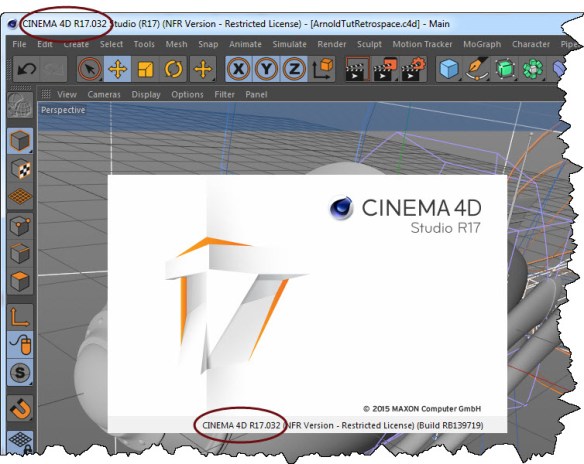
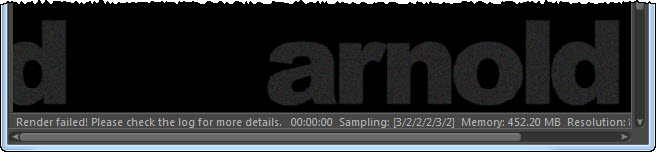
[C4DtoA] Render failed! Please check the log for more details.


c4dtoa_render_failed

The Arnold log is important, not just for troubleshooting and getting help from us at Solid Angle, but also for understanding what’s going on when Arnold renders your scene.

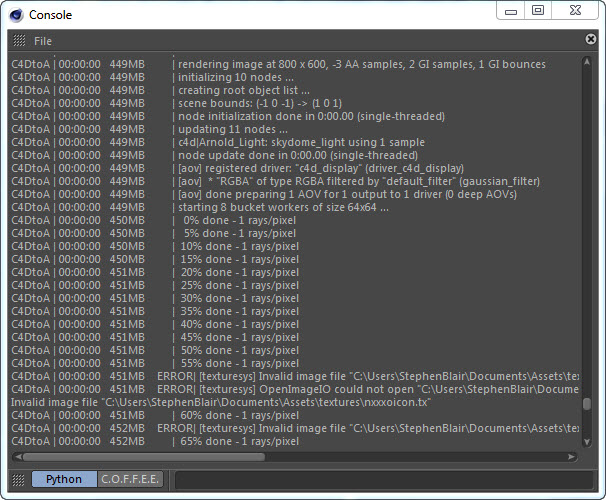
But, first things first: where’s the log? The Arnold log is output to the Cinema 4D Console:
c4dtoa_console

To open the Console, click Script > Console.
c4dtoa_script_console

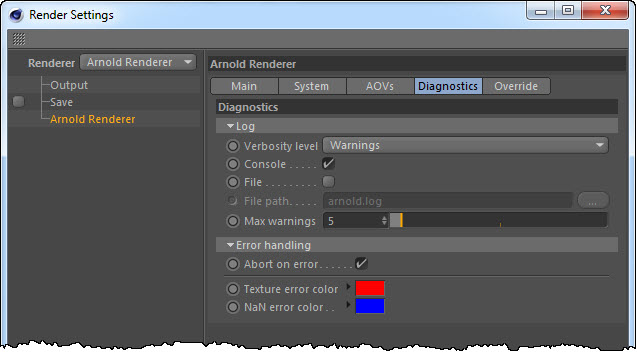
You can set the verbosity level in the Render Settings > Diagnostics. By default, the verbosity level is Warnings, but by increasing it to Info, you’ll get the % done log entries. You can also send the log to a file (good for logging support cases!).
c4dtoa_diagnostics

[RLM] No ISV servers to start redux


The technical reason for a “No ISV servers to start” message is that that RLM could not read the ISV line from the license file.

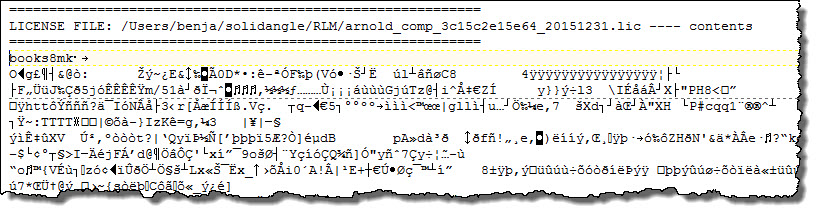
So, for example, if you somehow save the license file as a binary file that looks like this:

books8mk

then you’ll get No ISV servers to start, because obviously there’s no ISV line in that file.

Note: You’ll also see The hostname in the license file(s) may be incorrect, but that warning can always be safely ignored.

05/14 09:17 (rlm) 
05/14 09:17 (rlm) WARNING: No license file for this host (StephenBlair-PC)
05/14 09:17 (rlm)          The hostname in the license file(s)
05/14 09:17 (rlm)          may be incorrect
05/14 09:17 (rlm) 
05/14 09:17 (rlm) License files:
05/14 09:17 (rlm)     arnold_eval_90b11c647d93_20150514.lic
05/14 09:17 (rlm) 
05/14 09:17 (rlm) RLM License Server Version 11.2BL2

	Copyright (C) 2006-2014, Reprise Software, Inc. All rights reserved.

05/14 09:17 (rlm) License server started on StephenBlair-PC
05/14 09:17 (rlm) Server architecture: x64_w2
05/14 09:17 (rlm) License files:
05/14 09:17 (rlm)     arnold_eval_coffee0000_20150514.lic
05/14 09:17 (rlm) 
05/14 09:17 (rlm) Web server starting on port 5054
05/14 09:17 (rlm) Using TCP/IP port 5053
05/14 09:17 (rlm) ... adding UDP/IP port 5053
05/14 09:17 (rlm) (No ISV servers to start)