I have another, more general, version of this post here. This one is for new Arnold users with Maya 2017.
Here’s what to do if you get errors like this:
// Error: file: C:/Program Files/Autodesk/Maya2017/scripts/startup/autoLoadPlugin.mel line 32: Unable to dynamically load : C:/solidangle/mtoadeploy/2017/plug-ins/mtoa.mll
The specified module could not be found.
//
// Error: file: C:/Program Files/Autodesk/Maya2017/scripts/startup/autoLoadPlugin.mel line 32: The specified module could not be found.
Check if your processor supports SSE4.1
As of Arnold 4.2.16.2, the SSE requirement is now SSE4.1
If MtoA used to load, but now it doesn’t, then something happened to the MtoA installation. I’ve seen several cases where DLLs were missing from the MtoA bin folder; most importantly, Arnold itself was missing (Arnold is ai.dll on Windows, or libai.so on Linux, or libai.dylib on OSX).
If you make a backup copy of the MtoA install folder, we can investigate after you fix things by installing MtoA.
If a clean install of MtoA doesn’t work (and the computer does support SSE4.1), then “The specified module could not be found.” usually means there’s a missing dependency. Dependency Walker is a decent, if aging, tool for checking out dependencies, but for leaving no stone unturned, I prefer Process Monitor.
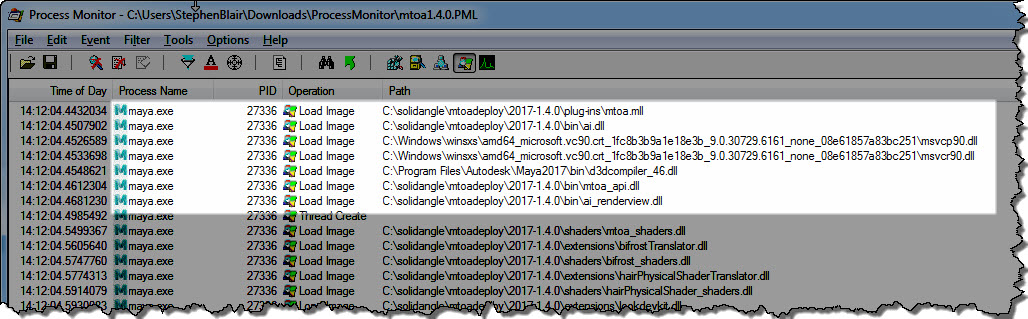
The MtoA plugin (mtoa.mll) depends on a handful of files only. Here’s the log of loaded DLLs for a working MtoA:
Here’s a quick walkthrough (no audio) of how to get a Process Monitor log:
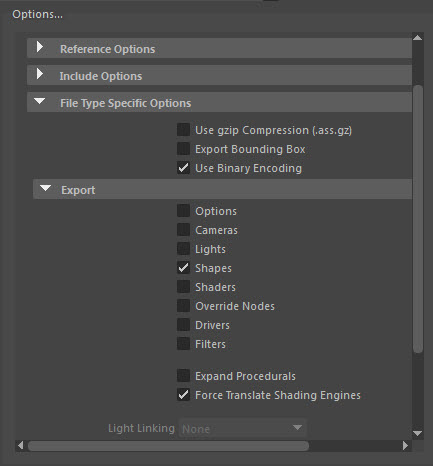
where “aiStandard1SG” is the name of a MayaShadingEngine shader node.
This allows you to keep your shapes and shaders in separate ASS files. For example, you could have one standin that loads the shapes, and a second standin that loads the shaders. As long as the shape nodes include links to the shaders, Arnold will resolve the links and render the shapes with the right shaders.
For the render -rt 1 command, you can specify the output ASS name in
the defaultArnoldRenderOptions.output_ass_filename attribute. For example:
set PRE_RENDER_MEL="setAttr -type \"string\"
defaultArnoldRenderOptions.output_ass_filename
 \"c:/Users/StephenBlair/Documents/example\";"

 render -s 6 -e 8 -r arnold -rt 1 -preRender %PRE_RENDER_MEL%
 C:\projects\Support\scenes\_2016\XSI_deformed_logo.mb
This will export ASS files named “example.ass”.
The scene should have the Frame/Animation ext set to something like
“name.#.ext”. Otherwise, if it is “name.ext” you’ll get filenames like
“example.ass.0004.ass”
output_ass_filename can have environment variables, but you have to be
careful to use forward slashes. For example:
set PRE_RENDER_MEL="setAttr -type \"string\" defaultArnoldRenderOptions.output_ass_filename \"%OUTPUT_ASS_FILENAME%\";"
set OUTPUT_ASS_FILENAME=C:/Users/StephenBlair/Documents/example

render -s 6 -e 8 -r arnold -rt 1 -preRender %PRE_RENDER_MEL% C:\projects\Support\scenes\_2016\XSI_deformed_logo.mb
There’s also the arnoldExportASS command, if you want to script the export.
The Arnold log is important, not just for troubleshooting and getting help from us at Solid Angle, but also for understanding what’s going on when Arnold renders your scene.
To get an Arnold log:
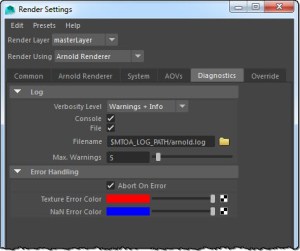
In Maya, click Render > Render Settings
In the Render Using list, click Arnold Renderer
Click the Diagnostics tab.
Set the Verbosity level to at least Warnings + Info
Click the File check box to enable file logging (by default, the log file will be saved in the last folder you browsed to with Maya; see Finding your log file).
If you want to be absolutely sure of where to find the log file, click the folder icon beside the Filename box, and select a location for the Arnold log file.
Depending on what OS you use, and how you started Maya, the log is also output to the Output Window (Windows) or to the terminal (on OSX and Linux if you started Maya from a terminal)
For batch rendering, Arnold log messages go into mayaRenderLog.
If you have both Renderman and MtoA installed, you may see a warning that says “Arnold for Maya degrades Renderman performance.” Unless you are running a version of MtoA from 20 months ago, this performance warning is false. MtoA does not degrade Renderman performance.
This was fixed in Arnold 4.2.3.1 (fix #4393 main thread was pinned to a single core) back in January 2015.
There’s an Arnold error that recommends setting the load_at_init parameter, but people don’t always know where to find that in their favorite Arnold plugin.
ERROR| [proc] c4d|Arnold_Procedural: bounds supplied to procedural node are not large enough to contain the actual underlying geometry.
Replace given bounds: (-1, -1, -1) X (1, 1, 1), with: (-9.4028616, -9.43616867, -9.21633244) X (9.3304739, 9.43616867, 9.21633244).
Setting the procedural's load_at_init parameter to true would also fix this.
The load_at_init parameter controls whether the procedural (standin) is loaded during scene intialization (before rendering starts), or during rendering (when a ray hits the procedural bounding box).
By default, load_at_init is false, which means that procedural loading is deferred until render time.
And so, in MtoA, C4DtoA, and SItoA, the load_at_init parameter is exposed as Defer Standin Load, which is enabled by default. In HtoA, you have a Load At Init parameter on for the Arnold Procedural node.
In MtoA, Defer Standin Load is a parameter of the aiStandin node.
In C4DtoA, Defer Standin Load is a parameter of the Arnold Procedural object.
In HtoA, Load At Init is a parameter of the Arnold Procedural object node.
It turned out that mtoa.mll, ai.dll, and all the other DLLs were gone from the MtoA installation directory. How’d that happen? Probably when my computer had a critical Kernel Power error at 4:30am and crashed.
The C4DtoA installer puts the C4DtoA plugin in the default location: the plugins folder of the Cinema 4D install.
If you want to put C4DtoA somewhere else, like a shared network location, you can use the C4D_PLUGINS_DIR environment variable to point to your custom plugin location.
For example, on Windows I moved C4DtoA to a different drive and then set my environment like this:
set C4D_PLUGINS_DIR=F:\plugins
set PATH=F:/plugins/C4DtoA/arnold/bin;%PATH%
Note that I had to set PATH so C4D could find ai.dll, and that I had to use forward slashes (on Windows, C4D doesn’t like backslashes in the PATH and drops them).
On Windows, the C4DtoA installer puts a second copy of ai.dll in the C:\Program Files\MAXON\CINEMA 4D R17, so you’ll have to remove that ai.dll, and use PATH to point to the ai.dll in the C4DtoA arnold/bin folder.
You can make your ASS files portable across different platforms by using relative paths and the texture search path. For example, if all textures are specified by relative paths like “textures/noicon.tx”, then you just have to set options.texture_searchpath to specify the location of the textures folder.
To use relative paths for texture file names in nodes like MayaFile, aiImage, aiPhotometricLight, and aiSkydomeLight, you just need to do the following:
Put a relative path in the file name box (for example, in Photometry File box of an aiPhotometricLight node, or the Image Name box of an aiImage node)
Set the Texture Search Path (Render Settings > System > Search Paths)
Clear the Absolute Texture Paths check box
You can put multiple locations, using either : or ; to separate the paths (Arnold supports both separators on all platforms: OSX, Linux, and Windows)
You can use environment variables by putting the environment variable name in square brackets. For example:



 Arnold Support Corner