[MtoA] Unable to dynamically load mtoa.mll …The specified procedure could not be found.


If the MtoA plug-in  does not load and you get a “The specified procedure could not be found” error like this:

// Error: line 1: Unable to dynamically load : C:/solidangle/mtoadeploy/2016/plug-ins/mtoa.mll
The specified procedure could not be found.
 // 
// Error: line 1: The specified procedure could not be found.
 (mtoa) //

then there’s a few basic things you need to check first.

Does your processor support SSE4.1?

Support for SSE4.1 is a minimum requirement. You won’t be able to load MtoA or use Arnold if your processor doesn’t support SSE4.1.

Check the environment in Maya

For example, does the PATH include any older versions of MtoA? If you’re on Windows, run the MEL command system(“set”) to get the environment. On OSX or Linux, run system(“printenv”).

Look for any environment variable that has an Arnold or MtoA folder in it. For example, on Windows, you should not have any MtoA bin folders in PATH.

Get a Process Monitor log

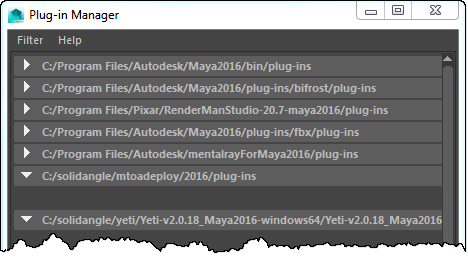
If a clean install of MtoA doesn’t work (and the computer does support SSE4.1), then “The specified module could not be found.” usually means there’s a missing dependency. Dependency Walker is a decent, if aging, tool for checking out dependencies, but for leaving no stone unturned, I prefer Process Monitor.

The MtoA plugin (mtoa.mll) depends on a handful of files only. Here’s the log of loaded DLLs for a working MtoA:
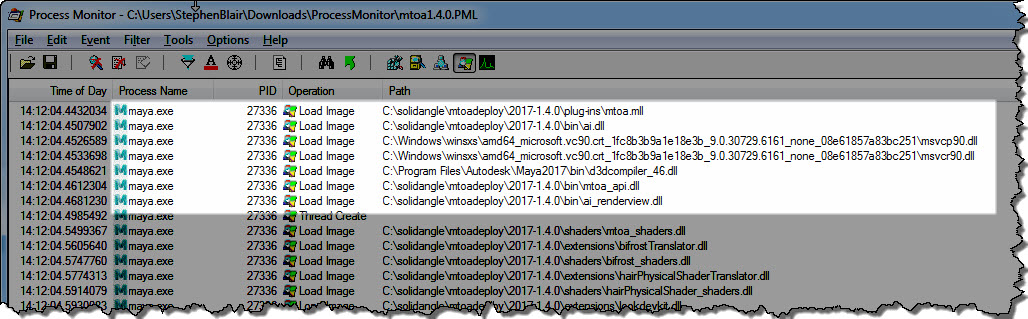
process_monitor_mtoa

Here’s a quick walkthrough (no audio) of how to get a Process Monitor log:

[Arnold] Setting up the Standard shader to be energy conserving


For energy conservation with Diffuse and SSS, you must have Diffuse + SSS <= 1

With Specular, it depends on whether or not Fresnel is enabled:

  • If Fresnel is off, then you must have SSS + specular + diffuse <= 1
  • If Fresnel is on, then you must only have diffuse + SSS <= 1. The shader will mix specular with diffuse and SSS in a way that’s energy conserving.

Ok, that’s the simple case (without diffuse backlighting and refraction). Now let’s add diffuse backlighting and refraction:

For energy conservation with Diffuse and SSS, you must have Diffuse + SSS + backlighting <= 1

With Specular, it depends on whether or not Fresnel is enabled:

  • If Fresnel is off, then you must have specular + (SSS + diffuse + backlighting) <= 1
  • If Fresnel is on, then you must only have diffuse + SSS + backlighting<= 1. The specular and refraction weights can be anywhere between 0 and 1, and the shader will mix everything in a way that’s energy conserving.

Setting the procedural’s load_at_init parameter to true would also fix this.


There’s an Arnold error that recommends setting the load_at_init parameter, but people don’t always know where to find that in their favorite Arnold plugin.

ERROR| [proc] c4d|Arnold_Procedural: bounds supplied to procedural node are not large enough to contain the actual underlying geometry.
Replace given bounds: (-1, -1, -1) X (1, 1, 1), with: (-9.4028616, -9.43616867, -9.21633244) X (9.3304739, 9.43616867, 9.21633244).
Setting the procedural's load_at_init parameter to true would also fix this.

The load_at_init parameter controls whether the procedural (standin) is loaded during scene intialization (before rendering starts), or during rendering (when a ray hits the procedural bounding box).

By default, load_at_init is false, which means that procedural loading is deferred until render time.

And so, in MtoA, C4DtoA, and SItoA, the load_at_init parameter is exposed as Defer Standin Load, which is enabled by default. In HtoA, you have a Load At Init parameter on for the Arnold Procedural node.

[MtoA] Running a silent install on Windows


On Windows, if MtoA isn’t already installed, then the /S flag will do a silent install:

MtoA-1.2.7.3-2016.exe /S

You can also specify an install location with the /D flag:

MtoA-1.2.7.1-2016.exe /S /D=C:\solidangle\mtoadeploy\2016-1.2.7.1
There’s no help, but I found the /S and /D via Google:

There is no silent install on OSX or Linux.

If another version of MtoA is installed, there will be some pop-up dialogs. You can get around that by doing a silent uninstall, like this:
C:\solidangle\mtoadeploy\2016-1.2.7.1\uninstall.exe /S

or, if you want to keep the existing install around, you could do this:

reg DELETE HKCU\Software\Microsoft\Windows\CurrentVersion\Uninstall\MtoA2016 /f

After you delete that registry key, an MtoA install won’t detect an existing installation, so you get to keep the old install, and install a new version.


[C4DtoA] Understanding shaders and AOVs


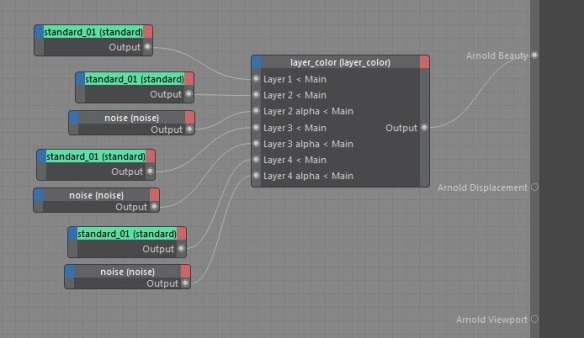
Arnold takes care of writing the built-in AOVs like N, P, Pref, A, and the all-important beauty. But it’s shaders that write to AOVs like direct_diffuse. That’s why something like this is not going to give you what you might expect in the AOVs:

layer_colors

layer_color doesn’t write to AOVs, so you won’t see the layered result in an AOV like direct_diffuse. standard does write to the direct_diffuse AOV (and others), but in this setup, you have multiple standards and they end up overwriting each other, so you get just the last standard output in the AOVs.

It’s better practice to avoid having multiple standard nodes in a single material; instead, layer the maps that go into the standard parameters like the diffuse and specular colors.

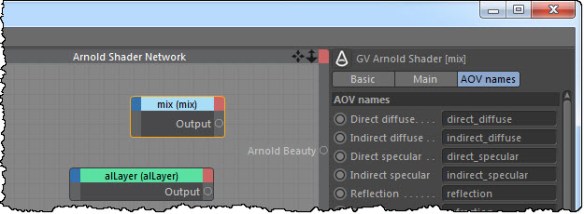
Or you could use a node like mix, or the third-party alLayer, which support AOVs. You can tell if a node writes AOVs by looking at its Attribute Editor: there’s usually a tab or list where you can change the names of the AOV outputs.

mix_aovs

[MtoA] Use any mesh for a standin


MtoA 1.2.7.0 includes an enhancement (“standin as attribute group”) that allows you to use any mesh as a standin. So instead of the aiStandin node, you can have a proxy geometry to represent your standin.

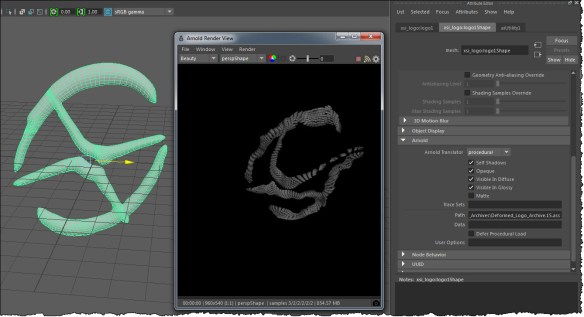
For example, here’s a mesh shape that loads an animated ASS sequence exported from Softimage:

procedural_mesh_transslator
Note that in the shape Attribute Editor, the Arnold Translator is set to procedural.

This feature uses the mesh bounding from Maya, so it’s possible your standin maybe clipped. You can work around this either by disabling Defer Procedural Load, or by using the User Options to set the procedural min and max (for example: min -1 -1 -1 max 1 1 1).

Hat tip: Alf

[Arnold] Setting core affinity aka pinning threads


Instead of setting the core affinity yourself, you should let Arnold do it. By default, Arnold pins threads (sets the affinity) if you use more than half the cores on the machine.

If you really must set affinity yourself, you can use the Override User Options to set options.pin_threads to off.

BUT you can also limit the number of threads Arnold uses: in the Render Settings, System tab, clear the Autodetect Threads check box and then set the number of threads. For example, you could limit Arnold to six threads, and limiting the threads is probably a better approach, since you won’t end up with multiple render threads running on the same core, which can be bad for performance. This way, you wouldn’t need to set the affinity at all.

See Also:

  • As of Arnold 4.2.3.0, options.pin_threads works on Windows too.
  • Thread affinity was added in Arnold 4.0.8.0.
    From the Arnold release notes:
    Threads can now be pinned to cores on Linux. This can improve scalability in modern machines with 16 or 24+ threads and, in the case of ray acceleration structure builds, it can occasionally result in as much as a 3x speedup when all the cores are being used (which is the default in Arnold, options.threads = 0 or -t 0 in kick). The default setting is auto where thread pinning is only enabled if more than half the logical cores are being used.
    This can also be manually set to always on or off by setting the new global option options.pin_threads to on, off, or auto. Note that, if client code, for instance a custom shader, spawns their own threads manually (with pthread_create or similar), these threads will inherit the same thread affinity, which totally breaks the point of spawning threads; in these situations they can either set options.pin_threads to off or they can create their threads with the Arnold API AiThreadCreate() which will un-pin the created thread. (#2733)
  • pin_threads
    Arnold can pin threads on linux and Windows so they don’t jump between multiple processors. This can improve scalability in modern machines multiple processors. It can be set to off, on or auto. By default is set to auto, meaning that if the number of threads is more than half the number of logical cores on the machine, arnold will pin the threads.
  • Adjustable thread priority in OS X: OS X now allows for options.thread_priority to adjust the priority of the render threads. It defaults to lowest, which is lower than the system default that was previously being used. Previously this option only existed in Windows.

[Arnold] Getting component links to node parameters with the Python API


Let’s say you have something like this:

alRemapFloat
{
 name alRemapFloat1
 input alCombineColor1.r
}

where the R component of the alCombineColor node is linked to the alRemapFloat.input parameter.

To get the component that is linked to input, you use the comp parameter of AiNodeGetLink(), like so:

node = AiNodeLookUpByName( "alRemapFloat1" )
comp = c_int()
linked_node = AiNodeGetLink( node, "input", comp);

Since R is connected, comp will be 0.

comp is -1 if the entire output is linked, or a number between 0 and 3 to indicate a specific component (0 for r, 1 for g, 2 for b, and 3 for a)

Note that you can pass a c_int to AiNodeGetLink(). ctypes takes care of converting it to a byref() for you.

[MtoA] Adding user data to standin instances


The standard way to add user data to an Arnold node is to add an mtoa_constant attribute to the shape node in Maya. MtoA translates the mtoa_constant attributes to user data, so you can use shaders like AiUserDataColor.

Instances in Maya, however, don’t have their own shape node: they all share the shape node of the original object. So you can’t use an mtoa_constant attribute on the shape to get different user data for each instance.

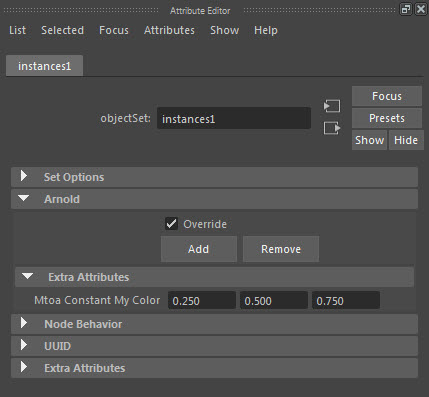
But you can use override sets to get user data on instances. Put the instances in a set, and then add the mtoa_constant as an override attribute.

set_overrides

Then each instance in the set will get that user data.

Another way to add user data to instances is with the particle instancer: you can add per-particle attributes, and then list them in the Arnold > Export Attributes text box. MtoA translates all those attributes to user data on the particle instances.