Exporting ASS files from Softimage with xsibatch


You cannot use xsibatch -export to export ASS files (because of the way sitoa implements ASS exporting). But it’s not too hard to do the same thing with SITOA_ExportScene and xsibatch -script.

This is what the xsibatch command line would look like (on Windows). For readability, I used the EXPORT_SCRIPT and SCENE variables to reduce the length of the xsibatch command line.

set EXPORT_SCRIPT = batch_export_scene.pys
set SCENE = \\server\project\scenes\elephant_herd.scn
xsibatch -processing -script %EXPORT_SCRIPT% -args -start 5 -end 20 -step 1 -scene %SCENE%

And here’s the batch export script.

I expose the basic parameters only, and I use the ASS Archive output path from the Arnold Render options, the scene name, and the [Frame] token to compose the output file name.

def main( start, end, step, scene ):
	Application.OpenScene(scene, "", "")
	x = Application.Dictionary.GetObject( "Passes.Arnold_Render_Options" )
	dir = XSIUtils.ResolveTokenString( x.output_file_tagdir_ass.Value, 0, False, None, None )

	scn = Application.ActiveProject.ActiveScene.Parameters("Name").Value	
	output = XSIUtils.BuildPath( dir, '%s.[Frame].ass' % scn )

	Application.SITOA_ExportScene( start, end, step, False, False, output )
Pref coordinates and bind poses


The Noise shader can use different coordinate systems when it evaluates the noise.

  • Object space, where points are expressed relative to the local origin (center) of the object.
  • World space, where points are relative to the global origin of the scene.
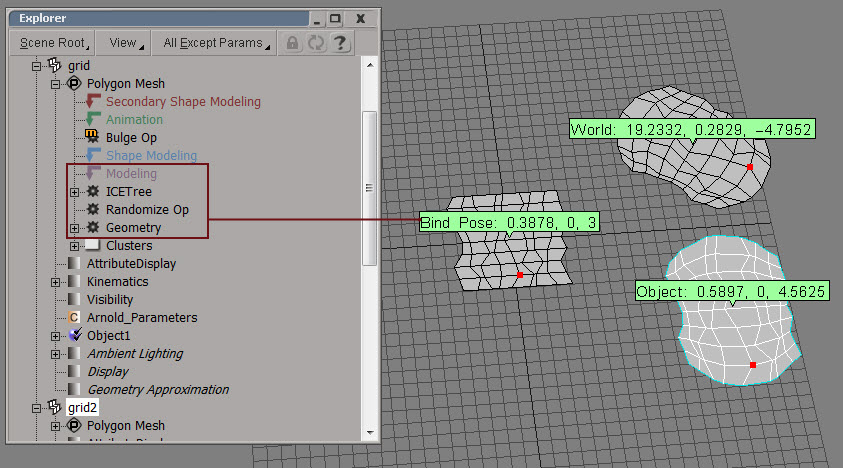
  • Pref, which isn’t really a space, but rather a reference to a bind pose, which in Softimage is the top of the Modeling region. Pref is really a point in object space, but it’s a reference to the geometry at the top of the Modeling region. In constrast, if you use Object space, you’re getting point position coordinates from the very top of the whole operator stack.

Noise_Coords

The name “Pref” is easier to understand if you think of it like a variable name. So, when it comes to noise, P is a point in world space, Po is in object space, and Pref is in “reference space” aka the “bind pose”.

For the Noise shader, the advantage of using Pref is that it prevents the noise from swimming over the surface of the object as the object deforms (as long as the deforms are above the Modeling stack). As the object deforms, Po is a point on that deformed geometry, so Po is constantly changing. In contrast, Pref is a point on the geometry that came out of the Modeling stack. So the noise sticks to the “bind pose”.

Note the difference between Pref and the two other coordinate systems (World and Object).
BindPose

Noise, world coordinates, and offsets


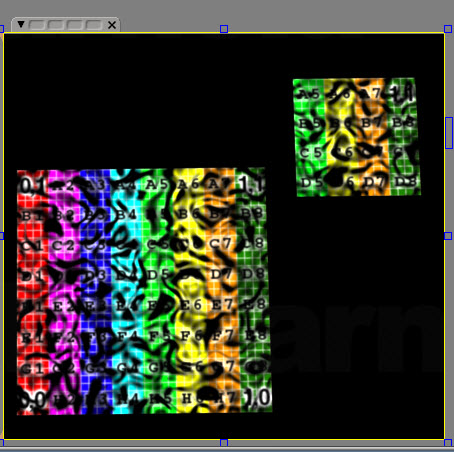
If you’re using world coordinates for your noise, then obviously as an object moves in global space, the noise will change. Here I’ve extracted a polygon and moved it: same shader tree that uses noise, but different noise because I’m using world coordinates.
noise_world

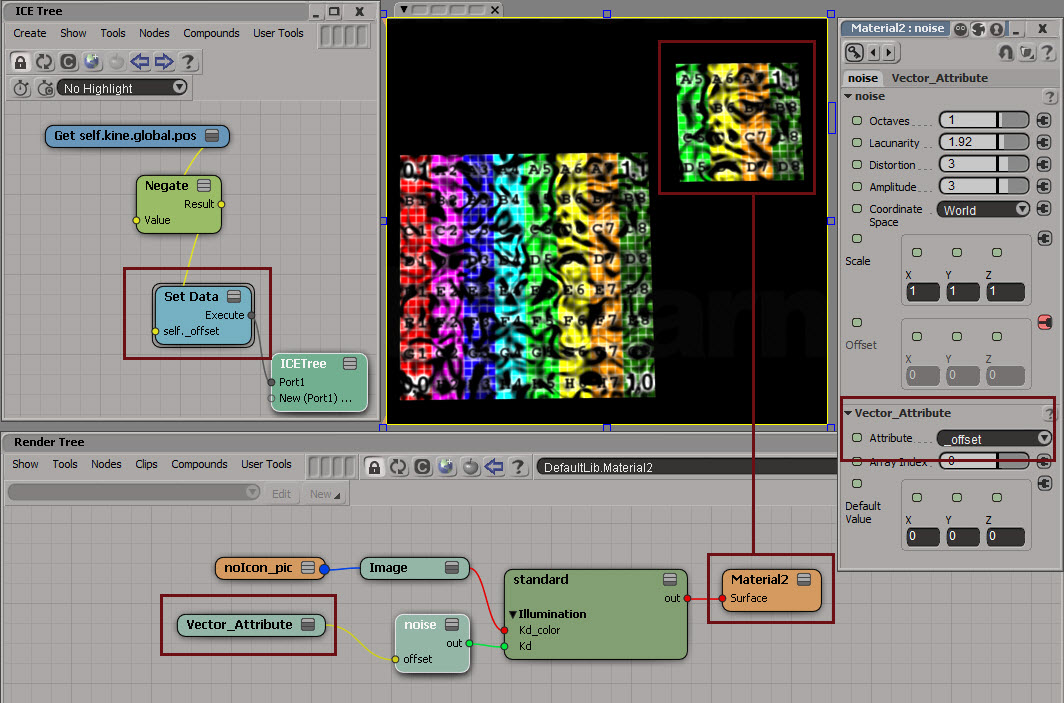
You could keep the same noise by applying an offset equal to the translation:
noise_world_offset_1
Note that I’ve assumed that there’s no scaling of the noise. If there was, I’d have to multiply my offset by the same scaling.

Just for kicks: listing the available shaders


Want to know what shaders come with SItoA?

Use kick -nodes with the -l flag to get a list of all nodes. For example:

kick -nodes -l %SITOA_BINDIR%\sitoa_shaders.dll | find "shader"

where SITOA_BINDIR is just shorthand for the Application\bin\nt-x86-64 folder of your SItoA addon install. On my machine, that’s here:

C:\Users\SOLIDANGLE\Documents\Workgroups\sitoa-2.6.0-2013\Addons\SItoA\Application\bin\nt-x86-64

The output will list the builtin Arnold shaders first (such as ambient_occlusion, standard, and wireframe), and then the SItoA shaders (which start with the two BA_ shaders).

In general, you wouldn’t include a filename in the -l path. I included sitoa_shaders.dll so kick wouldn’t try to load sitoa_curves_proc.dll and then pop up a “sicppsdk.dll is missing” error because I’m not running kick in a Softimage command prompt (where all the Softimage environment variables are set for me).

So, a more general example would look like this:

kick -nodes t -l %SITOA_BINDIR%

-nodes t will sort the list of nodes by type.

Missing shaders in images rendered with kick


pink_elephant

I was tempted to title this post something like “why is my ass pink when I kick it???” 🙂

The color magenta (often reported as “pink” or even “purple” sometimes) is the color of missing shaders. If Arnold cannot find a shader, it returns the color magenta (RGB = 1, 0, 1). This is a pretty common result when people export an ASS file from Maya for the very first time. Unlike SItoA, which helpfully fills in the Shader Search Path for you, MtoA leaves the search paths empty (unless you fill them in yourself).

There’s several ways you can tell kick where to find the shaders:

  • Use the kick -l flag to specify the location of the shaders. For example:
    kick -l C:\solidangle\mtoadeploy\2013\shaders
  • Set the ARNOLD_PLUGIN_PATH environment variable to the location of the shaders.
  • In Maya, enter the shader search path in the Render Settings before you export the ass file.

I thought you might also be able to use -set options.shader_searchpath on the kick command line, but that didn’t work for me.

kick -i "elephant.ass" -set options.shader_searchpath "C:\solidangle\mtoadeploy\2013\shaders"

Per-object AA settings?


In the comments, a reader asks:

I am trying to override AA_samples per geometry and cant figure out where to add the attribute. I tried adding a user option to a set with AA_samples 6 and numerous other things but to no avail. Any ideas??

That’s not the way Arnold rolls 🙂

Arnold currently uses a global, non-progressive AA scheme, and the official Arnold shaders (such as the Standard shader) don’t support per-shader or per-object sample settings. One of the goals of the Arnold renderer is to reduce the amount of controls, and per-object or per-shader sampling doesn’t really fit into that vision.

A possible workaround would be to write a custom shader that reads user data attributes from objects and overrides the sampling settings.

PS If you want to know what user options are available, try using kick -info. For example, kick -info polymesh will give you the available parameters for a polymesh node. And kick -nodes will give you a list of nodes.

Using the aiUserData shaders


The aiUserData shaders, such as aiUserDataFloat, allow you to read user data from Maya nodes. So you can add user data to shape nodes and then use that user data in your shading networks.

Here’s the basic recipe:

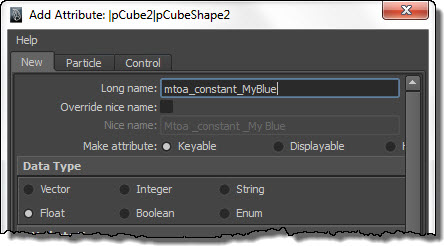
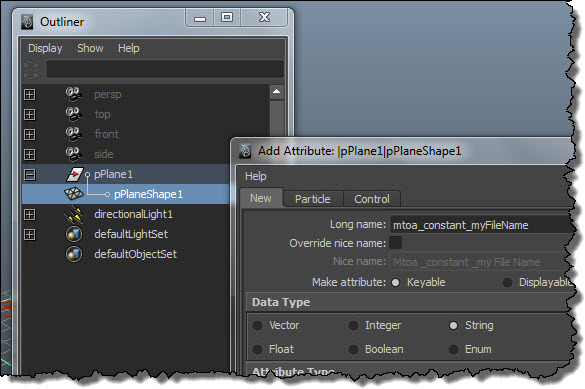
  1. Create an extra attributes to add user data to a shape node (the shape node, not the transform node 🙂
    Select the shape node, and add an extra attribute using the naming convention “mtoa_constant_“. For example, an attribute named “mtoa_constant_MyRed” would add the user data “MyRed” to the shape node.
    userdata2
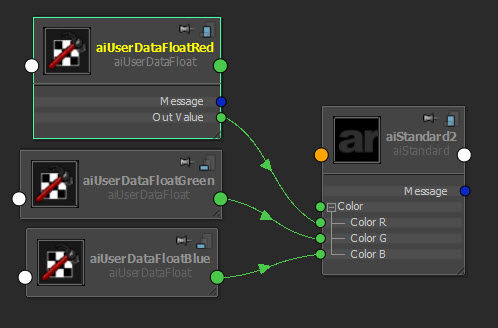
  2. Add an aiUserData node to a shading network and connect it.
    For example, you could connect an aiUserDataFloat to the red, green, or blue color of a Standard shader.
    userdata1
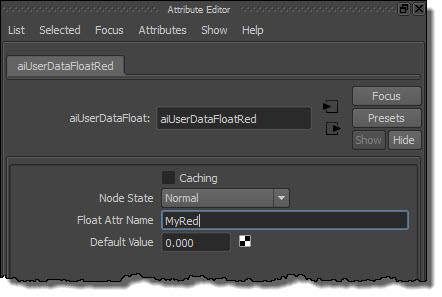
  3. In the aiUserData attributes, set Float Attr Name to the name of the user data.
    For example, if you added an attribute named “mtoa_constant_MyRed”, then set Float Attr Name to “My Red”.
    userdata3

Using the attr token in the texture file name attribute of a File node


In this blog post, I’ll quickly step through an example of how to use the <attr> token in the Maya File node.

Add a "mtoa_constant_" attribute to the shape node.
attr_AddAttribute

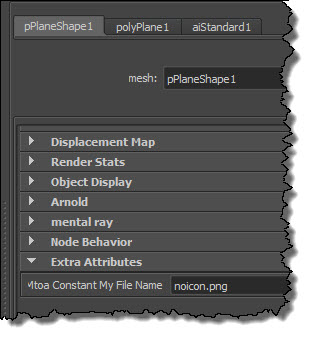
Put the name of the texture file in the extra attribute:
attr_ExtraAttributes

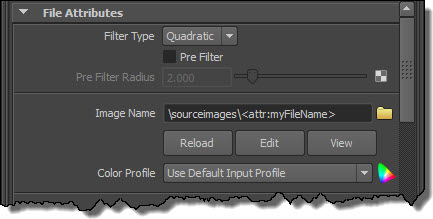
Use the token in the Image Name. Note that I have a relative path, so I have to make sure that I’ve set a project.
attr_ImageName

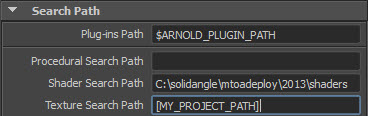
Now I’ve got something that will render in Maya. If I want to export this to an ASS file and render it with kick, I need to add a Texture Search Path (and optionally, a shader search path if I don’t want to use kick -l).
attr_SearchPaths

Here’s the texture-related parts of the exported ASS file:

options
{
 ...
 texture_searchpath "[MY_PROJECT_PATH]"
 ...
}

polymesh
{
 name pPlaneShape1
 ...
 declare myFileName constant STRING
 myFileName "noicon.png"
}

standard
{
 name aiStandard1
 Kd_color file1
}

MayaFile
{
 name file1
 filename "/sourceimages/<attr:myFileName>"
}

Notice how MtoA exported a relative path instead of an absolute. This happens only if you have a token in the filename; otherwise, you always get an absolute path.

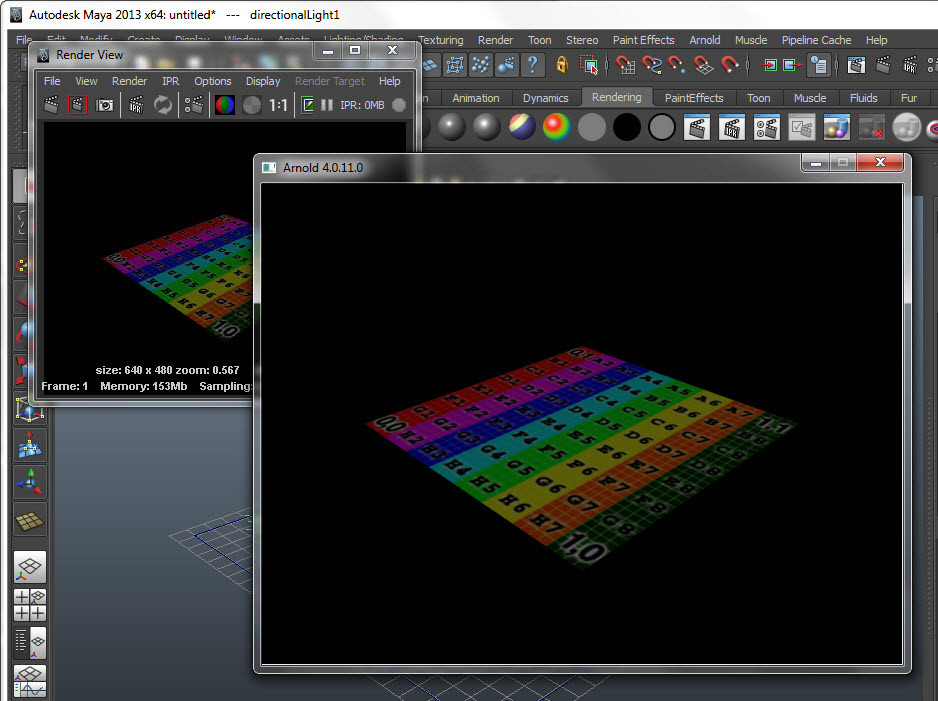
And here’s a screenshot to show all this working, both in Maya and in Arnold:
attr_Render