Upgrading to Arnold 4.1.x


Arnold 4.1.x has plenty of new features and improvements, and you can read about those in the release notes.

Here’s a few other little things to know about Arnold 4.1.x:

  • All shaders, procedurals, and plug-ins like SItoA and MtoA need to be recompiled to work with Arnold 4.1.x.
  • You need a new license to render with Arnold 4.1.x. An Arnold 400 license won’t work with Arnold 4.1.x.
  • Ass files written by Arnold 4.1.x cannot be loaded by older versions of Arnold.
  • Cross posted here

[Maya] Socket error creating command port


NOTE: This is a Maya issue that can happen with any renderer, including mental ray.

Like many other Maya users, I started getting this error when I tried to batch render:

// Error: line 1: Socket error creating command port SOLIDANGLE-PC:7835 (10048).

I checked the port 7835 with netstat, and that gave me a PID (process ID) of 109736

C:\Program Files\Autodesk\Maya2014\bin>netstat -ano | find "7835"
  TCP    XXX.XXX.XXX.XXX:7835   0.0.0.0:0              LISTENING       109736

But unfortunately, there didn’t seem to be any process with that PID, so I couldn’t kill it to free up the port. tasklist | find “109736” came up empty; there was no such PID in the Task Manager or Process Explorer; and TCP View said that PID was non-existent.
tcpview_nonexistent
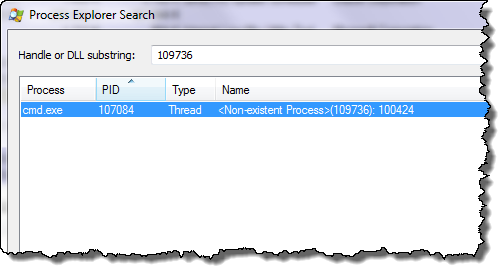
I was resigned to having to reboot my machine until I saw this. Then I used Process Explorer to find the process that was referencing the “non-existent” PID, and when I killed that process, I could batch render again from Maya.
process_explorer_search

Convert texture maps to .tx


When you’re rendering with Arnold, convert your texture maps to .tx files with maketx. Always 🙂

.tx textures are better because they are:

  • Tiled (usually the tiles are 64×64 pixels).

    Arnold loads one tile at a time, as needed, rather than loading the entire texture map in memory. So textures are loaded faster, because Arnold loads only what it needs to render the image.

    Arnold uses a texture cache system to efficiently manage texture memory usage: only the most recently used tiles are kept in memory. You can have hundreds, or even thousands, of 4k and 8k images, and Arnold will never use more runtime memory than the user-specified max cache size.

  • Mip-mapped.

    Mip-mapped textures are anti-aliased, even at low AA sample settings.

If you don’t convert your texture maps with maketx, the default Arnold behavior is to auto-tile and auto-map your textures for you, but this is very inefficient because it is done once for every rendered frame, rather than one-time-only with maketx.

[SItoA] Disabling camera motion blur


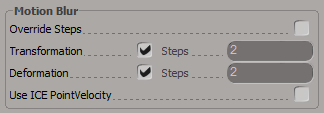
Starting with version 2.8, SItoA no longer supports the Softimage motion blur property. Instead, you use the Arnold Parameters property to control transformation and deformation motion blur.
arnold_parameters_motion_blur

However, you cannot add an Arnold Parameters property to a camera (at least not using the SItoA custom menus, which will tell you that a camera is “is not a valid Object to add Arnold Parameters to”). Here’s a couple of ways to work around that:

  • Create an Arnold Parameters property on a polygon mesh, and then in the Explorer, drag that property to your Camera.
  • Select your camera and run this Python snippet:
    cam = Application.Selection(0)
    cam.AddCustomProperty( "Arnold_Parameters" )
    

[MacOSX] Setting up RLM to always start automatically


If you want the RLM license server to automatically start everytime you restart or turn on your Mac, you need to create a launch daemon. Don’t worry, it’s not as scary as it sounds 🙂

First, you need create a launchd property list (.plist) for RLM. It will look something like this:

<?xml version="1.0" encoding="UTF-8"?>
 <!DOCTYPE plist PUBLIC "-//Apple//DTD PLIST 1.0//EN" "http://www.apple.com/DTDs/PropertyList-1.0.dtd">
 <plist version="1.0">
 <dict>
        <key>Label</key>
        <string>com.solidangle.rlm</string>
        <key>ProgramArguments</key>
        <array>
        <string>/PATH/TO/RLM/rlm</string>
        <string>-c</string> <string>/PATH/TO/RLM/arnold.lic</string>
        <string>-dlog</string> <string>/PATH/TO/RLM/solidangle.dlog</string>
        </array>
        <key>RunAtLoad</key>
        <true/>
 </dict>
 </plist>

This plist file basically tells the system to start rlm with the -c and -dlog flags, like this:

/Users/stblair/solidangle/RLM/rlm -c /Users/stblair/solidangle/RLM/rlm/arnold.lic -dlog /Users/stblair/solidangle/RLM/rlm/solidangle.dlog

The -c flag isn’t necessary if the license file is in the same folder as the RLM binary executable.

Here’s an example com.solidangle.rlm.plist. Download it, and use TextEdit to change the paths to match the RLM location on your computer, and then save the RLM plist file in /Library/LaunchDaemons/. Note that this download plist assumes that the license file is in the same folder, and therefore omits the -c flag.

For example:

sudo cp com.solidangle.rlm.plist /Library/LaunchDaemons

Note: The plist file needs to be owned by root, otherwise you won’t be able to load the plist. If necessary, you can change the owner like this:
sudo chown root /Library/LaunchDaemon/com.solidangle.rlm.plist

Finally, you need to load the plist:

sudo launchctl load -w /Library/LaunchDaemon/com.solidangle.rlm.plist

The license server will now automatically start, even after a restart or power down of the machine.

You can check the license server by opening a Web browser and going to localhost:5054.

Creating object mask AOVs that include opacity


  • Create a custom RGB AOV.
  • Use aiWriteColor to write the object mask to the custom AOV. The Input color of the aiWriteColor is the mask color, and you have to enable Blend to get the opacity blended into the Input.
    mask_opacity_aiWriteColor
  • Connect the Out Color of the aiWriteColor to the Color of a Standard shader. That sends the aiWriteColor beauty to the Standard.
    mask_opacity_Nodes
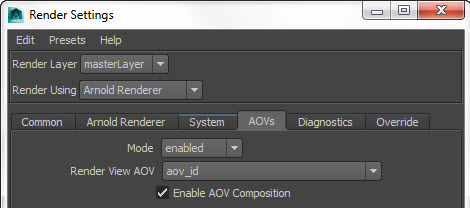
  • Make sure Enable AOV Composition is turned on in the Render Settings.
    EnableAOVComposition

I don’t think this set up works if you plug a Standard into the beauty of the aiWriteColor (eg Standard > aiWriteColor > Standard). With that set of connections, I could never get the opacity right in both the Beauty and the Mask AOVs.

Texture search paths


With Arnold there are two things in an ASS file that specify the location of a texture file:

  • The texture filename, which can be an absolute or relative path.
  • The texture_searchpath in the render options. The texture_searchpath is used only if the texture filename is a relative path (for example: “sourceimages/example.tiff”.
  • For example, if the texture filename was a relative path, you might have something like this in an ASS file:

    options
    {
     ...
     texture_searchpath "//server/projects/test"
     ...
    }
    
    MayaFile
    {
     ...
     filename "sourceimages/noicon.png"
     ...
    }
    

    Using gobos instead of IES lighting profiles


    Arnold 4.0.16 added photometric lights, which can use IES light profiles.

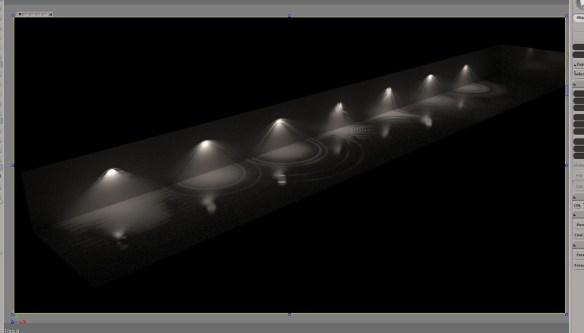
    Arnold does not support IES lighting profiles [generally, IES profiles are not used a lot in film/VFX work]. Most of the time, you can do what an IES light does by using an appropriate gobo (aka a slide projector). For example, SHED used gobo lighting in place of IES on their recent IGA Aide Gourmet spot.

    SHED created their own gobo filters to create a similar look to IES lights