[MtoA] Finding your Arnold log file


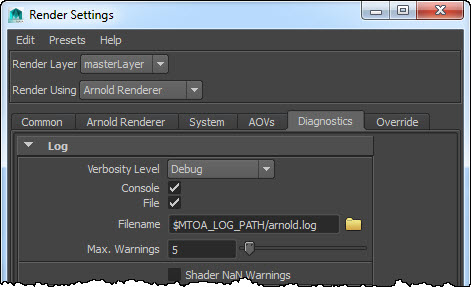
When you enable file logging, it can seem a bit of a mystery where the .log files end up. You may find log files in different folders of your project, like the scenes folder, or the sourceimages folder.
mtoa_file_logging
Here’s how it works.

  • If the MTOA_LOG_PATH environment variable is set, the log files are saved to the folder specified by MTOA_LOG_PATH.
  • If MTOA_LOG_PATH is not set, the log files are saved in the current workspace directory (in MEL, that’s workspace -q -directory). In other words, the log files are saved to last place you went with the Maya file browser. If you haven’t used the file browser yet, the log file is saved in the root folder of the project.
  • If you click the folder icon beside the Filename text box, you can choose where the log files are saved.

Note that the log files will always include the frame number, so you’ll get arnold.1.log, arnold.2.log, and so on.

[MacOSX] Troubleshooting with dtruss


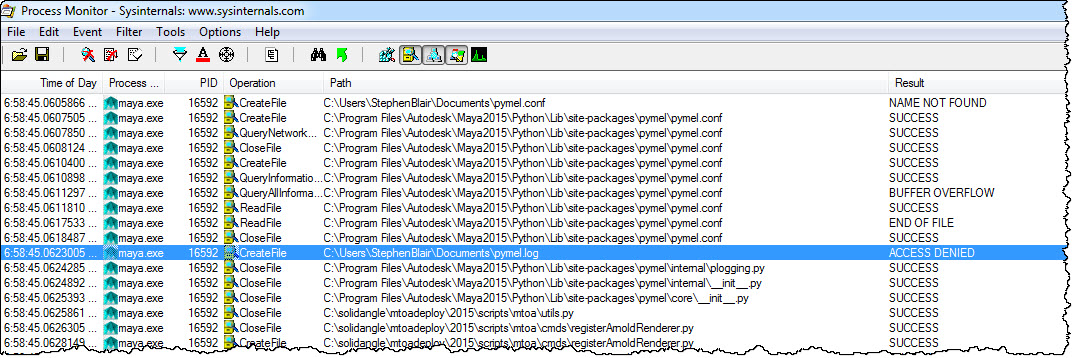
In a previous post, I looked at how things could go wrong in the file ~/pymel.log wasn’t accessible. On Windows, this was fairly easy to track down using Process Monitor:
pymel.log

On Mac OS X, I had to use dtruss. For example, I ran this command to trace the syscalls of the Maya Render command:

sudo dtruss -f -t open_nocancel -n Render 2> /var/tmp/mtoarender.log

When the render job failed, I checked the log file, and found this line:

11668/0x35deb: open_nocancel("/Users/stephenblair/pymel.log\0", 0x601, 0x1B6) = -1 Err#13

One important gotcha: if you repeat the render, you won’t find any mention of pymel error in the dtruss output. My guess is that at that point, the Render command ends up going through the file system cache, so dtruss doesn’t see the attempt to find pymel.log.

Here’s a quick summary of the dtruss command I showed above:

  • Use sudo to run dtruss, because it needs additional privileges.
  • -f tells dtruss to follow any child processes (like mayabatch) launched by Render
  • -t filters the trace for open_nocancel system calls
  • -n tells dtruss to trace the process named “Render”
  • 2> /var/tmp/mtoarender.log redirects the dtruss output to a file

The case of the “cannot remove alias” RuntimeError


In this case, mayabatch reported some runtime errors when loading a certain scene:

# Traceback (most recent call last):
#   File "C:\solidangle\mtoadeploy\2015\scripts\mtoa\callbacks.py", line 415, in deferredCallback
#     func(*args, **kwargs)
#   File "C:\solidangle\mtoadeploy\2015\scripts\mtoa\aovs.py", line 471, in createAliases
#     pm.aliasAttr(sg + '.ai_aov_' + name, remove=True)
#   File "C:\Program Files\Autodesk\maya2015\Python\lib\site-packages\pymel\internal\pmcmds.py", line 134, in wrappedCmd
#     res = new_cmd(*new_args, **new_kwargs)
# # RuntimeError: 'aiStandardSG.ai_aov_direct_specular' is not a unique name.  Cannot remove alias.

Now, even though I have the advantage of access to the MtoA source code, the problem remained: how do I fix the scene and stop these errors? To find a solution (and understand the problem) I had to resort to examining the Maya ASCII version of the scene.

The “fix” was to clear the AOV names on the shadingEngine node:

setAttr "aiStandardSG.aovs[0].aov_name" -type "string" ""; 
setAttr "aiStandardSG.aovs[1].aov_name" -type "string" ""; 
setAttr "aiStandardSG.aovs[2].aov_name" -type "string" ""; 

The problem is that the shadingEngine node has some named custom AOVs, but no corresponding “attribute alias” list. So the AOV name couldn’t be found in the alias list, which in the error message came out as “not a unique name”.

In the Maya ASCII version of the problem scene, I saw this:

createNode shadingEngine -n "aiStandardSG"; 
	addAttr -ci true -h true -sn "aal" -ln "attributeAliasList" -dt "attributeAlias"; 
	setAttr -s 4 ".aovs"; 
	setAttr ".aovs[0].aov_name" -type "string" "direct_diffuse";
	setAttr ".aovs[1].aov_name" -type "string" "direct_specular";
	setAttr ".aovs[2].aov_name" -type "string" "indirect_diffuse";
	setAttr ".aovs[3].aov_name" -type "string" "indirect_specular";

instead of this:

createNode shadingEngine -n "aiStandard1SG";
	addAttr -ci true -h true -sn "aal" -ln "attributeAliasList" -dt "attributeAlias";
	setAttr ".ihi" 0;
	setAttr ".ro" yes;
	setAttr -s 4 ".aovs";
	setAttr ".aovs[0].aov_name" -type "string" "direct_diffuse";
	setAttr ".aovs[1].aov_name" -type "string" "direct_specular";
	setAttr ".aovs[2].aov_name" -type "string" "indirect_diffuse";
	setAttr ".aovs[3].aov_name" -type "string" "indirect_specular";
	setAttr ".aal" -type "attributeAlias" {"ai_aov_direct_diffuse","aiCustomAOVs[0]",
			"ai_aov_direct_specular","aiCustomAOVs[1]",
			"ai_aov_indirect_diffuse","aiCustomAOVs[2]",
			"ai_aov_indirect_specular","aiCustomAOVs[3]"} ;

I don’t know how the user managed to get the scene into that state 😉

The case of the missing PyMel debug log file


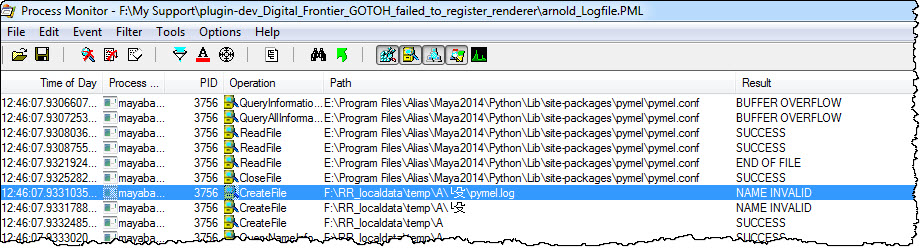
In several recent cases, I had to figure out why MtoA wouldn’t load on a render farm. The root cause turned out to be the PyMel debug log: ~/pymel.log

If PyMel cannot find or open ~/pymel.log, that stops PyMel and anything that uses PyMel (like MtoA).

On a render farm, this can happen if the render manager user account doesn’t have a home folder, ~/pymel.log doesn’t expand to a valid location, or if user doesn’t have read-write permissions on pymel.log.

For example, here’s the Process Monitor log when ~ cannot be resolved:
pymel.log.2
And here’s the log when the user doesn’t have read-write permissions:
pymel.log
The location of pymel.log is specified by the pymel.conf configuration file, like this:

os.path.expanduser('~/pymel.log')

When there’s a problem with the PyMel debug log, it can be hard to tell from the MtoA errors. You may see API errors like this (but the line numbers all point to unrelated bits of source code). However, if you see these line numbers with the MtoA 1.x, it’s probably a pymel.log problem.

API error detected in plugins\mtoa\Main.cpp at line 794
: (kFailure): Unexpected Internal Failure
00:00:00   514MB ERROR   | Failed to register renderer 'arnold'

API error detected in plugins\mtoa\Main.cpp at line 716
: (kFailure): Unexpected Internal Failure
00:00:00   514MB ERROR   | Failed to register Arnold swatch renderer

API error detected in plugins\mtoa\Main.cpp at line 716
: (kFailure): Unexpected Internal Failure
00:00:00   515MB ERROR   | Failed to register Arnold swatch renderer

You might also see errors like this:

API error detected in plugins/mtoa/Main.cpp at line 794
: (kFailure): Unexpected Internal Failure
Error: line 1: IOError: file /Applications/Autodesk/maya2015/Maya.app/Contents/Frameworks/Python.framework/Versions/Current/lib/python2.7/logging/__init__.py line 916: 13
Error: line 1: Failed to register renderer 'arnold'
Error: line 1: initializePlugin function failed (mtoa)

[MtoA] The case of the instant crash when I load MtoA


In this case, Maya 2015 (Windows) disappeared a few seconds after I clicked the MtoA Loaded check box in the Plug-in Manager. Eventually I tracked it down to this line in my pluginPrefs.mel:

evalDeferred("autoLoadPlugin(\"\", \"PolyTools\", \"PolyTools\")");

Darn you PolyTools, I forgot about you 😉 There’s some kind of conflict between PolyTools (from the Maya BonusTools) and MtoA.

I tracked this down the hard way, by renaming my 2015 MAYA_APP_DIR to 2015-x64.bak and starting over with the default preferences, and then comparing the two.

An easier way (on Windows) would have been to use MTOA_STARTUP_LOG_VERBOSITY along with the -log command-line flag (for example, maya -log %TEMP%\mayastartup.log), which would have given me this:

****
* Arnold 4.2.4.0.wip windows icc-13.1.3 oiio-1.4.14 rlm-11.1.2 2015/01/23 16:50:01
* CRASHED in Tstring::formatToWidth at 00:00:00, pixel (0, 0)
* signal caught: error C0000005 -- access violation
*
* backtrace:
*  0 0x0000000045476700 [ai            ] AiArray                                                                                                                                                                               
*  1 0x0000000045477eff [ai            ] AiArray                                                                                                                                                                               
*  2 0x00000000773cb940 [kernel32      ] UnhandledExceptionFilter                                                                                                                                                              
*  3 0x00000000774e3398 [ntdll         ] MD5Final                                                                                                                                                                              
*  4 0x00000000774685c8 [ntdll         ] _C_specific_handler                                                                                                                                                                   
*  5 0x0000000077479d2d [ntdll         ] RtlDecodePointer                                                                                                                                                                      
*  6 0x00000000774691cf [ntdll         ] RtlUnwindEx                                                                                                                                                                           
*  7 0x00000000774a1248 [ntdll         ] KiUserExceptionDispatcher                                                                                                                                                             
>> 8 0x000007fee46eeb05 [FOUNDATION    ] Tstring::formatToWidth                                                                                                                                                                
*  9 0x000007fee46efff5 [FOUNDATION    ] Tstring::set                                                                                                                                                                          
* 10 0x000007febe593e9c [PolyTools     ] uninitializePlugin                                                                                                                                                                    
* 11 0x000007febe593feb [PolyTools     ] uninitializePlugin                   
...

[MtoA] Getting Deadline to pick up environment variable changes


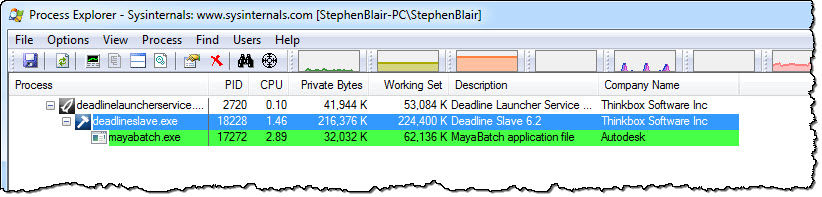
Here’s why new environment variable settings (like, say, a new solidangle_LICENSE setting) are not always picked up by Deadline:

procmon_deadline_child_processes

Deadline Slave and MayaBatch are child processes of Deadline Launcher, and so they inherit their environment from their parent process (deadlinelauncherservice). If you don’t restart the Launcher, it won’t have the new environment, and neither will child processes like the Monitor or MayaBatch. Restarting the service will restart the child processes too.

deadlinelauncherservice_restart

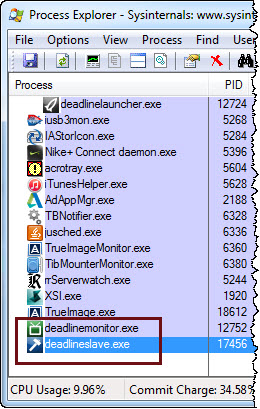
However, if you didn’t install the Launcher as a service, it is slightly more complicated. When you exit and restart the Launcher, the child processes may end up as “orphans” with the same old environment, and you’ll have to restart them too. In the screenshot below, Deadline Monitor and Deadline Slave were child processes of Launcher, but when I exited Launcher they kept running.

procmon_orphans

Getting an Arnold log from Royal Render


I’ve had a few cases where people weren’t sure how to get the Arnold log from Royal Render. The Arnold log is pretty important, at least for me, so here’s how to get it.

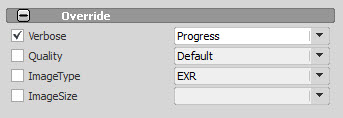
First, when you submit the job, set the log verbosity in rrSubmitter. You can do that in the Override section, but note that the verbosity levels in the Verbose list don’t match up with the newer MtoA verbosity levels. To get a Debug log, you’ll have to set the Verbose to Progress.
rrSubmitter_w_spotlight

rrSubmitter_Override

You can view the log in rrControl:
rrControl_Log_Files

[kick] [ass] reading from stdin


Some customers have reported a problem using a render manager (Muster, Tractor, Deadline) to render jobs with kick, typically via a wrapper script. The problem is that kick tries to read from STDIN instead of loading the specified ASS file. In the log, you’d see this:

00:00:00     0MB         | [ass] reading from stdin ...

A workaround is to add the -nstdin flag (Ignore input from stdin) to the kick command line.

[RLM] [Arnold] Troubleshooting watermarks and license problems


If a workstation or render node can’t get a license, you can use the Arnold log to find out what’s happening. If you set the log verbosity to debug, you can see where Arnold is trying to find a license server, whether or not Arnold can connect, and whether Arnold is being refused a license.

First, let’s look at what success looks like:

00:00:00   703MB         | [rlm] checking connection to license servers ...
00:00:00   703MB         | [rlm]  5053@StephenBlair-PC ... UP
00:00:00   703MB         | [rlm] checkout of "arnold 20140917" from StephenBlair-PC in 0:00.01
00:00:00   703MB         | [rlm] expiration date: 31-dec-2016 (768 days left)

These log entries tell me that solidangle_LICENSE (or RLM_LICENSE) is set to “5053@StephenBlair-PC” and that Arnold was able to get a license. I know that solidangle_LICENSE is set because the log entry says “license servers” (plural). If solidangle_LICENSE isn’t set, there’s just one license server to check: the default 5053@localhost.

For example, if you’re running on the same machine as the license server, you might see something like this:

00:00:00    11MB         | [rlm] checking connection to license server on 5053@localhost ...
00:00:00    13MB         | [rlm] checkout of "arnold 20141103" from localhost in 0:00.02
00:00:00    13MB         | [rlm] expiration date: 31-dec-2016 (761 days left)

So, if solidangle_LICENSE isn’t set, then on a workstation or render node you’d see this in the log:

00:00:00   784MB         | [rlm] checking connection to license server on 5053@localhost ...
00:00:05   784MB WARNING | [rlm] could not connect to license server on 5053@localhost

Note the Arnold checks just one license server: 5053@localhost. If solidangle_LICENSE is set, Arnold will check at least two license servers.

If solidangle_LICENSE is set, but Arnold cannot reach the specified server, you’d see this:

00:00:00   751MB         | [rlm] checking connection to license servers ...
00:00:05   751MB         | [rlm]  5053@null ... DOWN
00:00:10   751MB         | [rlm]  5053@localhost ... DOWN
00:00:10   751MB WARNING | [rlm] could not connect to any license server

If the RLM server is up and reachable, but the solidangle ISV server is down, then you’d see this:

00:00:00   745MB         | [rlm] checking connection to license servers ...
00:00:00   745MB         | [rlm]  5053@StephenBlair-PC ... UP
00:00:03   745MB WARNING | [rlm] error checking out license for arnold (version 20140917):
00:00:03   745MB WARNING | [rlm]  * Communications error with license server (-17)
00:00:03   745MB WARNING | [rlm]  * Connection refused at server (-111

The RLM server is the main RLM service that manages all the ISV servers. The ISV servers serve licenses for specific software packages, like solidangle, foundry, or exocortex.

If there are no licenses available:

00:00:00   745MB         | [rlm] checking connection to license servers ...
00:00:00   745MB         | [rlm]  5053@StephenBlair-PC ... UP
00:00:00   745MB WARNING | [rlm] error checking out license for arnold (version 20141103):
00:00:00   745MB WARNING | [rlm]  * All licenses in use (-22)

If the licenses don’t support the newer version of Arnold you’re trying to use:

00:00:00    11MB         | [rlm] checking connection to license server on 5053@localhost ...
00:00:00    13MB WARNING | [rlm] wrong license version for "arnold 20141103", found 1 license for "arnold 20140701"
00:00:00    13MB WARNING | [rlm] your maintenance expired on 2014/07/01, please contact licensing@solidangle.com

If the licenses are expired:

00:00:00   745MB         | [rlm] checking connection to license servers ...
00:00:00   745MB         | [rlm]  5053@StephenBlair-PC ... UP
00:00:00   745MB WARNING | [rlm] could not find any license for "arnold 20141103", the license may be expired

[RLM] [Arnold] Figuring out why a certain scene renders with a watermark


If suddenly some scenes render with a watermark, but others don’t, that probably means someone saved those scenes with Skip License Check enabled.

A quick way to check this is with the Arnold log.

If you set the verbosity level to at least Warnings + Info, you would see this:

00:00:00   787MB WARNING | [rlm] skip_license_check enabled

if Skip License Check is enabled.

If you’re using MtoA and rendering Maya scenes, one way to avoid this problem is to render with the -ai:slc off flag (slc = skip license check).

In the very unlikely case that Skip License Check isn’t the problem, the set the verbosity level to Debug and check the log again.