Convert texture maps to .tx


When you’re rendering with Arnold, convert your texture maps to .tx files with maketx. Always 🙂

.tx textures are better because they are:

  • Tiled (usually the tiles are 64×64 pixels).

    Arnold loads one tile at a time, as needed, rather than loading the entire texture map in memory. So textures are loaded faster, because Arnold loads only what it needs to render the image.

    Arnold uses a texture cache system to efficiently manage texture memory usage: only the most recently used tiles are kept in memory. You can have hundreds, or even thousands, of 4k and 8k images, and Arnold will never use more runtime memory than the user-specified max cache size.

  • Mip-mapped.

    Mip-mapped textures are anti-aliased, even at low AA sample settings.

If you don’t convert your texture maps with maketx, the default Arnold behavior is to auto-tile and auto-map your textures for you, but this is very inefficient because it is done once for every rendered frame, rather than one-time-only with maketx.

[SItoA] Disabling camera motion blur


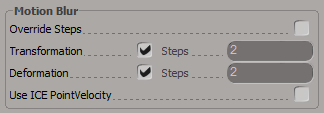
Starting with version 2.8, SItoA no longer supports the Softimage motion blur property. Instead, you use the Arnold Parameters property to control transformation and deformation motion blur.
arnold_parameters_motion_blur

However, you cannot add an Arnold Parameters property to a camera (at least not using the SItoA custom menus, which will tell you that a camera is “is not a valid Object to add Arnold Parameters to”). Here’s a couple of ways to work around that:

  • Create an Arnold Parameters property on a polygon mesh, and then in the Explorer, drag that property to your Camera.
  • Select your camera and run this Python snippet:
    cam = Application.Selection(0)
    cam.AddCustomProperty( "Arnold_Parameters" )
    

[MacOSX] Setting solidangle_LICENSE


There are several ways you can do it.

  • You can use Maya.env to set the solidangle_LICENSE environment variable.

    In your Maya.env file, add this line:

    solidangle_LICENSE=XXXX@SERVER
    

    where XXXX is the port number, and SERVER is the name or IP address of the computer.

    Maya.env is located in your user Library. For example: /Users/steve/Library/Preferences/Autodesk/maya/2014.

    By default, the Library folder is a hidden folder, so you may need to un-hide the Library folder.

  • You can set solidangle_LICENSE as a system environment variable.
    1. Log in with an Administrator account and run this command to open a text editor.
      sudo nano /etc/launchd.conf
      
    2. Add this line to /etc/launchd.conf:
      setenv solidangle_LICENSE XXXX@SERVER
      
    3. Save the file and exit.
    4. Restart the Mac.

If you don’t want to restart your Mac just yet, you can try setting the environment variable like this (it will last until you restart your machine):

launchctl setenv solidangle_LICENSE XXXX@SERVER

[arnold] Getting RLM diagnostics from Arnold


If you want to double-check what license servers Arnold is trying to connect with, set the log verbosity level to the maximum, and you’ll get something like this:

' INFO : [arnold] 00:00:00  438mb   [rlm] checking connection to license servers ...
' INFO : [arnold] 00:00:05  438mb   [rlm]  5053@STEPHEN-PC ... DOWN
' INFO : [arnold] 00:00:05  438mb   [rlm]  5053@SOLIDANGLE-PC ... UP
' INFO : [arnold] 00:00:05  438mb   [rlm] found 1 license servers
' INFO : [arnold] 00:00:15  438mb   [rlm] checkout of arnold (version 400) from SOLIDANGLE-PC OK
' INFO : [arnold] 00:00:15  438mb   [rlm] expiration date: 31-dec-2013 (190 days left)
  • In Softimage, set the Verbosity to Debug.
  • In Maya, set the Verbosity Level to 6.
  • On the kick command line, specify -v 6.