[kick] [ass] reading from stdin


Some customers have reported a problem using a render manager (Muster, Tractor, Deadline) to render jobs with kick, typically via a wrapper script. The problem is that kick tries to read from STDIN instead of loading the specified ASS file. In the log, you’d see this:

00:00:00     0MB         | [ass] reading from stdin ...

A workaround is to add the -nstdin flag (Ignore input from stdin) to the kick command line.

[RLM] [Arnold] Troubleshooting watermarks and license problems


If a workstation or render node can’t get a license, you can use the Arnold log to find out what’s happening. If you set the log verbosity to debug, you can see where Arnold is trying to find a license server, whether or not Arnold can connect, and whether Arnold is being refused a license.

First, let’s look at what success looks like:

00:00:00   703MB         | [rlm] checking connection to license servers ...
00:00:00   703MB         | [rlm]  5053@StephenBlair-PC ... UP
00:00:00   703MB         | [rlm] checkout of "arnold 20140917" from StephenBlair-PC in 0:00.01
00:00:00   703MB         | [rlm] expiration date: 31-dec-2016 (768 days left)

These log entries tell me that solidangle_LICENSE (or RLM_LICENSE) is set to “5053@StephenBlair-PC” and that Arnold was able to get a license. I know that solidangle_LICENSE is set because the log entry says “license servers” (plural). If solidangle_LICENSE isn’t set, there’s just one license server to check: the default 5053@localhost.

For example, if you’re running on the same machine as the license server, you might see something like this:

00:00:00    11MB         | [rlm] checking connection to license server on 5053@localhost ...
00:00:00    13MB         | [rlm] checkout of "arnold 20141103" from localhost in 0:00.02
00:00:00    13MB         | [rlm] expiration date: 31-dec-2016 (761 days left)

So, if solidangle_LICENSE isn’t set, then on a workstation or render node you’d see this in the log:

00:00:00   784MB         | [rlm] checking connection to license server on 5053@localhost ...
00:00:05   784MB WARNING | [rlm] could not connect to license server on 5053@localhost

Note the Arnold checks just one license server: 5053@localhost. If solidangle_LICENSE is set, Arnold will check at least two license servers.

If solidangle_LICENSE is set, but Arnold cannot reach the specified server, you’d see this:

00:00:00   751MB         | [rlm] checking connection to license servers ...
00:00:05   751MB         | [rlm]  5053@null ... DOWN
00:00:10   751MB         | [rlm]  5053@localhost ... DOWN
00:00:10   751MB WARNING | [rlm] could not connect to any license server

If the RLM server is up and reachable, but the solidangle ISV server is down, then you’d see this:

00:00:00   745MB         | [rlm] checking connection to license servers ...
00:00:00   745MB         | [rlm]  5053@StephenBlair-PC ... UP
00:00:03   745MB WARNING | [rlm] error checking out license for arnold (version 20140917):
00:00:03   745MB WARNING | [rlm]  * Communications error with license server (-17)
00:00:03   745MB WARNING | [rlm]  * Connection refused at server (-111

The RLM server is the main RLM service that manages all the ISV servers. The ISV servers serve licenses for specific software packages, like solidangle, foundry, or exocortex.

If there are no licenses available:

00:00:00   745MB         | [rlm] checking connection to license servers ...
00:00:00   745MB         | [rlm]  5053@StephenBlair-PC ... UP
00:00:00   745MB WARNING | [rlm] error checking out license for arnold (version 20141103):
00:00:00   745MB WARNING | [rlm]  * All licenses in use (-22)

If the licenses don’t support the newer version of Arnold you’re trying to use:

00:00:00    11MB         | [rlm] checking connection to license server on 5053@localhost ...
00:00:00    13MB WARNING | [rlm] wrong license version for "arnold 20141103", found 1 license for "arnold 20140701"
00:00:00    13MB WARNING | [rlm] your maintenance expired on 2014/07/01, please contact licensing@solidangle.com

If the licenses are expired:

00:00:00   745MB         | [rlm] checking connection to license servers ...
00:00:00   745MB         | [rlm]  5053@StephenBlair-PC ... UP
00:00:00   745MB WARNING | [rlm] could not find any license for "arnold 20141103", the license may be expired

[RLM] [Arnold] Figuring out why a certain scene renders with a watermark


If suddenly some scenes render with a watermark, but others don’t, that probably means someone saved those scenes with Skip License Check enabled.

A quick way to check this is with the Arnold log.

If you set the verbosity level to at least Warnings + Info, you would see this:

00:00:00   787MB WARNING | [rlm] skip_license_check enabled

if Skip License Check is enabled.

If you’re using MtoA and rendering Maya scenes, one way to avoid this problem is to render with the -ai:slc off flag (slc = skip license check).

In the very unlikely case that Skip License Check isn’t the problem, the set the verbosity level to Debug and check the log again.

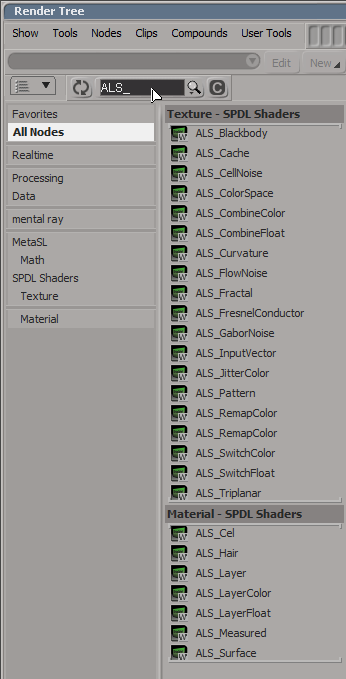
[SItoA] Installing the alShaders in Softimage


Here’s how to install third-party, SPDL-based shaders, like alShaders, so that you can use them with SItoA. You could install them in a separate workgroup, but for simplicity I’m going to show how to install them in the SItoA workgroup.

In these instructions, $AL_SHADERS is the location where you extracted the alShaders download. For example, C:\solidangle\alShaders\alShaders-win-0.4.0b18-ai4.2.0.6.

$SITOA_WORKGROUP is the SItoA workgroup location. For example, C:\Users\StephenBlair\softimage\workgroups\sita-3.3.0-2014.

  1. Copy the alShader DLLs from
    $AL_SHADERS\bin
    to
    $SITOA_WORKGROUP\Addons\SItoA\Application\Plugins\bin\nt-x86-64

  2. Create a spdl folder in your Addons\SItoA\Application folder:
    $SITOA_WORKGROUP\Addons\SItoA\Application\spdl

  3. Copy the alShader spdl files from
    $AL_SHADERS\spdl
    to
    $SITOA_WORKGROUP\Addons\SItoA\Application\spdl

  4. Restart Softimage. The alShaders should show up in the Render Tree preset manager, and assuming that your version of alShaders is compatible with your SItoA, they’ll work in a render too.
    als_shaders

Tip Don’t create an alShader from the Arnold > DLL Shaders menu; it won’t pick up the SPDL and you’ll get a raw PPG (and a raw render tree node too).

[MtoA] Using set overrides to assign Arnold IDs to groups of mesh shapes


Arnold shapes have an id parameter that you can use to set up custom ID AOVs.

kick -info polymesh.id
node: polymesh
param: id
type: INT
default: 0

For example, you can Object ID color mode of the Utility shader to generate an ID AOV.

MtoA doesn’t automatically generate IDs, so you need to use the User Options parameter on the shapes to assign IDs.

If you want to give a group of polygon meshes the same ID, so that they all get the same Object ID color, then you can use override sets.
override_sets

Example: Three sets, each set with an override of User Options that sets the polymesh.id parameter
override_sets_example

In Softimage, SItoA does generate IDs, and you can override them using groups and a branch-applied Arnold User Options property.
sitoa_override_sets

[RLM] [MacOSX] Setting solidangle_LICENSE on Yosemite


In Yosemite, Apple removed support for environment variables in launchd.conf, so you need to find another way to set global, system-wide environment variables. For example, if you want solidangle_LICENSE to be automatically set, you could use a launchd plist.

Here’s an example plist that uses launchctl to set the solidangle_LICENSE environment variable.

<?xml version="1.0" encoding="UTF-8"?>
<!DOCTYPE plist PUBLIC "-//Apple//DTD PLIST 1.0//EN" "http://www.apple.com/DTDs/PropertyList-1.0.dtd">
 <plist version="1.0">
 <dict>
        <key>Label</key>
        <string>com.solidangle.setenv</string>
        <key>ProgramArguments</key>
        <array>
        <string>/bin/launchctl</string>
        <string>setenv</string>
        <string>solidangle_LICENSE</string>
        <string>5053@replace-me</string>
        </array>
        <key>RunAtLoad</key>
        <true/>
        <key>ServiceIPC</key>
        <false/>
 </dict>
 </plist>

You’ll need to edit this plist and save it in /Library/LaunchDaemons. The file permissions and ownership should look like this:

-rw-r--r--@ 1 root wheel 661 Oct 22 13:52 com.solidangle.setenv.plist

Use sudo chmod to set the permissions, and sudo chown root:wheel to set the ownerships.
Then load the plist:
sudo launchctl load -w /Library/LaunchDaemons/com.solidangle.setenv.plist

And then restart your machine.

References:

[RLM] Checking the license pool status


It’s always a good idea to confirm basic facts before moving on to more complicated testing, especially when it comes to licensing problems. For example, I’ve had several cases of “watermarks on the render farm” where it turned out the actual number of licenses was rather less than the expected number.

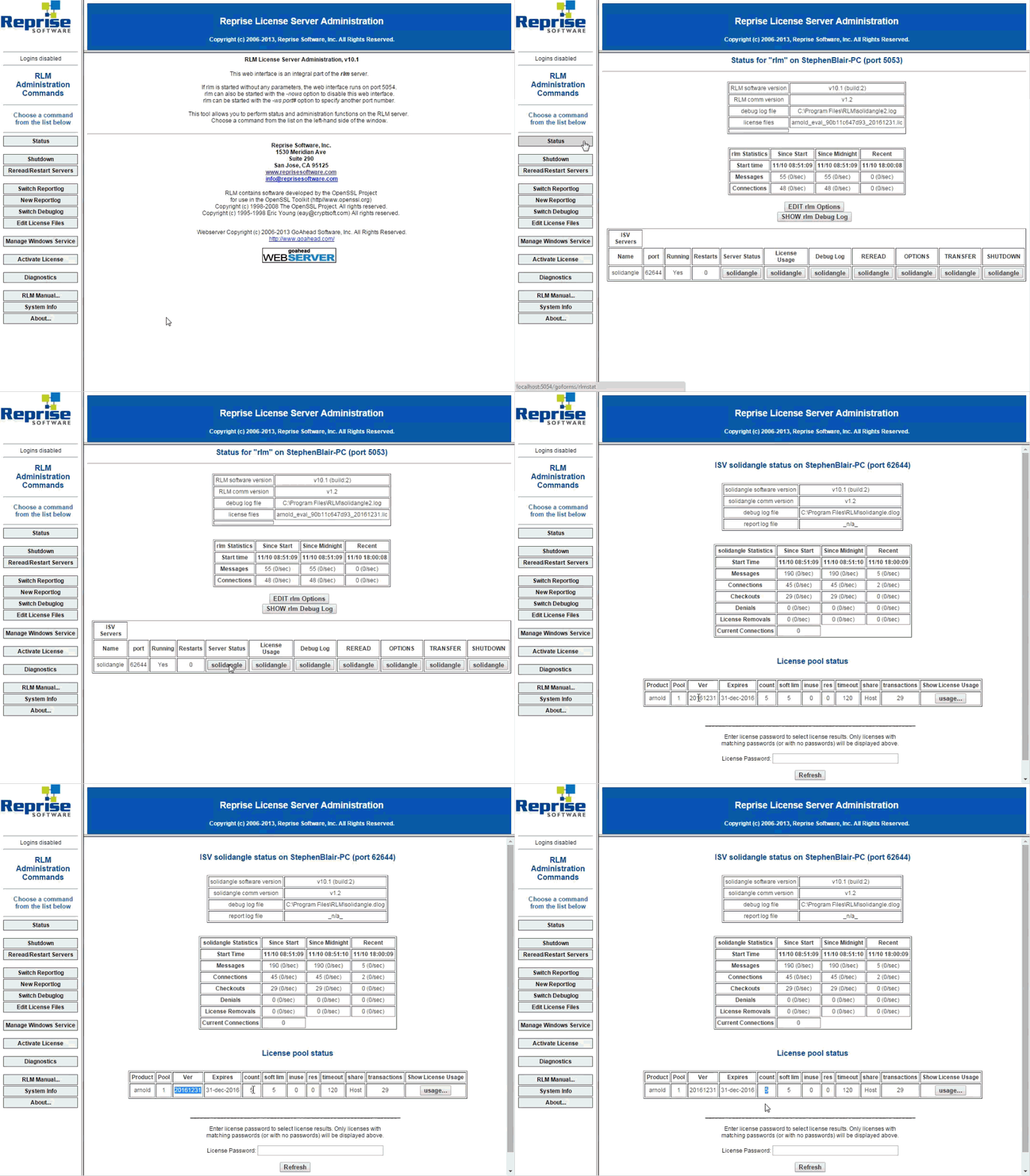
Fortunately, it’s easy to check the number of available licenses (aka the “license pool status”) with the RLM Web Admin page.

  1. In a web browser, open localhost:5054 (tip: you can open this page remotely too: just go to LICSERVER:5054, where LICSERVER is the name or IP address of the license server computer).
  2. Click Status.
  3. Click solidangle in the Server Status column of the ISV Servers table
  4. Check the count in the License Pool Status table

Click to enlarge
check_license_pool_status

[MtoA] The case of the scene that crashed Maya


In this case, Maya crashed as soon as you loaded a certain scene.

What was the problem? Yeti couldn’t get a license, and then when MtoA loaded the Yeti procedural, that was it: crash.

We found the problem by checking the Maya log that we got with the -log command-line flag:

maya.exe -log %TEMP%\maya.log

The solution was to set RLM_LICENSE so Yeti could get its license (or unset MTOA_EXTENSIONS_PATH so that the Yeti extension wasn’t loaded, or move the Yeti module file so Maya wouldn’t find it).

This is what we saw in the log:

[Wed Nov 05 18:08:13 2014] Yeti 1.3.14: Yeti v1.3.14, built on Oct 10 2014 at 20:52:13
[Wed Nov 05 18:08:13 2014] Yeti 1.3.14: (c) 2010-Present Peregrine Labs a division of Peregrine Visual Storytelling Ltd. All rights reserved.
[Wed Nov 05 18:08:13 2014] Yeti 1.3.14: ERROR pgLicenseCheck - License system could not get a valid server handle, error: Can't read license data (-102)
No such process (errno: 3)
00:00:00 WARNING | [mtoa] Extension pgYetiArnoldMtoa(C:/solidangle/yeti/Yeti-v1.3.14_Maya2014-windows64/plug-ins/pgYetiArnoldMtoa.dll) requires Maya plugin pgYetiMaya, registering will be deferred until plugin is loaded.
the data object was unable to read its value : (0) no error

****
* Arnold 4.2.2.0 windows icc-14.0.2 oiio-1.4.14 rlm-11.1.2 2014/11/03 15:27:54
* CRASHED in QResource::locale 
* signal caught: error C0000005 -- access violation
*
* backtrace:
*  0 0x000000002c8b7a20 [ai            ] AiArray                                           
*  1 0x000000002c8b9f80 [ai            ] AiArray                                           
*  2 0x000000007722b940 [kernel32      ] UnhandledExceptionFilter                          
*  3 0x0000000077343398 [ntdll         ] MD5Final                                          
*  4 0x00000000772c85c8 [ntdll         ] _C_specific_handler                               
*  5 0x00000000772d9d2d [ntdll         ] RtlDecodePointer                                  
*  6 0x00000000772c91cf [ntdll         ] RtlUnwindEx                                       
*  7 0x0000000077301248 [ntdll         ] KiUserExceptionDispatcher                         
>> 8 0x0000000067840147 [QtCore4       ] QResource::locale    
...
...and so on and so on...

[MtoA] [MacOSX] Rendering a sequence


Here’s a question submitted through solidangle.com: how do I render a sequence of frames with Maya on Mac OS X?

The answer is: the same way you would a sequence of frames with mental ray in Maya.

In Maya:

From the command line:

  • Open a Maya Terminal, either through Spotlight or in Finder (/Applications/Autodesk/maya2015/Maya Terminal.term)

    Using a Maya Terminal means that the PATH already includes the location of the Maya command-line renderer.

  • In the terminal, use the Render command to render the sequence. For example:
    Render -r arnold -s 1 -e 10 -proj /Users/stephen/MyProject /Users/stephen/MyProject/scenes/arnold.mb
    

If Arnold is the renderer specified in the saved scene file, you can omit -r arnold from the Render command.

Run the command Render -help -r arnold to print the help for the Arnold-specific render flags.

[MtoA] Pimping your Yeti module file


Here’s a variation of the Yeti module file that adds the bin folder to the PATH, and plug-ins to MTOA_EXTENSIONS_PATH:

+ pgYetiMaya any C:\solidangle\yeti\Yeti-v1.3.14_Maya2014-windows64
PATH +:= bin
MTOA_EXTENSIONS_PATH +:= plug-ins

MtoA uses MTOA_EXTENSIONS_PATH to find the Yeti extension for MtoA, and Arnold uses PATH to find the Yeti procedural.