[MtoA] Recipe for linear workflow


Ingredients

  • 1 x Maya
  • 1 x MtoA
  • 1 x Monitor calibrated to sRGB
  • Linear textures

Procedure

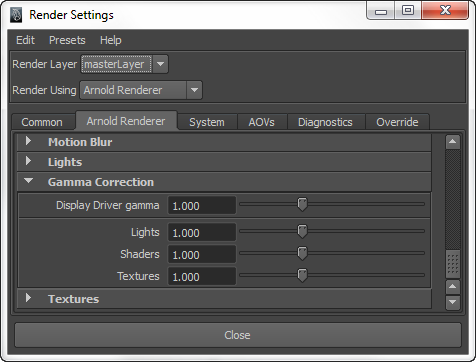
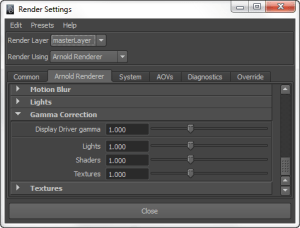
  1. In the Render Settings, set all the Arnold gamma correction settings to 1.0.
    ArnoldRenderSettingsGamma
  2. Set your Render View > Display to 32-bit floating-point (HDR).
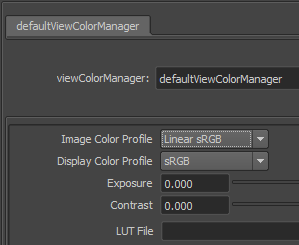
  3. Click Render View > Color Management, and in the viewColorManager Attribute Editor, set the Image Color Profile to Linear sRGB (that is, your input textures are in linear space).
    ColorManager
  4. Render to EXR or some other linear floating point format.

hat tip: Fred

Just for kicks: Printing out shading trees


kick -tree prints the shading network for a shader node. For example, given this:

polymesh
{
 ...
 shader "Sources.Materials.DefaultLib.Material.standard.SItoA.41000.1" 
 ...
}

standard
{
 name Sources.Materials.DefaultLib.Material.standard.SItoA.41000.1
 
}

You can print out the shader tree for the standard shader like this:

set ASS_FILE=//Projects/Support/Arnold_Scenes/example.ass
set NODE=Sources.Materials.DefaultLib.Material.standard.SItoA.41000.1
set SHADER_PATH=%SITOA_BIN%
%KICK_PATH%\kick.exe -tree %NODE%  -i %ASS_FILE% -l %SHADER_PATH%

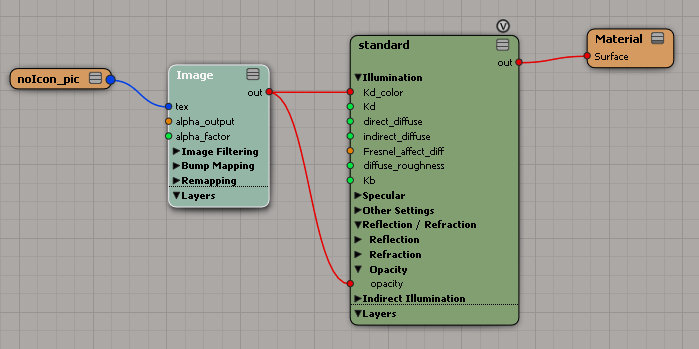
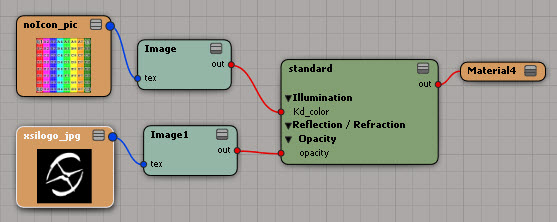
For a [simple] shading tree that looks like this:
SimpleTree
You would get this:

standard:Sources.Materials.DefaultLib.Material.standard.SItoA.41000.1
  |
  +-Kd_color = txt2d_image_explicit:Sources.Materials.DefaultLib.Material.Image.SItoA.41000.2
  |   |
  |   +-tex = sib_image_clip:Sources.Materials.DefaultLib.Material.noIcon_pic.SItoA.41000.3
  |
  +-opacity = txt2d_image_explicit:Sources.Materials.DefaultLib.Material.Image.SItoA.41000.2
      |
      +-tex = sib_image_clip:Sources.Materials.DefaultLib.Material.noIcon_pic.SItoA.41000.3

max depth:       2
total shaders:   5
cycles detected: 0

shader counts:
  2 txt2d_image_explicit
  2 sib_image_clip
  1 standard

one-to-many connections:
  2 txt2d_image_explicit:Sources.Materials.DefaultLib.Material.Image.SItoA.41000.2
  2 sib_image_clip:Sources.Materials.DefaultLib.Material.noIcon_pic.SItoA.41000.3

Notice that txt2d_image_explicit and sib_image_clip are counted twice, because those branches are plugged into two different ports on the standard shader.

[SItoA] Applying materials to standins


In Softimage, a standin object is the polygon mesh, hair, or point cloud with the Arnold_Standin property.

If you apply a material to a standin, that material will override any materials specified in the ASS file referenced by the standin. If you don’t want that to happen, give your material a name that starts with “Scene_Material” or “Standin_Material” (it doesn’t matter if you use uppercase or lowercase for the names).

If you do that, the standin object will use that material, but the objects in the ASS file will use the materials saved in the ASS file.

Here’s what you get in an exported ASS file. If SItoA finds a standin with a material name that starts with “scene_material” or “standin_material”, it exports a procedural node with no material.

procedural
{
 name standin-cube.SItoA.41000
 dso "\\server\project\Arnold_Scenes\XSI_Man.ass"
 min -4 0 -4
 max 4 0 4
 matrix 
  1 0 0 0
  0 1 0 0
  0 0 1 0
  0 0 0 1 
}

Otherwise, if you name the standin material something else, the procedural node will include a shader node for that material:

procedural
{
 name standin-cube.SItoA.41000
 dso "\\server\project\Arnold_Scenes\XSI_Man.ass"
 min -4 0 -4
 max 4 0 4
 matrix 
  1 0 0 0
  0 1 0 0
  0 0 1 0
  0 0 0 1 
 shader "Sources.Materials.DefaultLib.Test.standard.SItoA.40000.1" 
 declare procedural_shader constant ARRAY NODE
 procedural_shader "Sources.Materials.DefaultLib.Test.standard.SItoA.40000.1" 
}

Switching between different versions of MtoA


If you have several versions of MtoA, you can switch between them by editing your Maya.env and mtoa.mtd files before you start Maya. These two files are located under your MAYA_APP_DIR folder.

For example, C:\Users\SOLIDANGLE\Documents\maya\2013-x64\Maya.env.

MAYA_RENDER_DESC_PATH = C:\solidangle\mtoadeploy\2013.0.22.0
PATH = %PATH%;C:\solidangle\mtoadeploy\2013.0.22.0\bin

And C:\Users\SOLIDANGLE\Documents\maya\2013-x64\modules\mtoa.mod:

+ mtoa any C:\solidangle\mtoadeploy\2013.0.22.0

The mtoa.mod file is put there by the MtoA installer.

The MtoA installer always wants to remove any other installed version, so if you want to keep multiple versions around, you can do one of the following:

  • Extract the files yourself (for example, using 7zip)
  • Make copies of each MtoA version before you uninstall them.

For example, if you have MtoA 0.21 installed in

C:\solidangle\mtoadeploy\2013

copy that folder to

C:\solidangle\mtoadeploy\2013-0.21.0

Then install MtoA 0.22 (during the install, you may want to change the default install folder to something like C:\solidangle\mtoadeploy\2013-0.22.0).

After that, you’ll have both MtoA 0.22 and 0.21, and you can switch between them.

[MtoA] Editing Arnold attributes on multiple objects


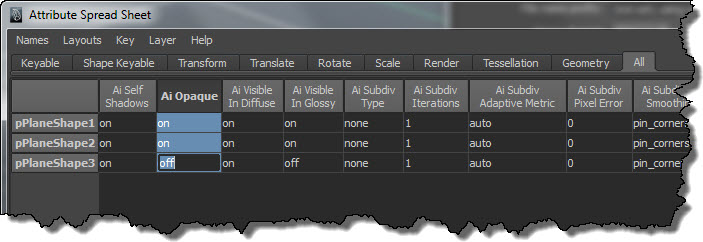
If you need to change the same Arnold attributes on many nodes, use the Attribute Spreadsheet. For example, suppose you wanted to turn off the Opaque attribute on a number of objects in your scene. Here’s how to do it:

  1. Select the objects.
  2. Press the Down arrow (aka Pick Walk) to select the shape nodes.
  3. Open the Attribute Spreadsheet.
  4. Click the All tab, and find the Ai (Arnold) attributes you want to change. Drag across all rows, and then type “off” in the last row.
    AiAttributeEditor

[SItoA] Doing a license check in Softimage


Setting up the environment right is what often goes wrong. Running kick -licensecheck from inside Softimage is a quick way to check that you set up the environment variables correctly.

Here’s two lines of Python that will open a command prompt and run kick -licensecheck (on Windows).

#Python
from subprocess import Popen
Popen(["cmd", "/K", XSIUtils.BuildPath( Application.Plugins('Arnold Render').OriginPath, 'kick.exe' ), "-licensecheck"])

Here’s the same thing, but broken down a bit for legibility:

#Python
si = Application

p = si.Plugins('Arnold Render')
sKick = XSIUtils.BuildPath( p.OriginPath, 'kick.exe' )

from subprocess import Popen
Popen(["cmd", "/K", sKick, "-licensecheck"])

[MtoA] Doing a license check in Maya


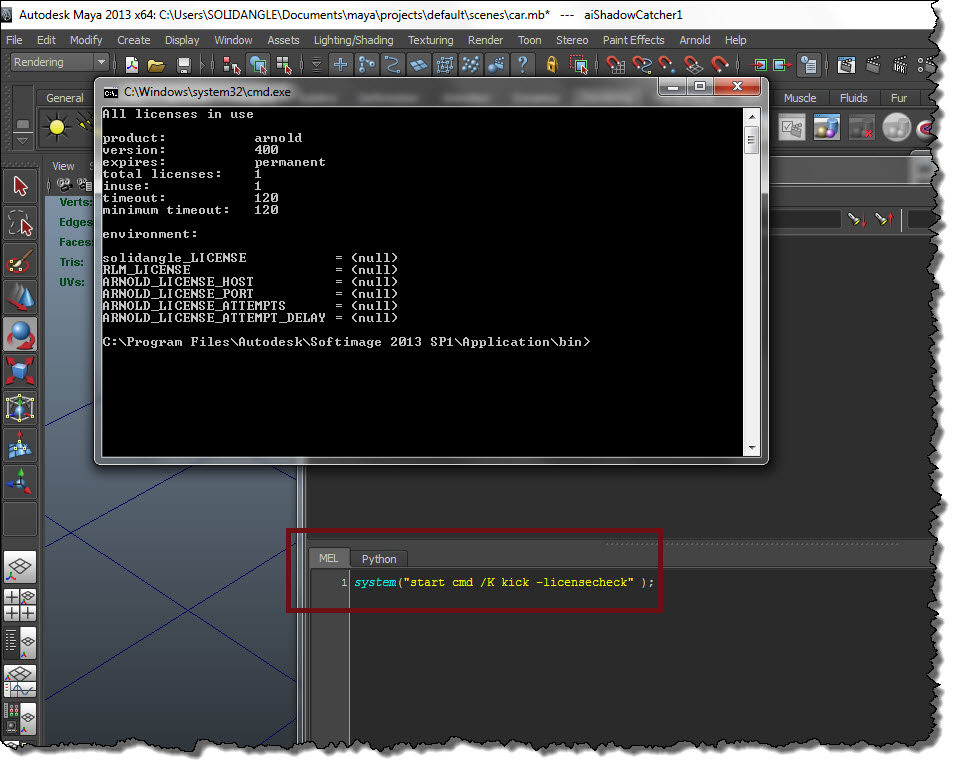
If you’re doing technical support like me, you gotta love things like kick -licensecheck. I wish we’d had something like this at Softimage. This license check will tell you:

  • Whether you can connect to a license server
  • What licenses are available
  • What are the licensing environment variable settings

licensecheck

In this example, I’m running Maya and the license server on the same computer. That’s why none of the environment variables are set, but the licensecheck still shows that there’s a license available. By default, Arnold will connect to 5053@localhost to get a license.

AOV Composition and opacity


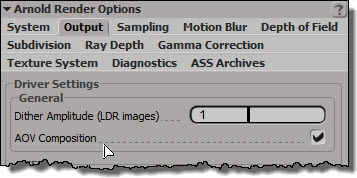
AOV Composition allows opacity and transparency to carry forward into AOVs. It works only for RGB AOVs, so you won’t see it in the render region (because the xsi display driver always outputs RGBA AOVs).
aov_composition

For example, suppose you have a textured grid with an opacity map:
noicon_grid_w_opacity_map
In the render region, the Main AOV is fine, but the Arnold Direct Diffuse doesn’t have the opacity, even if you enable AOV Composition:
main_vs_direct_diffuse1
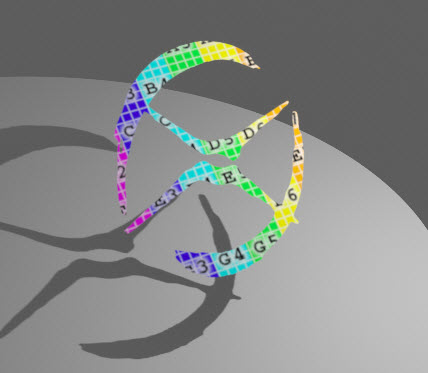
However, if you render out the image (with AOV Composition enabled and the Direct Diffuse format set to RGB), you’ll get what you expected:
arnold_direct_diffuse_aov_composition

SITOA: Adding Arnold materials through scripting


If you want to apply Arnold materials through scripting, there are a couple of undocumented commands you can use:

  • SITOA_AddMaterial takes the shader family (for example, Material or Texture) and the name of a shader, and connects that shader to the surface port on the Material node.
    # Add a standard material to the selected object
    SITOA_AddMaterial( "Material", "standard" )
    
    # Add ambient_occlusion to the selected object
    SITOA_AddMaterial( "Texture", "ambient_occlusion" )
    
  • SITOA_AddShader is similar, but it also takes a connection point as an argument, so you can connect to a specific port, such as the Environment or Displacement port.
    # Add a vector displacement shader
    SITOA_AddShader("Texture", "sta_vector_displacement", "displacement" )
    

However, neither of these commands return anything. So if you wanted to name the material, it’s not so easy. SITOA_AddMaterial does apply to the selection, so you could go through the selection to get the new material:

# Python
Application.SITOA_AddMaterial("Material", "standard")
sel = Application.Selection
mat = sel(0).Material
mat.Name = "MyStandardMaterial77"

You could write your own function with X3DObject.AddMaterial.

Here’s the simplest possible version. I don’t specify the path to a preset, just the name of the shader. That’s not terribly efficient, because Softimage now has to search for the preset (and that took about 0.2 seconds on my machine).

si = Application

def add_material( o, shader_name ):
	return o.AddMaterial( shader_name )

mat = add_material( si.Selection(0), 'Material', 'Standard' )
mat.Name = 'My_Standard_Mat'

Here’s a version that builds the path to the preset (just like the SITOA commands do), but that doesn’t require the shader family, just the name of the shader.

# dictionary of shader families, keyed by shader name
shader_types = {
  'ray_switch' : 'Material' , 
  'sta_vector_displacement' : 'Texture' , 
  'wireframe' : 'Material' , 
  'sta_displacement' : 'Texture' , 
  'ambient_occlusion' : 'Texture' , 
  'skin_sss' : 'Material' , 
  'sta_camera_projection' : 'Texture' , 
  'utility' : 'Texture' , 
  'bump3d' : 'Texture' , 
  'standard' : 'Material' , 
  'complex_fresnel' : 'Texture' , 
  'bump2d' : 'Texture' , 
  'motion_vector' : 'Material' , 
  'hair' : 'Material' , 
  'noise' : 'Texture' , 
  }


si = Application

def add_material( o, shader_name ):
	arnoldPlugin = si.plugins("Arnold Shaders");
	dspresets = XSIUtils.BuildPath( arnoldPlugin.OriginPath, '..', '..', 'Data', 'DSPresets' )
	mat = None
	if shader_name in shader_types:
		preset = XSIUtils.BuildPath( dspresets, 'Shaders', shader_types[shader_name], '%s.Preset' % shader_name )
		mat = o.AddMaterial( preset )
	return mat


mat = add_material( si.Selection(0), 'noise' )

mat.Name = 'My_Noise'

The case of the license server that wasn’t releasing licenses


In this case, a customer reported that the license server wasn’t releasing licenses when a render node crashed.

Why did this happen? Because the customer had an older version of the license server that didn’t have a license TIMEOUT.

Since early 2012, the Solid Angle license server ships with a default TIMEOUT of 120 seconds. That means if a workstation stops sending heartbeats to the license server, then after two minutes the license server takes back the license. So, for example, if a workstation crashes or disconnects from the network, then the license server will take back the license after a couple of minutes.

The TIMEOUT is specified in a solidangle.opt file located in the RLM folder, along with rlm.exe and solidangle.set. Newer versions of the Solid Angle license server ship with this options file, but if you don’t have it, you can either upgrade your RLM or create the file yourself. Here’s what it should look like:

TIMEOUT 120 arnold

You’ll need to restart the server to read the new options.

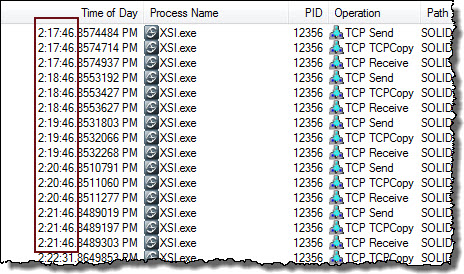
What are heartbeats? Heartbeats are messages sent from a licensed application to the license server while the application has one or more licenses checked out from the server. You can see them with Process Monitor. In this screenshot, you can see that XSI.exe is sending a heartbeat every one minute to the license server.
heartbeats

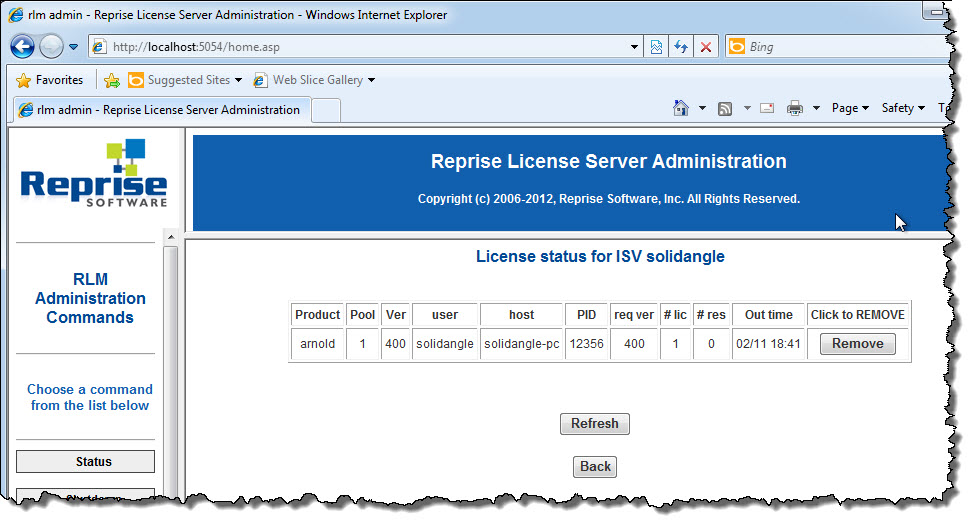
If you need to free a checked out license, you can “remove” it (that’s RLM-speak for taking back a checked out license).

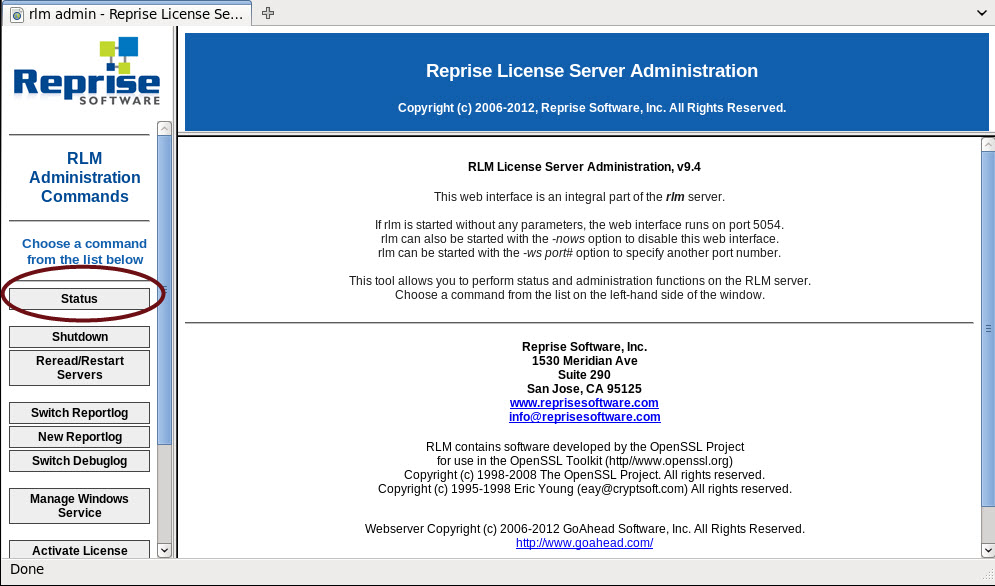
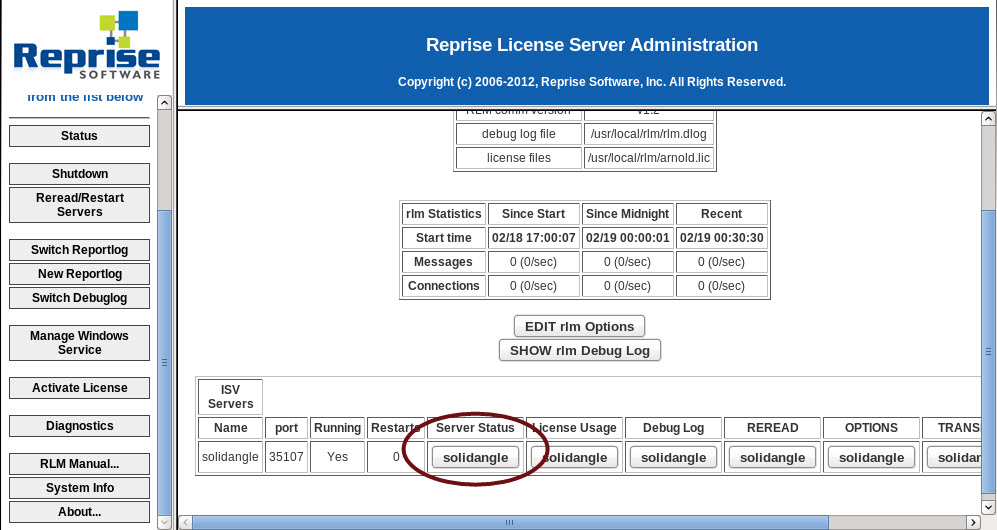
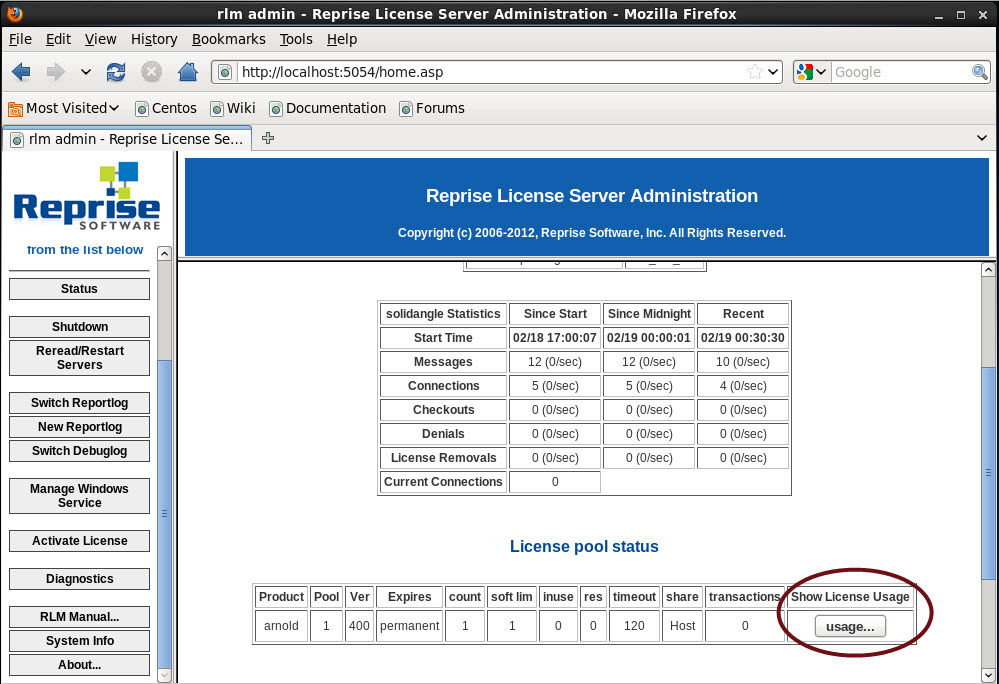
To remove a license in rlm admin (localhost:5054):

  • Click Status.
    Status
  • Under Server Status, click solidangle.
    ServerStatus
  • Under Show License Usage, click Usage.
    ShowLicenseUsage
  • Click Remove.
    LicenseUsage-Remove