The case of the 15% rendering utilization


Or, “Understanding the Arnold log, part 23”

In this case, a client had very low (15%) CPU usage for a render. We got the Arnold log, and here’s the interesting part:

00:01:44  856MB   | OpenImageIO ImageCache statistics (0000000025850F20) ver 1.5.24
00:01:44  856MB   |   Images : 3 unique
00:01:44  856MB   |     ImageInputs : 299 created, 2 current, 3 peak
00:01:44  856MB   |     Total size of all images referenced : 192.4 MB
00:01:44  856MB   |     Read from disk : 12.0 GB
00:01:44  856MB   |     File I/O time : 45m 41.5s (48.1s average per thread)
00:01:44  856MB   |     File open time only : 0.0s
00:01:44  856MB   |   Tiles: 711523 created, 559 current, 640 peak
00:01:44  856MB   |     total tile requests : 249379431
00:01:44  856MB   |     micro-cache misses : 3353694 (1.34482%)
00:01:44  856MB   |     main cache misses : 711523 (0.285317%)
00:01:44  856MB   |     Peak cache memory : 10.0 MB
00:01:44  856MB   |   1 not tiled, 1 not MIP-mapped
00:01:44  856MB   | -----------------------------------------------------------------------------------
00:01:44  856MB   | performance warnings:
00:01:44  856MB   | Rendering utilization was only 15%. Your render may be bound by a single threaded process or I/O.
00:01:44  856MB   | -----------------------------------------------------------------------------------
  • File I/O time seems a bit high for three textures and a render that took less than 2 minutes
  • main cache* misses is pretty high. Normally you expect something less than 0.01%.

    0.285% means that texture tiles are loaded from disk (instead of from the in-memory texture cache) once out of every 350 texture lookups. That’s a little high.

    * The main cache is the cache of 64×64 texture tiles loaded from disk into the texture cache.

  • Peak cache memory is 10.0 MB !!! That explains the main cache misses: the texture cache is really, really small.

Other clues to the too-small texture cache size:

  • Read from disk is 12 GB but the total size of all images referenced is just 192.4 MB, and the peak cache memory was just 10.0 MB
    So the same texture data is constantly being unloaded from the cache and reloaded from disk.

The solution? Increase the size of the texture cache. The current default is 2048, which should be good in most cases.

Choosing hardware for rendering


In general, the more cores the better.

Here’s some general guidelines for choosing hardware:

  • Arnold scales linearly with increasing processor speed
  • Arnold scales well to multiple cores
  • For a rough estimate of  expected performance, you can multiply the clock speed by the number of physical cores.
  • Get enough RAM to hold your typical data sets (you probably should run
    some tests with your most challenging scenes)
  • Hyperthreading on Intel processors usually gives about 1.2x speedup on average.
  • If possible, running some tests is the best way to choose the best hardware for you

Ignoring self-occulsion


Question: how do you set up the Arnold ambient_occlusion shader so that it ignores self-occlusion?

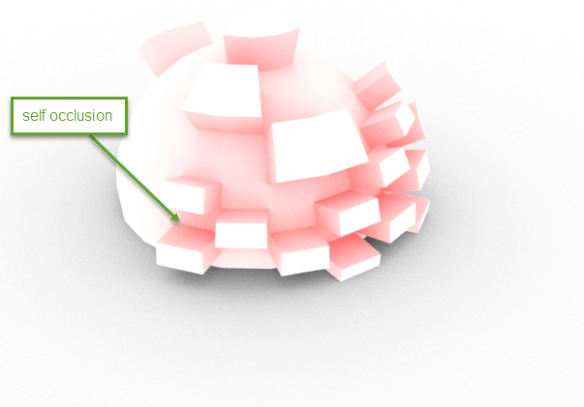
Let’s start with the default ambient occlusion. here’s a sphere and a plane. Each has it’s own Ambient Occlusion shader. For the sphere, Ambient Occlusion.Black is Red.

image (1)

Now, let’s disable Receives Shadows on the sphere.
That means no occlusion based on the plane (shadow rays from the sphere ignore the plane); but there’s still self-occlusion.

image (2)

Next, Cast Shadows disabled. No self-occlusion, but no ambient occlusion on the plane either

image (3)

And finally, Self Shadows disabled. Now, there’s no self-occlusion. The ambient occlusion on the sphere is coming solely from the planeimage (4)

The case of the missing Yeti fur


In this case, a client complained that Arnold wasn’t rendering Yeti fur. I asked him to try with a simple sphere, and to send me the log (at verbosity level Warnings + Info).

This what I was looking for:

00:00:00  1222MB         | there are 1 light and 2 objects:
00:00:00  1222MB         |       1 persp_camera
00:00:00  1222MB         |       1 skydome_light
00:00:00  1222MB         |       1 utility
00:00:00  1222MB         |       1 lambert
00:00:00  1222MB         |       1 driver_exr
00:00:00  1222MB         |       1 gaussian_filter
00:00:00  1222MB         |       1 polymesh
00:00:00  1222MB         |       1 list_aggregate
00:00:00  1222MB         |       1 MayaShadingEngine
00:00:00  1222MB         |       1 renderview_display

So, what’s there? Well, the important thing is not what’s there, but what’s not there.

There’s no procedural. If Yeti was installed properly, there would a procedural node. The Yeti extension exports a procedural node when MtoA translates the scene.

That means the PATH or MTOA_EXTENSIONS_PATH wasn’t set up properly. I always use the Yeti module file for that.

The case of the noisy shadows


In this case, a client reported a lot of noise in the shadows of his forest of opacity-mapped trees. In a progressive render, he saw lots of fireflies at the low AA levels, so it seemed to be something out of the ordinary, since he’d never had this problem before in other, similar scenes.

He managed the get rid of the noise by cranking up the light samples, the AA, and the transparency depth, at the cost of extremely long render times.

But sampling wasn’t the problem, or the solution, in this case. The problem was a large  “sky” sphere that had the skydome HDR mapped to it. This sphere was just there to make the sky visible, but this sphere was visible to all ray types. The solution was to make the sphere visible to camera rays only.

Unlike a Skydome light, a textured sphere isn’t importance-sampled intelligently by Arnold. So you’ll get noise and fireflies from the random diffuse rays that happen to hit a super bright pixel in the sky texture.

hat tip: TI

[MtoA] Warning: Renderer “arnold” does not provide batch rendered options


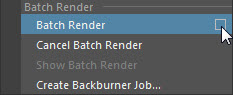
Not all renderers have batch render options, so if you click the box beside the Batch Render menu command:

menu_options_box

then you’ll get a warning:

// Warning: file: C:/Program Files/Autodesk/Maya2017/scripts/others/batchRenderOptions.mel line 19: Renderer "arnold" does not provide batch rendered options. // 
// Warning: file: C:/Program Files/Autodesk/Maya2017/scripts/others/batchRenderOptions.mel line 19: Renderer "mayaHardware" does not provide batch rendered options. // 
// Warning: file: C:/Program Files/Autodesk/Maya2017/scripts/others/batchRenderOptions.mel line 19: Renderer "mayaHardware2" does not provide batch rendered options. // 
// Warning: file: C:/Program Files/Autodesk/Maya2017/scripts/others/batchRenderOptions.mel line 19: Renderer "mayaVector" does not provide batch rendered options. //

All the rendering options for Arnold are in the Arnold Render Settings.

To start a batch render, click the Batch Render text in the Render menu:
render_menu

[MtoA] The case of the machine that was unable to dynamically load mtoa.mll


In this case, a Windows 7 machine did support SSE4.2, but Maya 2017 still couldn’t load mtoa.mll.

I didn’t get a full Process Monitor log from the client, but I did get a Dependency Walker log, and this case, that was enough.

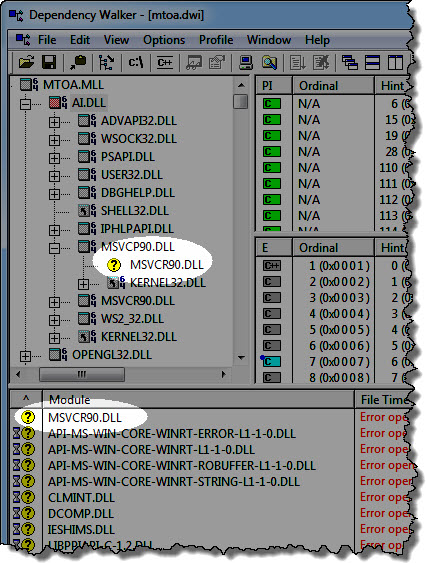
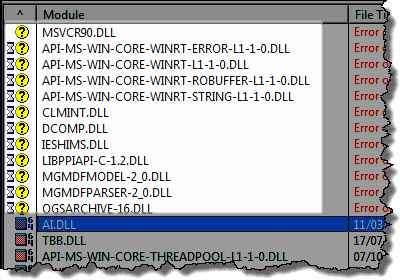
When you first open a Dependency Walker (dwi) file, it’s easy to focus on the wrong thing. In this case, the missing MSVCR90.DLL (Visual Studio 2008 redistributable) might catch your eye.

dwi_01.jpg

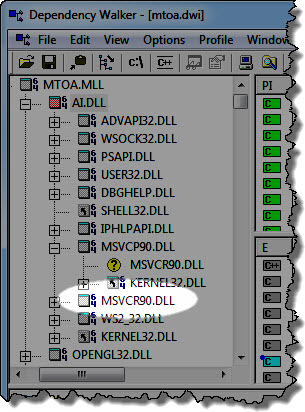
But you can ignore that, because if you take a closer look, you’ll see that MSVCR90.DLL is indeed found and loaded.

dwi_02.jpg

Likewise, you can ignore all these. You’ll almost always see most of those in a Dependency Walker log for Windows 7 and up.

dwi_03

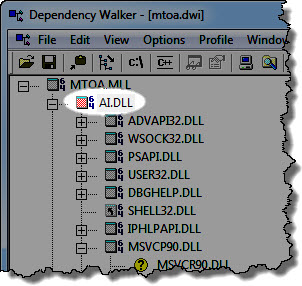
What’s important in this depends log is the warning for AI.DLL.

dwi_04

That warning means that there’s missing functions: MtoA (MTOA.MLL) expects to use certain functions provided by Arnold (AI.DLL), but those functions aren’t there. For example:

dwi_05

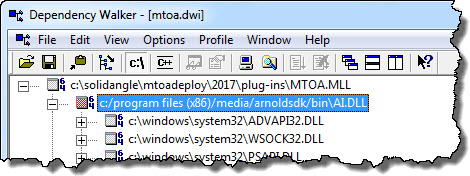
And finally, if we click View > Full Paths, we see the reason for the problem:

dwi_06

There’s some older version of Arnold on the system, and that old version is being loaded by MtoA.mll. Most likely, the system PATH includes this location.

With a Process Monitor log, we would have seen right away that ai.dll was being loaded from a non-standard location.


Vertices and the maximum valence limit


The valence of a vertex is the number of edges connected to that vertex. In Arnold, the maximum valence is 255 (that’s because of the data type we use to store the valence; we minimize the memory requirements since this is stored per-vertex).

If a mesh in the scene has a vertex with more than 255 edges, you’ll get a WARNING like this:

 [polymesh] example_mesh: mesh has at least a vertex with valence higher than 255, disabling subdivision

But if the adaptive subdivision results in a vertex with too many edges, you’ll get an ERROR:

 ERROR: [arnold] [subdiv] example_mesh: edge (144578,287741) in face 263433 has a vertex that exceeded the max valence limit of 255 

Sampling after the first bounce


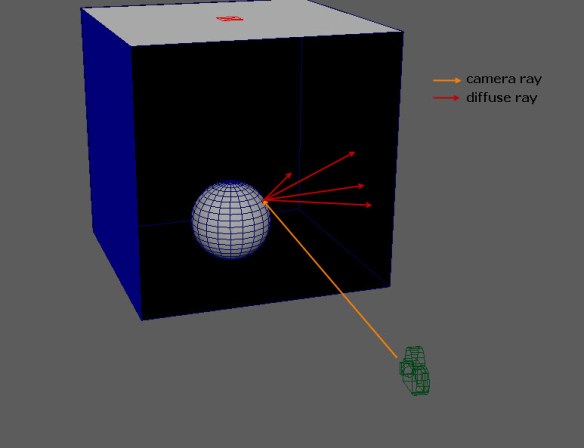
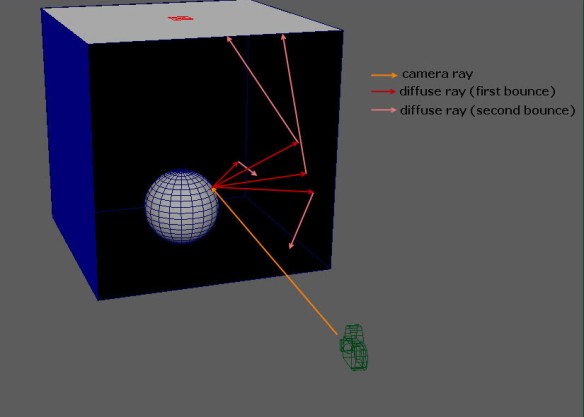
With the default Diffuse = 2 sampling, you’ll get four diffuse rays for each camera ray. Those four diffuse rays are the first bounce after the camera ray “hits” a shape.

diffuse_one_diffuse_bounce

After the first bounce, Arnold sets all the sampling settings back to 1, so for each of those four diffuse rays, you get one second-bounce diffuse ray. This prevents an exponential explosion of rays as secondary rays like diffuse rays bounce around a scene.

diffuse_two_diffuse_bounces

The same thing is true for the other secondary rays such as glossy, refraction, and shadow rays.

So, in summary:

  • For a camera ray you can get multiple secondary rays (for example, multiple diffuse rays or multiple glossy rays, and for light sampling, multiple shadow rays)
  • But for a secondary ray, you’ll get just one ray. For example: one diffuse ray, one glossy ray (if any), one shadow ray, and so on.

[MtoA] What environment variables does MtoA use?


MtoA uses these environment variables:

  • ARNOLD_PLUGIN_PATH is for shaders.
    MtoA and kick use this environment variable. Arnold doesn’t (when you write Arnold code that loads an ASS file, Arnold doesn’t getenv ARNOLD_PLUGIN_PATH)
  • MTOA_TEMPLATES_PATH is for the Attribute Editor (AE) templates of Arnold shaders. For example, if you use the alShaders:
    set MTOA_TEMPLATES_PATH  C:\solidangle\alShaders\alShaders-win-1.0.0rc18-ai4.2.12.2\ae
  • MTOA_EXTENSIONS_PATH is for MtoA extensions like Yeti. By default, MTOA_EXTENSIONS_PATH points to the extensions folder in the MtoA installation.
  • MAYA_CUSTOM_TEMPLATE_PATH is for Node Editor templates for Arnold shaders. For example, if you use the alShaders:
    set MAYA_CUSTOM_TEMPLATE_PATH C:\solidangle\alShaders\alShaders-win-1.0.0rc18-ai4.2.12.2\aexml
  • My personal favorite, MTOA_STARTUP_LOG_VERBOSITY, sets the MtoA log verbosity during startup: 1 for Errors and Warnings, 2 for Errors, Warnings, and Info, and 3 for all. This can be handy for troubleshooting MtoA loading problems.
  • MTOA_LOG_PATH is the default location for Arnold log files.

These are not MtoA environment variables:

  • ARNOLD_PROCEDURAL_PATH is an HtoA environment variable. It’s not used by MtoA (or kick).
  • MTOA_PROCEDURAL_PATH doesn’t exist. No such environment variable is used or supported by MtoA.