
[RLM] [Windows] Putting the SolidAngle debug log into append mode


I like the log to be in append mode so it isn’t overwritten every time the license server restarts. This is especially handy for troubleshooting license server problems (otherwise, you lose information that might explain the problem when you restart the server).

You’ll need to Run as administrator when you open a command prompt for this.

First, add a plus sign (+) to the log file name (you can use sc qc to query the config and get the current binPath, or you could just look it up in the Services console).

sc config "RLM SolidAngle" binPath= "C:\Program Files\RLM\rlm.exe -dlog \"+C:\Program Files\RLM\solidangle.log\" -service"
[SC] ChangeServiceConfig SUCCESS

Then restart the service. You could also do this in the Services console.

C:\Windows\system32>sc stop "RLM SolidAngle"

SERVICE_NAME: RLM SolidAngle
        TYPE               : 10  WIN32_OWN_PROCESS
        STATE              : 1  STOPPED
        WIN32_EXIT_CODE    : 0  (0x0)
        SERVICE_EXIT_CODE  : 0  (0x0)
        CHECKPOINT         : 0x0
        WAIT_HINT          : 0x0
C:\Windows\system32>sc start "RLM SolidAngle"

SERVICE_NAME: RLM SolidAngle
        TYPE               : 10  WIN32_OWN_PROCESS
        STATE              : 2  START_PENDING
                                (NOT_STOPPABLE, NOT_PAUSABLE, IGNORES_SHUTDOWN)
        WIN32_EXIT_CODE    : 0  (0x0)
        SERVICE_EXIT_CODE  : 0  (0x0)
        CHECKPOINT         : 0x0
        WAIT_HINT          : 0x1388
        PID                : 9008
        FLAGS              :

And finally, check that it really started:

C:\Windows\system32>sc query “RLM SolidAngle”

SERVICE_NAME: RLM SolidAngle
        TYPE               : 10  WIN32_OWN_PROCESS
        STATE              : 4  RUNNING
                                (STOPPABLE, NOT_PAUSABLE, ACCEPTS_SHUTDOWN)
        WIN32_EXIT_CODE    : 0  (0x0)
        SERVICE_EXIT_CODE  : 0  (0x0)
        CHECKPOINT         : 0x0
        WAIT_HINT          : 0x0

Adding Arnold licenses to an existing RLM license server


If you’ve already have an RLM license server up and running, it’s easy to add your Arnold license to that server. Just download the Solid Angle RLM package, extract the solidangle.set and solidangle.opt files from the download, and copy them to your RLM folder. Then do a reread/restart of the server to pick up the Arnold licenses.

Just make sure you’re not running an older version of RLM. The Solid Angle license server (solidangle.set) requires RLM v10.1BL2 or later.

RLM is backwards compatible, which means you can always use a newer version of RLM with an older solidangle.set.

But RLM is not forwards compatible. You cannot use an older RLM with a newer solidangle.set. For example, you cannot use the current solidangle.set ISV server with RLM v9.4BL2.

If you use a newer solidangle.set with an older RLM, you’ll see something like this in the RLM log:

08/22 14:23 (rlm) RLM License Server Version 9.4BL2

        Copyright (C) 2006-2012, Reprise Software, Inc. All rights reserved.

08/22 14:23 (rlm) License server started on SOLIDANGLE-PC
08/22 14:23 (rlm) Server architecture: x86_w1
08/22 14:23 (rlm) License files:
08/22 14:23 (rlm)     arnold.lic
08/22 14:23 (rlm)
08/22 14:23 (rlm) Web server starting on port 5054
08/22 14:23 (rlm) Using TCP/IP port 5053
08/22 14:23 (rlm) Starting ISV servers:
08/22 14:23 (rlm)     ... solidangle on port 60008
08/22 14:23 (rlm) New thread created to watch ISV solidangle
(solidangle) Server settings (version 10) incompatible with RLM v9 software
(solidangle) This settings file must be used with RLM v10 (or later) software
08/22 14:23 (rlm)
08/22 14:23 (rlm) solidangle initialization error: 1, not restarting
08/22 14:23 (rlm)
08/22 14:23 (rlm) Server initialization error.
08/22 14:23 (rlm)
08/22 14:23 (rlm) This indicates either:
08/22 14:23 (rlm)  A settings file incompatible with this RLM version
08/22 14:23 (rlm)  - or -
08/22 14:23 (rlm)  The ISV server is built with an incorrect RLM license
08/22 14:23 (rlm)  - or -
08/22 14:23 (rlm)  The ISV server encountered an error processing its options fi
le.
08/22 14:23 (rlm)

For google: “solidangle initialization error: 1, not restarting”

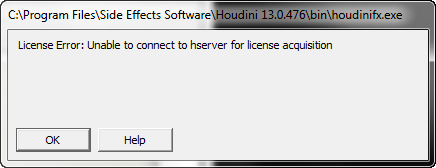
[Houdini] License Error: Unable to connect to hserver for license acquisition


houdini_license_error
Yeah, this isn’t about a Solid Angle product, but about one of the DCCs that host our plugins (HtoA in this case).

So, I installed Houdini 13.0.476 the other day, and I got this “License Error: Unable to connect to hserver for license acquisition” when I tried to start HoudiniFX. I thought that was strange, because I had been running 13.0.401 moments before.

According to the licensing FAQ, that error means that the hserver service isn’t running. And, in fact, neither hserver nor sesinetd were running: they were both Disabled and marked for deletion, so I couldn’t start them from the Services console. After closing down Process Explorer, Task Manager, and the Services console, I was able to delete the services from the command line with sc delete.

At this point, I could have tried creating the services with sc create, but I was curious to see if the Houdini installer would do it for me. So I uninstalled and reinstalled. The installer asked me if I wanted to replace the newer version of sesinetd that was already on my system (huh???), and I clicked Yes. After the install finished, I had a running sesinetd service but no hserver, so I had to create it myself:

sc create HoudiniServer binPath= C:\windows\system32\hserver.exe

After that, I was able to start HoudiniFX and acquire a license.

[RLM] Checking for license denials by the license server


If you’re seeing watermarks on some machines but not on others, there’s usually a simple explanation: those machines cannot connect to the license server. The first thing you should do is check the RLM diagnostics on the license server. In particular, look for the solidangle Statistics, which will show you whether or not licenses are being denied. For example:

solidangle Statistics --- Since Start --- Since Midnight --- Recent ---
    Start time          03/29 18:40:20    04/01 00:00:24   04/01 12:41:30
    Messages:        39398 (   0/sec)   7755 (   0/sec)    20 (   0/sec)
    Connections:      4874 (   0/sec)   1073 (   0/sec)     4 (   0/sec)
    Checkouts:        4844 (   0/sec)   1050 (   0/sec)     3 (   0/sec)
    Denials:             0 (   0/sec)      0 (   0/sec)     0 (   0/sec)
    License removals:    0 (   0/sec)      0 (   0/sec)     0 (   0/sec)

More here…

[Arnold] [MtoA] Disabling Skip License Check


watermark
If you render a scene that has Skip License Check enabled, you’ll get the Arnold watermark. One way to make sure this doesn’t happen is to turn off Skip License Check from the command line:

render -r arnold -ai:slc off some_scene.mb
kick -set options.skip_license_check off -dp -dw some.ass

You might also want to enable Abort on License Fail (-ai:alf for render, -set options.abort_on_license_fail for kick).

[rlm] The curious case of the missing log entries


In this case, I got a debug log from a customer, but there weren’t any rlm entries in the log. As I’ve mentioned before, the Arnold log can include entries for licensing. At the Warning + Info level, you’ll get [rlm] log entries like these, if something goes wrong:

00:00:10   444MB WARNING | [rlm] could not connect to any license server

or

00:00:00   444MB WARNING | [rlm] wrong license version for arnold 20140305, found licenses for:
00:00:00   444MB WARNING | [rlm] arnold 20140206 (20 licenses)
00:00:00   444MB WARNING | [rlm] please contact licensing@solidangle.com

or

00:00:03   749MB WARNING | [rlm] error checking out license for arnold (version 20140113):
00:00:03   749MB WARNING | [rlm]  * Communications error with license server (-17)
00:00:03   749MB WARNING | [rlm]  * Connection refused at server (-111)

And if you move the verbosity level up to Debug, then you’ll get some information about where Arnold is trying to get a license:

00:00:00   444MB         | [rlm] checking connection to license servers ...
00:00:05   444MB         | [rlm]  5055@LICSERVER1 ... DOWN
00:00:10   444MB         | [rlm]  5053@localhost ... DOWN

So why didn’t the customer’s log show any rlm entries? He was getting watermarks, so something must be wrong, right? Well, something was wrong: Skip License Check was enabled in the Render Settings.

No rlm log entries = Skip License Check

[MacOSX] Setting solidangle_LICENSE


There are several ways you can do it.

  • You can use Maya.env to set the solidangle_LICENSE environment variable.

    In your Maya.env file, add this line:

    solidangle_LICENSE=XXXX@SERVER
    

    where XXXX is the port number, and SERVER is the name or IP address of the computer.

    Maya.env is located in your user Library. For example: /Users/steve/Library/Preferences/Autodesk/maya/2014.

    By default, the Library folder is a hidden folder, so you may need to un-hide the Library folder.

  • You can set solidangle_LICENSE as a system environment variable.
    1. Log in with an Administrator account and run this command to open a text editor.
      sudo nano /etc/launchd.conf
      
    2. Add this line to /etc/launchd.conf:
      setenv solidangle_LICENSE XXXX@SERVER
      
    3. Save the file and exit.
    4. Restart the Mac.

If you don’t want to restart your Mac just yet, you can try setting the environment variable like this (it will last until you restart your machine):

launchctl setenv solidangle_LICENSE XXXX@SERVER

[MacOSX] Setting up RLM to always start automatically


If you want the RLM license server to automatically start everytime you restart or turn on your Mac, you need to create a launch daemon. Don’t worry, it’s not as scary as it sounds 🙂

First, you need create a launchd property list (.plist) for RLM. It will look something like this:

<?xml version="1.0" encoding="UTF-8"?>
 <!DOCTYPE plist PUBLIC "-//Apple//DTD PLIST 1.0//EN" "http://www.apple.com/DTDs/PropertyList-1.0.dtd">
 <plist version="1.0">
 <dict>
        <key>Label</key>
        <string>com.solidangle.rlm</string>
        <key>ProgramArguments</key>
        <array>
        <string>/PATH/TO/RLM/rlm</string>
        <string>-c</string> <string>/PATH/TO/RLM/arnold.lic</string>
        <string>-dlog</string> <string>/PATH/TO/RLM/solidangle.dlog</string>
        </array>
        <key>RunAtLoad</key>
        <true/>
 </dict>
 </plist>

This plist file basically tells the system to start rlm with the -c and -dlog flags, like this:

/Users/stblair/solidangle/RLM/rlm -c /Users/stblair/solidangle/RLM/rlm/arnold.lic -dlog /Users/stblair/solidangle/RLM/rlm/solidangle.dlog

The -c flag isn’t necessary if the license file is in the same folder as the RLM binary executable.

Here’s an example com.solidangle.rlm.plist. Download it, and use TextEdit to change the paths to match the RLM location on your computer, and then save the RLM plist file in /Library/LaunchDaemons/. Note that this download plist assumes that the license file is in the same folder, and therefore omits the -c flag.

For example:

sudo cp com.solidangle.rlm.plist /Library/LaunchDaemons

Note: The plist file needs to be owned by root, otherwise you won’t be able to load the plist. If necessary, you can change the owner like this:
sudo chown root /Library/LaunchDaemon/com.solidangle.rlm.plist

Finally, you need to load the plist:

sudo launchctl load -w /Library/LaunchDaemon/com.solidangle.rlm.plist

The license server will now automatically start, even after a restart or power down of the machine.

You can check the license server by opening a Web browser and going to localhost:5054.