[MtoA] Recipe for linear workflow


Ingredients

  • 1 x Maya
  • 1 x MtoA
  • 1 x Monitor calibrated to sRGB
  • Linear textures

Procedure

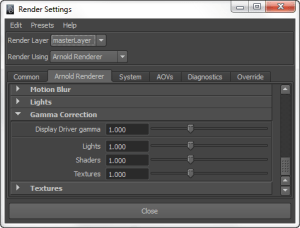
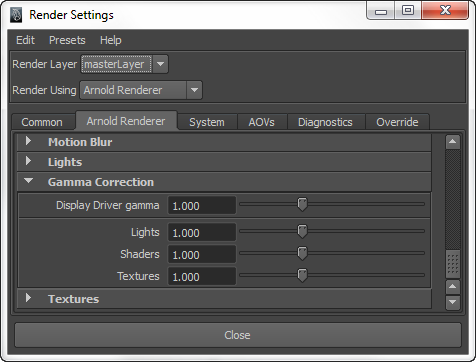
  1. In the Render Settings, set all the Arnold gamma correction settings to 1.0.
    ArnoldRenderSettingsGamma
  2. Set your Render View > Display to 32-bit floating-point (HDR).
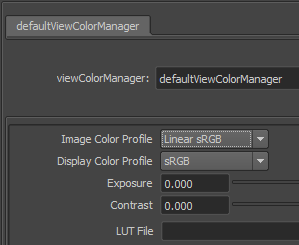
  3. Click Render View > Color Management, and in the viewColorManager Attribute Editor, set the Image Color Profile to Linear sRGB (that is, your input textures are in linear space).
    ColorManager
  4. Render to EXR or some other linear floating point format.

hat tip: Fred

Switching between different versions of MtoA


If you have several versions of MtoA, you can switch between them by editing your Maya.env and mtoa.mtd files before you start Maya. These two files are located under your MAYA_APP_DIR folder.

For example, C:\Users\SOLIDANGLE\Documents\maya\2013-x64\Maya.env.

MAYA_RENDER_DESC_PATH = C:\solidangle\mtoadeploy\2013.0.22.0
PATH = %PATH%;C:\solidangle\mtoadeploy\2013.0.22.0\bin

And C:\Users\SOLIDANGLE\Documents\maya\2013-x64\modules\mtoa.mod:

+ mtoa any C:\solidangle\mtoadeploy\2013.0.22.0

The mtoa.mod file is put there by the MtoA installer.

The MtoA installer always wants to remove any other installed version, so if you want to keep multiple versions around, you can do one of the following:

  • Extract the files yourself (for example, using 7zip)
  • Make copies of each MtoA version before you uninstall them.

For example, if you have MtoA 0.21 installed in

C:\solidangle\mtoadeploy\2013

copy that folder to

C:\solidangle\mtoadeploy\2013-0.21.0

Then install MtoA 0.22 (during the install, you may want to change the default install folder to something like C:\solidangle\mtoadeploy\2013-0.22.0).

After that, you’ll have both MtoA 0.22 and 0.21, and you can switch between them.

[MtoA] Editing Arnold attributes on multiple objects


If you need to change the same Arnold attributes on many nodes, use the Attribute Spreadsheet. For example, suppose you wanted to turn off the Opaque attribute on a number of objects in your scene. Here’s how to do it:

  1. Select the objects.
  2. Press the Down arrow (aka Pick Walk) to select the shape nodes.
  3. Open the Attribute Spreadsheet.
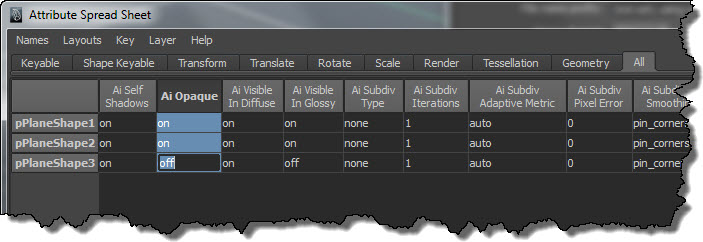
  4. Click the All tab, and find the Ai (Arnold) attributes you want to change. Drag across all rows, and then type “off” in the last row.
    AiAttributeEditor

Using the attr token in the texture file name attribute of a File node


In this blog post, I’ll quickly step through an example of how to use the <attr> token in the Maya File node.

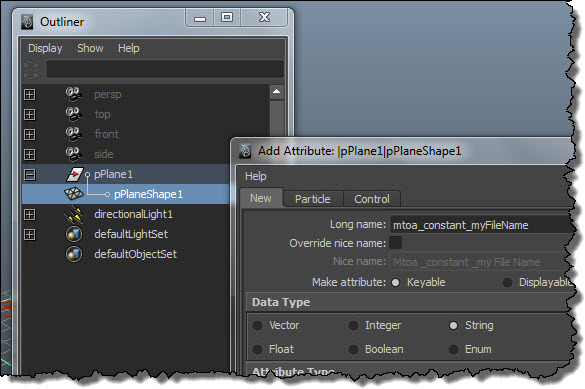
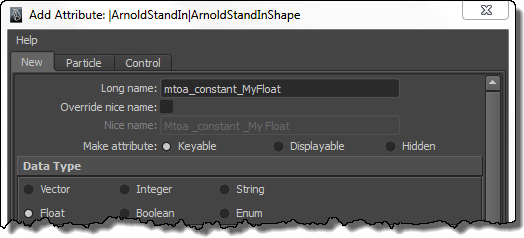
Add a "mtoa_constant_" attribute to the shape node.
attr_AddAttribute

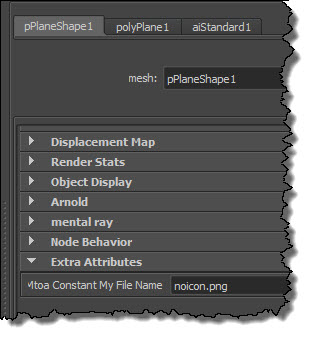
Put the name of the texture file in the extra attribute:
attr_ExtraAttributes

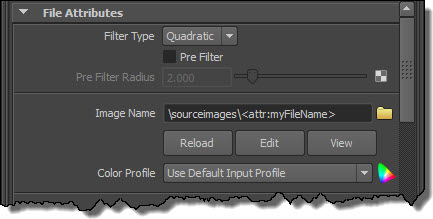
Use the token in the Image Name. Note that I have a relative path, so I have to make sure that I’ve set a project.
attr_ImageName

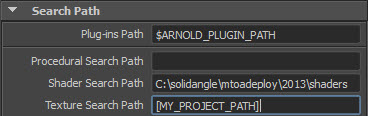
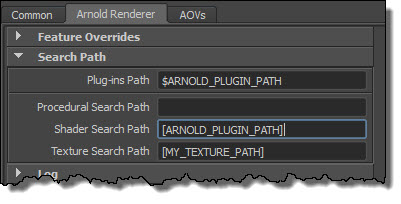
Now I’ve got something that will render in Maya. If I want to export this to an ASS file and render it with kick, I need to add a Texture Search Path (and optionally, a shader search path if I don’t want to use kick -l).
attr_SearchPaths

Here’s the texture-related parts of the exported ASS file:

options
{
 ...
 texture_searchpath "[MY_PROJECT_PATH]"
 ...
}

polymesh
{
 name pPlaneShape1
 ...
 declare myFileName constant STRING
 myFileName "noicon.png"
}

standard
{
 name aiStandard1
 Kd_color file1
}

MayaFile
{
 name file1
 filename "/sourceimages/<attr:myFileName>"
}

Notice how MtoA exported a relative path instead of an absolute. This happens only if you have a token in the filename; otherwise, you always get an absolute path.

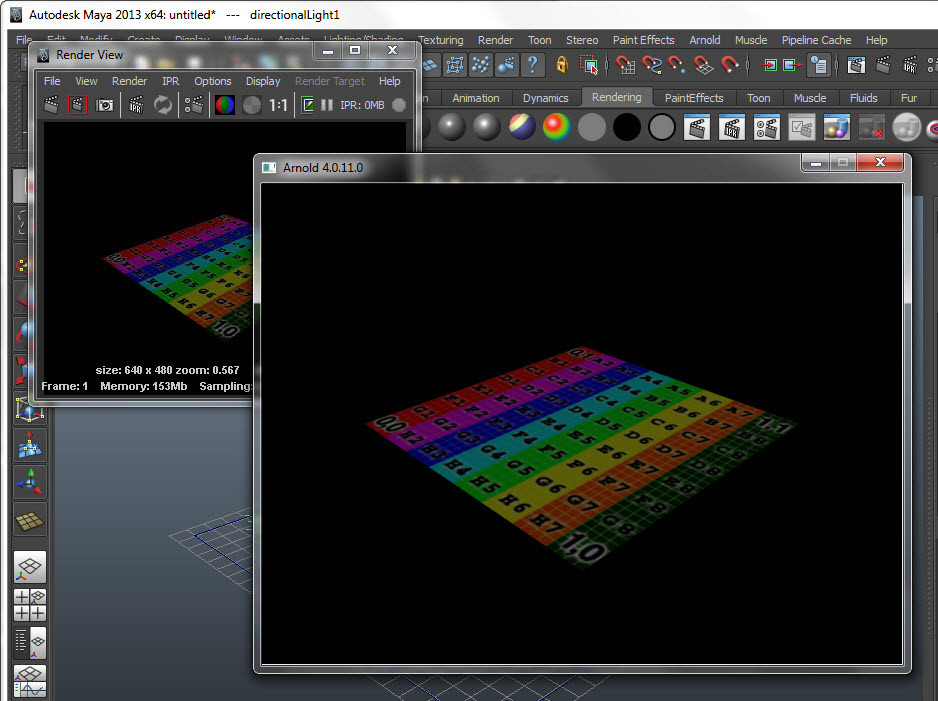
And here’s a screenshot to show all this working, both in Maya and in Arnold:
attr_Render

Using environment variables in Arnold search paths


To use an environment variable in one of the Arnold search paths, you just have to put the environment variable in square brackets [ ].

For example, [ARNOLD_PLUGINS_PATH] or [MY_TEXTURE_PATH].
Maya-Arnold-SearchPaths

A search path can include many paths; just use a semi-colon (;) to separate each path. For example, here’s a search path that includes three different locations:

[ARNOLD_PLUGINS_PATH];[USERPROFILE]\Dev\shaders\bin\Release\x64;[MY_PLUGINS_PATH]

Preserve Layer Name for single-layer EXRs


So, what’s this Preserve Layer Name setting do?
exr-preserveLayerNames
Preserve Layer Name is for single-layer EXRs, and it determines whether or not the AOV is written into the pre-defined R,G,B,A channels.

By that, I mean that if Preserve Layer Name = False, then a single-layer EXR will have these channels:

  • A
  • B
  • G
  • R

And if Preserve Layer Name = True, then the single-layer EXR will have channels like this (that include the “layer name”):

  • Arnold_Direct_Diffuse.A
  • Arnold_Direct_Diffuse.B
  • Arnold_Direct_Diffuse.G
  • Arnold_Direct_Diffuse.R

Channel names like “Arnold_Direct_Diffuse.R” can cause problems with some software, so by default Preserve Layer Names is set to False.

Note that Preseve Layer Names applies to single-layer EXRs only. If you’re writing out multi-layer EXRs, you’ll always get names like “Arnold_Direct_Diffuse.R”.

Exporting user data parameters to Arnold from Maya


You can add attributes to shape nodes in Maya, and MTOA will export those extra attributes as user data in Arnold shape nodes. For example, you use this mechanism to add user data to a procedural node.

Add some extra attributes to a shape node, using the naming convention mtoa_constant_parameter-name. That is, the attribute name must always start with “mtoa_constant_”.
AddAttribute

Export to ASS. In the .ass file, your extra attributes will be declared as user parameters:

procedural
{
 name ArnoldStandInShape
 dso "C:/Users/SOLIDANGLE/Dev/MyProcedural.dll"
 min -9.63329697 0 0.861843109
 max -6.73797035 3.62841082 9.87797546
 matrix 
  1 0 0 0
  0 1 0 0
  0 0 1 0
  0 0 0 1 
 declare MyVector constant VECTOR
 MyVector 0 0 0
 declare MyFloat constant FLOAT
 MyFloat 0
 declare MyInteger constant INT
 MyInteger 0
 declare MyBoolean constant BOOL
 MyBoolean off
 declare MyString constant STRING
 MyString ""
}

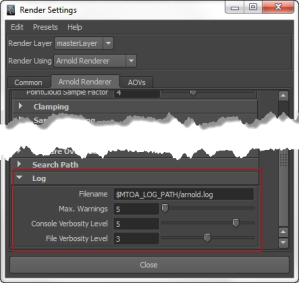
Setting the Arnold log verbosity level


RenderSettings-Log

Here’s what you’ll get in Maya for the different verbosity levels.
In general, the higher the verbosity, the more diagnostic log information you get.
Each verbose level includes everything in the lower levels.

In brief, here’s how the verbosity levels work in MTOA 0.21:

  • verbosity=0 is silent mode.
  • At verbosity=1, you get ERRORS and WARNINGS.
  • At verbosity=2, you get ERRORS and WARNINGS and INFORMATION.
  • At verbosity=3, you get ERRORS and WARNINGS and INFORMATION and PROGRESS.

Here’s a bit more detail on the verbosity levels in MTOA 0.21.

0 Absolute silence. Nothing will be logged, no matter what happens.
1 ERRORS, WARNINGS, and, in the case of a crash or other “abnormal program termination”, the backtrace (stack contents).
2 Basic information
3 Progress messages.
4 Render statistics, and plugin loading information.
5 Everything except diagnosics. Verbosity levels 4 and 5 are pretty much the same, except that level 5 adds:

  • WARNINGS for NAN pixels
  • messages about sub-surface scattering pointclouds
  • .ass-file parsing details
6 Everything, including diagnostics.

In MTOA 0.20 and earlier, the verbosity levels were different:

0 Absolute silence. Nothing will be logged, no matter what happens.
1 ERRORS and, in the case of a crash or other “abnormal program termination”, the backtrace (stack contents).
2 WARNINGS
3 Basic information.
4 Progress messages, render statistics, and plugin loading information.
5 Everything except diagnosics. Verbosity levels 4 and 5 are pretty much the same, except that level 5 adds:

  • WARNINGS for NAN pixels
  • messages about sub-surface scattering pointclouds
  • .ass-file parsing details
6 Everything, including diagnostics.

Here’s some samples of the different types of log output:

WARNINGS, ERRORS, and information

00:00:00   516MB         | log started Thu Dec 13 10:27:49 2012
00:00:00   516MB         | Arnold 4.0.10.2 windows icc110 oiio1012 rlm932 (build date: Oct 30 2012 15:25:33)
00:00:00   516MB         | running on SOLIDANGLE-PC
00:00:00   516MB         |  1 x Intel(R) Xeon(R) CPU E3-1240 V2 @ 3.40GHz (4 cores, 8 logical) with 16334MB
00:00:00   516MB         |  Windows 7 Professional Service Pack 1 (version 6.1, build 7601)
00:00:00   516MB         |  
00:00:05   516MB WARNING | [rlm] could not connect to license server on 5053@localhost
00:00:05   516MB         |  
00:00:05   516MB         | there are 0 lights and 1 object:
00:00:05   516MB         |  1 polymesh
00:00:05   516MB         |  
00:00:05   516MB         | rendering image at 640 x 480, 3 AA samples, 2 GI samples, 1 GI bounces
00:00:05   516MB         |  active camera: 'perspShape'
00:00:05   516MB         |  initializing 11 nodes ...
00:00:05   516MB         |  node initialization done in 0:00.00
00:00:05   519MB         |  creating root object list ...
00:00:05   519MB         |   scene bounds: (-6.33536005 -4.01219463 -10.337409) -> (6.23116827 6.43629837 13.2852964)
00:00:05   519MB         |  updating 11 nodes ...
00:00:05   519MB         |  node update done in 0:00.00
00:00:05   519MB WARNING |  [aov] driver "defaultArnoldDriver@driver_exr.RGB" does not support POINT2 pixels
00:00:05   519MB WARNING |  [aov] driver "defaultArnoldDisplayDriver@renderview_display" does not support POINT2 pixels
00:00:05   519MB WARNING |  [aov] driver "defaultArnoldDriver@driver_exr.RGB" does not support POINT2 pixels
00:00:05   519MB ERROR   |  [aov] no valid outputs - can't continue
00:00:05   519MB         |   
00:00:05   519MB         |  releasing resources
00:00:05   516MB   

Progress messages (at 5% increments during rendering)

00:00:05   492MB         |  starting 8 bucket workers of size 64x64 ...
00:00:05   503MB         |     0% done - 27 rays/pixel
00:00:05   504MB         |     5% done - 108 rays/pixel
00:00:06   505MB         |    10% done - 101 rays/pixel
...
00:00:07   500MB         |   100% done - 33 rays/pixel
00:00:07   499MB         |  bucket workers done

Render statistics
which includes things like scene creation time, render time, memory consumed, ray counts, lighting calculations, shader calls, geometry stats, and tesselation.

00:00:07   499MB         | -----------------------------------------------------------------------------------------
00:00:07   499MB         | ray counts:                           (/pixel , /sample) (% total) (avg. hits) (max hits)
00:00:07   499MB         |  camera                       2946240 (   9.00,    1.00) ( 31.80%) (     0.24) (       1)
00:00:07   499MB         |  shadow                       1303706 (   3.98,    0.44) ( 14.07%) (     0.00) (       0)
00:00:07   499MB         |  diffuse                      3339596 (  10.20,    1.13) ( 36.05%) (     0.29) (       1)
00:00:07   499MB         |  glossy                       1675254 (   5.12,    0.57) ( 18.08%) (     0.31) (       1)
00:00:07   499MB         |  total                        9264796 (  28.30,    3.14) (100.00%) (     0.25) (       1)
00:00:07   499MB         |  max depth                          2

Diagnostics includes messages from the mtoa plugin, information about the bvh acceleration structures, and plugin loading/unloading info.

00:00:00   493MB         | [mtoa.session] Setting export camera to "persp"
00:00:00   493MB         | [mtoa] Exporting scene
00:00:00   493MB         | [mtoa.extensions]  aiOptions Using translator , provided by ().
00:00:00   493MB         | [mtoa.translator]  defaultArnoldRenderOptions     | : Exporting Arnold options(options): 000000002B36F2E0
00:00:00   493MB         | [mtoa] [aov beauty] Setting AOV output: filter and driver.