If you just installed the Windows version of C4DtoA 2.x, and you don’t see C4DtoA in the Plugins menu, it’s probably because you need to install the Visual Studio 2015 redistributable.
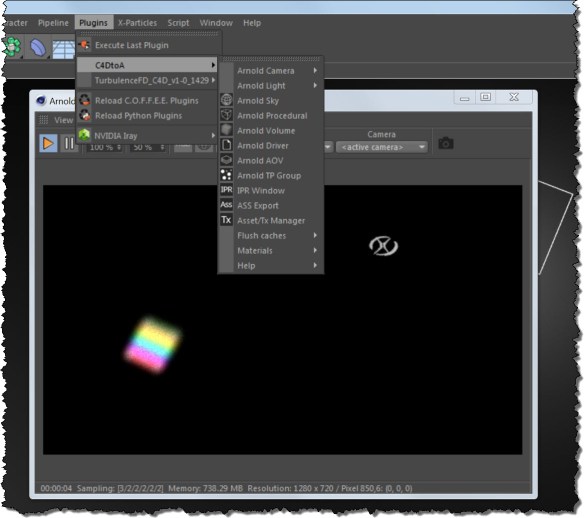

If you just installed the Windows version of C4DtoA 2.x, and you don’t see C4DtoA in the Plugins menu, it’s probably because you need to install the Visual Studio 2015 redistributable.
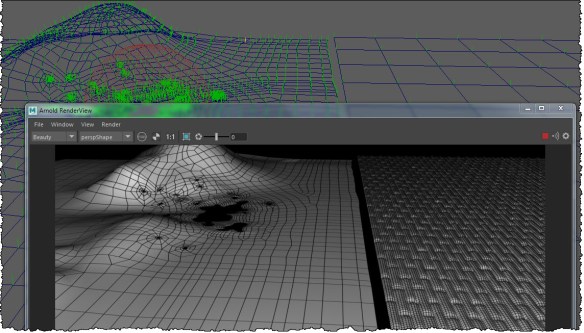
Riddle me this: two meshes with the same displacement shader. One has displacement, the other doesn’t. What’s up with that?
Your first guess might be that it’s a “padding is at least %x smaller than it should be” warning, like this:
// Warning: [disp] planeTestShape: padding is at least 10x smaller than it should be! given disp_padding: 0, recommended: 0.00835387595 //
But that’s not it.
In this case, the plane (the mesh on the right, with displacement) was scaled up. Displacement happens in object space, before any transformations are applied. So effectively, the mesh was displaced, and then everything was scaled up. The displacement scale was just too small for the other mesh, which hadn’t been scaled up).
If you freeze the scaling on the plane, then both objects will be displaced the same, as long as the displacement scale was set large enough.

If you get this UnicodeEncodeError when you render
# Error: line 1: UnicodeEncodeError: file C:\Program Files\Autodesk\Maya2016\bin\python27.zip\encodings\utf_8.py line 16: ascii #
it’s probably because because the project folder has a special character in the name (for example, an accent mark like é).
If that’s not it, then we’d need more context (hint: everything else that is logged in the script history).
For a project name with a special character, you’ll see something like this in the script history:
file -f -save -options "v=0;";
// C:/maya/projects/New_Projéct/scenes/blank.mb //
# Error: line 1: UnicodeEncodeError: file D:\Program Files\Autodesk\Maya2017\bin\python27.zip\encodings\utf_8.py line 16: ascii #
# Error: line 1: UnicodeEncodeError: file D:\Program Files\Autodesk\Maya2017\bin\python27.zip\encodings\utf_8.py line 16: ascii #
Or, “Understanding the Arnold log, part 23”
In this case, a client had very low (15%) CPU usage for a render. We got the Arnold log, and here’s the interesting part:
00:01:44  856MB   | OpenImageIO ImageCache statistics (0000000025850F20) ver 1.5.24
00:01:44  856MB   |   Images : 3 unique
00:01:44  856MB   |     ImageInputs : 299 created, 2 current, 3 peak
00:01:44  856MB   |     Total size of all images referenced : 192.4 MB
00:01:44  856MB   |     Read from disk : 12.0 GB
00:01:44  856MB   |     File I/O time : 45m 41.5s (48.1s average per thread)
00:01:44  856MB   |     File open time only : 0.0s
00:01:44  856MB   |   Tiles: 711523 created, 559 current, 640 peak
00:01:44  856MB   |     total tile requests : 249379431
00:01:44  856MB   |     micro-cache misses : 3353694 (1.34482%)
00:01:44  856MB   |     main cache misses : 711523 (0.285317%)
00:01:44  856MB   |     Peak cache memory : 10.0 MB
00:01:44  856MB   |   1 not tiled, 1 not MIP-mapped
00:01:44  856MB   | -----------------------------------------------------------------------------------
00:01:44  856MB   | performance warnings:
00:01:44  856MB   | Rendering utilization was only 15%. Your render may be bound by a single threaded process or I/O.
00:01:44  856MB   | -----------------------------------------------------------------------------------
0.285% means that texture tiles are loaded from disk (instead of from the in-memory texture cache) once out of every 350 texture lookups. That’s a little high.
* The main cache is the cache of 64×64 texture tiles loaded from disk into the texture cache.
Other clues to the too-small texture cache size:
The solution? Increase the size of the texture cache. The current default is 2048, which should be good in most cases.
In this case, a client complained that Arnold wasn’t rendering Yeti fur. I asked him to try with a simple sphere, and to send me the log (at verbosity level Warnings + Info).
This what I was looking for:
00:00:00  1222MB         | there are 1 light and 2 objects:
00:00:00  1222MB         |       1 persp_camera
00:00:00  1222MB         |       1 skydome_light
00:00:00  1222MB         |       1 utility
00:00:00  1222MB         |       1 lambert
00:00:00  1222MB         |       1 driver_exr
00:00:00  1222MB         |       1 gaussian_filter
00:00:00  1222MB         |       1 polymesh
00:00:00  1222MB         |       1 list_aggregate
00:00:00  1222MB         |       1 MayaShadingEngine
00:00:00  1222MB         |       1 renderview_display
So, what’s there? Well, the important thing is not what’s there, but what’s not there.
There’s no procedural. If Yeti was installed properly, there would a procedural node. The Yeti extension exports a procedural node when MtoA translates the scene.
That means the PATH or MTOA_EXTENSIONS_PATH wasn’t set up properly. I always use the Yeti module file for that.
In this case, a Windows 7 machine did support SSE4.2, but Maya 2017 still couldn’t load mtoa.mll.
I didn’t get a full Process Monitor log from the client, but I did get a Dependency Walker log, and this case, that was enough.
When you first open a Dependency Walker (dwi) file, it’s easy to focus on the wrong thing. In this case, the missing MSVCR90.DLL (Visual Studio 2008 redistributable) might catch your eye.
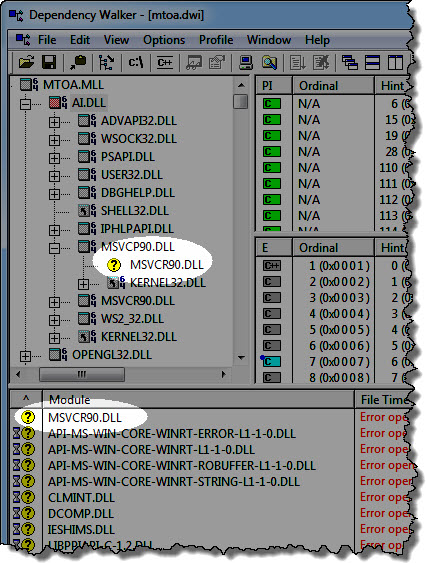
But you can ignore that, because if you take a closer look, you’ll see that MSVCR90.DLL is indeed found and loaded.
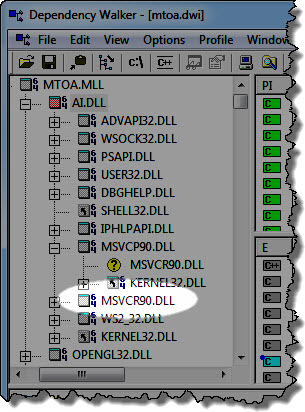
Likewise, you can ignore all these. You’ll almost always see most of those in a Dependency Walker log for Windows 7 and up.
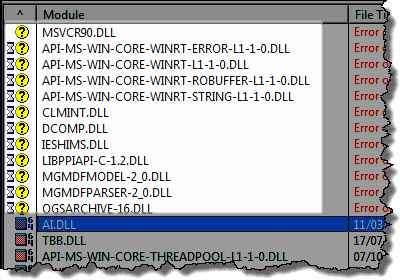
What’s important in this depends log is the warning for AI.DLL.
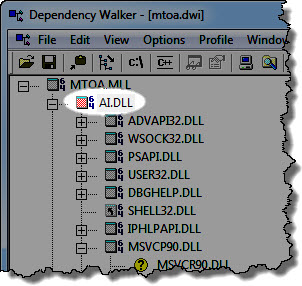
That warning means that there’s missing functions: MtoA (MTOA.MLL) expects to use certain functions provided by Arnold (AI.DLL), but those functions aren’t there. For example:

And finally, if we click View > Full Paths, we see the reason for the problem:
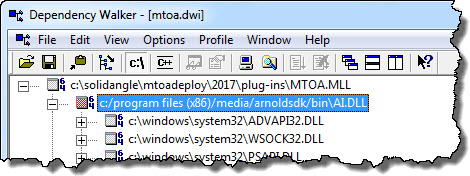
There’s some older version of Arnold on the system, and that old version is being loaded by MtoA.mll. Most likely, the system PATH includes this location.
With a Process Monitor log, we would have seen right away that ai.dll was being loaded from a non-standard location.
I have another, more general, version of this post here. This one is for new Arnold users with Maya 2017.
Here’s what to do if you get errors like this:
// Error: file: C:/Program Files/Autodesk/Maya2017/scripts/startup/autoLoadPlugin.mel line 32: Unable to dynamically load : C:/solidangle/mtoadeploy/2017/plug-ins/mtoa.mll
The specified module could not be found.
//
// Error: file: C:/Program Files/Autodesk/Maya2017/scripts/startup/autoLoadPlugin.mel line 32: The specified module could not be found.
As of Arnold 4.2.16.2, the SSE requirement is now SSE4.1
If this is the first time you’ve tried to use the Maya to Arnold (MtoA) plugin, then check whether your processor supports SSE4.1.
If MtoA used to load, but now it doesn’t, then something happened to the MtoA installation. I’ve seen several cases where DLLs were missing from the MtoA bin folder; most importantly, Arnold itself was missing (Arnold is ai.dll on Windows, or libai.so on Linux, or libai.dylib on OSX).
If you make a backup copy of the MtoA install folder, we can investigate after you fix things by installing MtoA.
If a clean install of MtoA doesn’t work (and the computer does support SSE4.1), then “The specified module could not be found.” usually means there’s a missing dependency. Dependency Walker is a decent, if aging, tool for checking out dependencies, but for leaving no stone unturned, I prefer Process Monitor.
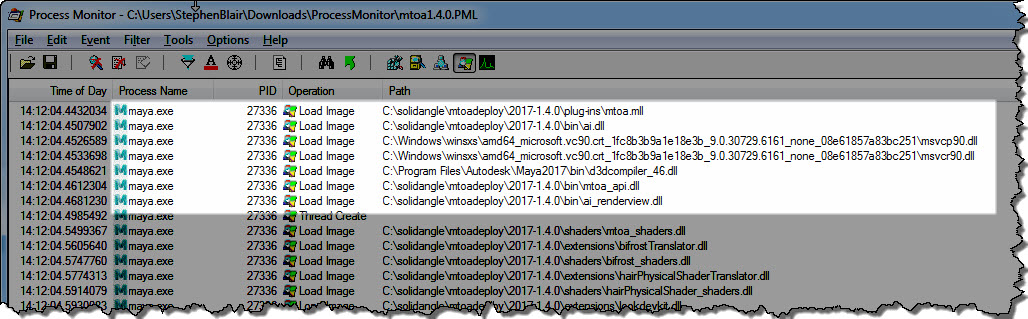
The MtoA plugin (mtoa.mll) depends on a handful of files only. Here’s the log of loaded DLLs for a working MtoA:
Here’s a quick walkthrough (no audio) of how to get a Process Monitor log:

// Warning: file: C:/Program Files/Autodesk/Maya2017/scripts/others/supportRenderers.mel line 64: The renderer "arnold" used by this scene, is not currently available. The "mayaSoftware" renderer will be used instead. //
By itself, this warning doesn’t mean there’s a problem with MtoA or Arnold. The warning means that the MtoA plugin isn’t loaded, so all you have to do is load MtoA:
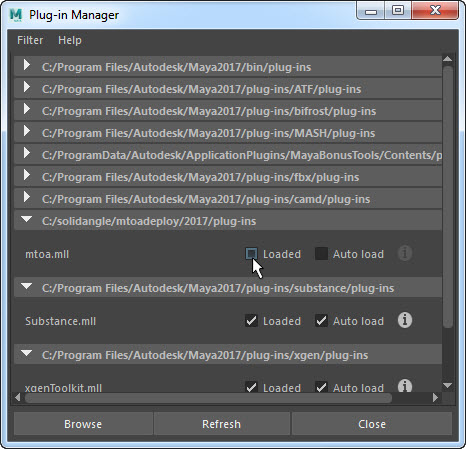
However, if you get a “Unable to dynamically load : ../mtoa.mll The specified module could not be found.” error, then that’s a different problem.
As of Arnold 4.2.16.2, the requirement is now “just” SSE4.1.
This blog post is for Google search to find; I’ve already blogged about the SSE4.1 requirement elsewhere.
If your processor does not support SSE4.1, the Arnold won’t run on your computer. MtoA will either fail to load, or you’ll get a crash whenever you try to render.
To check whether an older machine supports SSE4.1, here’s a few suggestions:
A note about coreinfo:
SSE4.1 * Supports Streaming SIMD Extensions 4.1
SSE4.1 - Supports Streaming SIMD Extensions 4.1
PyMEL is great. But…if pymel.log can’t be accessed, any plugin that uses PyMEL will fail to load.
And MtoA uses PyMEL, so every now and again I see a case where MtoA doesn’t load, and you get something like this in the script history:
import arnold
// Successfully imported python module 'arnold'
import mtoa
// Successfully imported python module 'mtoa'
import mtoa.cmds.registerArnoldRenderer;mtoa.cmds.registerArnoldRenderer.registerArnoldRenderer()
# Error: line 1: IOError: file C:\Program Files\Autodesk\Maya2016\bin\python27.zip\logging\__init__.py line 926: 13 #
// Error: Failed to register renderer 'arnold' //
// Error: line 1: initializePlugin function failed (mtoa) //
or this:
Error: line 1: IOError: file /Applications/Autodesk/maya2018/Maya.app/Contents/Frameworks/Python.framework/Versions/Current/lib/python2.7/logging/__init__.py line 935: 13
The important bit is this error:
# Error: line 1: IOError: file C:\Program Files\Autodesk\Maya2018\bin\python27.zip\logging\__init__.py
That error means that PyMELcannot create a log file in your user folder.
By default, the PyMEL log file is created in your Documents folder. For example, if your Windows user account name is Stephen, then this would be the log file:
C:\Users\Stephen\Documents\pymel.log
You need to check the permissions on that log file, or delete it so that PyMel can create a new log file.
Note that the pymel.log file may be a hidden file.
 Arnold Support Corner