Getting an Arnold log from Royal Render


I’ve had a few cases where people weren’t sure how to get the Arnold log from Royal Render. The Arnold log is pretty important, at least for me, so here’s how to get it.

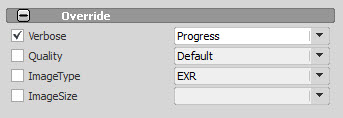
First, when you submit the job, set the log verbosity in rrSubmitter. You can do that in the Override section, but note that the verbosity levels in the Verbose list don’t match up with the newer MtoA verbosity levels. To get a Debug log, you’ll have to set the Verbose to Progress.
rrSubmitter_w_spotlight

rrSubmitter_Override

You can view the log in rrControl:
rrControl_Log_Files

[MtoA] [SItoA] Setting multiple Arnold parameters with a User Options string


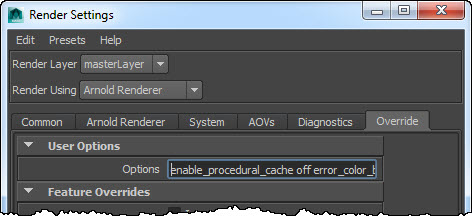
mtoa_user_options
If you want to set multiple Arnold parameters in a User Options string, you can use any whitespace (spaces, tabs, newlines eg \n) that you would use in an actual ASS file.

For example, this:

enable_procedural_cache off error_color_bad_pixel 1 .25 1 declare test constant FLOAT test 2

would add these lines to your options node:

options
{
 error_color_bad_pixel 1 0.25 1

 enable_procedural_cache off

 declare test constant FLOAT
 test 2

Note: Plugins like MtoA and SItoA use AiNodeSetAttributes to set the user options.

The User Options string is a way to set parameters that are not exposed by the plugins. MtoA provides a User Options string for the render options and for shapes. SItoA also has User Options strings for render options and shapes.

[Arnold] [Python] Changing Arnold options in Python


The global render settings are stored in the options node, which you can get with AiUniverseGetOptions(). If the universe isn’t active (you are not inside an AiBegin() / AiEnd() block so the scene doesn’t exist yet), AiUniverseGetOptions() returns None.

Once you have the options node, you can load options from an ASS file, or you can update it with the node parameter setters such as AiNodeSetInt(). The way kick, and pykick, work is that they load the ASS file first, with its options, and then update the options node with the values from the command line.

from arnold import *
import os

AiBegin()

AiMsgSetConsoleFlags(AI_LOG_ALL)

# Get the default options
options = AiUniverseGetOptions()

AiLoadPlugins( os.getenv( 'ARNOLD_PLUGIN_PATH' ) )

AiASSLoad("C:/Users/Support/project/scenes/test_640x480.ass", AI_NODE_ALL)

# Render using options loaded from the ASS file
AiRender()

# Change options and render with the changes
AiNodeSetInt(options, 'xres', 320)
AiRender()

# Load options and use them to render
AiASSLoad("C:/Users/Support/project/scenes/test_960x540.ass.gz", AI_NODE_OPTIONS)
AiRender()

AiEnd()

[RLM] [Arnold] Troubleshooting watermarks and license problems


If a workstation or render node can’t get a license, you can use the Arnold log to find out what’s happening. If you set the log verbosity to debug, you can see where Arnold is trying to find a license server, whether or not Arnold can connect, and whether Arnold is being refused a license.

First, let’s look at what success looks like:

00:00:00   703MB         | [rlm] checking connection to license servers ...
00:00:00   703MB         | [rlm]  5053@StephenBlair-PC ... UP
00:00:00   703MB         | [rlm] checkout of "arnold 20140917" from StephenBlair-PC in 0:00.01
00:00:00   703MB         | [rlm] expiration date: 31-dec-2016 (768 days left)

These log entries tell me that solidangle_LICENSE (or RLM_LICENSE) is set to “5053@StephenBlair-PC” and that Arnold was able to get a license. I know that solidangle_LICENSE is set because the log entry says “license servers” (plural). If solidangle_LICENSE isn’t set, there’s just one license server to check: the default 5053@localhost.

For example, if you’re running on the same machine as the license server, you might see something like this:

00:00:00    11MB         | [rlm] checking connection to license server on 5053@localhost ...
00:00:00    13MB         | [rlm] checkout of "arnold 20141103" from localhost in 0:00.02
00:00:00    13MB         | [rlm] expiration date: 31-dec-2016 (761 days left)

So, if solidangle_LICENSE isn’t set, then on a workstation or render node you’d see this in the log:

00:00:00   784MB         | [rlm] checking connection to license server on 5053@localhost ...
00:00:05   784MB WARNING | [rlm] could not connect to license server on 5053@localhost

Note the Arnold checks just one license server: 5053@localhost. If solidangle_LICENSE is set, Arnold will check at least two license servers.

If solidangle_LICENSE is set, but Arnold cannot reach the specified server, you’d see this:

00:00:00   751MB         | [rlm] checking connection to license servers ...
00:00:05   751MB         | [rlm]  5053@null ... DOWN
00:00:10   751MB         | [rlm]  5053@localhost ... DOWN
00:00:10   751MB WARNING | [rlm] could not connect to any license server

If the RLM server is up and reachable, but the solidangle ISV server is down, then you’d see this:

00:00:00   745MB         | [rlm] checking connection to license servers ...
00:00:00   745MB         | [rlm]  5053@StephenBlair-PC ... UP
00:00:03   745MB WARNING | [rlm] error checking out license for arnold (version 20140917):
00:00:03   745MB WARNING | [rlm]  * Communications error with license server (-17)
00:00:03   745MB WARNING | [rlm]  * Connection refused at server (-111

The RLM server is the main RLM service that manages all the ISV servers. The ISV servers serve licenses for specific software packages, like solidangle, foundry, or exocortex.

If there are no licenses available:

00:00:00   745MB         | [rlm] checking connection to license servers ...
00:00:00   745MB         | [rlm]  5053@StephenBlair-PC ... UP
00:00:00   745MB WARNING | [rlm] error checking out license for arnold (version 20141103):
00:00:00   745MB WARNING | [rlm]  * All licenses in use (-22)

If the licenses don’t support the newer version of Arnold you’re trying to use:

00:00:00    11MB         | [rlm] checking connection to license server on 5053@localhost ...
00:00:00    13MB WARNING | [rlm] wrong license version for "arnold 20141103", found 1 license for "arnold 20140701"
00:00:00    13MB WARNING | [rlm] your maintenance expired on 2014/07/01, please contact licensing@solidangle.com

If the licenses are expired:

00:00:00   745MB         | [rlm] checking connection to license servers ...
00:00:00   745MB         | [rlm]  5053@StephenBlair-PC ... UP
00:00:00   745MB WARNING | [rlm] could not find any license for "arnold 20141103", the license may be expired

[MtoA] Using set overrides to assign Arnold IDs to groups of mesh shapes


Arnold shapes have an id parameter that you can use to set up custom ID AOVs.

kick -info polymesh.id
node: polymesh
param: id
type: INT
default: 0

For example, you can Object ID color mode of the Utility shader to generate an ID AOV.

MtoA doesn’t automatically generate IDs, so you need to use the User Options parameter on the shapes to assign IDs.

If you want to give a group of polygon meshes the same ID, so that they all get the same Object ID color, then you can use override sets.
override_sets

Example: Three sets, each set with an override of User Options that sets the polymesh.id parameter
override_sets_example

In Softimage, SItoA does generate IDs, and you can override them using groups and a branch-applied Arnold User Options property.
sitoa_override_sets

[MtoA] The case of the scene that crashed Maya


In this case, Maya crashed as soon as you loaded a certain scene.

What was the problem? Yeti couldn’t get a license, and then when MtoA loaded the Yeti procedural, that was it: crash.

We found the problem by checking the Maya log that we got with the -log command-line flag:

maya.exe -log %TEMP%\maya.log

The solution was to set RLM_LICENSE so Yeti could get its license (or unset MTOA_EXTENSIONS_PATH so that the Yeti extension wasn’t loaded, or move the Yeti module file so Maya wouldn’t find it).

This is what we saw in the log:

[Wed Nov 05 18:08:13 2014] Yeti 1.3.14: Yeti v1.3.14, built on Oct 10 2014 at 20:52:13
[Wed Nov 05 18:08:13 2014] Yeti 1.3.14: (c) 2010-Present Peregrine Labs a division of Peregrine Visual Storytelling Ltd. All rights reserved.
[Wed Nov 05 18:08:13 2014] Yeti 1.3.14: ERROR pgLicenseCheck - License system could not get a valid server handle, error: Can't read license data (-102)
No such process (errno: 3)
00:00:00 WARNING | [mtoa] Extension pgYetiArnoldMtoa(C:/solidangle/yeti/Yeti-v1.3.14_Maya2014-windows64/plug-ins/pgYetiArnoldMtoa.dll) requires Maya plugin pgYetiMaya, registering will be deferred until plugin is loaded.
the data object was unable to read its value : (0) no error

****
* Arnold 4.2.2.0 windows icc-14.0.2 oiio-1.4.14 rlm-11.1.2 2014/11/03 15:27:54
* CRASHED in QResource::locale 
* signal caught: error C0000005 -- access violation
*
* backtrace:
*  0 0x000000002c8b7a20 [ai            ] AiArray                                           
*  1 0x000000002c8b9f80 [ai            ] AiArray                                           
*  2 0x000000007722b940 [kernel32      ] UnhandledExceptionFilter                          
*  3 0x0000000077343398 [ntdll         ] MD5Final                                          
*  4 0x00000000772c85c8 [ntdll         ] _C_specific_handler                               
*  5 0x00000000772d9d2d [ntdll         ] RtlDecodePointer                                  
*  6 0x00000000772c91cf [ntdll         ] RtlUnwindEx                                       
*  7 0x0000000077301248 [ntdll         ] KiUserExceptionDispatcher                         
>> 8 0x0000000067840147 [QtCore4       ] QResource::locale    
...
...and so on and so on...

[MtoA] [MacOSX] Rendering a sequence


Here’s a question submitted through solidangle.com: how do I render a sequence of frames with Maya on Mac OS X?

The answer is: the same way you would a sequence of frames with mental ray in Maya.

In Maya:

From the command line:

  • Open a Maya Terminal, either through Spotlight or in Finder (/Applications/Autodesk/maya2015/Maya Terminal.term)

    Using a Maya Terminal means that the PATH already includes the location of the Maya command-line renderer.

  • In the terminal, use the Render command to render the sequence. For example:
    Render -r arnold -s 1 -e 10 -proj /Users/stephen/MyProject /Users/stephen/MyProject/scenes/arnold.mb
    

If Arnold is the renderer specified in the saved scene file, you can omit -r arnold from the Render command.

Run the command Render -help -r arnold to print the help for the Arnold-specific render flags.

[MtoA] One mtoa.mod to rule them all


After a few tries, I got one mtoa.mod file that works for multiple Maya versions:

+ MAYAVERSION:2015 mtoa any C:\solidangle\mtoadeploy\2015
PATH +:= bin
+ MAYAVERSION:2014 mtoa any C:\solidangle\mtoadeploy\2014
PATH +:= bin
+ MAYAVERSION:2013 mtoa any C:\solidangle\mtoadeploy\2013
PATH +:= bin

I had to repeat the PATH line for each module, otherwise the bin folder wasn’t added to the PATH.

I just had to set MAYA_MODULE_PATH to point to this mtoa.mod file, and then I could load MtoA in Maya 2013, 2014, and 2015.

This could be useful if you have multiple users sharing a single machine, because with this mtoa.mod, you don’t have to worry about putting version-specific mtoa.mod files in every user’s Maya folder (by default, the MtoA installer puts mtoa.mod in the user’s $MAYA_APP_DIR\\modules\\<version> folders).

Another way to do it would to be put the mtoa.mod files in the default shared modules folders. For example, on Windows:

C:\Program Files\Common Files\Autodesk Shared\Modules\Maya\2013
C:\Program Files\Common Files\Autodesk Shared\Modules\Maya\2014
C:\Program Files\Common Files\Autodesk Shared\Modules\Maya\2015

On Linux:

/usr/autodesk/modules/maya/<version>

On Mac OS X:

/Users/Shared/Autodesk/maya/<version> for MacOS

[RLM] [Windows] Putting the SolidAngle debug log into append mode


I like the log to be in append mode so it isn’t overwritten every time the license server restarts. This is especially handy for troubleshooting license server problems (otherwise, you lose information that might explain the problem when you restart the server).

You’ll need to Run as administrator when you open a command prompt for this.

First, add a plus sign (+) to the log file name (you can use sc qc to query the config and get the current binPath, or you could just look it up in the Services console).

sc config "RLM SolidAngle" binPath= "C:\Program Files\RLM\rlm.exe -dlog \"+C:\Program Files\RLM\solidangle.log\" -service"
[SC] ChangeServiceConfig SUCCESS

Then restart the service. You could also do this in the Services console.

C:\Windows\system32>sc stop "RLM SolidAngle"

SERVICE_NAME: RLM SolidAngle
        TYPE               : 10  WIN32_OWN_PROCESS
        STATE              : 1  STOPPED
        WIN32_EXIT_CODE    : 0  (0x0)
        SERVICE_EXIT_CODE  : 0  (0x0)
        CHECKPOINT         : 0x0
        WAIT_HINT          : 0x0

C:\Windows\system32>sc start "RLM SolidAngle"

SERVICE_NAME: RLM SolidAngle
        TYPE               : 10  WIN32_OWN_PROCESS
        STATE              : 2  START_PENDING
                                (NOT_STOPPABLE, NOT_PAUSABLE, IGNORES_SHUTDOWN)
        WIN32_EXIT_CODE    : 0  (0x0)
        SERVICE_EXIT_CODE  : 0  (0x0)
        CHECKPOINT         : 0x0
        WAIT_HINT          : 0x1388
        PID                : 9008
        FLAGS              :

And finally, check that it really started:

C:\Windows\system32>sc query “RLM SolidAngle”

SERVICE_NAME: RLM SolidAngle
        TYPE               : 10  WIN32_OWN_PROCESS
        STATE              : 4  RUNNING
                                (STOPPABLE, NOT_PAUSABLE, ACCEPTS_SHUTDOWN)
        WIN32_EXIT_CODE    : 0  (0x0)
        SERVICE_EXIT_CODE  : 0  (0x0)
        CHECKPOINT         : 0x0
        WAIT_HINT          : 0x0

[MtoA] Installing the BA shaders in Maya


You can use the BA shaders in Maya with MtoA. The BA shaders are Arnold shaders, so you can use them anywhere that you use Arnold.

Here’s how:

  • Download the Maya mental ray package of the BA shaders. For example, for Maya 2014, the most recent version is
    >>>v25.01.09 Maya 2014 mentalRay
  • Extract the archive. For example, you could extract the archive to a C:\solidangle\BA folder.
  • Set MAYA_SCRIPT_PATH to point to the scripts\AEtemplates folder. For example:
    set MAYA_SCRIPT_PATH=C:\solidangle\BA\140219__baEssential_25.01.09___Maya_2014_MRay\scripts\AETemplates
  • Download the Arnold shaders. For example, for Maya 2014, the most recent version is >>>v25.01.09 Arnold 4.1 (mentalRay addon required for UI)
  • Extract the archive, and set ARNOLD_PLUGIN_PATH to point to the Arnold\win64 folder. For example:
    set ARNOLD_PLUGIN_PATH=C:\solidangle\BA\140219__baEssential_25.01.09___All_Arnold_4_1_3\Arnold\win64
  • Start Maya. The BA shaders should be available, and the AE should look “nice” for the BA shaders.