[HtoA] Using custom Arnold cameras in Houdini


Here’s how to set up your custom camera in Houdini. I’ll use the Oculus camera as an example.

  1. Copy OculusCamera.dll and OculusCamera.mtd to your HtoA arnold\plugins folder. For example, on my machine, that’s here:
    C:\Users\StephenBlair\htoa\htoa-1.5.0_r1338_houdini-14.0.258\htoa-1.5.0_r1338_houdini-14.0.258\arnold\plugins
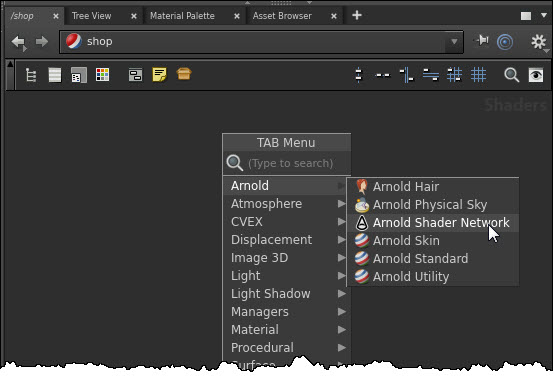
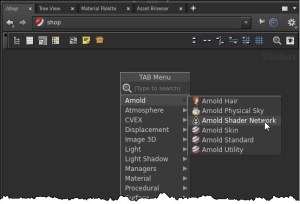
  2. In the Shop network, create an Arnold Shader Network.
    shop_ArnoldShaderNetwork
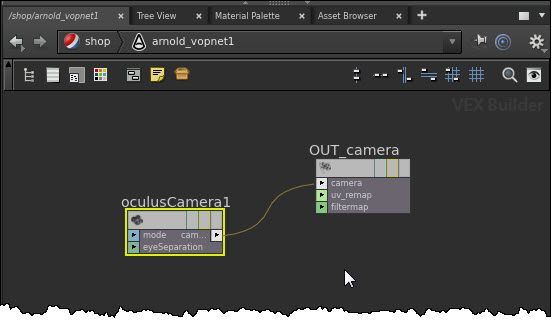
  3. In the Arnold Shader Network (arnold_vopnet), create an Camera > Oculus Camera and an Output > Camera Output. Connect the Oculus Camera to the OUT_Camera.
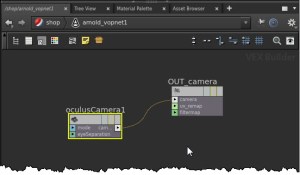
    shop_arnold_vopnet
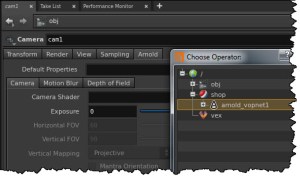
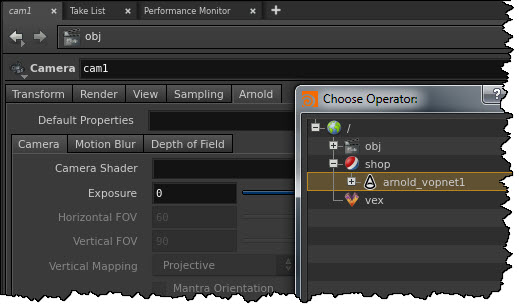
  4. In the Obj network, select your camera, and in the Camera properties, set the Camera Shader to point to your arnold_vopnet.
    camera_shader

[C4DtoA] Using the Bitmap Shader for image sequences


Arnold doesn’t support .mov files for textures, but with C4DtoA you can use the Bitmap shader to load image sequences like seq_0000.tx, seq_0000.tx, seq_0000.tx, …

  1. In the Bitmap Shader > Shader properties, select one of the files in the image sequence.
    c4dtoa_bitmap_shader_file
  2. In the Animation sequence, manually enter the start and end frames in the Movie Start Frame and Movie End Frame text boxes
    c4dtoa_bitmap_shader_movie
  3. Click Calculate

Under the covers, C4DtoA doesn’t actually implement the Bitmap Shader. Instead, C4DtoA translates the Bitmap Shader to an Arnold Image shader

[RLM] No ISV servers to start redux


The technical reason for a “No ISV servers to start” message is that that RLM could not read the ISV line from the license file.

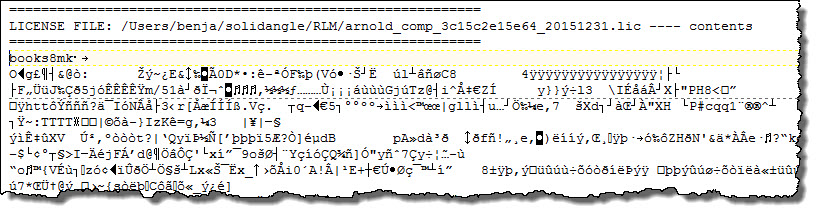
So, for example, if you somehow save the license file as a binary file that looks like this:

books8mk

then you’ll get No ISV servers to start, because obviously there’s no ISV line in that file.

Note: You’ll also see The hostname in the license file(s) may be incorrect, but that warning can always be safely ignored.

05/14 09:17 (rlm) 
05/14 09:17 (rlm) WARNING: No license file for this host (StephenBlair-PC)
05/14 09:17 (rlm)          The hostname in the license file(s)
05/14 09:17 (rlm)          may be incorrect
05/14 09:17 (rlm) 
05/14 09:17 (rlm) License files:
05/14 09:17 (rlm)     arnold_eval_90b11c647d93_20150514.lic
05/14 09:17 (rlm) 
05/14 09:17 (rlm) RLM License Server Version 11.2BL2

	Copyright (C) 2006-2014, Reprise Software, Inc. All rights reserved.

05/14 09:17 (rlm) License server started on StephenBlair-PC
05/14 09:17 (rlm) Server architecture: x64_w2
05/14 09:17 (rlm) License files:
05/14 09:17 (rlm)     arnold_eval_coffee0000_20150514.lic
05/14 09:17 (rlm) 
05/14 09:17 (rlm) Web server starting on port 5054
05/14 09:17 (rlm) Using TCP/IP port 5053
05/14 09:17 (rlm) ... adding UDP/IP port 5053
05/14 09:17 (rlm) (No ISV servers to start)

[RLM] No ISV servers to start


In RLM, an ISV server is a license server for a specific product. For Arnold, the ISV server is solidangle.

isv_servers

So if you see No ISV servers to start in your log:

05/07 15:52 (rlm) RLM License Server Version 11.2BL2

        Copyright (C) 2006-2014, Reprise Software, Inc. All rights reserved.

05/07 15:52 (rlm) License server started on StephenBlair-PC
05/07 15:52 (rlm) Server architecture: x64_w2
05/07 15:52 (rlm) License files:
05/07 15:52 (rlm)     arnold_eval_90b11c647d93_20150428.lic
05/07 15:52 (rlm)
05/07 15:52 (rlm) Web server starting on port 5054
05/07 15:52 (rlm) Using TCP/IP port 5053
05/07 15:52 (rlm) ... adding UDP/IP port 5053
05/07 15:52 (rlm) (No ISV servers to start)

That means there won’t be a solidangle ISV server running, and there won’t be any Arnold licenses available:
no_isv_servers_running

Here’s a couple of licenses that result in No ISV servers to start.

  • This license is missing a line break. The ISV line has to be on a separate line; otherwise RLM won’t recognize the ISV statement and won’t find the ISV server name.
    HOST localhost 0000coffee 5053 ISV solidangle port=66666
    LICENSE solidangle arnold 20161030 28-apr-2015 1 share=h
      min_timeout=120 start=28-apr-2015 issuer=Stephen customer=00340
      issued=28-apr-2015 _ck=fed6ff299c sig="60P0453GDCA9UJKPGJSGAGJK8YWFY
      7M2K3CE5F822H1BS2TYR29EKEUCWGY70B9P1FWCTHJCSV"
    
  • This license is a node-locked license, so there is no ISV line, and you don’t need a license server to use the license.
    LICENSE solidangle arnold 20150430 30-apr-2015 uncounted
      hostid=90b11c647d93 start=03-mar-2015 issuer=Stephen customer=00340
      issued=3-mar-2015 replace _ck=f9d7d6ce9c sig="60PG4512N1FRJ14HSNHACV
      7X25R5KR42PNBWUKR22M09CHC72GE07WRSGKJQJKF54C30FPFKSCG0"
    

    How do I know it is a node-locked license? First, there’s no HOST or ISV lines, and second, it’s uncounted. Only node-locked licenses have the uncounted keyword.

[RLM] The case of the expired license


This case shows that if your license expires overnight, it may not be obvious that that is the problem the next morning. For example, in this case, the customer reported that:

  • The RLM license server was running.
  • The solidangle ISV server was running.
  • But clients were reporting watermarks and “No license for product (-1)” warnings in the Arnold log:
    00:00:02   815MB WARNING | [rlm] error checking out license for arnold (version 20150428):
    00:00:02   815MB WARNING | [rlm]  * No license for product (-1)
    
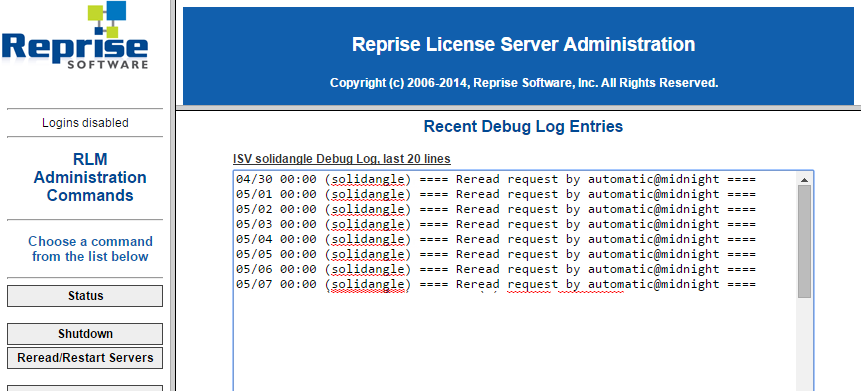
  • There were no errors in the ISV debug log in RLM Web Admin, just the Reread request by automatic@midnight entries (the RLM license server automatically rereads license files at midnight every day).
    isv_debug_log

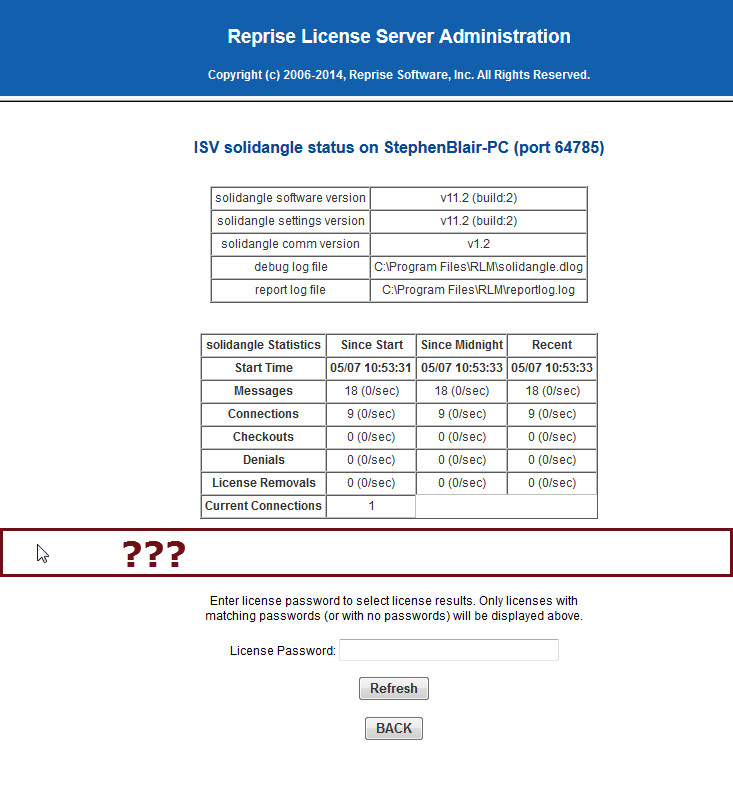
Although there were no errors in the log, a check of the ISV solidangle status page showed something wrong: where’s the License Pool Status???
isv_solidangle_status

And a quick look at the log files in the RLM folder revealed the problem:

05/02 00:00 (solidangle) ==== Reread request by automatic@midnight ====
05/02 00:00 (solidangle) Using options file solidangle.opt
05/02 00:00 (solidangle) Setting TIMEOUT for arnold to 120 secs.
05/02 00:00 (solidangle) 
05/02 00:00 (solidangle) Re-reading license files, supporting products:
05/02 00:00 (solidangle) (No valid non-expired licenses found)05/07 00:00 (solidangle) 
05/02 00:00 (solidangle) License files:
05/02 00:00 (solidangle)     arnold_eval_0000coffee_20150428.lic

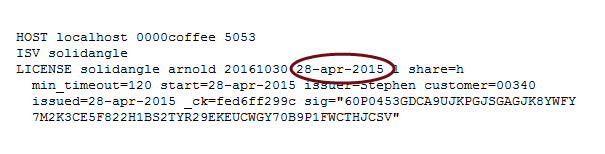
Note that the license file name arnold_eval_0000coffee_20150428.lic includes the expiry date: 20150428

And you can always check the actual license file to see the expiry date on the license:
lic_expiry_date

[MtoA] Instancing lights


If you want to instance lights in Maya, use Duplicate Special. MtoA will correctly translate those instances to Arnold (as copies, not instances, because Arnold itself doesn’t support light instances).

MtoA doesn’t support the particle instancer for lights.

PS I don’t think Maya supports instancing lights with the particle instancer. The Maya docs say “Do not instance lights; they’ll have no effect in rendering.”, and that’s the behavior I’ve observed with mental ray and the Maya Software renderer. Also, if I leave the viewport set to Viewport 2.0, Maya crashes when I try to use the particle instancer with point or spot lights (and that’s without MtoA loaded).

Creating a polymesh with the Arnold Python api


polymesh
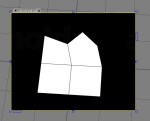
Here’s a snippet that shows how to create a simple four-polygon polymesh node with the Arnold Python API.

n = AiNode( "polymesh" )
AiNodeSetStr( n, "name", "grid" )

nsides = [4, 4, 5, 6]
AiNodeSetArray( n, "nsides", AiArrayConvert(len(nsides), 1, AI_TYPE_UINT, (c_uint*len(nsides))(*nsides) ) )

vidxs = [0, 1, 4, 3, 1, 2, 5, 4, 3, 4, 7, 6, 9, 4, 5, 11, 8, 10, 7]
AiNodeSetArray( n, "vidxs", AiArrayConvert(len(vidxs), 1, AI_TYPE_UINT, (c_uint*len(vidxs))(*vidxs) ) )

nidxs = [0, 1, 2, 3, 1, 4, 5, 2, 3, 2, 6, 7, 8, 2, 5, 9, 10, 11, 6]
AiNodeSetArray( n, "nidxs", AiArrayConvert(len(nidxs), 1, AI_TYPE_UINT, (c_uint*len(nidxs))(*nidxs) ) )

vlist = [-1, 0, -1, -1, 0, 0, -1, 0, 1, -0.197835326, 0, -0.742445886, 0, 0, 0, 0, 0, 1, 0.802164674, 0, -0.742445886, 1, 0, 0, 1, 0, 1, 0.270379633, 0, -1.21302056, 1, 0, 0.508926511, 0.496316135, 0, 1]
AiNodeSetArray( n, "vlist", AiArrayConvert(len(vlist), 1, AI_TYPE_FLOAT, (c_float*len(vlist))(*vlist) ) )

nlist = [0, 1, 0, 0, 1, 0, 0, 1, 0, 0, 1, 0, 0, 1, 0, 0, 1, 0, 0, 1, 0, 0, 1, 0, 0, 1, 0, 0, 1, 0, 0, 1, 0, 0, 1, 0]
AiNodeSetArray( n, "nlist", AiArrayConvert(len(nlist), 1, AI_TYPE_FLOAT, (c_float*len(nlist))(*nlist) ) )

m = AtMatrix( 	1, 0, 0, 0,
		0, 1, 0, 0,
		0, 0, 1, 0,
		0, 0, 0, 1 )

am = AiArrayAllocate(1, 1, AI_TYPE_MATRIX)
AiArraySetMtx( am, 0, m )

AiNodeSetArray( n, "matrix", am  )

AiNodeSetBool( n, "smoothing", True )

AiNodeSetByte(n, "visibility", 255 )

# Assign a shader to the polymesh node
u = AiNode( "utility" )
AiNodeSetStr( u, "name", "aiUtility1" )

AiNodeSetPtr( n, "shader", u )

And here’s the resulting node in the ASS file:

polymesh
{
 name grid
 nsides 4 1 UINT
4 4 5 6
 vidxs 19 1 UINT
  0 1 4 3 1 2 5 4 3 4 7 6 9 4 5 11 8 10 7
 nidxs 19 1 UINT
  0 1 2 3 1 4 5 2 3 2 6 7 8 2 5 9 10 11 6
 vlist 12 1 POINT
  -1 0 -1 -1 0 0 -1 0 1 -0.197835326 0 -0.742445886 0 0 0 0 0 1 0.802164674 0 -0.742445886 1 0 0
  1 0 1 0.270379633 0 -1.21302056 1 0 0.508926511 0.496316135 0 1
 nlist 12 1 VECTOR
  0 1 0 0 1 0 0 1 0 0 1 0 0 1 0 0 1 0 0 1 0 0 1 0 0 1 0 0 1 0 0 1 0 0 1 0
 smoothing on
 visibility 255
 matrix
 1 0 0 0
 0 1 0 0
 0 0 1 0
 0 0 0 1
 shader "aiUtility1"
}

[Arnold] Standard shader AOVs and shading trees


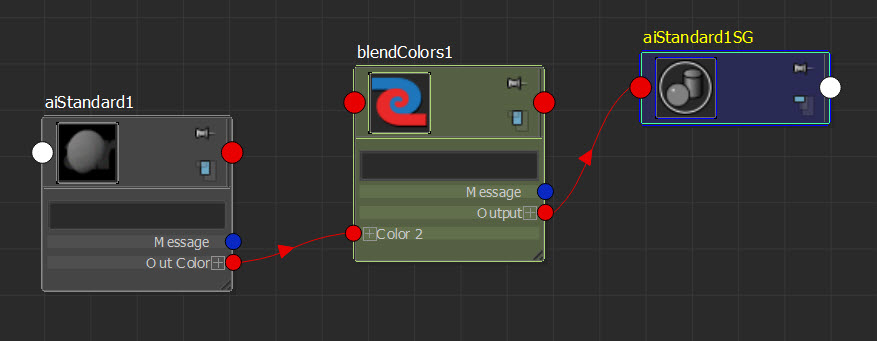
Here’s a question asked recently. Given a shading tree like the one below, why don’t AOVs like diffuse_direct include the blended color from the Blend Color node?

aovs_blend_color

The answer: because it is the Standard shader that writes the AOV, not the Blend Color shader. The diffuse_direct AOV gets the diffuse layer calculated by the Standard shader, and that’s it.

The MtoA AOV browser shows you what AOVs are implemented by which shaders:
aovs_mtoa_browser

[MtoA] Normal mapping with mayaBump2d


mayaBump2D has an RGB parameter for normal maps, and it’s named “normal_map”:

C:\solidangle\mtoadeploy\2015\bin>kick -l ..\shaders -info mayaBump2D
node:         mayaBump2D
type:         shader
output:       RGBA
parameters:   11
filename:     ..\shaders/mtoa_shaders.dll
version:      4.2.4.1

Type          Name                              Default
------------  --------------------------------  --------------------------------

FLOAT         bump_map                          0
FLOAT         bump_height                       1
RGB           normal_map                        0, 0, 1
BOOL          flip_r                            true
BOOL          flip_g                            true
BOOL          swap_tangents                     false
BOOL          use_derivatives                   true
BOOL          gamma_correct                     true
ENUM          use_as                            bump
RGBA          shader                            0, 0, 0, 1
STRING        name

In Maya, you don’t connect your normal map directly to mayaBump2D.normal_map. Instead, just connect the normal map alpha to the Bump Value
normal_map_mayaBump2D
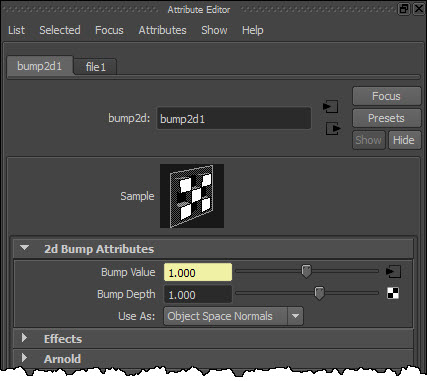
and then change bump2d > 2d Bump Attributes > Use As to Object Space Normals or Tangent Space Normals.
mayaBump2D_Use_As
The Use As parameter controls how MtoA translates the shaders to Arnold. For example, if Use As is Object Space Normals, you get this:

mayaBump2D
{
 name bump2d1
 bump_map file1.a
 bump_height 1
 normal_map file1
 flip_r on
 flip_g on
 swap_tangents off
 use_derivatives on
 gamma_correct on
 use_as "object_normal"
 shader aiStandard1
}

MayaFile
{
 name file1
 ...
 filename "shaders_offest_normalmap.jpg"
 ...

Notice that file1 (the MayaFile node) is linked to mayaBump2D.normal_map.